


GTA 6 Max Settings on RTX 5070: Complete Guide
GTA 6 Max Settings on RTX 5070. Tested & verified settings for best FPS and visual quality on SA hardware budgets.
Read moreFix low volume on USB headset fast with the right settings and hardware checks. Follow these steps to boost sound, solve mic/USB issues, and stop distortion. 🔧🎧
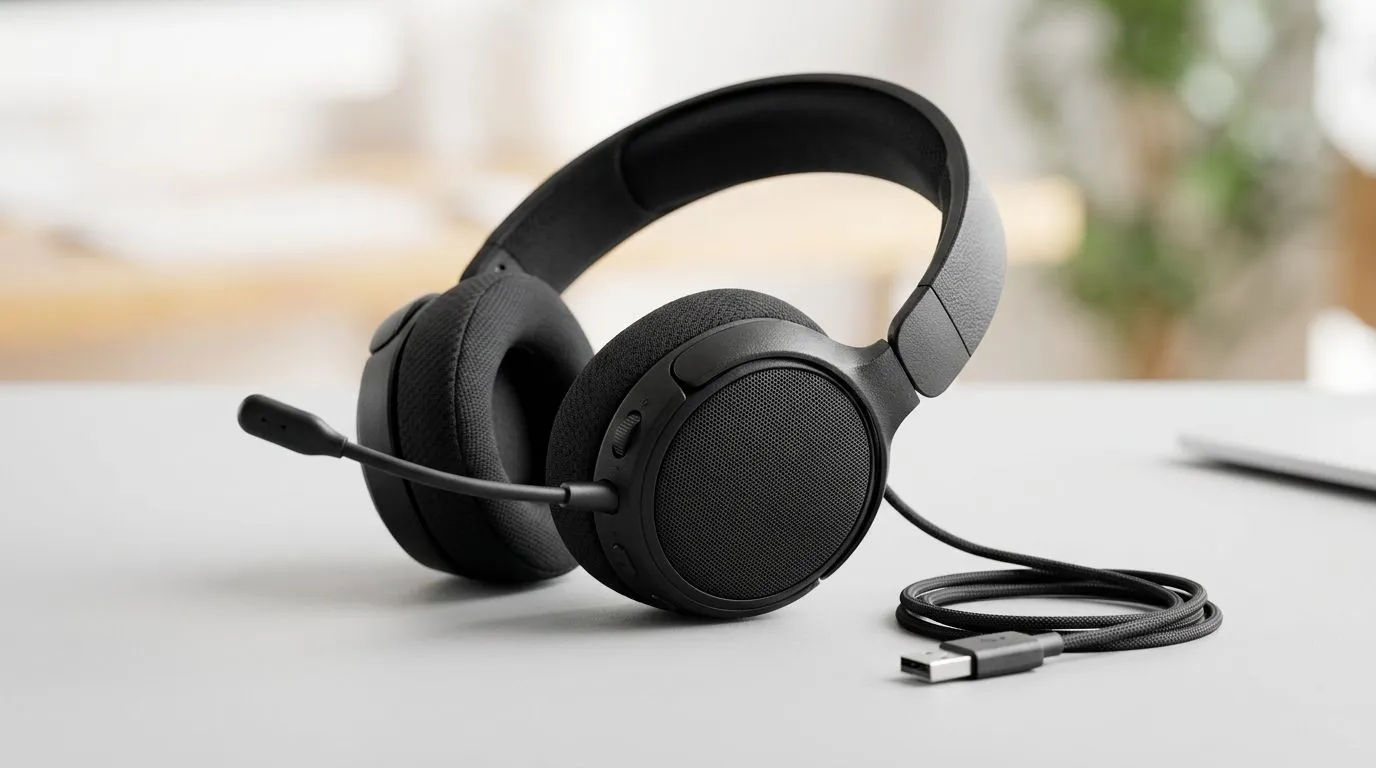
That quiet headset moment hits hard mid-match. One minute you’re calling shots in Apex or hearing footsteps in Warzone, the next your audio feels like it’s coming from the next room. The good news? Low volume on a USB headset is usually fixable without replacing the whole thing. A few Windows tweaks, a quick port check, and a proper hardware inspection can bring your sound back to life.
Before you dive into menus, do the simple stuff. It sounds obvious, but a surprising number of volume issues come from something tiny.
If the headset suddenly sounds better in another port, the issue may be power delivery or a flaky front-panel USB connector. That happens more often than people think.
Windows can quietly sabotage headset volume. It may be boosting the wrong device, lowering app audio, or applying enhancements that don’t help at all.
Go to Settings > System > Sound and confirm the USB headset is selected as the output device. Then open the volume mixer and make sure:
Some USB headsets and drivers include enhancements. These can help, but they can also reduce volume or distort sound. If your headset is too quiet, test with enhancements turned off first.
Windows sometimes lowers other audio when it thinks you are on a call. In Sound Control Panel, look for the communications tab and set it to Do nothing if needed.
On Windows, open the volume mixer while your game or browser is playing audio. If one app is quietly set to 20 percent, that is often the whole mystery. It takes seconds, and it saves a lot of frustration.
USB headsets often use their own firmware or software suite. If the volume changed after an update, that is a strong clue.
If the headset includes a gaming software suite, check whether a profile was switched. A “movie” or “chat” preset can make everything feel softer than expected.
Once software is ruled out, focus on the hardware path. USB headsets rely on the USB controller, cable, DAC, and drivers inside the headset itself.
Look for:
If the cable is detachable, swap it. If not, wiggle-test gently while audio plays. Crackling or sudden volume changes point to a physical fault.
Plug the headset into a second PC or laptop. If the sound is still low, the headset itself may be the issue. If it is fine elsewhere, your original PC is likely the culprit.
Bus-powered hubs can cause unstable performance. Plug the headset straight into the PC when testing.
Sometimes the headset is simply not the best fit anymore. If you are already troubleshooting on more than one device, it may be worth comparing options instead of fighting the same problem every week.
For gamers browsing headset options, Evetech’s Razer headphones and headsets selection is a useful place to compare current models and features.
If you want a broader look across styles and price points, the wider headphone and headset range can help you narrow down what suits your setup, whether you play competitively or just want clearer voice chat.
One popular option in the wireless space is the Razer Barracuda X Chroma Wireless Headset in Phantom White. For South African buyers, checking the live ZAR price on the product page is the best way to judge value before you commit.
Here’s the fastest order to follow when audio is too quiet:
That sequence solves most low-volume USB headset issues in a sensible way. No guesswork. No random reinstall spiral. Just a clean process that gets you back in the lobby faster 🚀
Ready to Find Your Perfect Match? The Mac vs Windows debate is complex, but for maximum power, choice, and value in South Africa, Windows is hard to beat. Explore our massive range of laptop specials and find the perfect machine to conquer your world.
Common causes include wrong USB audio device selected, app volume overrides, Windows sound enhancements, or a muted/low mic-gain setting.
Set the USB headset as the default output, confirm master and app volumes, disable enhancements, and update the USB audio driver if needed.
Try another USB port/cable, inspect the plug for debris, test on another PC, and verify no physical mute or faulty connection is limiting output.
Yes. Many apps and games control their own sliders, so you may need to raise in-app volume and disable any voice chat ducking or boosts.
They can. Turn off enhancements, reset EQ to default, and check “Communications” settings that may automatically reduce your output.
Check microphone gain in Windows, confirm the correct input device, and avoid “noise suppression” settings that can suppress quiet signals.
Different USB ports, driver versions, and OS audio routing can change output levels. Select the correct output device and update drivers.
Swap USB ports, set the headset as default playback, and test with a different browser or media player to rule out app-specific volume limits.
GTA 6 Max Settings on RTX 5070. Tested & verified settings for best FPS and visual quality on SA hardware budgets.
Read more
Cyberpunk 2077 Max Settings on RTX 5080. Tested & verified settings for best FPS and visual quality on SA hardware budgets.
Read more
Starfield Max Settings on RTX 5070 Ti. Tested & verified settings for best FPS and visual quality on SA hardware budgets.
Read more
AMD RX 9050 XT: Rumoured Specs, Price & Release. SA-focused analysis with local pricing data, real-world insights & actionable buying advice.

Can RTX 4080 Super Run AI Workloads for SA Developers Detailed answer with SA data, expert analysis & practical recommendations for local buyers.

Can RTX 4090 Run AI Workloads for SA Developers Detailed answer with SA data, expert analysis & practical recommendations for local buyers.

Top Settings for Intel Arc B580 at Ultrawide 1440p picks evaluated on performance, value & SA availability with current Rand pricing from Evetech.

RTX 4060 CS2 Low Settings at 1080p: FPS Results. Real-world benchmark data, FPS numbers & performance analysis. What SA gamers can actually expect.

Visual Artifacts: Possible GPU Issue Issue #1. Diagnosis steps, proven fixes & when to seek professional help. SA-specific support info included.

Can the RTX 4090 Handle 1440p 144Hz Gaming. Performance testing verdict with real data & practical recommendations for SA buyers.

Top ASUS GPU Under R15000 picks evaluated on performance, value & SA availability with current Rand pricing from Evetech.
GTA 6 Max Settings on RTX 5070. Tested & verified settings for best FPS and visual quality on SA hardware budgets.
Cyberpunk 2077 Max Settings on RTX 5080. Tested & verified settings for best FPS and visual quality on SA hardware budgets.
Starfield Max Settings on RTX 5070 Ti. Tested & verified settings for best FPS and visual quality on SA hardware budgets.

Top RTX 5090 Under R5000 picks evaluated on performance, value & SA availability with current Rand pricing from Evetech.