

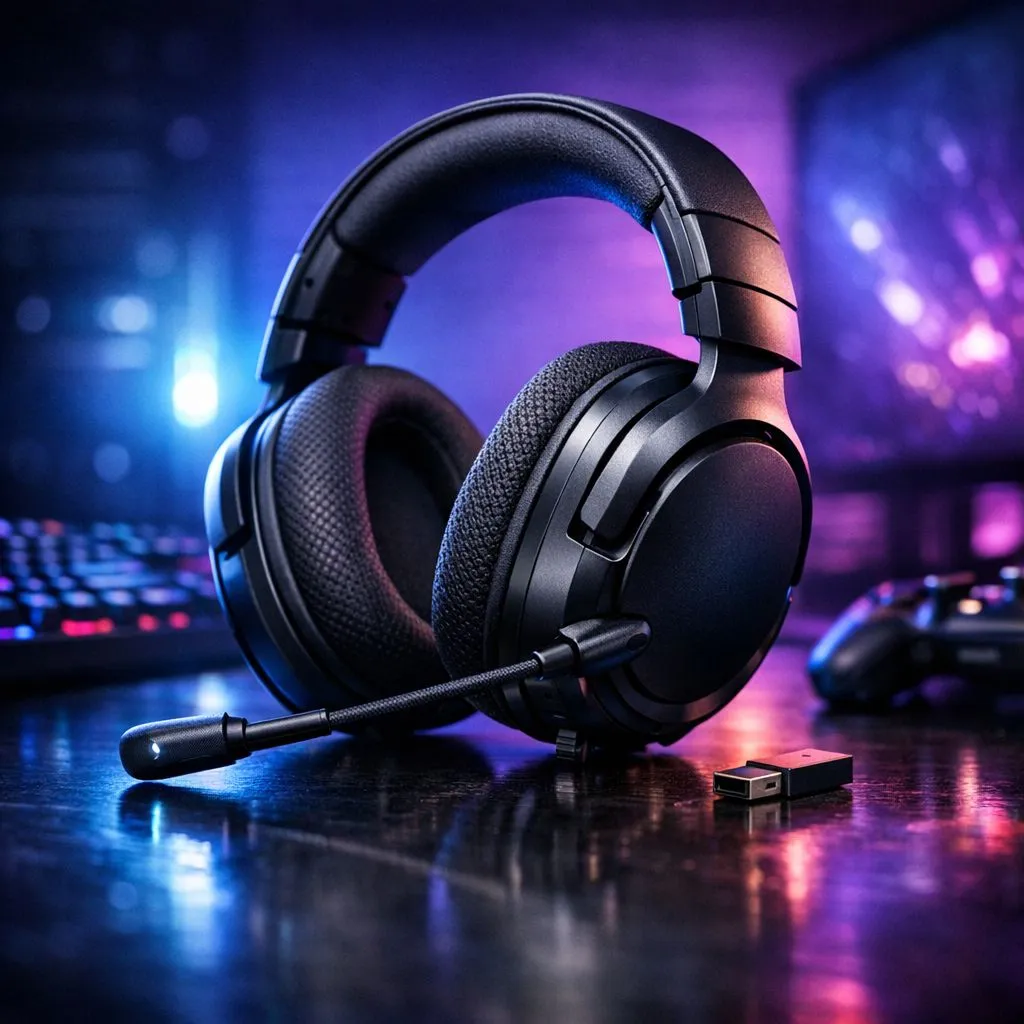
Troubleshooting Wireless Audio Drops
There is nothing worse than being mid-clutch in a competitive lobby when your audio suddenly cuts out. If you are struggling with how to fix wireless gaming headset connectivity issues on Windows, you are not alone. Whether it is a driver conflict or simple interference in your gaming room, these drops can ruin your immersion. Let’s get your audio back in sync so you can focus on the win. 🎧
Check Your USB Dongle and Interference
Most wireless headsets rely on a 2.4GHz connection, which shares the same frequency as your Wi-Fi and even your microwave. If your receiver is plugged into the back of your PC case, the metal chassis might be blocking the signal. Try using a front-panel USB port or a short extension cable to get the dongle into a clear line of sight.
If you are looking for a reliable upgrade, consider the Razer Barracuda X Chroma Wireless Headset for a stable, low-latency connection that cuts through the noise of a busy home network.
Connectivity Pro Tip ⚡
Always ensure your USB receiver is plugged into a USB 3.0 port if possible. While audio data doesn't require massive bandwidth, USB 3.0 ports provide more stable power delivery, which can prevent the headset from disconnecting during intense gaming sessions.
Update Your Drivers and Windows Settings
Windows updates can occasionally reset your audio preferences. Open your Device Manager, locate your headset under 'Sound, video and game controllers,' and check for driver updates. Sometimes, the simplest fix is to right-click the device, select 'Uninstall,' and restart your PC to force Windows to reinstall the drivers from scratch. 🚀
If you are browsing for a new setup, be sure to check out the full range of Razer headphones and headsets to find hardware that plays nicely with Windows 11’s latest audio architecture.
Power Management Settings
Windows often tries to "save power" by turning off USB ports that seem idle. This is a common culprit for intermittent audio drops. Head into your Device Manager, find your USB Root Hubs, and under 'Power Management,' uncheck 'Allow the computer to turn off this device to save power.' This small change often stabilizes the connection for high-performance peripherals. ✨
If you are ready to overhaul your audio experience, browse our extensive catalogue of premium headphone and headsets to find the perfect match for your gaming rig.
Ready to Find Your Perfect Match? Wireless audio shouldn't be a struggle. If your current gear is holding you back, it might be time for a reliable upgrade. Explore our massive range of gaming headset specials and find the perfect audio solution to conquer your world.











