

Humidity Damage to PC Components: Recovery Guide
Humidity Damage to PC Components: Recovery Guide. Everything you need to know with SA pricing, step-by-step instructions & expert recommendations.
Read moreGaming PC overheating with case fans installed usually means airflow mismatch, bad fan curves, or a mounting/thermal issue. Fix it fast with airflow checks and thermal paste tips 🔥❄️
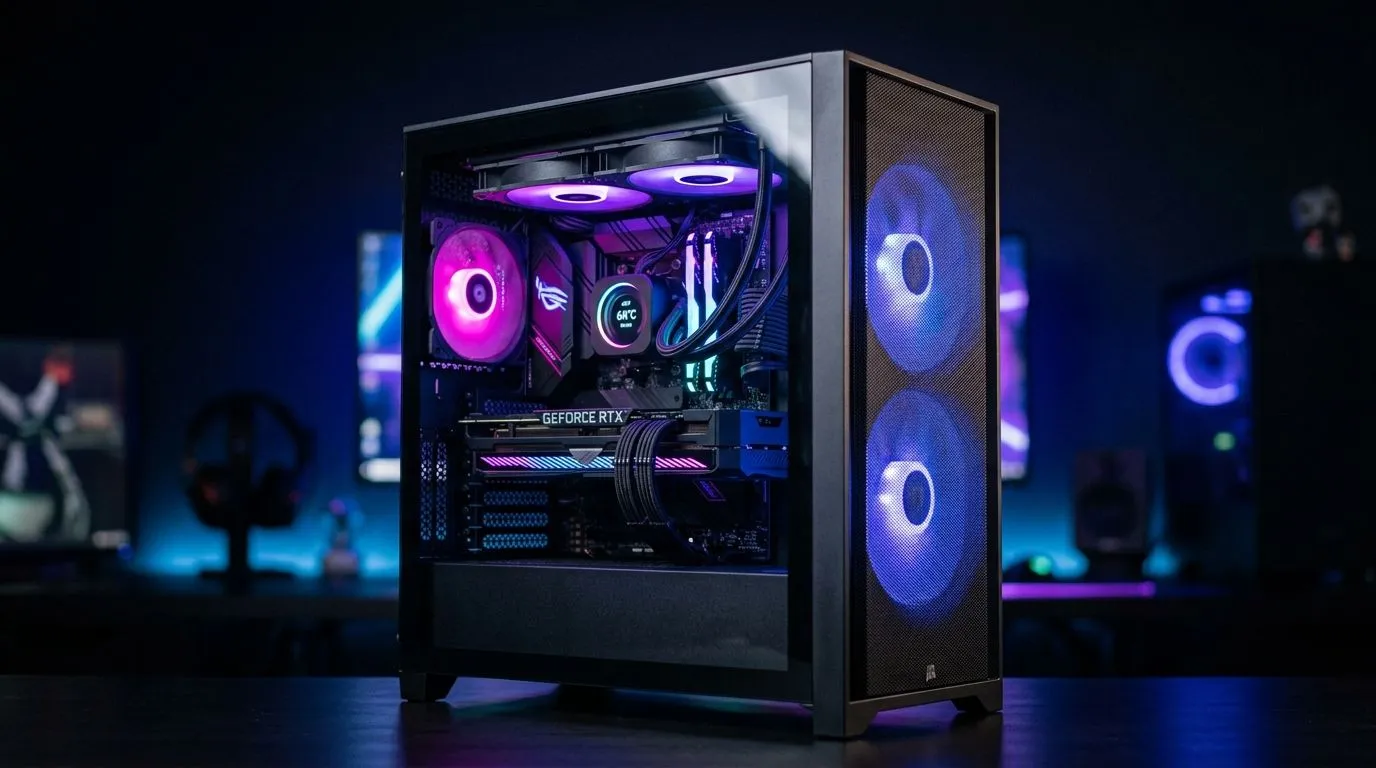
That “my PC is overheating even though I installed case fans” moment is brutal… especially right before a weekend raid. In South Africa, where load shedding and warm rooms are real, cooling issues can feel extra personal. The good news? Fan installation is rarely the real problem. Usually it’s airflow direction, fan placement, dust, or fan curves.
In this Deep Dive, we’ll walk you through the most common causes of Gaming PC Overheating With Case Fans Installed: Fixes you can apply at home, safely, and fast.
Fans don’t “cool”… they move air. If you accidentally mount exhaust fans as intakes (or vice versa), you’ll trap hot air inside the case. Look for arrows on the fan frame or hub. Intake usually brings cool air in, exhaust pushes hot air out.
Quick test:
If you’re unsure how to choose the right fan setup, browse Evetech’s case fan range, including popular sizes like 120mm and 140mm:
A front intake should have a clear path. If you have a high dust filter, mesh cover, or the fan sits too close to a drive cage, airflow can choke. Aftermarket fan grilles can also restrict flow more than you expect.
Also check cable routing. Thicker SATA and PSU cables can act like tiny baffles.
Dust acts like insulation. Even “new” builds can collect dust fast in SA households. Power down, unplug, and blow out the case fans gently.
If your fans are spinning slowly under load, your temps will spike. Set a curve that ramps earlier. A common approach:
This is also why two identical fans can behave differently in different cases.
On a Windows gaming rig, open your motherboard monitoring (or tools like HWInfo) and log CPU package temperature for 10 minutes while gaming. Then adjust the fan curve in small steps (for example +10% fan RPM at the same temperature) and re-test. The goal is stable temps, not max fan noise all the time.
If your CPU is hitting high temps, case fans might not be enough. The CPU cooler’s mounting pressure and thermal paste condition matter just as much. Re-seat the cooler if temperatures remain abnormal after confirming airflow and cleaning.
Also verify:
For gamers upgrading fans, Evetech carries multiple brands and lighting options you can match to your case style:
If you want to start simple, pick a compatible fan size and then build a balanced intake/exhaust layout using Evetech’s full case fan selection:
Before you order more parts, do this:
If temps drop after 1–2 changes, you found the culprit. If nothing improves, it’s time to look at the CPU cooling hardware or airflow design.
Ready to Find Your Perfect Match? The Mac vs Windows debate is complex, but for maximum power, choice, and value in South Africa, Windows is hard to beat. Explore our massive range of laptop specials and find the perfect machine to conquer your world.
Extra fans won’t help if airflow is blocked or misdirected. Check front-to-back intake, exhaust placement, and ensure the CPU cooler is mounted correctly.
Start by verifying temps and fan response. Incorrect fan curves can delay ramp-up, causing CPU overheat. Adjust curves in BIOS or software.
Look for intake vs exhaust labeling and confirm dust patterns and airflow direction. Front should usually intake; rear and top should exhaust.
Yes. Dust clogs heatsinks and filters, reducing heat transfer. Clean the GPU/CPU cooler fins, fans, and intake filters regularly.
Overheating can come from poor cooler contact, uneven mounting pressure, or dried paste. Reseat the cooler and apply fresh thermal paste.
GPU temps may rise if the case lacks direct GPU airflow or if intake is restricted. Ensure clear intake to the GPU and check for blocked vents.
For AIO coolers, typical guidance is front or top radiator mounting with good pump speed. Check your manual and prevent trapped air where possible.
Track CPU package temp, GPU hotspot, and fan/RPM speeds. Compare idle vs gaming peaks to identify whether the issue is airflow, paste, or a cooler contact problem.
Humidity Damage to PC Components: Recovery Guide. Everything you need to know with SA pricing, step-by-step instructions & expert recommendations.
Read more
Gamer Spending Trends April : Complete Setups. Clear setup instructions with SA-specific considerations, troubleshooting tips & recommended components.
Read more
Setting Up DDR5 32GB Kit. Tested & verified settings for best FPS and visual quality on SA hardware budgets.
Read more
Tech Setup Guide for SPU Res Students. Clear setup instructions with SA-specific considerations, troubleshooting tips & recommended components.
Read more
Monster Hunter Wilds Ultrawide Support: 21:9 and. Clear setup instructions with SA-specific considerations, troubleshooting tips & recommended components.
Read more
Apple iPad Durability Guide: Cases, Screen. Practical breakdown of costs, regulations & whether it makes financial sense for SA buyers.
Read more
AMD RX 9050 XT: Rumoured Specs, Price & Release. SA-focused analysis with local pricing data, real-world insights & actionable buying advice.

Can RTX 4080 Super Run AI Workloads for SA Developers Detailed answer with SA data, expert analysis & practical recommendations for local buyers.

Can RTX 4090 Run AI Workloads for SA Developers Detailed answer with SA data, expert analysis & practical recommendations for local buyers.

Top Settings for Intel Arc B580 at Ultrawide 1440p picks evaluated on performance, value & SA availability with current Rand pricing from Evetech.

RTX 4060 CS2 Low Settings at 1080p: FPS Results. Real-world benchmark data, FPS numbers & performance analysis. What SA gamers can actually expect.

Visual Artifacts: Possible GPU Issue Issue #1. Diagnosis steps, proven fixes & when to seek professional help. SA-specific support info included.

Can the RTX 4090 Handle 1440p 144Hz Gaming. Performance testing verdict with real data & practical recommendations for SA buyers.

Top ASUS GPU Under R15000 picks evaluated on performance, value & SA availability with current Rand pricing from Evetech.

GTA 6 Max Settings on RTX 5070. Tested & verified settings for best FPS and visual quality on SA hardware budgets.

Cyberpunk 2077 Max Settings on RTX 5080. Tested & verified settings for best FPS and visual quality on SA hardware budgets.

Starfield Max Settings on RTX 5070 Ti. Tested & verified settings for best FPS and visual quality on SA hardware budgets.

Top RTX 5090 Under R5000 picks evaluated on performance, value & SA availability with current Rand pricing from Evetech.