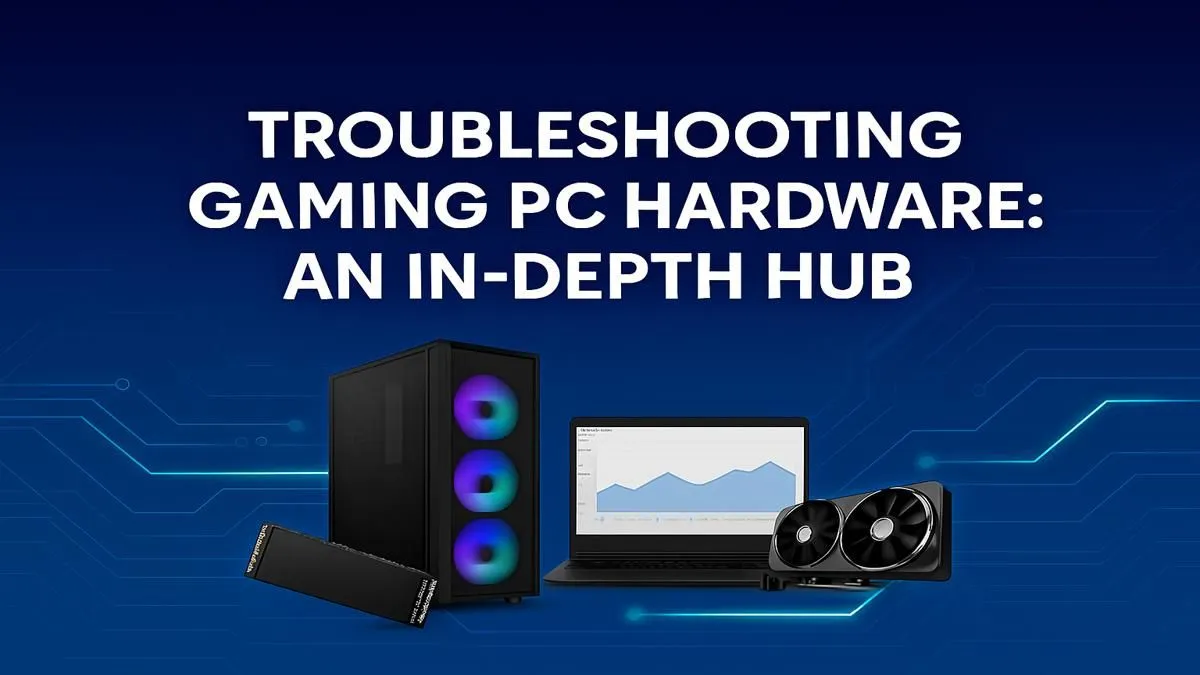
That moment of pure dread... you're about to clutch a round, and your screen freezes. Or maybe your rig, once a beast, now stutters through the latest AAA title. For South African gamers, PC problems are more than an inconvenience; they're a passion killer. Before you start pricing new parts, take a breath. This ultimate hardware fix-it guide is your first-aid kit for common gaming PC troubleshooting, designed to get you back in the game. 🚀
Start Here: The "Is It Plugged In?" Checklist
Before diving into the guts of your machine, let's cover the basics. It sounds simple, but you'd be surprised how often a loose cable is the culprit. This first step in any gaming PC troubleshooting process can save you hours of frustration.
- Power Cables: Is the main power cable firmly connected to both your PC's power supply unit (PSU) and the wall socket? Is the switch on the back of the PSU turned on?
- Monitor Connection: Check the HDMI or DisplayPort cable. Is it secure at both the graphics card (GPU) and monitor ends? Don't accidentally plug it into the motherboard's video output if you have a dedicated GPU!
- Peripherals: A faulty mouse or keyboard can sometimes prevent a PC from booting correctly. Try unplugging everything except the power and monitor to see if it makes a difference.
Common Culprits: Decoding Your PC's Cries for Help
If the basics check out, it's time to play detective. Different symptoms point to different hardware problems. Understanding these clues is key to fixing your gaming PC.
No Power, No POST: The Silent Treatment 🔧
You press the power button... and nothing happens. No lights, no fans, just silence. This usually points to a power issue. The Power-On Self-Test (POST) is your PC's initial hardware check; if it fails, you won't see anything on screen.
This could be a dead PSU, a motherboard issue, or even faulty RAM. A simple first step is to try reseating your RAM sticks. A PC powerful enough to run Counter-Strike 2 at high frames needs every component to be perfectly seated.
The Infamous Blue Screen of Death (BSOD)
A blue screen with white text is your PC's way of saying, "Something is seriously wrong!" While it can be caused by software or driver issues, it often indicates a hardware conflict or failing component like RAM or a storage drive. If you've recently installed a new part, that's your prime suspect. Even a stable rig built for demanding titles like Cyberpunk 2077 can fall victim to a bad driver update.
Stuttering & FPS Drops: The Performance Gremlins
Your game loads, but the performance is choppy and inconsistent. This is one of the most common issues gamers face. The cause is almost always thermal throttling (overheating) or a bottleneck.
- GPU/CPU Overheating: Dust buildup is a major enemy, especially in our South African climate. Clogged fans and heatsinks can't cool your components effectively, forcing them to slow down to prevent damage.
- RAM Issues: Not having enough RAM can cause stuttering as your PC struggles to load game assets. This is especially true in massive open-world games.
- Driver Problems: Outdated graphics drivers can cripple performance in new titles. Always keep them updated! A rig designed for smooth Fortnite sessions relies on the latest driver optimisations.
Anti-Static Pro Tip ⚡
Before you touch any component inside your PC, you must ground yourself to discharge static electricity, which can permanently damage sensitive parts. The easiest way is to touch a large metal object, like the metal part of your PC case (while it's unplugged), for a few seconds. For serious work, an anti-static wrist strap is a cheap and essential investment.
Your Step-by-Step Hardware Fix-It Flow
Ready to get hands-on? Follow this logical process to isolate the problem. This is the core of effective PC hardware troubleshooting.
Step 1: Check Your Temperatures
Download a free tool like HWMonitor or MSI Afterburner. Play a demanding game for 15-20 minutes and check your CPU and GPU temperatures. If they're consistently pushing above 90°C, you've found a likely culprit. The solution? A thorough clean-out of all dust from fans and heatsinks. Sometimes, you may even need to re-apply thermal paste. You wouldn't want your rig to overheat while trying to land a plane in Microsoft Flight Simulator, would you?
Step 2: Test Your Components Systematically
If heat isn't the issue, it's time to test individual parts.
- RAM: Run the built-in Windows Memory Diagnostic tool or the more thorough MemTest86. A single faulty RAM stick can cause endless crashes and instability, whether you're dropping into Al Mazrah on a Call of Duty: Warzone 2.0 PC or just browsing the web.
- GPU: Stress-test your GPU with a benchmark tool like FurMark. If it crashes or shows weird visual glitches (artefacts), your GPU may be on its way out.
- Storage: Use CrystalDiskInfo to check the health of your SSDs and HDDs. A failing drive can cause slow loading times, crashes, and data corruption.
Knowing When It's Time for an Upgrade ✨
Sometimes, troubleshooting your gaming PC leads to one conclusion: a component has reached the end of its life, or your rig just can't keep up anymore. Games are evolving, and hardware that was top-tier for GTA V or PUBG might struggle with today's titles.
If you're constantly fighting low FPS in games like Overwatch 2 or can't even dream of running ray-traced Minecraft smoothly, it might be more cost-effective to invest in a new component or a full pre-built system than to continue patching up an old one.
Time to End the Troubleshooting for Good?
The troubleshooting journey is tough... but the reward of a flawless gaming experience is worth it. If your hardware has fought its last battle, it might be time for a rig that just works. Build your dream gaming PC with our customiser and leave the hardware headaches behind.