

Christmas GPU Buying Guide for SA 2026
Christmas GPU Buying Guide. Hand-picked gift ideas at every budget tier. SA pricing & Evetech availability included.
Read moreGPU Driver Installation. Everything you need to know with SA pricing, step-by-step instructions & expert recommendations.
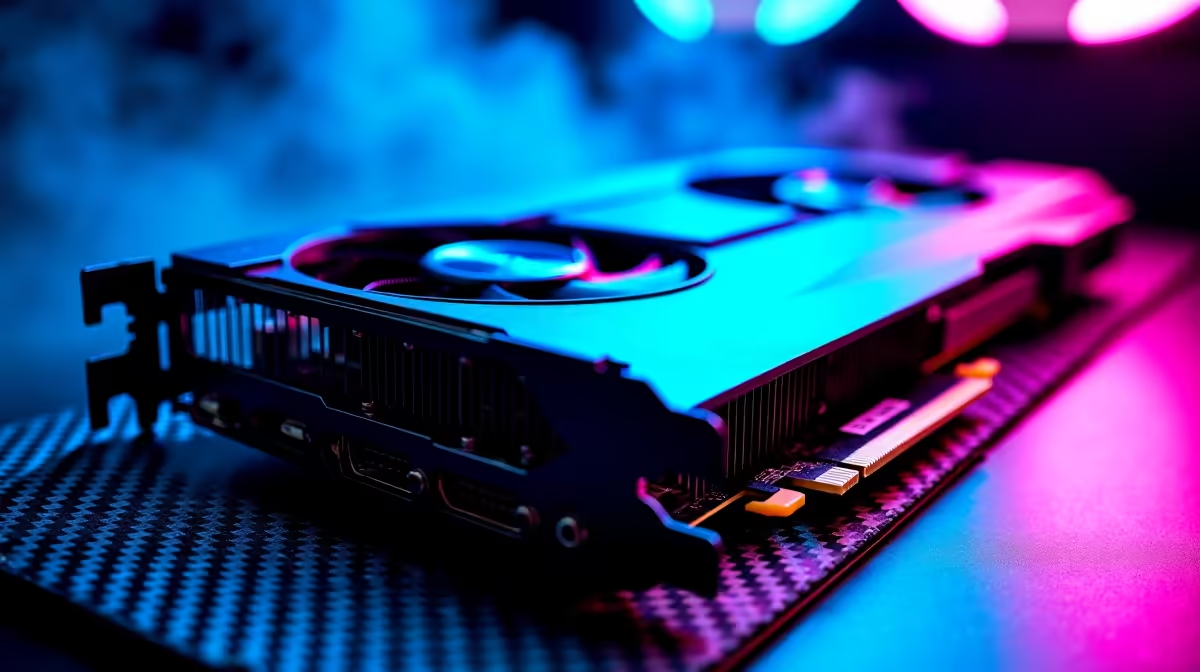
You just dropped a chunk of your hard-earned ZAR on a massive rig. The power is on... load shedding is suspended... and you boot up your favourite shooter. But your frame rates are crawling. Before you panic, check your software. Hardware needs instructions to run properly. Getting your system running at maximum potential requires a proper GPU driver installation complete guide.
Hardware is only half the battle. To push those pixels beautifully, your software must talk to your hardware perfectly. If you recently decided to upgrade your graphics card, installing the right drivers ensures you get every ounce of performance.
Outdated drivers cause crashes, stuttering, and awful visual glitches. Game developers constantly update their titles. NVIDIA, AMD, and Intel release driver updates to match those changes. Keeping your system updated means smoother gameplay and better colour accuracy.
A clean slate is absolutely vital. If you are upgrading from an older system or snagged one of our incredible gaming PC deals, you want to remove old files first. Conflicts between old and new display files will ruin your frame rates.
Always use Display Driver Uninstaller (DDU) in Windows Safe Mode before a major GPU driver installation. It wipes all leftover registry keys and files, ensuring your new drivers install without a single hitch.
First, head directly to the official AMD, NVIDIA, or Intel website. Never use third-party driver updaters. Download the exact package for your operating system. If you bought one of our pre-built PC deals, check your invoice to confirm your exact graphics model.
Run the installer as an administrator. Select the "Custom" or "Advanced" option during setup. Tick the box that says "Perform a clean installation". This simple step prevents a massive number of headaches down the line. Restart your PC once the progress bar finishes.
Laptops handle graphics a bit differently. Most modern notebooks for sale in South Africa use dual graphics. They have an integrated chip for battery life and a dedicated GPU for gaming. You usually need to update both.
Use the manufacturer software like Lenovo Vantage or ASUS Armoury Crate first. Then grab the latest NVIDIA GeForce Experience or AMD Adrenalin software. Keeping your dedicated card updated means you can take advantage of the latest tech specials and new game releases without performance drops.
Ready for a Massive Visual Upgrade? Now that your software is perfectly optimised, it might be time for some fresh hardware. Explore our massive range of PC upgrades and push your frame rates higher than ever before.
GPU Driver Installation: Complete Guide available at Evetech.co.za with local warranty and fast delivery.
GPU Driver Installation: Complete Guide - check Evetech for latest stock and SA pricing.
Depends on your use case. GPU Driver Installation: Compl offers good value at current Rand pricing.
Christmas GPU Buying Guide. Hand-picked gift ideas at every budget tier. SA pricing & Evetech availability included.
Read more
Minecraft Max Settings on RTX 4080. Tested & verified settings for best FPS and visual quality on SA hardware budgets.
Read more
GPU Cooling: Complete Guide. Everything you need to know with SA pricing, step-by-step instructions & expert recommendations.
Read more
Starfield Max Settings on RTX 4090. Tested & verified settings for best FPS and visual quality on SA hardware budgets.
Read more
Starfield Max Settings on RTX 4080. Tested & verified settings for best FPS and visual quality on SA hardware budgets.
Read more
Snapdragon X2 NPU Explained: How 80 TOPS Changes. Plain-English explanation of what it means, why it matters & how it affects your buying decisions in SA.

HBM? High Bandwidth Memory Used in GPUs and AI. Plain-English explanation of what it means, why it matters & how it affects your buying decisions in SA.

How much should you spend on sim racing accessories in South Africa for a realistic setup? We break down budgets by quality tiers, so you buy smart gear and avoid overspending 🎮💸

G-Sync and FreeSync? Variable Refresh Rate. Plain-English explanation of what it means, why it matters & how it affects your buying decisions in SA.

AMD Laptop: Value. SA-focused analysis with local pricing data, real-world insights & actionable buying advice.

How MacBook Neo Handles 30+ Chrome Tabs with Only. SA-focused analysis with local pricing data, real-world insights & actionable buying advice.

Why Apple Put 8GB RAM in MacBook Neo: The A18 Pro. SA-focused analysis with local pricing data, real-world insights & actionable buying advice.

Upgrade your work laptop with a New Motherboard. Step-by-step instructions with SA-specific tips, common pitfalls to avoid & expert recommendations.
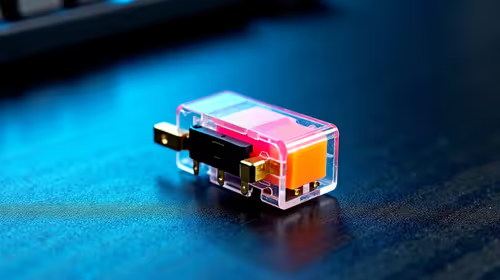
Glorious Keyboard Switches Explained: Which. Plain-English explanation of what it means, why it matters & how it affects your buying decisions in SA.
Winter Keyboard Buying Guide. Everything you need to know with SA pricing, step-by-step instructions & expert recommendations.
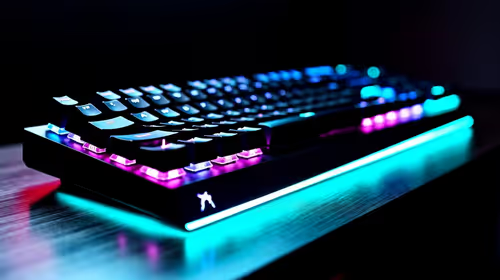
Keyboard Buying Guide. Everything you need to know with SA pricing, step-by-step instructions & expert recommendations.
LGBTQ+ Gamers Keyboard Guide: January Edition. Everything you need to know with SA pricing, step-by-step instructions & expert recommendations.