

Getting the Basics Right for Your HDMI to Projector Connection
We have all been there. You are standing in front of the board, the coffee is cold, and your laptop refuses to talk to the projector. Setting up a reliable HDMI to projector connection should be simple, but the wrong cable or a missing port can ruin your flow. Whether you are pitching a startup or hosting a movie night, getting your display settings right is essential. 🔧
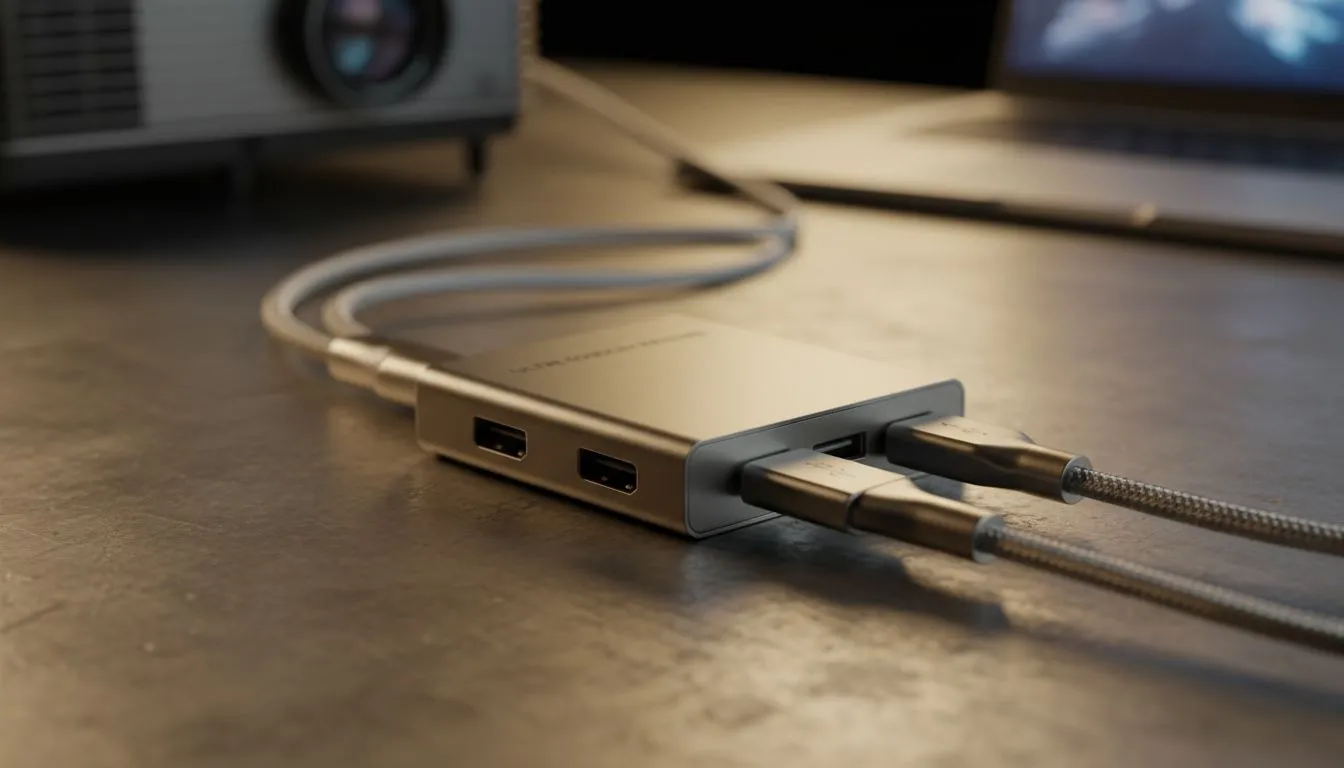
The first step is identifying your ports. Most modern projectors use a standard HDMI input, but your laptop might only have USB-C or Mini-DisplayPort. If you are working with a tight budget, you can find reliable budget docking stations under R1000 that bridge the gap between USB-C and HDMI effortlessly. Using a dedicated adapter ensures that the signal remains stable throughout your entire presentation.
Optimising the Signal for Professional Results
Once the physical connection is made, your operating system needs to know how to handle the second display. For a crisp image, always match the output resolution of your laptop to the native resolution of the projector. If the projector is 1080p and your laptop is 4K, your text might look blurry if the scaling is not handled correctly.
For those using modern ultrabooks with limited ports, Promate connectivity solutions offer a sleek way to add HDMI ports without adding unnecessary bulk to your laptop bag. These devices are designed to handle high-bandwidth signals... ensuring your slides look sharp and your videos play without stuttering. ⚡
Presentation Pro Tip ⚡
Before your meeting starts, press Windows + P on your keyboard to quickly cycle through display modes. Use 'Duplicate' if you want to see exactly what the audience sees, or 'Extend' if you want to keep your private notes on your laptop screen while the projector shows only your slides.
Troubleshooting Common Setup Issues
If you plug everything in and see a "No Signal" message, do not panic. Often, the issue is a simple "handshake" error between the devices. Try unplugging the cable, waiting five seconds, and plugging it back in. If you need more power delivery for your laptop while presenting to avoid a dead battery mid-pitch, consider premium docking stations under R2000 to keep your machine charged via Power Delivery. 🚀
Sometimes the issue is the cable length. Long HDMI runs can lose signal strength. In these cases, using a powered hub or a docking station can help boost the signal to reach the projector mounted on the ceiling. You can explore our full range of docking stations to find the exact port configuration for your specific office environment.
By choosing the right hardware and understanding your display settings, you can ensure that every HDMI to projector setup is seamless... leaving you to focus on delivering your message rather than fiddling with cables. ✨
Ready to Perfect Your Presentation Setup? Don't let a missing port ruin your big moment. For maximum reliability, choice, and value in South Africa, our connectivity range is hard to beat. Explore our massive range of docking stations and find the perfect hub to conquer your next presentation.











