

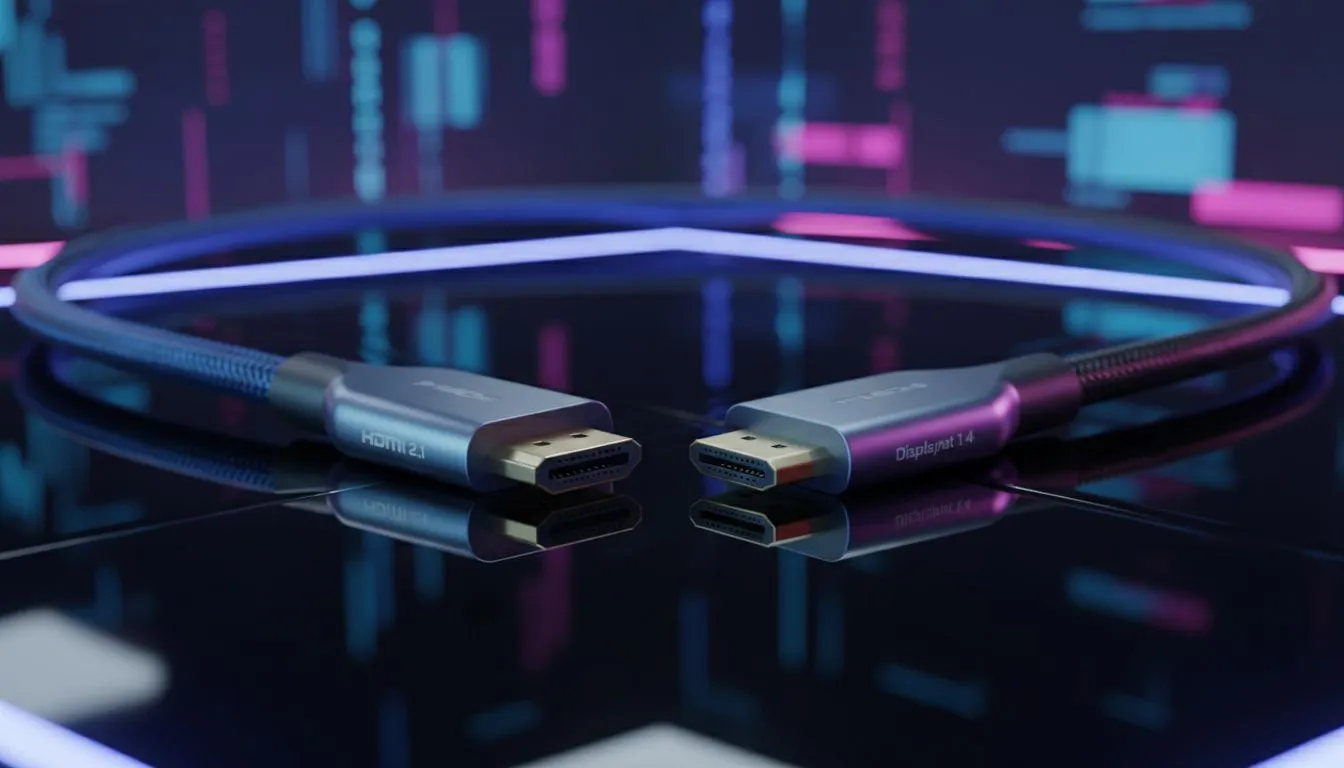
South African gamers and productivity warriors, ever stared at the back of your monitor, scratching your head over which cable to plug in? You're not alone. Choosing between HDMI and DisplayPort for your 4K 60Hz setup can feel like a tech-savvy puzzle, especially when you want crisp visuals and smooth performance. Whether you're chasing high frame rates in your favourite title or juggling multiple spreadsheets, the right connection makes all the difference. Let's dive deep and sort out this crucial decision.
HDMI vs DisplayPort 4K 60Hz: The Ultimate Showdown for SA Tech Users
At 4K resolution and a 60Hz refresh rate, both HDMI and DisplayPort are more than capable. But "capable" doesn't always mean "optimal." This isn't just about getting a picture; it's about getting the best picture with the best features for your specific needs. Understanding the nuances of HDMI vs DisplayPort at 4K 60Hz is key to unlocking your setup's full potential, whether you're gaming, designing, or just browsing.
HDMI: The Ubiquitous Connector
HDMI (High-Definition Multimedia Interface) is everywhere. From your TV to your gaming console, it's the go-to for connecting devices. For 4K 60Hz, you'll typically be looking at HDMI 2.0 or newer.
- Item
- Item
DisplayPort: The PC Powerhouse
DisplayPort was designed primarily for computer monitors and graphics cards, often offering features tailored for PC users. For 4K 60Hz, DisplayPort 1.2 is sufficient, but DisplayPort 1.4 offers more headroom and advanced features.
- Item
- Item
Bandwidth & Performance: Who Wins at 4K 60Hz?
When it comes to raw bandwidth for 4K 60Hz, both HDMI 2.0 and DisplayPort 1.2/1.4 can handle it. However, the picture changes when you add features like HDR (High Dynamic Range) or specific colour depths. DisplayPort 1.4, with its 32.4 Gbps bandwidth, generally offers more headroom compared to HDMI 2.0's 18 Gbps. This extra bandwidth means DisplayPort can often deliver a more vibrant, colour-accurate 4K 60Hz HDR experience without compression. For gamers, the native support for adaptive sync technologies on DisplayPort is often the deciding factor.
Beyond the Basics: Features That Matter
Choosing the best port for productivity & gaming goes beyond just getting an image. Consider these features:
- Adaptive Sync: If you're a serious gamer, DisplayPort's native support for G-Sync and FreeSync is nearly non-negotiable for a tear-free experience. HDMI 2.1 introduced FreeSync support, but it's not as widespread on monitors as DisplayPort.
- Multi-Monitor Setups: For those who thrive on screen real estate, DisplayPort's MST capability is a game-changer. It allows you to connect several monitors in a daisy-chain fashion, often ideal for a streamlined workstation. If your laptop or PC lacks enough display outputs, a powerful docking station can be your best friend. You can explore a wide range of docking stations right here at Evetech to expand your connectivity.
- Cable Length: While both can run decent lengths, signal degradation can occur with lower-quality cables, especially at 4K 60Hz. Always opt for certified, high-quality cables.
Productivity Pro Tip ⚡
On Windows, use the PowerToys FancyZones utility to create custom snap layouts for your windows. It's a lifesaver for managing multiple apps on an ultrawide monitor, letting you organise your timeline, preview window, and asset folders perfectly for video editing.
The Docking Station Advantage: Unlocking Your Ports
What if your laptop only has HDMI, but your new monitor shines with DisplayPort? Or you need to connect three screens but only have one USB-C port? This is where docking stations save the day. A good docking station acts as an expansion hub, taking one port from your device (often USB-C) and splitting it into multiple display outputs (HDMI, DisplayPort), USB ports, Ethernet, and more. This makes the HDMI vs DisplayPort 4K 60Hz debate less about what your device has, and more about what your dock can provide.
For those on a tighter budget but still needing multi-monitor capabilities, you can find some fantastic docking station options under R1000 that offer various display outputs. If you're looking for something more robust, perhaps for a high-performance setup or a bustling office, checking out docking stations under R2000 will give you more features and port variety. Brands like Promate are well-regarded for their reliable connectivity solutions. You can browse specific Promate docking stations to see their range of offerings.
Final Thoughts: Making Your Evetech Choice
So, which port is best for productivity & gaming at 4K 60Hz?
- For Pure Gaming Focus: DisplayPort often holds the edge due to superior Adaptive Sync integration and higher bandwidth headroom for future-proofing, especially for high refresh rates.
- For Productivity & General Use: Both are excellent. DisplayPort’s MST can be a productivity booster for multi-monitor setups, while HDMI’s widespread compatibility makes it easy for connecting to various displays, including TVs.
- For Versatility: A modern docking station can bridge the gap, giving you the flexibility to use either port regardless of your device's native outputs.
Ultimately, the best choice for you depends on your specific hardware, your primary use case, and what features you value most. Consider your monitor's inputs, your graphics card's outputs, and your budget.
Ready to Optimise Your Setup? Don't let port confusion hold back your gaming or productivity. Whether you need a new monitor, a powerful graphics card, or a versatile docking station to tie it all together, Evetech has the gear to elevate your 4K 60Hz experience. Explore our massive range of PC components and accessories and find the perfect match for your tech ambitions.











