

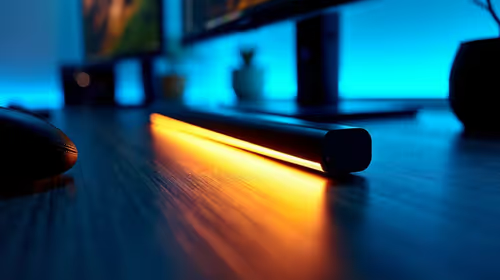
Complete Guide: Setting Up Monitor Light
Setting Up Monitor Light. Tested & verified settings for best FPS and visual quality on SA hardware budgets.
Read moreHigh refresh rate gaming monitor: Everything you need to choose, tune, and buy the right screen—compare 144Hz vs 240Hz, adaptive sync, panels, and top picks. 🎮⚡
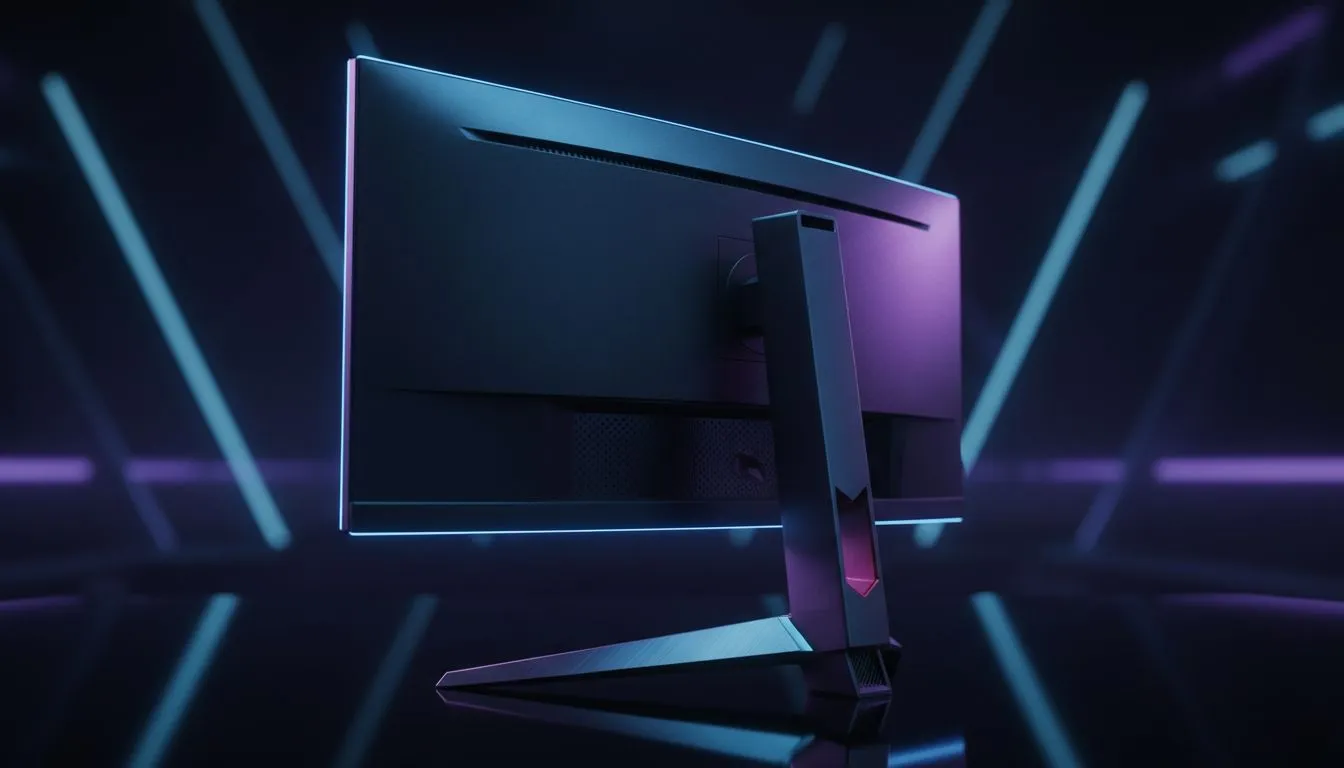
Tired of seeing your opponents as a blurry mess in Apex Legends or CS2? If you are still rocking a standard 60Hz panel, you are essentially playing with one hand tied behind your back. Upgrading to a High Refresh Rate Gaming Monitor: The Complete Guide is your first step toward buttery smooth gameplay. It is not just about aesthetics... it is about seeing the action in real-time before your rivals do. ⚡
A refresh rate is simply how many times per second your screen updates the image. While 60Hz was the standard for years, modern gaming monitors have pushed the boundaries to 144Hz, 240Hz, and even 360Hz. When you move your mouse, a higher refresh rate reduces the delay between your physical movement and the visual response. This creates a more connected feel... making every flick shot and quick turn feel more natural.
In South Africa, where competitive gaming is booming, having that extra millisecond of clarity can be the difference between a win and a loss. You will notice that ghosting and motion blur significantly decrease as you climb the Hertz ladder.
Choosing the right technology under the hood is vital for your experience. If you want the best viewing angles and superior colour accuracy, an IPS panel is the gold standard for most gamers. These panels have evolved to offer incredibly low response times... often hitting 1ms or lower. This means you no longer have to sacrifice beautiful colours for raw performance. 🔧
Always check your Windows Display Settings after plugging in your new monitor. Many users buy a 144Hz screen but leave it running at 60Hz by default. Right-click your desktop, go to Display Settings, then Advanced Display, and ensure your Refresh Rate is set to the maximum available value!
The physical form of your display impacts how you perceive the game world. You can choose a traditional flat screen for a classic, consistent look across all tasks. Many professional esports players prefer flat panels because they keep the geometry of the game perfectly straight.
Alternatively, a curved gaming monitor can wrap the action around your field of vision. This is particularly popular for racing sims and immersive RPGs. It helps reduce eye strain by keeping the edges of the screen at a more consistent distance from your eyes. ✨
Even with a high refresh rate, you might encounter screen tearing. This happens when your GPU sends frames faster or slower than your monitor can display them. To fix this, look for Adaptive Sync capabilities.
If you use an AMD graphics card, you should look for FreeSync technology to synchronise your frames. For those on Team Green, ensuring your monitor is G-Sync compatible is the best way to keep your gameplay fluid and tear-free. 🚀
Investing in a high refresh rate gaming monitor is the single most impactful hardware change you can make for your setup. Whether you are spending R3,000 or R15,000, the jump from 60Hz will feel like a brand-new world of gaming.
Ready to Find Your Perfect Match? The difference between seeing the enemy and being the enemy is often your hardware. For maximum power, choice, and the best value in South Africa, our monitor range is hard to beat. Explore our massive range of gaming monitors and find the perfect screen to conquer your world.
A monitor with refresh rates above 60Hz (common 120Hz, 144Hz, 240Hz) that delivers smoother motion, reduced blur, and lower input lag for gaming.
Yes — 144Hz is a major upgrade for smoothness and competitive play. Check best 144hz gaming monitor options for price to performance.
240Hz benefits pro and esports players with ultra-smooth frames. Compare 240hz vs 144hz and consider your GPU and game types before upgrading.
PS5 and Xbox Series X support up to 120Hz on compatible games and monitors. 240Hz support is generally limited to high-end PC setups.
Open Settings > System > Display > Advanced display, then choose the 240Hz refresh rate. Update GPU drivers if the option doesn't appear.
IPS gives better color and angles; TN often has the lowest response. Read ips vs tn high refresh monitors to match priorities.
Many budget high refresh monitors offer 144Hz and good performance for casual and competitive players. See best budget high refresh monitor reviews.
Setting Up Monitor Light. Tested & verified settings for best FPS and visual quality on SA hardware budgets.
Read more
Assassins Creed Shadows Ultrawide Support: 21:9. Clear setup instructions with SA-specific considerations, troubleshooting tips & recommended components.
Read more
Complete Gaming Setup Guide for the Collector. Clear setup instructions with SA-specific considerations, troubleshooting tips & recommended components.
Read more
Will the Steam Deck 2 Have an OLED Screen? Leaked. Plain-English explanation of what it means, why it matters & how it affects your buying decisions in SA.
Read more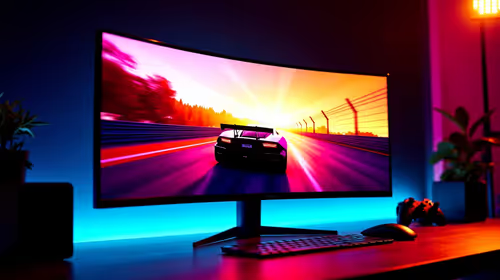
Setting Up Ultrawide 144Hz. Tested & verified settings for best FPS and visual quality on SA hardware budgets.
Read more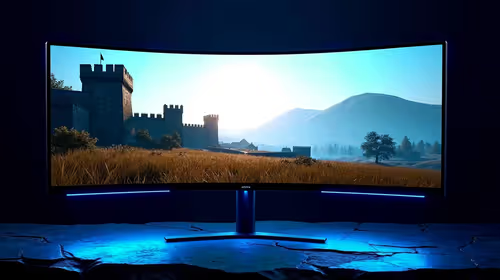
Kingdom Come: Deliverance 2 Ultrawide Support. Clear setup instructions with SA-specific considerations, troubleshooting tips & recommended components.
Read more
When Will the RTX 6090 Launch in South Africa Detailed answer with SA data, expert analysis & practical recommendations for local buyers.

Top Valorant Settings for RTX 5070: FPS Optimisation picks evaluated on performance, value & SA availability with current Rand pricing from Evetech.

RDNA 3.5 Graphics in Ryzen AI 400? Can You Game. Plain-English explanation of what it means, why it matters & how it affects your buying decisions in SA.

GPU Price Index : December Report. Current stock data & price tracking for SA buyers. See what is available and where prices are heading.

Core i5-14600K + B760 + RTX 5060 Build Under. Full parts list, Rand pricing & expected performance. Build confidently with SA-available components.

RX 7600 Apex Legends at 4K: FPS Benchmark. Real-world benchmark data, FPS numbers & performance analysis. What SA gamers can actually expect.

RX 7900 XTX GTA 6 at 4K: FPS Benchmark & Optimal. Real-world benchmark data, FPS numbers & performance analysis. What SA gamers can actually expect.

Head-to-head comparison of RTX 5070 vs RX 9070 XT: Gaming Performance for SA gamers. Performance benchmarks, Rand pricing & which delivers better value.
Starfield Max Settings on RTX 5070. Tested & verified settings for best FPS and visual quality on SA hardware budgets.
Top RX 7800 XT Model Under R8,000 picks evaluated on performance, value & SA availability with current Rand pricing from Evetech.
RTX 5070 Valorant Optimised Settings: Graphics. Real-world benchmark data, FPS numbers & performance analysis. What SA gamers can actually expect.

Top Laptop with Core i7 + RX 7700S: Picks picks evaluated on performance, value & SA availability with current Rand pricing from Evetech.