

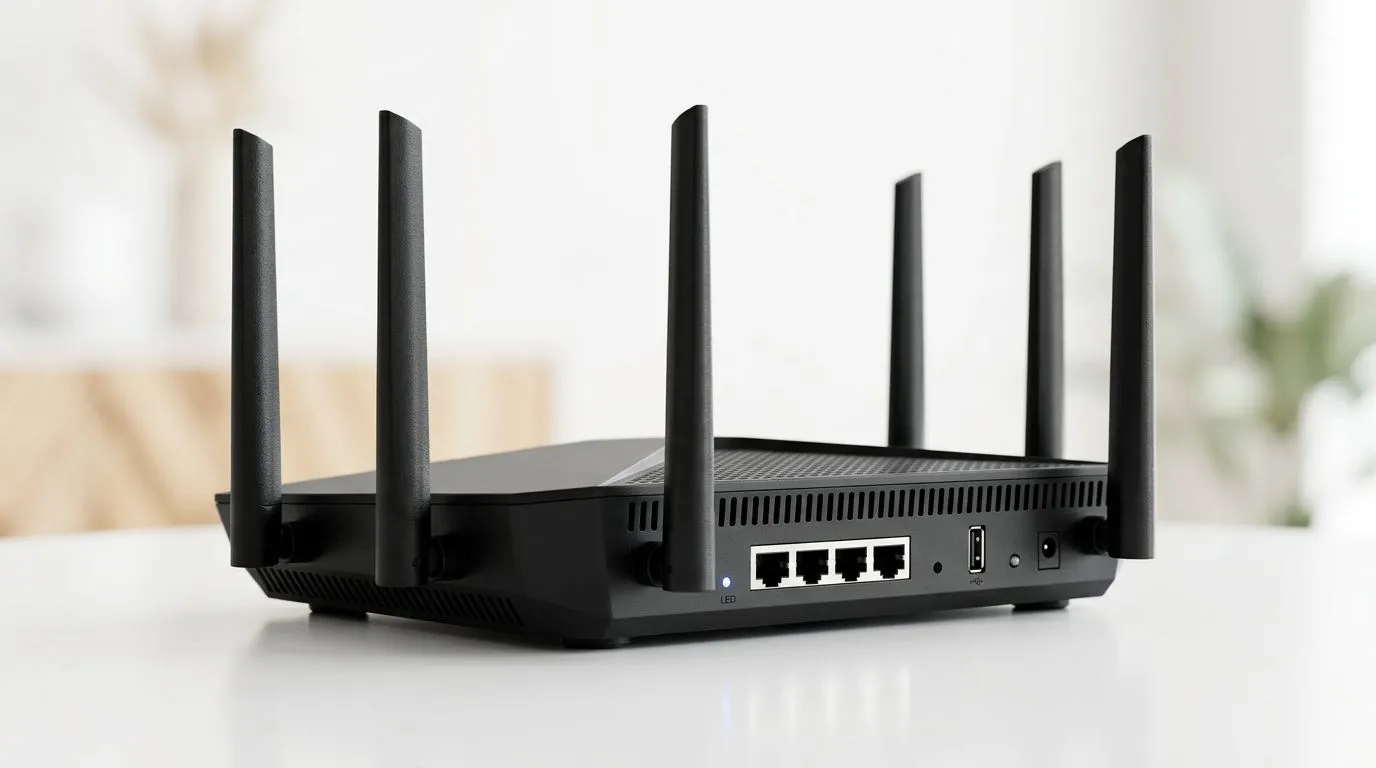
How to Set Up a VPN on Your Home Router: Complete Guide for South Africans
If you game late at night on LTE fallback… or you stream in the lounge after work, a VPN can help you stay more private online. But buying a VPN subscription is only half the story. To get the most consistent protection across every device on your network, you’ll want to set it up at the router level.
In this complete guide, we’ll walk through How to Set Up a VPN on Your Home Router: Complete Guide steps you can actually follow. We’ll also cover common South African home setups, like fibre routers, Wi‑Fi range issues, and devices that don’t like custom settings. 🔧
How to Set Up a VPN on Your Home Router: What You Gain (and What to Check First)
A router VPN setup encrypts traffic for devices on your network. That means your phone, consoles, smart TV, and gaming PC all benefit without installing VPN apps separately.
Before you start, confirm two things:
- Your router supports VPN passthrough or VPN client features. Some routers only pass VPN traffic to one device. Others can run the VPN connection themselves.
- Your VPN provider supports router configurations. You’ll usually need either an OpenVPN/ WireGuard profile, or IKEv2 settings.
If you’re unsure which features your router model supports, check the router’s settings menu for a VPN section, or its admin documentation.
Router Setup Pro Tip 🔧
Set a VPN timer before you test. In your router admin interface, note the exact time you apply the VPN settings. Then test again after 2–5 minutes. Many routers need a short reconnect window before the encryption handshake fully applies.
Quick performance expectations (real talk)
Router VPN can reduce speeds. That’s normal because encryption adds overhead. If you have fibre, you can still see strong performance, but your experience depends on your router’s CPU and VPN protocol.
How to Set Up a VPN on Your Home Router: Complete Guide (Step-by-Step)
This is the workflow that works across most home routers. Follow it in order and don’t skip the checks.
Step 1: Log into your router admin page
- Connect to your home Wi‑Fi (or via Ethernet for reliability).
- Open your browser and go to your router’s admin URL (often something like
192.168.1.1). - Sign in with your admin credentials.
If you’ve never changed the default admin password, do it now. It’s a simple security win. ✅
Step 2: Choose your VPN method
You’ll typically see one of these setups:
- VPN client on the router (router connects to VPN)
- VPN passthrough (router forwards VPN-related traffic)
- Using a dedicated VPN-capable device (not ideal if you want every device protected)
For a “set and forget” approach, aim for the router VPN client option if your router supports it.
Step 3: Get the VPN configuration details
Your VPN provider should supply:
- Server address
- Protocol (often OpenVPN or WireGuard, or IKEv2)
- Username/password (sometimes)
- Certificates or config files (sometimes)
Keep your VPN login details handy. Don’t try to improvise. Wrong server/protocol settings are the #1 reason people see “connected… but nothing works”.
Step 4: Enter VPN settings in the router
In your router UI, look for:
- VPN
- VPN Client
- WireGuard
- OpenVPN
- IKEv2
Enter the details exactly as provided. Then save/apply. Your router may reboot or drop the Wi‑Fi temporarily.
Step 5: Confirm the VPN is actually active
After 2–5 minutes:
- Check the router VPN status page. Look for “Connected” and a negotiated session.
- Test from a device: try accessing a “what is my IP” style site, or run a quick network test you trust.
If the router shows connected but your public IP hasn’t changed, you may be dealing with a passthrough/route issue.
Step 6: Decide how you want devices to use it
Depending on your router, you might need to:
- Apply VPN rules to all LAN clients, or
- Route only specific devices/ports through the VPN.
For gamers, the “all devices” approach is easiest. It avoids weird half-protected scenarios. 🎮
How to Set Up a VPN on Your Home Router: Complete Guide for Common South African Home Setups
Different network gear leads to different pain points. Here’s how to avoid the most common ones.
Fibre routers vs. “combo” Wi‑Fi units
Fibre setups often include a fibre router from the ISP and then your own Wi‑Fi router on top. That can change where the VPN is applied.
If your fibre environment uses a dedicated wireless router, you’ll generally want the VPN on the router that actually handles your LAN devices.
For help picking the right router for your coverage and feature needs, explore Evetech’s options here: Buy wireless routers
If you’re working with fibre-specific gear, this page is useful too: Shop fibre routers
Wi‑Fi range is a real problem… and it affects VPN stability
Weak Wi‑Fi can look like “VPN issues” when your devices drop packets. If your lounge is far from the router, fix coverage first.
Useful upgrades:
And if you’re comparing networking gear more broadly: Explore wireless networking gear
How to Set Up a VPN on Your Home Router: Troubleshooting When Things Don’t Work
So your VPN won’t connect… or your gaming is laggy. Let’s troubleshoot like a pro.
Fix 1: The VPN won’t connect
Try these in order:
- Re-check the protocol and server address.
- Verify correct credentials.
- Confirm the router’s system time is correct. Time drift can break handshakes.
- Disable and re-enable the VPN from the router UI.
If your router supports multiple VPN profiles, keep it simple: one working server first.
Fix 2: Everything is “connected”… but websites won’t load
That’s usually routing or DNS.
- Look for a DNS setting in the router’s VPN or WAN settings.
- Set DNS to what your VPN provider recommends (if they provide it).
- Restart the device and run the test again.
Fix 3: Gaming gets worse after VPN
VPN can increase latency. What you can do:
- Use the best VPN protocol your router supports.
- Choose a nearby VPN server region.
- Prefer wired connections for consoles/PC when possible.
If you can’t get latency under control, you may want to use a “selective” routing approach so only certain devices get the VPN.
How to Set Up a VPN on Your Home Router: Security Checklist Before You Call It Done
After everything connects, do these quick checks:
- Change router admin password (if it’s still default).
- Enable firmware updates when available.
- Use a strong Wi‑Fi password (and avoid “WPA2 with weak passphrases”).
- Disable WPS if your router supports it.
- Review firewall rules. Don’t accidentally expose services.
Security Pro Tip ✨
After enabling router VPN, double-check that your router admin page is not accessible from the internet. In many routers, this is controlled by a management access setting. If you’re unsure, stick to LAN-only management for maximum safety.
How to Set Up a VPN on Your Home Router: Complete Guide Summary
You’ve now got a solid approach to How to Set Up a VPN on Your Home Router: Complete Guide that covers real-world home networks in South Africa. The key is simple: make sure your router supports the VPN method, enter configuration details accurately, then verify with real tests.
If you’re planning an upgrade to get better VPN performance or more reliable Wi‑Fi around the house, get the hardware right first. A faster router and stronger coverage can make the whole experience smoother. 🚀
Ready to Find Your Perfect Match? If you want a smoother VPN experience for gaming and streaming, start with the right networking gear. Browse Evetech for compatible routers, adapters, and fibre-ready options built for South African homes: Explore wireless networking essentials and choose the setup that fits your speed, coverage, and budget.











