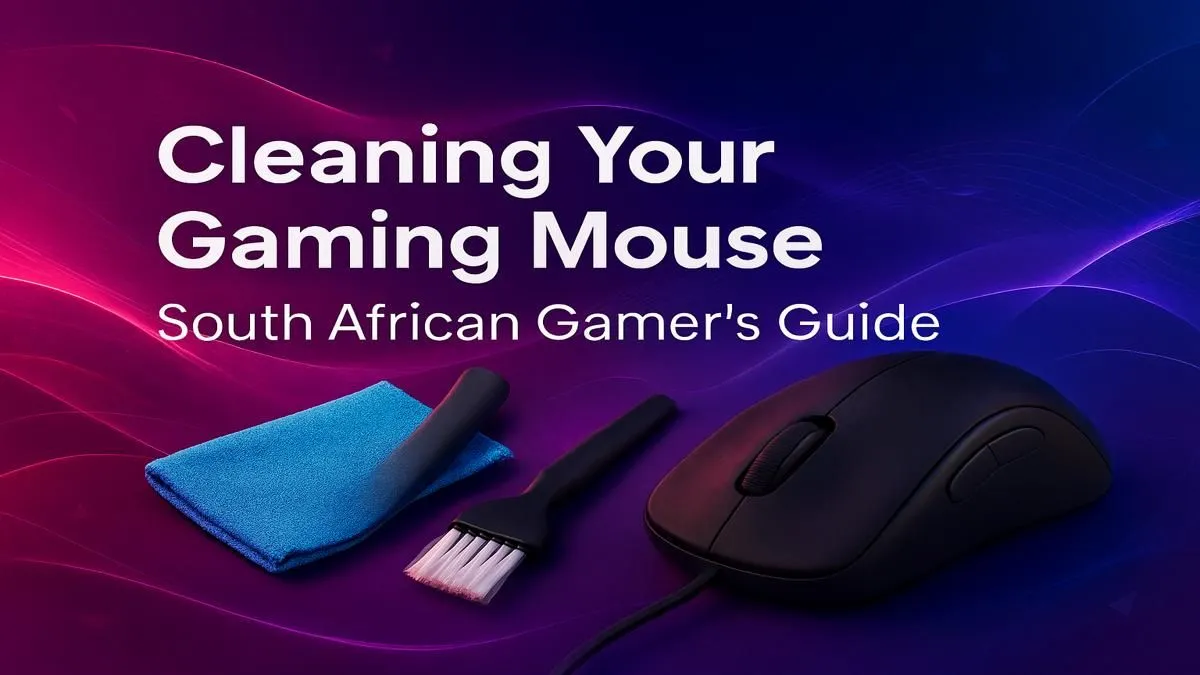
Let's be honest. Your gaming mouse has seen some things. That sticky residue from a late-night energy drink, the dust from a Highveld thunderstorm... it all adds up. Before you know it, your aim feels off and your clicks are sluggish. Learning how to clean your gaming mouse isn't just about hygiene; it's about reclaiming your performance. A clean mouse is a fast mouse, and in South Africa's competitive lobbies, every millisecond counts.
Why You Should Clean Your Gaming Mouse
Neglecting your primary gaming tool is a rookie mistake. A dirty mouse doesn't just look grim; it actively sabotages your gameplay and the lifespan of your gear.
- Performance: Dust, hair, and gunk can block the optical sensor, leading to tracking errors, stuttering, or a cursor that just won't obey. Sticky buttons can fail to register a click... a disaster in a close firefight.
- Hygiene: Your hand is on it for hours. It becomes a breeding ground for bacteria. A quick clean is just good sense.
- Longevity: Allowing grime to build up can work its way inside the chassis, potentially damaging the sensitive electronics and switches over time. Properly cleaning your gaming mouse is essential maintenance.
Your Mouse Cleaning Toolkit 🔧
You don't need a high-tech lab. Most of what you need is probably already in your house.
- Microfibre Cloth: Two of them, if possible. One for wet, one for dry.
- Isopropyl Alcohol (70% or higher): Perfect for disinfecting and breaking down oils without damaging plastics.
- Cotton Swabs (like Earbuds): For getting into tight spots around buttons and the sensor.
- A Toothpick or Soft Brush: To gently scrape grime out of panel gaps and seams.
- Compressed Air (Optional): Great for blasting dust from hard-to-reach areas.
How to Properly Clean Your Gaming Mouse: A Step-by-Step Guide
There are two levels to this: the quick weekly wipe and the proper deep clean every few months.
The Weekly Wipe-Down
This is your 5-minute routine to keep things fresh.
- Unplug Your Mouse: Always disconnect USB or wireless dongles before cleaning. Safety first!
- Dampen, Don't Soak: Lightly dampen a microfibre cloth with water or a 50/50 mix of water and isopropyl alcohol.
- Wipe It Down: Gently wipe the entire surface—top shell, sides, and buttons.
- Dry It Off: Use your second, dry microfibre cloth to remove any moisture.
A clean desk is just as important. Keeping your surfaces tidy and comfortable with a good wrist rest can reduce dust buildup and improve your ergonomic health for those long sessions.
Pro Cleaning Tip ✨
Never spray cleaner or water directly onto your mouse. Always apply it to your cloth first. Liquid can easily seep through cracks and damage the internal components. For the same reason, let your mouse air dry completely for at least an hour before plugging it back in after a deep clean.
The Full Deep Clean
Do this every 2-3 months, or whenever you feel performance start to slip.
- Start with the Weekly Steps: Unplug it and give it a good initial wipe-down.
- Tackle the Gaps: Use your toothpick to gently trace the seams and edges of the mouse buttons, scraping out any trapped gunk. A soft, dry toothbrush also works wonders here.
- Clean the Feet: Dip a cotton swab in isopropyl alcohol and scrub the mouse skates (the smooth pads on the bottom). This is crucial for a smooth glide. Wipe away any residue with your cloth.
- Clear the Sensor: Use a dry cotton swab to gently clean the sensor lens. For stubborn dust, a quick, distant puff of compressed air can help. Don't stick the nozzle right up against it!
- Final Polish: Give the entire mouse one last wipe with a dry microfibre cloth.
A deep clean is a great time to refresh your whole setup. While your mouse is drying, you could give your keyboard some love. For mechanical keyboard owners, this might mean swapping out for a fresh set of custom keycaps or even checking the health of your underlying keyboard switches. A clean, optimised setup feels incredible.
When Cleaning Isn't Enough 🚀
Sometimes, a mouse is just... finished. Cleaning can restore performance, but it can't fix failing hardware. If you've done a thorough clean and you're still experiencing issues like double-clicking, a jumpy sensor, or buttons that feel mushy, it might be time for an upgrade. A clean mouse deserves an equally responsive partner, and if yours is beyond saving, you can always find some of the best gaming keyboard deals to complete your refresh.
If both your peripherals have seen better days, sometimes the most cost-effective solution is a brand new keyboard and mouse combo, giving you a perfectly matched set right out of the box. And if your keyboard is truly beyond repair, there are always plenty of affordable gaming keyboards in South Africa to get you back in the game without breaking the bank.
Ready for a Fresh Start?
A clean mouse can feel brand new, but it can't beat one. If it's time to retire your old clicker, a modern sensor and flawless switches will make a world of difference to your aim. Explore our massive range of gaming mice and find the perfect weapon for your next victory.