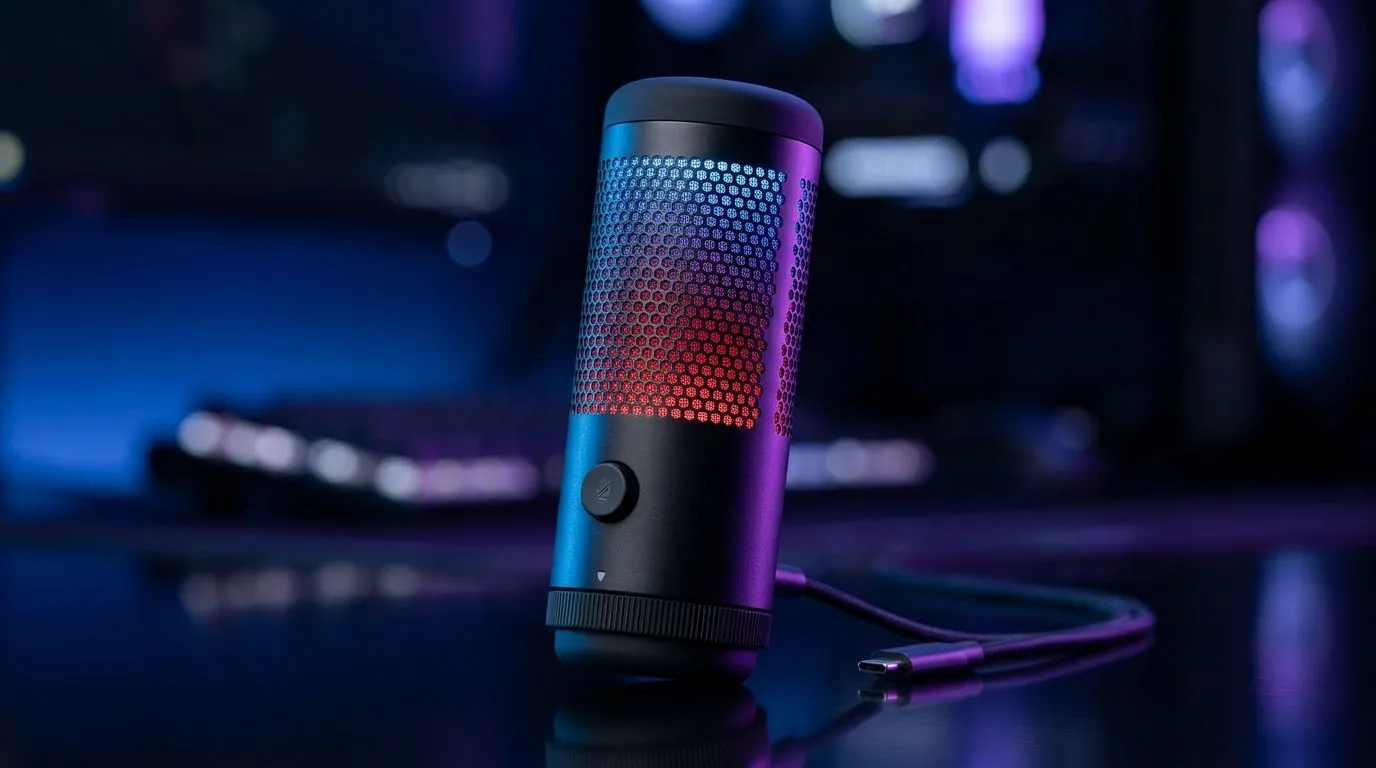
HyperX NGENUITY mic settings for cleaner game chat, streams, and calls 🔧
Ever clipped your mic in Discord, sounded muddy on stream, or had your teammates ask, “Bru, can you repeat that?” You’re not alone. A good headset is only half the story. The real difference often comes from the software settings. With the right HyperX NGENUITY mic settings, you can make your voice clearer, cut background noise, and sound far more professional without buying a whole new setup.
For South African gamers, that matters. Whether you’re raiding late at night, joining a work call after load shedding chaos, or streaming from a small room, clean audio helps you sound confident. And yes, you can get better results with a few careful tweaks.
HyperX NGENUITY mic settings basics for better voice quality
NGENUITY is HyperX’s configuration software for supported headsets and accessories. It lets you adjust microphone gain, sidetone, monitoring, and in some cases noise reduction features depending on the device model. HyperX’s own product support pages confirm that available controls vary by headset, so your exact screen may look different. That’s normal.
Start with the basics:
1. Set the mic level first
If your voice is too quiet, people will turn up their volume and hear every background noise too. If it’s too high, you’ll clip and distort.
A simple starting point:
- Speak in your normal voice
- Watch the input meter in NGENUITY
- Raise the level until your voice sits comfortably below clipping
- Leave a bit of headroom for louder moments
2. Use sidetone carefully
Sidetone lets you hear your own voice in the headset. It helps many people speak naturally, especially during long sessions. Too much sidetone, though, can be distracting.
Try this:
- Start low
- Test with normal conversation
- Increase only if you keep shouting without realising it
3. Match mic positioning to the software
A good setting can’t fully fix poor placement. Keep the mic a little off-centre, not directly in front of your mouth. That reduces breath noise and popping sounds.
If you stream or make content, you may also want to look at proper desk audio gear and accessories. Evetech’s selection of streaming essentials is a handy place to compare the basics before you upgrade your setup.
HyperX NGENUITY mic settings tips for different rooms and use cases ✨
Your room changes everything. A quiet bedroom in Cape Town behaves differently to a shared space in Johannesburg. Hard walls, fans, open windows, and keyboard clicks all affect voice clarity.
In a noisy room
If there’s traffic, a fan, or people in the background:
- Lower mic gain a little
- Move the mic closer to your mouth
- Speak more consistently rather than louder
- Use a keyboard with softer switches if possible
For Discord and gaming chat
Team chat usually needs clarity more than polish. You want teammates to understand you quickly, not hear every tiny room echo.
A practical approach:
- Keep gain moderate
- Test with a friend
- Avoid heavy compression unless you know it’s helping
- Re-check settings after Windows updates or device reconnects
For streaming and content creation
Streaming is a different beast. Viewers notice audio issues very quickly. Many creators pair a headset setup with a dedicated camera and better desk lighting for a more polished look. If you’re building that kind of setup, take a look at Evetech’s webcams to complete the picture.
A clean visual and solid voice go hand in hand. Even a modest setup can feel far more professional when the audio is crisp and consistent.
Audio Pro Tip ⚡
Start by testing your mic in a quiet room and recording 20 seconds of speech. Then play it back at normal volume... not max volume. That makes it easier to hear clipping, hiss, and room echo before you go live.
HyperX NGENUITY mic settings and the gear that supports them
Software only works as well as the hardware behind it. If your headset is ageing, the mic capsule may already be picking up more noise than it should. That doesn’t mean you need to spend a fortune, though.
Sometimes the smartest move is improving the parts around the headset:
- Better monitor placement can reduce mic spill
- A more stable desk can cut vibration noise
- A quieter keyboard can improve voice clarity
- Proper lighting and a webcam can lift your overall stream quality
If you want to compare gear that suits creators and gamers, Evetech’s streaming essentials from CORSAIR are worth a look. For ambient lighting or a cleaner on-camera setup, you can also browse Cololight options. Small upgrades often make the biggest visual difference.
HyperX NGENUITY mic settings troubleshooting that actually helps
If your mic still sounds off, work through this checklist:
Quick fixes
- Restart NGENUITY
- Reconnect the headset
- Check Windows input device selection
- Test in another app
- Disable other audio apps temporarily
Common symptoms
Too quiet: raise mic level gradually and move the mic closer.
Too loud or distorted: lower gain and speak a bit softer.
Hissing or static: check ports, cables, and USB interference.
Echo: turn down speaker volume and use headphones instead of open speakers.
HyperX and Microsoft support both note that audio devices can be affected by OS-level settings, default device selection, and app permissions. If something changes after an update, check those first before blaming the headset.
HyperX NGENUITY mic settings for South African gamers who want less hassle 🚀
Here’s the real takeaway. Good mic audio is less about chasing the “perfect” preset and more about consistency. Set your levels once, test them properly, and only change one thing at a time. That keeps you from breaking a working setup.
If you’re building a better battle station, remember this order:
- Fix mic placement
- Tune NGENUITY
- Check Windows audio settings
- Improve the room
- Upgrade gear only when needed
That approach saves money, time, and frustration. It also helps you sound like you know what you’re doing, which is always a bonus in team chat.
HyperX NGENUITY mic settings summary for cleaner sound
The best HyperX NGENUITY mic settings are the ones that suit your voice, your room, and your use case. Start simple, test with real speech, and make small changes. That’s usually enough to get clearer communication for gaming, streaming, and everyday calls.
If you’re ready to improve your whole setup, not just the mic, explore the links above and build from there. A little tuning goes a long way.
Ready to Find Your Perfect Match?
The Mac vs Windows debate is complex, but for maximum power, choice, and value in South Africa, Windows is hard to beat. Explore our massive range of laptop specials and find the perfect machine to conquer your world.