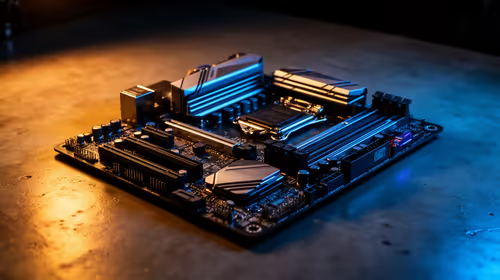
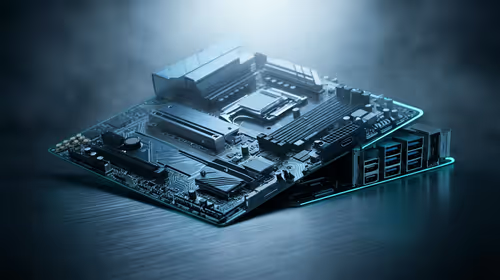
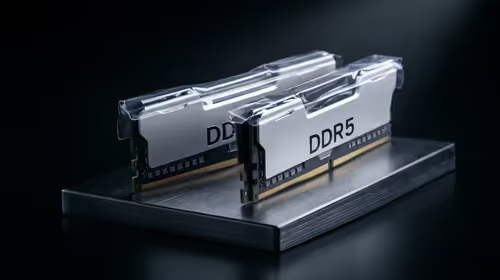
So, you just dropped some serious ZAR on a shiny new rig with blazing-fast DDR5 RAM. You fire up your favourite game, ready for buttery-smooth frame rates… but something feels off. It’s good, but not great. What gives? The culprit is often a simple setting hiding in your BIOS. Your expensive memory is likely running at its slow, default speed.
This is where our guide to Intel XMP 3.0 explained: Kingston Fury DDR5 optimization comes in. Let's unlock the power you paid for. 🚀
What Exactly is Intel XMP 3.0?
Think of Intel's Extreme Memory Profile (XMP) as a factory-approved overclocking preset for your RAM. Every RAM module has a default, safe speed set by an organisation called JEDEC. It’s designed to work on almost any motherboard, but it’s slow. Your RAM kit's advertised speed—that impressive 6000MHz or 7200MHz on the box—is the XMP speed.
Intel XMP 3.0 is the latest standard, built specifically for DDR5. It allows manufacturers to program faster, more stable performance profiles directly onto the RAM sticks.
Key upgrades in XMP 3.0 include:
- More Profiles: Up to five profiles, including two custom user-writable profiles.
- Dynamic Profiles: The ability to switch profiles on the fly within Windows (motherboard-dependent).
- Greater Control: It gives you a reliable, one-click method to achieve optimal DDR5 performance without manual tweaking.
The Kingston Fury DDR5 Advantage
When it comes to DDR5 optimisation, not all brands are created equal. Kingston has built a rock-solid reputation for reliability and performance. Their Fury series, especially the Beast and Renegade lines, are engineered to perfectly leverage XMP 3.0. With a Kingston DDR5 memory kit, enabling the XMP profile in your BIOS is practically a guarantee you'll hit those advertised speeds stably.
Of course, the market is competitive, and other excellent brands like ADATA also offer powerful XMP-ready kits that provide fantastic value and performance for South African gamers.
How to Enable XMP 3.0 in Your BIOS (It's Easy!)
Ready to unleash the beast? Enabling XMP is one of the easiest and most impactful tweaks you can make. While every BIOS looks a bit different, the steps are generally the same.
- Restart Your PC: As it boots up, repeatedly press the
Delete or F2 key to enter the BIOS/UEFI setup. - Find the XMP Setting: Look for a setting labelled "Extreme Memory Profile (X.M.P.)", "D.O.C.P.", or "A-XMP". It’s often on the main screen or in an "Advanced" or "Tweaker" tab.
- Enable Profile 1: Click on the setting and change it from "Disabled" to "Profile 1". This will load the primary, manufacturer-tested performance profile.
- Save & Exit: Find the "Save & Exit" option (usually
F10), confirm your changes, and let your PC restart.
That’s it! Your PC will now boot with your RAM running at its full, glorious speed. ✨
Stability Check Pro Tip 🔧
After enabling XMP, it's smart to verify your system's stability. Run a memory-intensive task like a modern game for an hour or use a free tool like MemTest86. This confirms your CPU's memory controller and motherboard can handle the faster speeds. If you experience crashes, try updating your BIOS or selecting Profile 2 if available.
Why DDR5 Optimisation Matters for SA Gamers
So, what does all this technical talk mean for your gaming sessions in Mzansi? It means a tangible performance boost, especially in CPU-intensive titles like Valorant, CS2, or Warzone. Faster memory allows your processor to access data more quickly, resulting in:
- Higher Average FPS: More frames mean a smoother, more responsive experience.
- Better 1% Lows: A significant reduction in those annoying stutters and frame drops that can cost you a match.
- Faster Load Times: Less waiting, more playing.
For most gamers, a high-quality DDR5 6000MHz kit offers the perfect sweet spot between price and performance. But if you're an enthusiast chasing every last frame, jumping to a blazing-fast DDR5 7200MHz kit can provide that competitive edge.
Don't leave performance on the table. A simple click in your BIOS can transform your gaming experience, ensuring you get every bit of power from the hardware you invested in.