

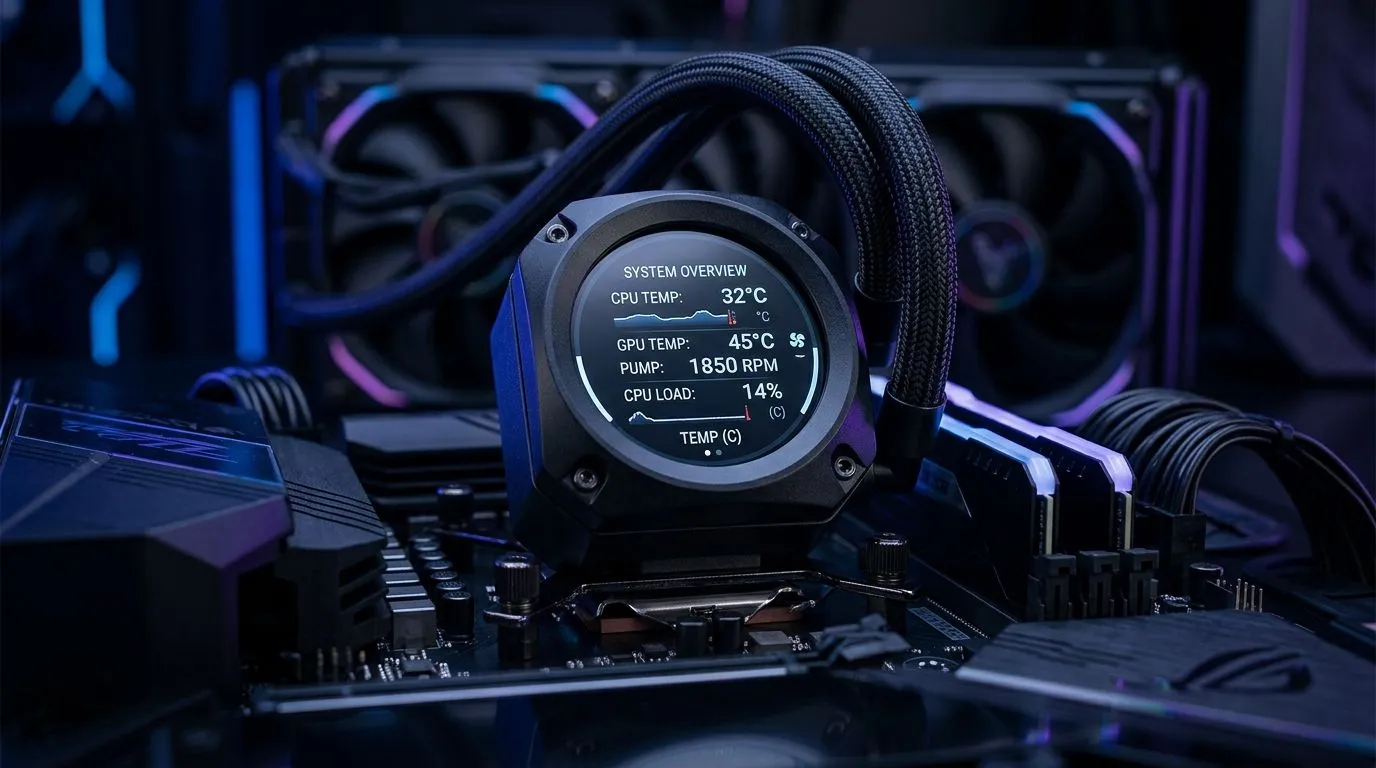
LCD Display CPU Cooler Integration with Monitoring Software: why South African gamers care 🔧
If your PC sounds like a jet engine while you rank up… it’s time to look closer at cooling. South Africans building or upgrading PCs often chase higher FPS, but stable temps protect your CPU long-term. LCD display CPU coolers add a fun control layer, showing temps and fan behaviour at a glance. The best part? When you pair that display with monitoring software, you get real numbers, not guesswork. ⚡
In this Deep Dives guide, we’ll cover how to integrate an LCD display CPU cooler with monitoring software, what to watch for, and how to avoid the common “it lights up but doesn’t report” problem.
LCD Display CPU Cooler Integration with Monitoring Software: what to check before you install 🚀
Before mounting anything, confirm three things:
- The connection type (usually USB for the LCD/controller and 4-pin PWM for fan control).
- Software compatibility with your Windows version.
- Your motherboard headers: CPU_FAN for the pump (if applicable) and/or the fan headers for the cooler’s PWM fan.
If you’re shopping, Evetech’s CPU cooler range is the place to start. Here are a few relevant options to help you match size and type:
- Browse the CPU cooler options here: CPU coolers on Evetech
- Prefer air cooling? Try: Air Cooler CPU options
- Need a specific size? Use: 120mm fan Air Cooler choices
- DeepCool shoppers: Deepcool Air Coolers
- Looking at EINAREX? See: EINAREX Air Coolers
LCD Display CPU Cooler Integration with Monitoring Software: installation steps that prevent headaches
- Install the cooler hardware first (seat, torque, and cable reach).
- Connect the fan(s) to CPU_FAN (or the specified header).
- Connect the LCD/controller interface to a motherboard USB header (or a compatible port, depending on the model).
- Install the cooler’s software (if it has one) and any required drivers.
- Update monitoring tools (Windows updates plus the monitoring app’s latest version).
If the LCD shows temperature but your monitoring software shows “unknown” (or vice versa), the issue is usually between the controller feed and the software sensor source. Don’t panic. It’s fixable.
Productivity Pro Tip ⚡
On Windows, start monitoring before you launch games. Open your monitoring app, note idle temps for 5 minutes, then run one short CPU-heavy test. If your LCD display updates but your app lags, the app may be reading a different sensor channel. Keep notes so you can compare after you adjust fan curves.
LCD Display CPU Cooler Integration with Monitoring Software: mapping display data to real sensors ✨
LCD coolers vary. Some show the same CPU sensor that your monitoring app reads. Others display an internal controller reading.
Here’s a practical way to verify accuracy:
- Pick one monitoring app you trust and use it consistently.
- Compare idle temps (should be close once settled).
- Load the CPU (a single short, repeatable workload).
- Check which sensor line moves in your monitoring tool while the LCD changes.
Once you know the source, you can fine-tune:
- Fan curves for quieter sessions.
- Target temps so your cooler ramps before throttle territory.
South African summers make this extra important. Higher ambient air means your CPU needs more airflow earlier. The goal isn’t “maximum RPM”, it’s “enough RPM, at the right time”.
LCD Display CPU Cooler Integration with Monitoring Software: fan curves for gaming nights 🎮
A sensible starting point:
- Keep low RPM at idle.
- Ramp gently under light loads.
- Increase more aggressively under sustained gaming or streaming.
Then test again. If your temps stabilise and your frame pacing stays smooth, you’ve nailed the balance.
LCD Display CPU Cooler Integration with Monitoring Software: when to troubleshoot (and when to replace) 🔧
Troubleshooting checklist:
- LCD works, monitoring doesn’t: software sensor source mismatch, or missing driver.
- Monitoring works, LCD doesn’t: USB header/power, loose cable, or incompatible controller software.
- Both are wrong or inconsistent: reseat the cooler, re-check fan/pump connections, and confirm you used the correct mounting hardware.
If you’re unsure what fits your build, ask Evetech staff. Getting the right cooler size and type upfront saves weeks.
Ready to Find Your Perfect Match? The Mac vs Windows debate is complex, but for maximum power, choice, and value in South Africa, Windows is hard to beat. Explore our massive range of laptop specials and find the perfect machine to conquer your world.











