

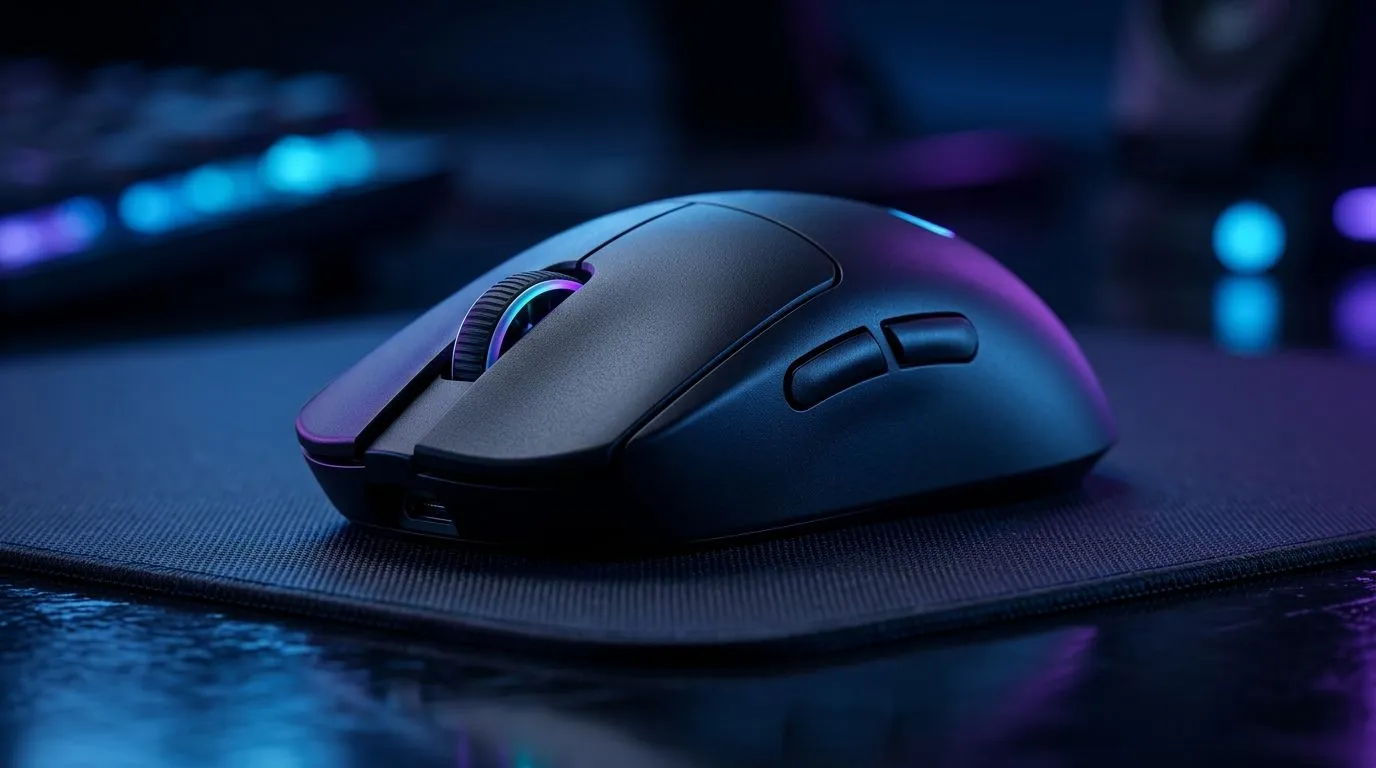
Mouse Tracking Accuracy (and Why It Feels “Off”)
Ever noticed your aim drifting… even when your in-game sensitivity is perfect? That’s often not your skill. It’s usually mouse tracking accuracy, which is how reliably your sensor turns movement into cursor motion. On the same desk, the same mouse can feel laser-precise on one surface and stubborn on another. Let’s fix that, step by step 🔧.
Improve Mouse Tracking Accuracy: Start With the Basics
Before you buy anything, check the fundamentals. Mouse sensors behave best with clean, consistent surfaces and correct settings in your driver.
Clean the mousepad and sensor
Dust and fabric lint create micro-slips. Wipe your mousepad with a damp cloth (or mild soap, then dry fully). Also turn the mouse upside down and gently clear the sensor window. Avoid harsh solvents.
Match your pad type to the sensor
Some optical sensors track better on tightly woven cloth, while others prefer harder surfaces. If your sensor struggles, experiment with a different pad before changing mice.
Use a stable surface
Avoid glossy laminate or moving pads. A pad that creeps under your skates will cause inconsistent tracking, especially during fast flicks.
Productivity Pro Tip ✨
On Windows, open your mouse settings and disable “Enhance pointer precision” (mouse acceleration). Then set DPI to a consistent value and test in-game raw mouse input if available. This reduces “surprise” cursor behaviour when you do micro-adjustments. Just because it’s smoother doesn’t mean it’s accurate.
Mouse Tracking Accuracy: Fine-Tune Your Settings
Now the nerdy part… in a good way.
Calibrate DPI and polling expectations
Higher DPI can help responsiveness, but it doesn’t automatically improve accuracy. If your game supports it, lock DPI and keep in-game sensitivity stable.
Also note polling rate: a higher polling rate can make motion feel more immediate, but it won’t fix a poor surface match. For most players, the best result comes from consistent DPI + a pad your sensor likes.
Check in-game options
Turn off unnecessary smoothing. Many shooters let you choose raw input or reduce filtering. Smoother often means more latency or less predictability, which can hurt tracking in tight angles.
Improve Mouse Tracking Accuracy on Any Mousepad (Even Cheap Ones)
If you’re stuck with the pad you have, you can still improve accuracy:
- Break in the surface: new cloth pads often settle after a few sessions.
- Don’t over-lubricate skates: only clean them, and avoid DIY oils.
- Test with controlled movement: move slowly in a straight line, then do a small circle. If you see wobble, it’s surface or sensor tuning.
- Upgrade for consistency: a dedicated gaming mousepad reduces variation.
If you want to take control fast, try a mouse that’s designed for reliable tracking across common desk surfaces, and pair it with a mousepad you can trust.
Browse accessories and options here: gaming mouse accessories. If you prefer a wired setup for stable input, check wired mouse picks. For low-latency convenience, explore wireless mouse options. Want a quick upgrade path with good pricing in ZAR? See best gaming mouse deals. And for deeper compatibility and sensor lineup browsing, start with gaming mouse models.
Ready to Find Your Perfect Match? The Mac vs Windows debate is complex, but for maximum power, choice, and value in South Africa, Windows is hard to beat. Explore our massive range of laptop specials and find the perfect machine to conquer your world.











