

RTX 4060 Ti Throttling Under Load: SA Temperature Guide
RTX 4060 Ti Throttling Under Load: Temperature. Everything you need to know with SA pricing, step-by-step instructions & expert recommendations.
Read moreLearn how to set up a multi-mode wireless gaming mouse using 2.4 GHz, Bluetooth 5.3, and USB for seamless switching across devices 🎮⚡. Follow a practical setup flow to reduce lag and pairing issues.
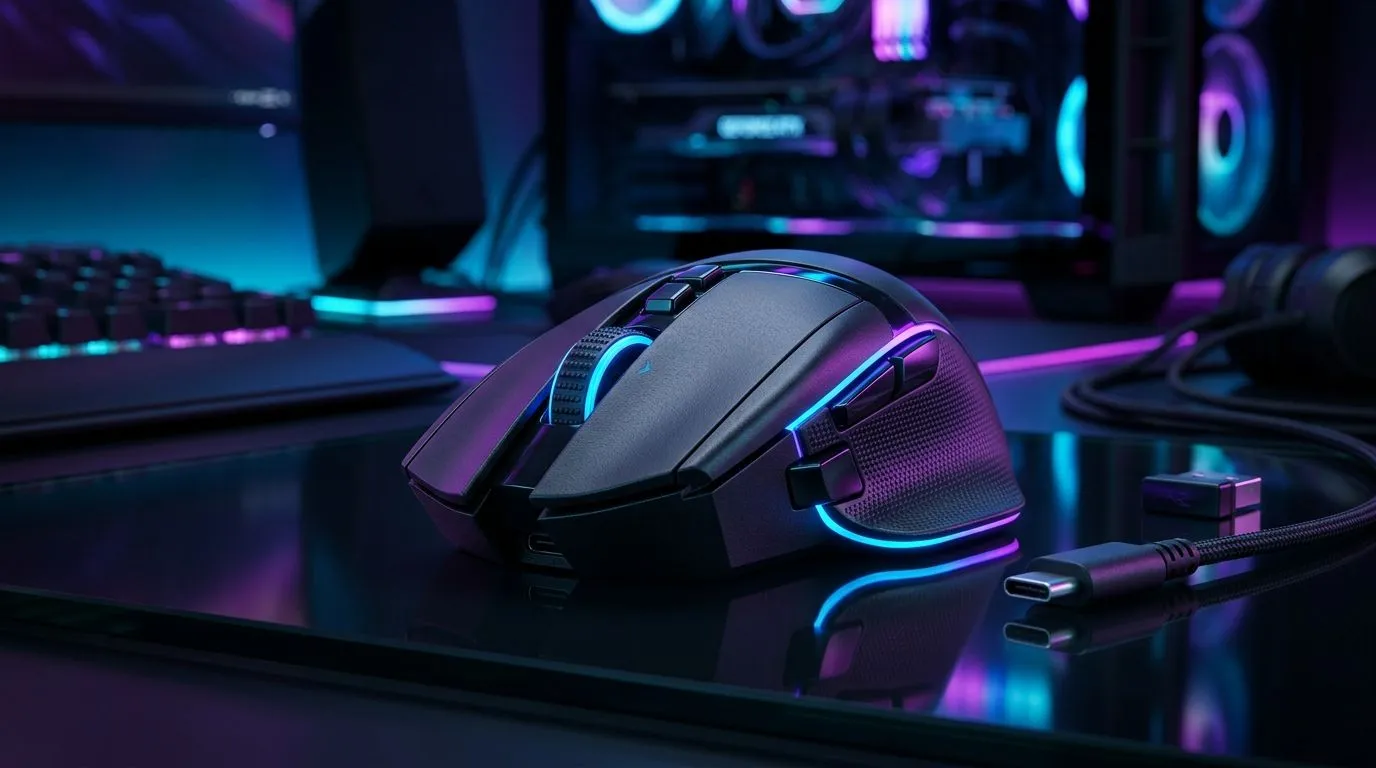
South African gamers know the pain... one mouse, three devices, and a desk that never quite behaves. Your PC wants low latency. Your laptop wants convenience. Your spare rig just wants to connect and stay connected. A multi-mode wireless gaming mouse setup solves that mess neatly, giving you 2.4 GHz speed for play, Bluetooth 5.3 for everyday use, and USB for charging or wired fallback. It’s the kind of setup that quietly makes life easier 🔧
A good multi-mode wireless gaming mouse setup usually offers three connection paths, each with a different job.
This is the mode most gamers care about first. It uses a small USB receiver and is typically preferred for fast response and lower perceived lag. For competitive play, that consistency matters more than anything else. If you’re aiming, flicking, or tracking in a shooter, 2.4 GHz is usually the safer pick.
Bluetooth is ideal for laptops, office machines, and travel use. It avoids the extra dongle and keeps your USB ports free. Bluetooth 5.3 is a newer revision of the Bluetooth standard, designed for improved efficiency and more stable wireless behaviour in supported devices. For general productivity, it’s excellent. For esports-level responsiveness, 2.4 GHz still tends to be the better choice. Source: Bluetooth SIG specification overview and device support guidance.
USB mode matters more than people think. If your battery runs low mid-session, a cable can keep you going without waiting for a charge. Some mice also work while plugged in, so you can keep playing while topping up. That flexibility is underrated... especially during long weekend sessions or a power-cut recovery grind ⚡
The smartest way to use a multi-mode wireless gaming mouse setup is to match the connection to the task.
Use 2.4 GHz first. It keeps the experience snappy and predictable. If your mouse includes adjustable polling or performance settings, make sure they’re set sensibly before you queue.
Switch to Bluetooth. It’s tidy, easy, and usually better for multi-device workflows. If you hop between a work notebook and a personal PC, Bluetooth saves hassle.
Keep USB handy. A wired connection also helps if you’re in a place with lots of wireless congestion, like a busy flat or shared home office.
If your wireless mouse feels inconsistent, plug the 2.4 GHz receiver into a USB extension or front-port hub near your mouse pad. A shorter path between receiver and mouse can improve stability, especially on crowded desks with Wi-Fi routers, headsets, and phone chargers nearby.
Not every mouse that says “multi-mode” is equally useful. Before you add one to cart, check these basics:
A wireless mouse is only convenient if it lasts. Look for realistic battery claims and charge time details on the product page. If the mouse will live between gaming and work, a longer battery cycle is worth paying for.
For gamers, sensor performance matters more than flashy RGB. A good sensor should track smoothly and consistently across common surfaces.
Palm, claw, and fingertip grips all feel different. A mouse that looks perfect in photos can feel wrong after two hours. If possible, choose based on hand size and use case, not just spec sheet numbers.
If the mouse has companion software, check whether it supports button remapping, DPI tuning, and lighting control. That can make setup much more personal and much less frustrating.
For broader accessory ideas, have a look at mouse accessories that can improve comfort and control. If you already know you want a simpler desktop setup, wired mouse options are still a solid value play.
A multi-mode wireless gaming mouse setup is especially useful if your day moves between different devices. Maybe you game on a desktop at night, then use a laptop for work in the morning. Maybe you want one mouse for your TV box, another for your study desk, and a spare for travel.
That’s where wireless flexibility earns its keep. You’re not just buying a mouse. You’re buying fewer cables, less desk clutter, and fewer moments of “why won’t this connect?”
If you’re comparing options, the wireless mouse range is a practical place to start. You can also scan current gaming mouse deals if you’re trying to stretch your rand further. And if you want to dig deeper into shape, sensor types, and gaming-ready features, browse the full gaming mouse category.
If you want one mouse to do it all, multi-mode is the sweet spot. Use 2.4 GHz when precision matters. Use Bluetooth 5.3 for portability. Use USB when you need a backup plan. That combination gives you flexibility without turning your desk into cable chaos.
The best choice is the one that fits your routine, your grip, and your budget in ZAR. Simple as that.
Ready to Find Your Perfect Match? The Mac vs Windows debate is complex, but for maximum power, choice, and value in South Africa, Windows is hard to beat. Explore our massive range of laptop specials and find the perfect machine to conquer your world.
Use the USB dongle for 2.4 GHz, pair Bluetooth 5.3 through your OS Bluetooth menu, then assign each device to the mouse mode button.
Check battery, remove old Bluetooth entries, re-enter pairing mode, and confirm the mouse is on Bluetooth mode before pairing.
For lowest latency and consistent performance, 2.4 GHz is often best; Bluetooth 5.3 works great when you need multi-device convenience.
USB mode typically provides a stable wired connection or direct data mode for quick setup, charging, or seamless fallback when wireless is busy.
Assign device profiles per mode, then press the mode switch to reconnect. Keep Bluetooth pairing for each device saved in your OS.
Use the included dongle, keep distance from interference sources, update mouse firmware, and avoid congested USB hubs where possible.
Yes for most setups. Keep the dongle connected for 2.4 GHz mode and switch using the mouse mode button when needed.
RTX 4060 Ti Throttling Under Load: Temperature. Everything you need to know with SA pricing, step-by-step instructions & expert recommendations.
Read more
Apex Legends Max Settings on RTX 4080. Tested & verified settings for best FPS and visual quality on SA hardware budgets.
Read more
GPU Buying Guide. Everything you need to know with SA pricing, step-by-step instructions & expert recommendations.
Read more
GPU Terms Guide. Everything you need to know with SA pricing, step-by-step instructions & expert recommendations.
Read more
AMD Adrenalin Download & Setup Guide: GPU. Clear setup instructions with SA-specific considerations, troubleshooting tips & recommended components.
Read more
Back-to-School GPU Buying Guide. Everything you need to know with SA pricing, step-by-step instructions & expert recommendations.
Read more
Can RTX 4080 Super Run AI Workloads for SA Developers Detailed answer with SA data, expert analysis & practical recommendations for local buyers.

Can RTX 4090 Run AI Workloads for SA Developers Detailed answer with SA data, expert analysis & practical recommendations for local buyers.

Top Settings for Intel Arc B580 at Ultrawide 1440p picks evaluated on performance, value & SA availability with current Rand pricing from Evetech.
RX 7600 Overclocking Guide: Safe OC Settings for. Real-world benchmark data, FPS numbers & performance analysis. What SA gamers can actually expect.

RTX 4060 CS2 Low Settings at 1080p: FPS Results. Real-world benchmark data, FPS numbers & performance analysis. What SA gamers can actually expect.

Visual Artifacts: Possible GPU Issue Issue #1. Diagnosis steps, proven fixes & when to seek professional help. SA-specific support info included.

Can the RTX 4090 Handle 1440p 144Hz Gaming. Performance testing verdict with real data & practical recommendations for SA buyers.

Top ASUS GPU Under R15000 picks evaluated on performance, value & SA availability with current Rand pricing from Evetech.
RTX 4060 Ti Throttling Under Load: Temperature. Everything you need to know with SA pricing, step-by-step instructions & expert recommendations.
Apex Legends Max Settings on RTX 4080. Tested & verified settings for best FPS and visual quality on SA hardware budgets.
GPU Buying Guide. Everything you need to know with SA pricing, step-by-step instructions & expert recommendations.
GPU Terms Guide. Everything you need to know with SA pricing, step-by-step instructions & expert recommendations.