


GTA 6 Max Settings on RTX 5070: Complete Guide
GTA 6 Max Settings on RTX 5070. Tested & verified settings for best FPS and visual quality on SA hardware budgets.
Read moreNo signal multiple inputs? Follow a clear troubleshooting checklist to diagnose HDMI, DisplayPort and AV port failures, run quick cable tests, firmware fixes, and know when to replace gear 🔧📺
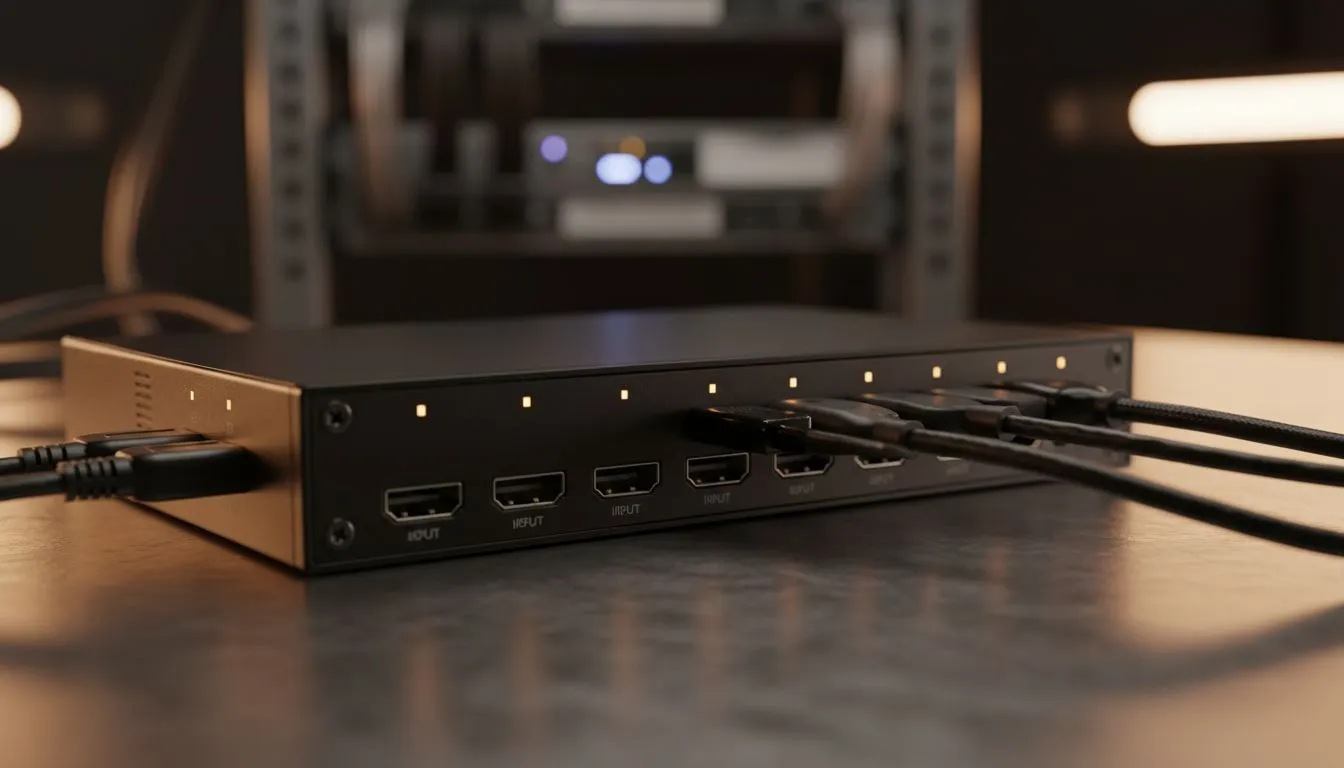
Nothing is as soul-crushing as hitting the power button on your rig and seeing a black screen. In South Africa, where loadshedding or surges are common, the "No Signal" message is a frequent headache. Whether you have a dual-screen setup or one high-end display, this No Signal Multiple Inputs: Troubleshooting Guide will help you fix it. Let's get your display back online quickly. 🔧
First, check the physical connection. It sounds simple, but cables often wiggle loose during cleaning or moving. If you are using traditional Flat screen monitors, ensure the HDMI or DisplayPort cable is seated firmly. For those with immersive Curved screen displays, the angle of the ports can sometimes lead to tension on the cable. Ensure there are no sharp bends that could damage the internal wiring.
Next, verify the input source. Most PC monitors have multiple ports. Your screen might be looking for a signal on HDMI 1 while your PC is plugged into DisplayPort. Use the on-screen display (OSD) buttons to toggle through the inputs manually. If the hardware seems fine, consider the panel technology. A high-quality IPS panel might handle signal wake-up differently than older versions. Sometimes, a simple power cycle is needed. Unplug the monitor from the wall for 30 seconds to drain the capacitors. ⚡
On Windows, use the PowerToys FancyZones utility to create custom snap layouts for your windows. It's a lifesaver for managing multiple apps on an ultrawide monitor, letting you organise your timeline, preview window, and asset folders perfectly for video editing.
Screen tearing or signal drops can also be linked to sync technologies. If you use AMD FreeSync technology or NVIDIA G-Sync, ensure your drivers are updated. Incompatibility with older cables can cause signal loss when Adaptive Sync is active. Using a certified VESA cable often solves these intermittent blackouts. This is especially true if you are pushing high refresh rates at 1440p or 4K resolutions.
Lastly, check your GPU seating. If you recently moved your PC from Jozi to Cape Town, the graphics card might have shifted. Reseat it firmly in the PCIe slot. If you still see the error, try a different port on the GPU itself. Most modern cards offer multiple outputs for a reason. Testing a different cable entirely is the fastest way to rule out a hardware failure. 🚀
Ready to Find Your Perfect Match? Dealing with signal issues can be a sign that your old display is on its last legs. For the best visual experience and reliable performance in South Africa, upgrading your setup is the ultimate fix. Explore our massive range of monitor specials and find the perfect screen to conquer your world.
Common causes include bad power, input board failure, firmware bugs, or a bad HDMI/DisplayPort switch. Check power and input selection first.
Swap each HDMI/DisplayPort cable with a known-good cable and test ports individually. Use cable and port swap to isolate the fault.
Yes. Outdated firmware can disable inputs or misroute signals. Update TV/monitor firmware per manufacturer instructions.
Try a factory reset and power cycle first. A reset can restore input routing and solve 'no signal' caused by software errors.
Yes. Test devices directly to the display. Receiver or HDMI switch failures often cause hdmi no signal multiple inputs.
Replace hardware if isolated port or board tests fail, firmware updates don’t help, or if the display shows physical damage.
Allow a short settle time after switching, update firmware, and avoid daisy-chaining adapters which can trigger no signal errors.
GTA 6 Max Settings on RTX 5070. Tested & verified settings for best FPS and visual quality on SA hardware budgets.
Read more
Cyberpunk 2077 Max Settings on RTX 5080. Tested & verified settings for best FPS and visual quality on SA hardware budgets.
Read more
Starfield Max Settings on RTX 5070 Ti. Tested & verified settings for best FPS and visual quality on SA hardware budgets.
Read more
AMD RX 9050 XT: Rumoured Specs, Price & Release. SA-focused analysis with local pricing data, real-world insights & actionable buying advice.

Can RTX 4080 Super Run AI Workloads for SA Developers Detailed answer with SA data, expert analysis & practical recommendations for local buyers.

Can RTX 4090 Run AI Workloads for SA Developers Detailed answer with SA data, expert analysis & practical recommendations for local buyers.

Top Settings for Intel Arc B580 at Ultrawide 1440p picks evaluated on performance, value & SA availability with current Rand pricing from Evetech.

RTX 4060 CS2 Low Settings at 1080p: FPS Results. Real-world benchmark data, FPS numbers & performance analysis. What SA gamers can actually expect.

Visual Artifacts: Possible GPU Issue Issue #1. Diagnosis steps, proven fixes & when to seek professional help. SA-specific support info included.

Can the RTX 4090 Handle 1440p 144Hz Gaming. Performance testing verdict with real data & practical recommendations for SA buyers.

Top ASUS GPU Under R15000 picks evaluated on performance, value & SA availability with current Rand pricing from Evetech.
GTA 6 Max Settings on RTX 5070. Tested & verified settings for best FPS and visual quality on SA hardware budgets.
Cyberpunk 2077 Max Settings on RTX 5080. Tested & verified settings for best FPS and visual quality on SA hardware budgets.
Starfield Max Settings on RTX 5070 Ti. Tested & verified settings for best FPS and visual quality on SA hardware budgets.

Top RTX 5090 Under R5000 picks evaluated on performance, value & SA availability with current Rand pricing from Evetech.