



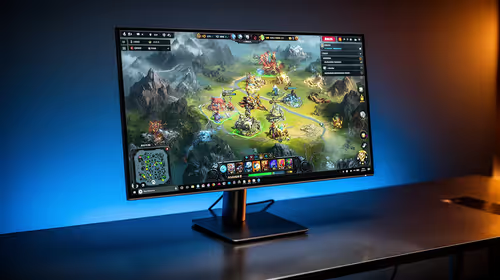
IPS vs VA for Strategy and Sim Games in SA
IPS vs VA for strategy and sim games should be judged by fit, not a single winner. Compare compatibility, latency, capacity, upgrade path, cost planning, and South African setup needs.
Read moreNVMe SSD troubleshooting guide that helps you diagnose and fix boot, performance, and recognition problems on Windows and Mac quickly. Includes step-by-step checks, tools, and safe fixes to recover data and optimize speed. 🛠️💡

Just dropped some serious ZAR on a new NVMe SSD, only for it to ghost you? Whether it’s not showing up in Windows or giving you grief on your Mac, you’re not alone. This is a classic headache for many South African PC builders. Don’t panic... we’ve got the fix. This guide covers essential NVMe SSD troubleshooting steps to get your lightning-fast drive up and running, so you can get back to what matters. 🚀
The most common panic moment is when your new drive is physically installed but invisible to the operating system. Before you start thinking you got a dud, let's run through the basics. This initial phase of NVMe SSD troubleshooting often solves the problem in minutes.
Your computer's BIOS (or UEFI on modern systems) is the first place to look.
Del, F2, F10, or F12).A drive not showing up here could point to a physical connection issue, or it might be time to consider a replacement from a wide range of Solid State Drives available.
So, the BIOS sees your drive, but Windows is playing dumb? This is where most people get stuck. Here’s how to troubleshoot your NVMe drive and get it working.
For a brand-new drive, this is almost always the solution. Windows doesn't automatically prepare a new storage device for use.
Once the format is complete, your drive will appear in File Explorer, ready for action! If you're looking to upgrade, Evetech has a massive selection of blazing-fast NVMe SSDs to choose from.
On Windows, download a free tool like CrystalDiskInfo. It gives you a simple overview of your SSD's health, temperature, and performance stats. It's an excellent way to proactively spot potential issues before they become a major problem, especially for your main OS drive.
Mac users aren't immune to storage problems, especially when using external enclosures or upgrading older models. While Macs are more plug-and-play, you might still need to give the drive a nudge.
Disk Utility is the macOS equivalent of Disk Management.
For older MacBooks or iMacs without M.2 slots, upgrading with traditional 2.5-inch SSDs remains a fantastic way to boost performance.
Sometimes the issue isn't detection but performance. If your drive is working but not hitting its advertised speeds, thermal throttling is a likely culprit. NVMe SSDs can get incredibly hot under heavy load, causing them to slow down to protect themselves. Ensure your M.2 slot has a heatsink (many motherboards include them) and that your case has good airflow. If you're hunting for a new drive, it's worth keeping an eye out for models that come with a pre-installed heatsink when you check out the latest SSD deals.
Another factor can be the PCIe generation. The latest cutting-edge Gen 5 NVMe drives offer incredible speeds but require a compatible motherboard and CPU to unlock their full potential. Plugging a Gen 5 drive into a Gen 4 slot will work, but it will be limited to Gen 4 speeds. For those building a top-tier rig, something like a high-capacity 2TB Gen 5 model is the ultimate performance choice.
Ready to Build Better? Don't let a storage bottleneck slow you down. Whether you're troubleshooting or planning your next lightning-fast build, Evetech has the components you need. Explore our massive range of PC components and find the perfect parts to conquer your world.
Check BIOS/UEFI M.2 settings, enable the NVMe controller, update motherboard/NVMe drivers, and try the 'nvme not detected windows 10 fix' steps like reseating the drive.
Update NVMe drivers and firmware, ensure PCIe x4 link and proper cooling, disable power throttling, and follow 'nvme slow speeds windows 11' checks.
Boot to Recovery, run Disk Utility, confirm APFS/HFS formatting, update macOS, or follow 'nvme drive not showing mac' advice if using an adapter.
Verify boot order, ensure NVMe is in UEFI mode, repair the BCD with Windows recovery, and consult 'nvme boot issues windows' troubleshooting steps.
Stop using the drive, create a forensic image if possible, try software recovery, or contact pros — see 'how to recover data from nvme ssd' guidance.
Yes. Add a heatsink, improve case airflow, update firmware, and follow 'nvme thermal throttling fix' tips to stabilize speeds.
Check the drive vendor's firmware notes, backup data first, and use approved tools—see 'nvme firmware update mac' instructions for Mac-compatible updates.
IPS vs VA for strategy and sim games should be judged by fit, not a single winner. Compare compatibility, latency, capacity, upgrade path, cost planning, and South African setup needs.
Read more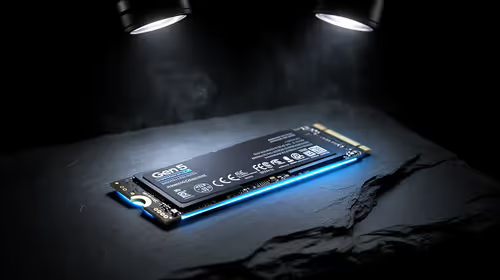
Gen 5 NVMe SSD guide for Bloemfontein gamers should be shortlisted around the job it must do. South African buyers should compare capacity, speed, thermals, and motherboard support, warranty path, and upgrade room before treating any pick as best.
Read more
Skip the RTX 5070 if your first-time builder budget needs better balance. Better SA picks can free room for the right CPU, PSU, case, monitor, storage, and cooling while still giving a strong first gaming PC experience this year in South Africa.
Read more
RTX 5080: weighing the pros and cons for SA should be shortlisted around the job it must do. South African buyers should compare GPU tier, VRAM, cooling, and PSU headroom, warranty path, and upgrade room before treating any pick as best.
Read more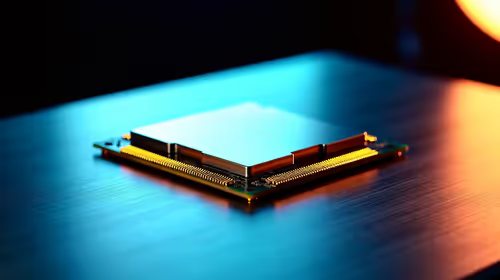
Core i5-13400F gives South African PC builders a capable mid-range CPU choice with clear limits. Check its gaming fit, discrete GPU requirement, LGA1700 platform costs, and upgrade path before locking in your parts list.
Read more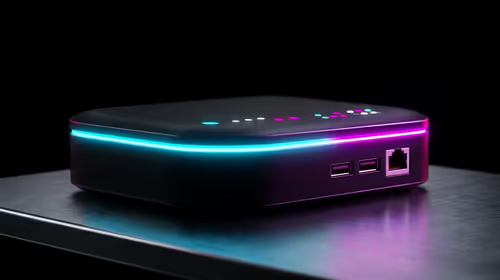
Pros and cons of the Wi-Fi 7 routers for SA should be shortlisted around the job it must do. South African buyers should compare WiFi standard, coverage, latency, and device support, warranty path, and upgrade room before treating any pick as best.
Read more
Steam content servers unreachable needs a download-path check, not an immediate reinstall of every game. Restart the client, inspect download settings and compare another connection when practical. Clearing the download cache is separate from deleting installed games.

Keychron G6 HE has built-in and swappable battery versions with different weights. The product brief lists 42g and 46g respectively, each with a 3g tolerance. Choose by grip and battery preference before treating one headline weight as universal.

Corsair HS80 v2 MAX supports 2.4GHz wireless and Bluetooth. Its maximum battery figures use RGB-off conditions and differ by connection. Check microphone routing, comfort and the exact device support before assuming every wireless mode behaves alike.

Windows taskbar notification badges can be shown or hidden in Taskbar behaviours. This changes the small app indicators, not the underlying messages. Choose a calmer desktop while keeping a deliberate routine for checking important conversations and app updates.

Windows title bar window shake can minimise other open windows when you shake the active window by its title bar. Inspect the Multitasking setting and switch it off if that gesture interrupts your work. The preference costs R0 and does not require new hardware.

Windows Print Screen opens Snipping Tool when its keyboard preference is enabled. Change the option under Accessibility, Keyboard to choose another workflow. Test whether you need a clipboard image or a saved file.

Windows desktop icons missing may be a visibility setting. Right-click the desktop, choose View and inspect Show desktop icons. If only system icons are absent, use Desktop icon settings. Check the Desktop folder before assuming files were deleted.

Windows set time zone automatically greyed out calls for a location and device-policy check. Automatic time-zone selection relies on location services. A manual time-zone choice is separate from synchronising the clock; check both before replacing hardware.
Windows title bar window shake can minimise other open windows when you shake the active window by its title bar. Inspect the Multitasking setting and switch it off if that gesture interrupts your work. The preference costs R0 and does not require new hardware.
Windows Print Screen opens Snipping Tool when its keyboard preference is enabled. Change the option under Accessibility, Keyboard to choose another workflow. Test whether you need a clipboard image or a saved file.
Windows desktop icons missing may be a visibility setting. Right-click the desktop, choose View and inspect Show desktop icons. If only system icons are absent, use Desktop icon settings. Check the Desktop folder before assuming files were deleted.
Windows set time zone automatically greyed out calls for a location and device-policy check. Automatic time-zone selection relies on location services. A manual time-zone choice is separate from synchronising the clock; check both before replacing hardware.