


Starfield Max Settings on RTX 5070: Complete Guide
Starfield Max Settings on RTX 5070. Tested & verified settings for best FPS and visual quality on SA hardware budgets.
Read moreSlow NVMe file transfers can waste time and frustrate upgrades 🚀 Learn the common causes, quick fixes, and best practices to restore fast copy speeds.
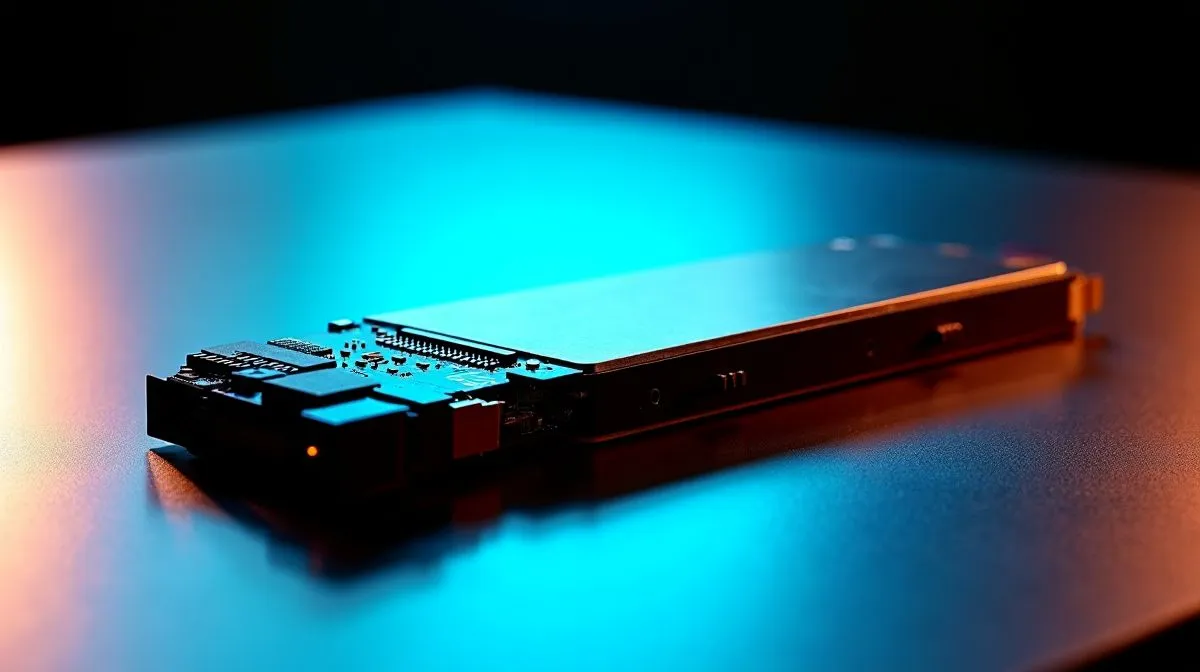
You just dropped serious ZAR on a top-tier drive, expecting lightning-fast load times. Instead, you are staring at a progress bar that barely moves. Finding your NVMe transfer speed slow is incredibly frustrating. Before you blame your motherboard or assume the drive is dead... let us look at the most common culprits.
Let us dive into why your blazing-fast drive is suddenly crawling. Often, the issue is not permanent hardware failure. It is usually a mix of heat, capacity limits, or software quirks.
NVMe drives process massive amounts of data, which generates serious heat. South African summers can easily turn your PC case into an oven. If your drive lacks a proper heatsink, it will intentionally slow down to protect itself from melting. This thermal throttling is completely normal. However, investing in high-performance Corsair solid state drives that feature robust built-in cooling can prevent this exact issue.
SSDs use a dynamic SLC cache to boost their write speeds. Think of it as a high-speed waiting room for your data. If your drive is over 80 percent full, that waiting room shrinks. The drive is forced to write directly to slower flash memory. The easiest fix? Give yourself some breathing room. Upgrading to a spacious 2TB NVMe drive ensures you never hit that frustrating performance wall.
Are you absolutely sure you used the right slot? Not all M.2 slots on your motherboard are created equal. Your board might feature one ultra-fast PCIe Gen 4 slot and a secondary, much slower Gen 3 slot. If you plugged your brand new Kingston M.2 SSD into the bottom slot, you are literally halving its maximum potential speed.
Always check your motherboard manual before installing a new drive. Some M.2 slots share bandwidth with your SATA ports or graphics card. Moving your drive to the primary slot closest to the CPU usually guarantees maximum speed.
Sometimes Windows gets confused, especially after sudden loadshedding cuts. Running a quick disk check can resolve minor file system errors caused by unexpected power failures. Open your command prompt and run a basic scan to ensure everything is healthy.
First, check if your drive needs a firmware update. Manufacturers regularly release updates to patch bugs and optimise speeds. Brands like ADATA offer dedicated software toolboxes to make this update process painless.
Next, verify your Windows write caching settings. Open Device Manager, locate your drive, right-click for Properties, and check the Policies tab. Ensure that "Enable write caching on the device" is ticked. This small setting makes a massive difference.
If you have tried everything and your NVMe transfer speed is still slow, the flash memory might be degrading. SSDs have a limited lifespan of write cycles. When you are ready to replace a dying drive, exploring a fresh lineup of solid state drives is your best bet for restoring that snappy, responsive PC feel.
Ready to Banish Slow Load Times? Do not let a sluggish drive ruin your gaming sessions or productivity workflow. Explore our massive range of SSD specials at Evetech and find the perfect high-speed storage solution for your rig.
Common causes include thermal throttling, wrong PCIe slot, outdated drivers, and OS settings that slow NVMe file transfers.
Use SMART or monitoring software to watch drive temperatures. High temps can trigger thermal throttling and reduce NVMe speed.
Yes. A slot with fewer lanes or lower PCIe generation can cap speed and make slow NVMe file transfers more noticeable.
Yes. TRIM helps maintain performance over time and can improve slow file transfers on NVMe drives in some cases.
It can. Driver updates may improve stability, compatibility, and sometimes slow NVMe file transfer performance.
Small files create more overhead than large files, so even fast drives can show slower file copy speeds with many tiny items.
Yes. Power plans, write caching, and background antivirus scans can all affect NVMe transfer speed and file copy performance.
Starfield Max Settings on RTX 5070. Tested & verified settings for best FPS and visual quality on SA hardware budgets.
Read more
When Will the RTX 6090 Launch in South Africa Detailed answer with SA data, expert analysis & practical recommendations for local buyers.

Top Valorant Settings for RTX 5070: FPS Optimisation picks evaluated on performance, value & SA availability with current Rand pricing from Evetech.

RDNA 3.5 Graphics in Ryzen AI 400? Can You Game. Plain-English explanation of what it means, why it matters & how it affects your buying decisions in SA.

GPU Price Index : December Report. Current stock data & price tracking for SA buyers. See what is available and where prices are heading.

Core i5-14600K + B760 + RTX 5060 Build Under. Full parts list, Rand pricing & expected performance. Build confidently with SA-available components.

RX 7600 Apex Legends at 4K: FPS Benchmark. Real-world benchmark data, FPS numbers & performance analysis. What SA gamers can actually expect.

RX 7900 XTX GTA 6 at 4K: FPS Benchmark & Optimal. Real-world benchmark data, FPS numbers & performance analysis. What SA gamers can actually expect.

Head-to-head comparison of RTX 5070 vs RX 9070 XT: Gaming Performance for SA gamers. Performance benchmarks, Rand pricing & which delivers better value.
Starfield Max Settings on RTX 5070. Tested & verified settings for best FPS and visual quality on SA hardware budgets.
Top RX 7800 XT Model Under R8,000 picks evaluated on performance, value & SA availability with current Rand pricing from Evetech.
RTX 5070 Valorant Optimised Settings: Graphics. Real-world benchmark data, FPS numbers & performance analysis. What SA gamers can actually expect.

Top Laptop with Core i7 + RX 7700S: Picks picks evaluated on performance, value & SA availability with current Rand pricing from Evetech.