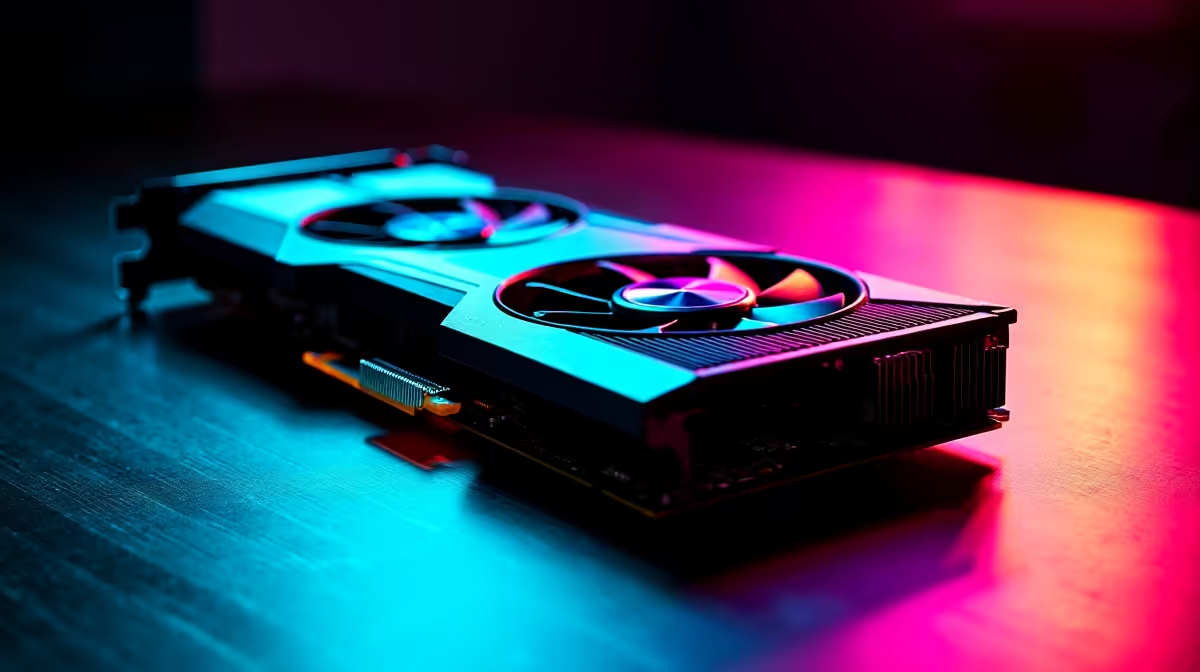
So, you've got your hands on a rig powered by the future: an Intel Ultra 9 CPU and an NVIDIA RTX 5000 series GPU. Lekker! This isn't just a gaming PC; it's a statement. But owning a beast and unleashing its full potential are two different things. Getting the absolute best performance from this combo requires more than just plugging it in. Let's dive deep and truly optimise your Ultra 9 RTX 5000 performance. 🚀
Foundational Tweaks for Peak Performance
Before we get into the nitty-gritty of advanced settings, let's cover the essentials. Think of this as laying the perfect foundation. An unstable base will crumble no matter how powerful the hardware on top is. The first, non-negotiable step is ensuring your drivers are up to date, especially your graphics driver. NVIDIA constantly refines its software to squeeze more power out of its hardware, and you'll want those day-one game patches. This principle applies to all modern NVIDIA GeForce gaming PCs and their counterparts.
Next, dive into your motherboard's BIOS/UEFI. Manufacturers frequently release updates that improve system stability, memory compatibility, and even raw performance. For a top-tier system, running on the launch BIOS is like trying to win the Kyalami 9 Hour in a bakkie. While you're there, ensure that features like Resizable BAR are enabled. This gives your CPU full access to the GPU's memory buffer, providing a tidy performance uplift in many modern titles. This is a standard check for any of the latest Intel PC deals we assemble.
Unlocking Your Ultra 9 CPU Potential
The Intel Ultra 9 is a multi-core monster, but it needs the right environment to truly shine. One of the most significant and easiest wins is enabling your RAM's XMP (Extreme Memory Profile) in the BIOS. Without it, your expensive, high-speed DDR5 RAM will likely run at its slow, default JEDEC speed. Enabling XMP is a one-click process that unlocks the performance you paid for, crucial for feeding that hungry CPU with data. It’s a must-do for all modern DDR5 gaming PCs.
While deep overclocking is a complex art, you can still ensure your CPU is boosting correctly. Monitor your temperatures during a gaming session. If the Ultra 9 is hitting its thermal limits (throttling), it will automatically reduce its clock speed to protect itself, costing you valuable frames. Proper cooling isn't just a luxury; it's a core component of performance, a lesson that applies even to more modest budget gaming PCs. For a high-end build, this is non-negotiable.
Quick BIOS Win: Enable XMP
Restart your PC and enter the BIOS (usually by pressing DEL or F2). Find the "Extreme Memory Profile (XMP)" or "DOCP" setting, often on the main or "Tweaker" page. Select "Profile 1," save, and exit. That's it! You've just unlocked your RAM's true speed. ⚡
Fine-Tuning the RTX 5000 Beast
Now for the main event: that glorious RTX 5000 series GPU. Beyond drivers, the NVIDIA Control Panel is your best friend. Right-click your desktop, open it up, and head to "Manage 3D settings." One key setting to change from the default is "Power management mode"—set it to "Prefer maximum performance." This ensures your GPU doesn't downclock aggressively to save power during less intense moments in a game.
This level of customisation is what separates a good gaming experience from a great one. Whether you're gaming, streaming, or tackling demanding creative projects on powerful workstation PCs, these small tweaks add up. The same logic applies across the board, even when considering the excellent value found in AMD Ryzen PC deals, where similar principles yield fantastic results. Your goal is to eliminate any software bottlenecks that prevent the hardware from stretching its legs.
Beyond the Hardware: Your System's Health
Finally, remember that the most powerful components in the world can be held back by a cluttered system. Keep background applications to a minimum when gaming. Overlays from multiple chat programs, RGB software, and unnecessary startup items can introduce stutter and reduce your average FPS. A clean Windows install is a great starting point, which is a key benefit of considering expertly configured pre-built PC deals.
Ultimately, getting the most out of a high-end rig is about synergy. The CPU, GPU, RAM, and even your storage all work together. It’s a philosophy that matters whether you're looking at PCs under R20k or the most premium builds. For the powerhouse systems that fall into the category of PCs above R20k, every percentage point of performance counts. Even the GPU rivalry between NVIDIA and the latest AMD Radeon gaming PCs often comes down to driver maturity and software optimisation. ✨
Ready for Uncompromising Power? Optimising your rig is rewarding, but starting with a perfectly balanced, expertly built machine is the ultimate advantage. Explore our best gaming PC deals for performance that leaves lag in the dust.