

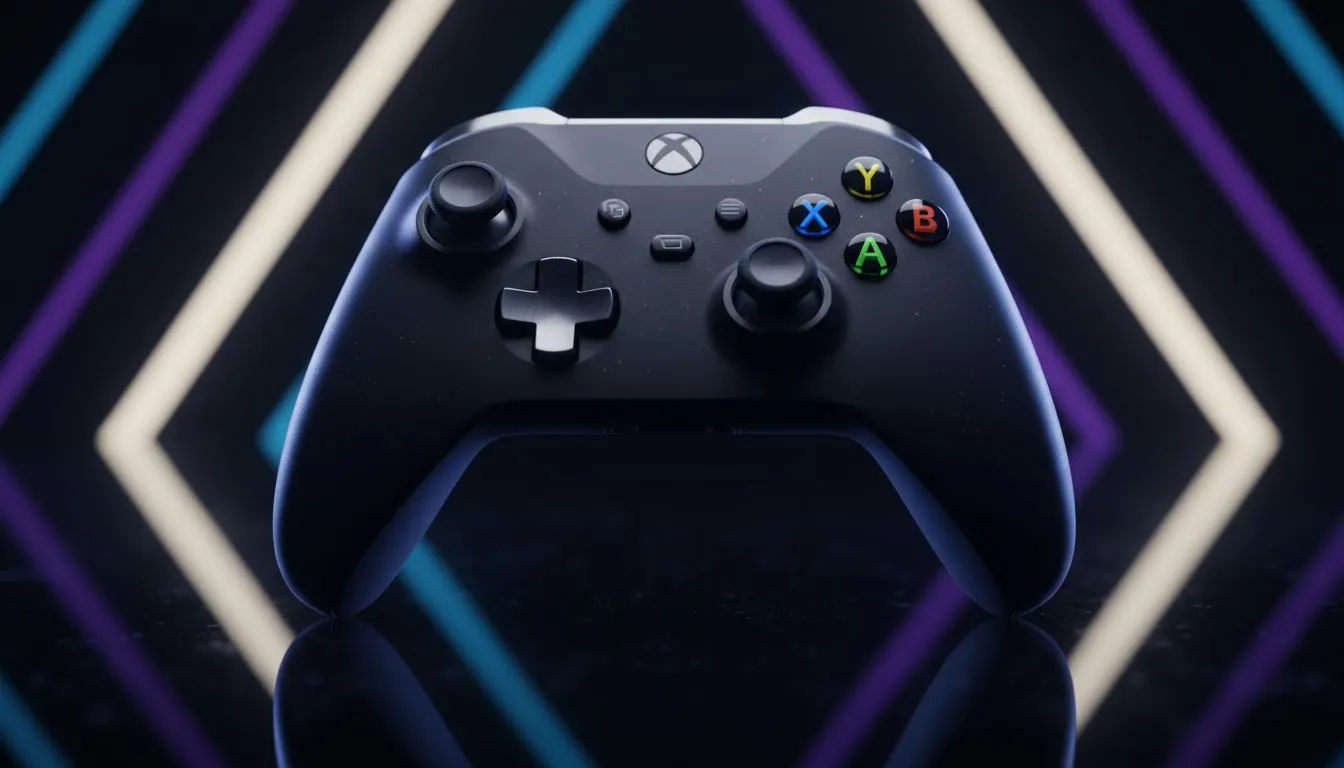
Hardware First: Why Your Controller Might Be Ghosting You
There is nothing quite as frustrating as sitting down for a late-night session in Johannesburg, only to find your PC gamepad not detected. Whether you are prepping for a boss fight or a quick match of FC 25, a silent controller kills the vibe instantly. We have put together these step-by-step fixes for Steam & Xbox App to get you back in the game quickly. 🔧
Before diving into software settings, check your physical connections. A frayed USB cable or a dying battery pack is often the culprit. If your current gear is beyond repair, you may need to buy gaming controllers that offer more robust build quality for those intense gaming sessions.
Solving Steam Input Conflicts
Steam is generally excellent at handling peripherals, but it can sometimes "hijack" your device. If you find your PC gamepad not detected in specific titles, Steam Input might be the issue.
- Open Steam and head to Settings > Controller.
- Ensure the toggle for your specific controller type (Xbox, PlayStation, or Generic) is switched on.
- If the game still does not respond, right-click the game in your Library... select Properties > Controller... and change the override to "Enable Steam Input".
For enthusiasts who need the lowest possible latency, the Razer Wolverine V3 Tournament Edition provides an 8K polling rate that bypasses many common software lag issues. It is a premium investment for serious South African competitive players.
Fixing Detection Issues in the Xbox App
The Xbox App on Windows relies heavily on specific background services. If these services are disabled, your gamepad will not wake up.
Check Gaming Services
Press the Windows Key and type "Services". Look for Gaming Services, Xbox Accessory Management Service, and XblGameSave. Ensure their status is "Running". If they are stopped, right-click and select "Start".
Update Drivers via the Xbox Accessories App
Download the Xbox Accessories app from the Microsoft Store. Plug your controller in via USB and check for firmware updates. A simple firmware patch can often resolve "PC gamepad not detected" errors that occur after a Windows update. ⚡
Calibration Pro Tip ⚡
If your controller is detected but the thumbsticks feel "off", use the built-in Windows calibration tool. Type "joy.cpl" in the Windows search bar, select your controller, and click Properties. Under the Settings tab, you can calibrate your axes to ensure every movement is pixel-perfect in-game.
Manufacturer Software and Driver Cleanup
Sometimes, generic Windows drivers are not enough. High-end peripherals often require dedicated software to unlock their full potential. If you use premium gear, check out our range of Razer gaming controllers and ensure you have Razer Synapse installed. This software manages everything from button remapping to RGB lighting... and it ensures the OS recognises the device correctly. 🚀
If your PC gamepad is still not detected, try uninstalling the device from the Device Manager. Unplug the controller... restart your PC... and plug it back in. Windows will attempt to fetch a fresh driver, which usually clears out any corrupted configuration files.
Ready to Upgrade Your Control? Tired of wrestling with old hardware and connection drops? Whether you need a budget-friendly replacement or a pro-tier weapon, we have the best deals in South Africa. Explore our massive range of gaming controllers and find the perfect match for your setup today.











