Quick Answer
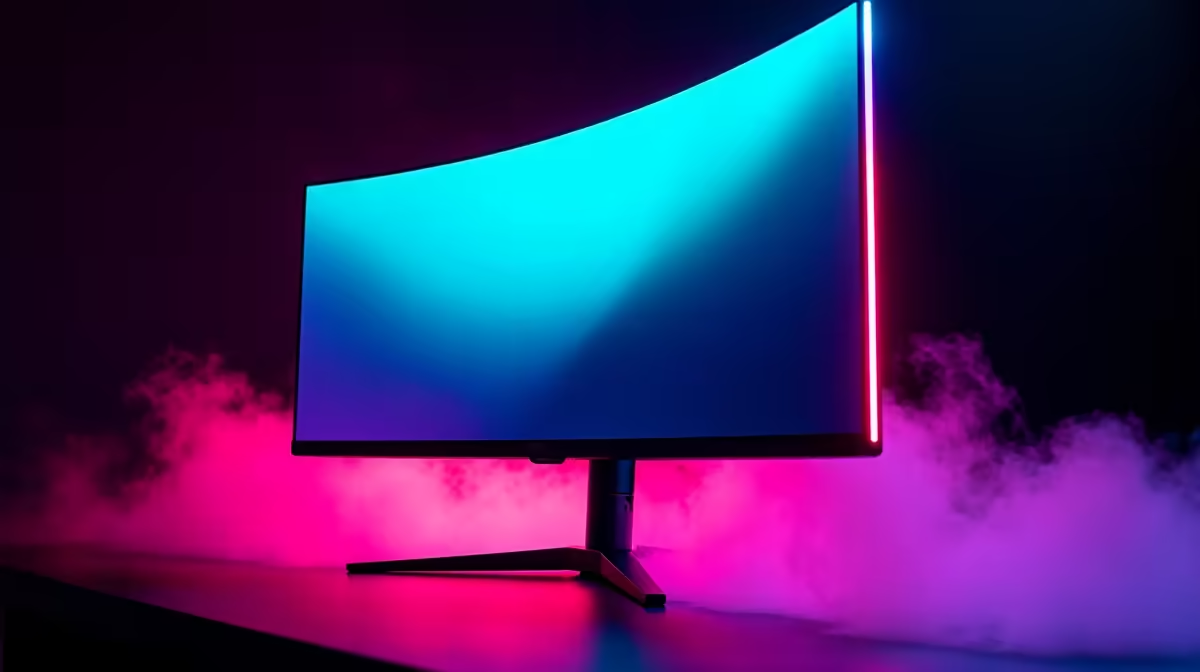
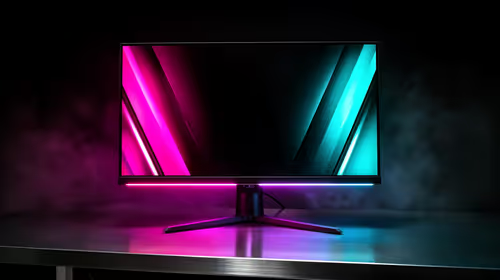
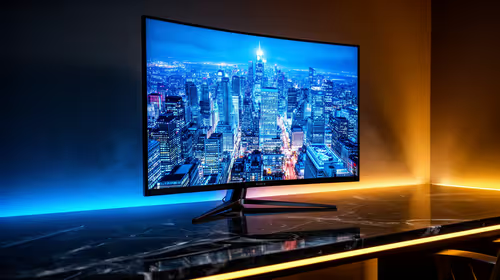
A competitive esports monitor should be 24 to 27 inches, at least 144Hz, and preferably 1ms-class with adaptive sync. For most SA players, 1080p 144Hz or 165Hz is the value pick, while 240Hz makes sense only if your PC can push near-240 fps in the games you play.
Refresh Rate Beats Resolution For Ranked Play
Competitive shooters reward low latency more than extra pixels. A 24-inch 1080p 144Hz monitor is still a strong baseline for Valorant and CS-style play, while 27-inch 1440p works well if your GPU can keep frame rates high.
Broad local pricing often starts around R2,500 to R4,000 for 144Hz or 165Hz displays, with 240Hz and 1440p models moving higher. Spend only where your GPU can actually feed the panel.
Panel And Desk Checks
IPS panels usually give cleaner colour and viewing angles, while VA panels can offer deeper contrast but may smear in fast motion. Check height adjustment, DisplayPort support, HDMI version, and whether the stand fits your desk.
For dorm rooms, shared flats, and compact Johannesburg or Cape Town desks, monitor footprint matters. A monitor arm can free space, but make sure the display supports VESA mounting before planning around it.
Pair It With The Right PC Settings
Enable the correct refresh rate in Windows, use DisplayPort when required, and confirm the game is not capped at 60 fps. Adaptive sync helps smooth dips, but it does not replace enough GPU performance. A mid-range GPU can drive esports well; heavy AAA games at 1440p need more graphics headroom.
FAQ
Is 144Hz enough for esports?
Yes, 144Hz is a strong competitive baseline. Move to 240Hz only if your PC and game settings can stay close to that frame rate.
Is 27-inch too big for competitive gaming?
Not always, but many players prefer 24-inch for faster scanning. Choose 27-inch if you also play story games or use the screen for study and work.
Should I buy 1080p or 1440p?
Choose 1080p for maximum fps on a tighter budget. Choose 1440p if your GPU is strong enough and you want sharper desktop use too.
check Windows display settings and confirm the monitor is actually running at 144Hz, 165Hz, or 240Hz.