

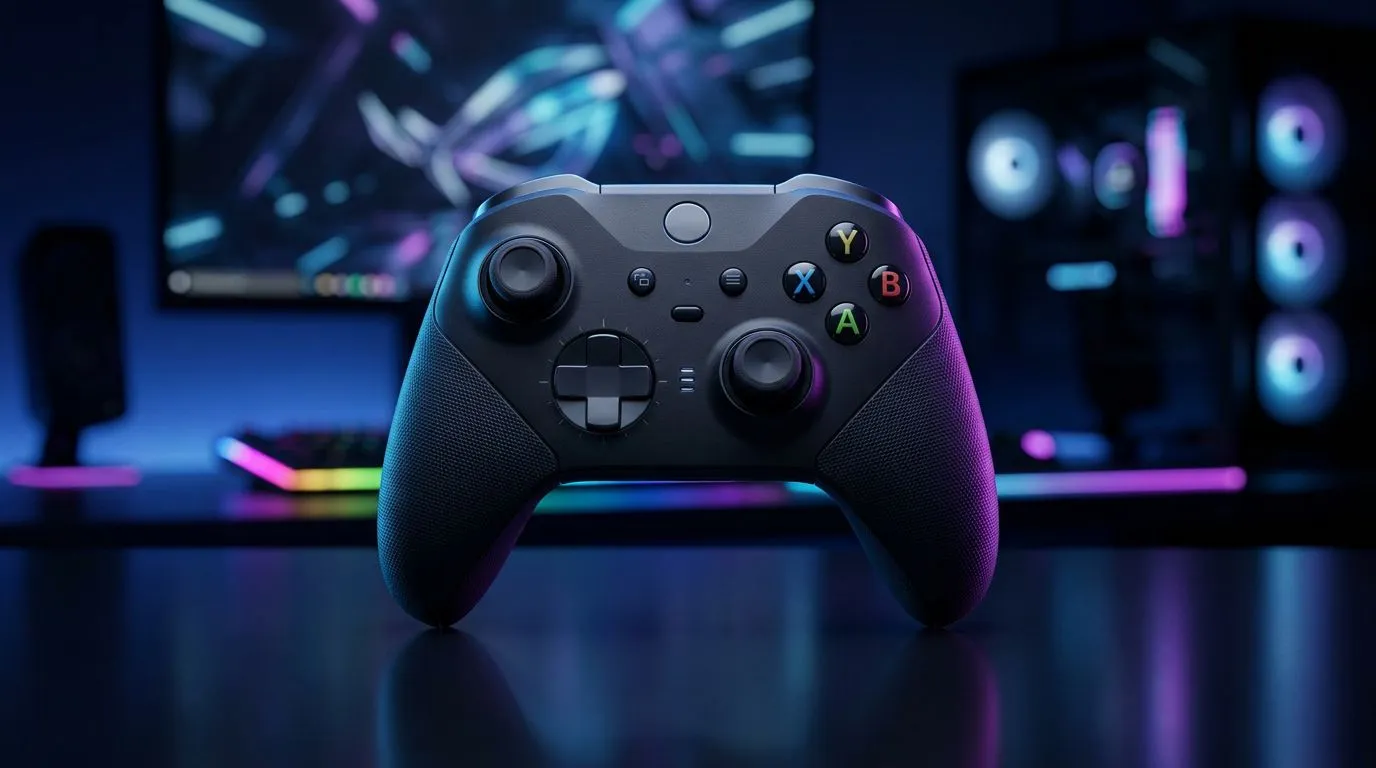
Plug and Play Gaming Controllers PC: Quick start for South African gamers 🎮
If you’ve ever unboxed a controller and wondered how to get it working on Windows without a headache, you’re in the right place. This guide strips out the jargon and shows practical steps for plug and play gaming controllers PC users — from USB recognition to mapping buttons for Apex Legends. Read on for quick wins, brand tips, and links to actual Evetech listings so you can buy with confidence.
Plug and Play Gaming Controllers PC: what "plug and play" actually means
Plug and play should mean you plug the controller into a USB port or pair over Bluetooth, and Windows recognises it. For many modern pads that’s true, especially first-party and tournament-style wired controllers. If a controller needs drivers or custom software, it’s still easy — but not strictly plug and play. If you want a plug-and-play experience, wired controllers usually avoid pairing quirks and latency concerns. For a premium wired option, check the Razer Wolverine V3 Tournament Edition deal on Evetech to compare features and pricing before you buy: https://www.evetech.co.za/razer-wolverine-v3-tournament-edition-8k/best-deal/24274
Plug and Play Gaming Controllers PC: picking the right controller for you 🔧
Decide on form factor first: full-size console-style, compact, or fight-pad. If you play shooters, low input latency and remap tools are priorities. For retro or indie titles, a simple, cheap pad will do. Browse Evetech’s full controller range to filter by wired, wireless, or brands and see ZAR pricing: https://www.evetech.co.za/PC-Components/buy-gaming-controllers-365
Wired vs wireless: practical trade-offs
Wired: lower latency, no batteries, usually plug and play. Wireless (Bluetooth or proprietary dongle): convenient, a touch more setup, possible firmware updates.
If you favour Razer hardware specifically, Evetech has a filtered list for Razer controllers so you can compare specs and local stock: https://www.evetech.co.za/PC-Components/buy-gaming-controllers-365?brands=Razer
Controller Setup Tip ⚡
Use a powered USB 3.0 port for wired pads. If Windows refuses to recognise a device, try another port or a short active USB cable to avoid voltage drop.
Plug and Play Gaming Controllers PC: step-by-step setup (Windows 10/11)
- Plug the controller into a USB port or enable Bluetooth and pair.
- Wait for the Windows device notification — it usually appears within 10–20 seconds.
- Open Settings > Devices > Bluetooth & other devices to confirm.
- For remapping or macro needs, install official software (only if needed). Many titles also let you remap in-game.
Small story: At a Johannesburg LAN last year, a player swapped controllers and fixed aim instantly by switching from a wireless pad to a tournament wired controller. No drivers. Just plug and play... and a quick calibrate in-game.
Final notes and next steps 🚀
If you want the simplest route, buy a reputable wired controller with wide Windows compatibility. If you need help choosing, bring your preferred game list to the decision — comfort and button layout matter.
Ready to Find Your Perfect Match? The Mac vs Windows debate is complex, but for maximum power, choice, and value in South Africa, Windows is hard to beat. Explore our massive range of laptop specials and find the perfect machine to conquer your world.











