

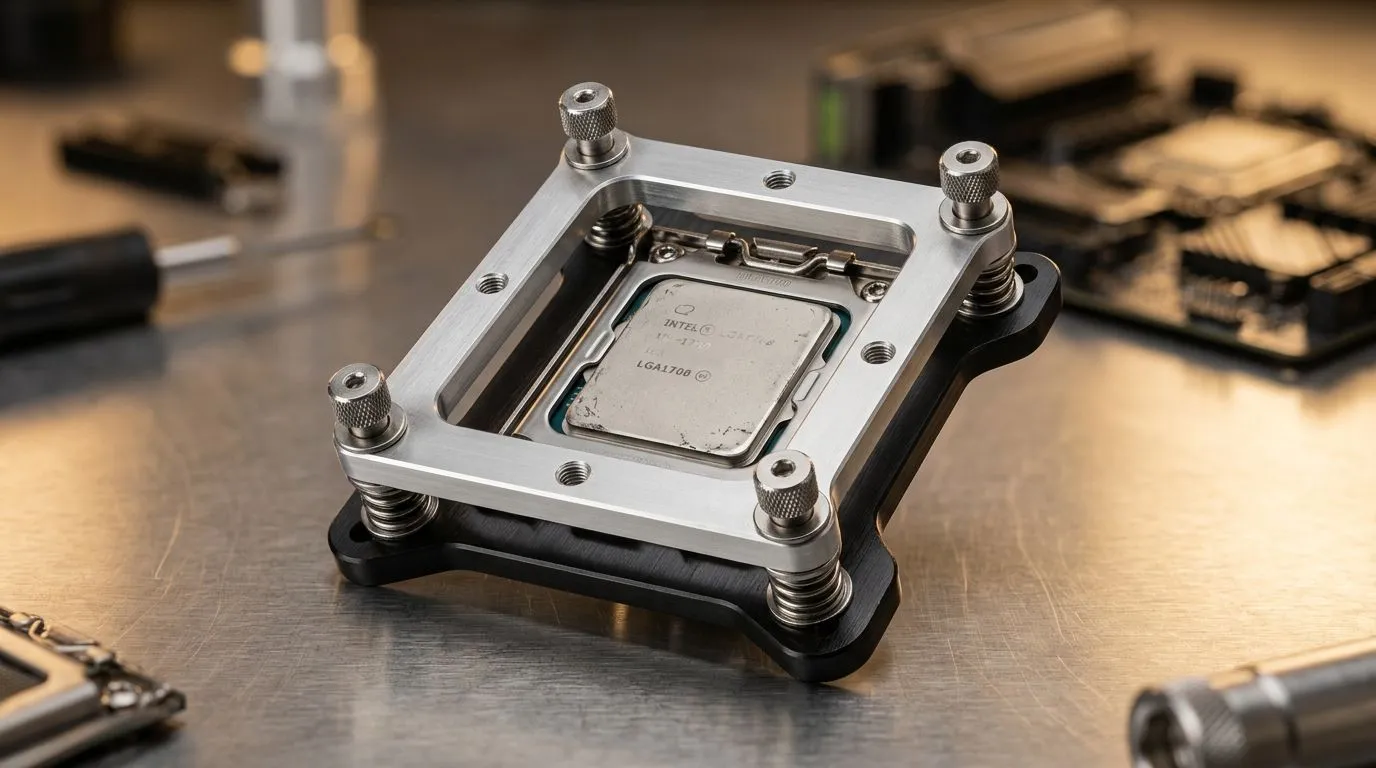
Poor CPU Cooling Contact: Why Your Temps Spike (and Games Stutter)
If your PC idles hot, shuts down under load, or tanks FPS mid-match, don’t blame the GPU first. A lot of the time the culprit is poor CPU cooling contact. You press a cooler on, hear the click, and move on… until the thermal paste layer is uneven or the mounting pressure is wrong 🔧. In South Africa’s warm rooms, even a small contact issue can be the difference between smooth play and throttling.
Poor CPU Cooling Contact: The Real Causes (What Goes Wrong at the Mount)
Let’s break down the usual suspects behind poor CPU cooling contact:
- Uneven paste spread: Too much paste can stop heat transfer. Too little can leave dry spots.
- Wrong mounting pressure: If one side sits higher, the cooler never contacts evenly.
- Cooler base contamination: Dust, old paste residue, or a scratched base can reduce transfer.
- Improper bracket alignment: AM4/AM5 and Intel sockets need the backplate and bracket aligned correctly.
- Cooler type mismatch: Smaller fan sizes or mismatched airflow can fail to move heat away fast enough.
Cold truth from PC thermals: your cooler can be “good” on paper, but contact problems turn it into a fancy decorative fan.
Poor CPU Cooling Contact: Quick Diagnose You Can Do Today
Try this simple checklist before you buy anything:
- Check idle temps after boot, with the side panel on.
- Re-seat once if temps are wildly above expectations or you see sudden spikes.
- Look for pump/noise mismatch (for AIOs) or fan curves that don’t spin up under load.
Productivity Pro Tip 🔧
Before re-mounting, mark the cooler’s current position with a small pencil line on the case. After you remove it, you can verify you’re aligning the bracket exactly the same way… but with better paste coverage. This saves time and reduces “mystery misalignment” during reinstall.
Poor CPU Cooling Contact: Metal Mount Fixes That Actually Work
Now for the fix. When you suspect poor CPU cooling contact, you’re aiming for two things: clean contact surfaces and even pressure. Here are practical “metal mount” approaches that help:
Poor CPU Cooling Contact: Clean Surfaces Like You Mean It
- Remove the cooler.
- Clean CPU heat spreader and cooler base with isopropyl alcohol.
- Wipe until the surface looks uniform and streak-free. Avoid scraping hard. Light cleaning is enough.
Poor CPU Cooling Contact: Apply the Correct Thermal Paste Amount
A common rule: use a small pea-sized dot for most modern CPUs. Then mount the cooler firmly so the paste spreads into a thin layer. More paste is not better.
Poor CPU Cooling Contact: Re-seat With Even Tightening
Use a cross pattern. Don’t fully tighten one corner first. Tighten in stages until secure. This evens the metal-to-metal pressure and improves contact.
Poor CPU Cooling Contact: Consider Better Cooling Hardware
If you’ve re-seated and your temps still refuse to cooperate, your cooler may simply be underpowered for your workload or case airflow. Browse Evetech’s options to match your setup:
- Start with a broad look at CPU coolers here: Evetech CPU coolers
- If you prefer traditional air cooling, check Air Cooler CPU options
- For airflow-focused builds, explore 120mm fan air cooler selections
- Want a brand-specific browse? See Deepcool air coolers
- Or compare with EINAREX air coolers
Poor CPU Cooling Contact: When to Stop Troubleshooting and Upgrade
If you’ve cleaned surfaces, used the right paste amount, and tightened evenly, but your CPU still throttles, it’s time to upgrade your cooling. Especially in SA summer heat, a well-fitted cooler plus solid airflow in your case is what keeps games smooth and systems stable.
Ready to Find Your Perfect Match? The Mac vs Windows debate is complex, but for maximum power, choice, and value in South Africa, Windows is hard to beat. Explore our massive range of laptop specials and find the perfect machine to conquer your world.











