

Humidity Damage to PC Components: Recovery Guide
Humidity Damage to PC Components: Recovery Guide. Everything you need to know with SA pricing, step-by-step instructions & expert recommendations.
Read morePoor mic quality can ruin calls and streams 🎙️🔧 Learn how noise reduction and proper setup can clean up headset audio, reduce background noise, and make your voice sound clearer fast.
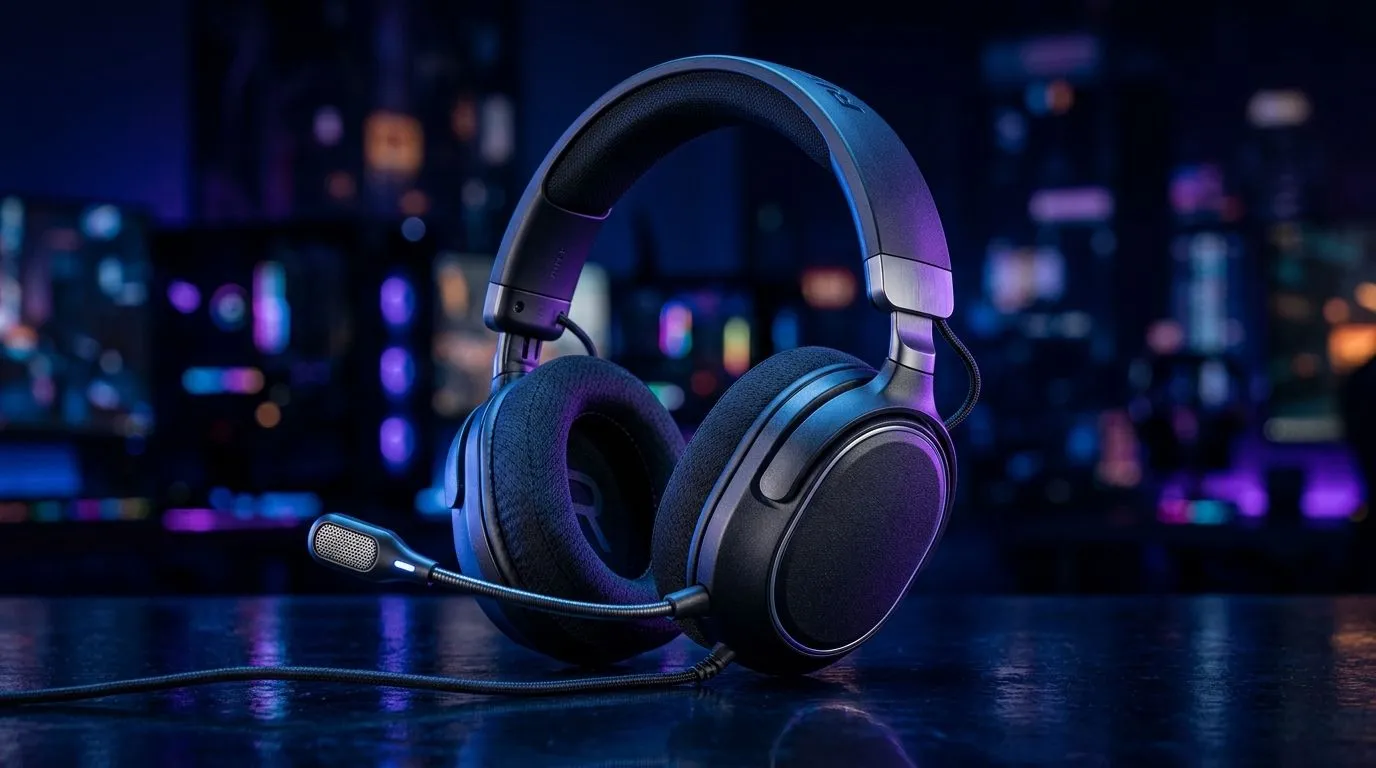
So your friends say your mic sounds like it’s at the bottom of a tunnel… again? In South Africa, that’s usually not your “voice”, it’s your setup. Whether you’re on Discord, in ranked, or using Teams for work, tiny changes can remove background hiss, keyboard clicks, and room echo. 🔧
Let’s fix poor mic quality with simple, repeatable steps that don’t require fancy software. And yes… you’ll sound sharper in minutes.
Before you touch any settings, do a quick “hardware check”. This is the fastest path to better audio.
Record a 10-second voice note, then repeat after adjustments. Your brain adapts too easily… meters don’t.
Once positioning is correct, the goal is to reduce unwanted sound without cutting your words.
If you’re using a gaming headset, software tuning can also help depending on the model. For example, check the options offered for Razer’s headset lineup here: Explore Razer headphones headsets for options
Noise suppression removes constant background noise like fan hum or AC. But heavy settings can make your voice sound robotic.
A practical approach:
On Windows, open Sound settings and re-check your microphone Input level after any headset change. Headsets often report different gain profiles, and a level that was perfect yesterday can suddenly cause hiss or distortion when you swap devices.
If people can’t hear your quiet words (like “yeah”, “okay”, “gg”), your noise suppression is likely too aggressive. Reduce it slightly and raise input volume a little instead.
Even the best settings can’t beat a poor microphone design. If your room is noisy, closed-back headsets and mics built for voice capture help a lot.
If you’re shopping, Evetech’s range is a good place to start. For instance:
If you follow those steps, most “bad mic quality” problems turn into “okay, you sound great now” problems.
Ready to Find Your Perfect Match? A clear mic and the right headset setup can change everything for gaming and work. Explore our range of headsets and upgrades so your voice comes through clean, every time. Shop Evetech laptop specials and bundles and find gear that fits your budget in South Africa.
A muffled headset mic often comes from bad positioning, low gain, or dirt on the mic. Reposition it and test your noise reduction settings.
Use noise reduction or noise suppression in your app, lower mic gain, and keep the mic close to your mouth for cleaner voice audio.
Place the mic about two finger widths from the corner of your mouth to reduce plosives and improve clarity.
Yes. Voice filters, noise suppression, and gain control can improve poor mic quality, especially in Discord, OBS, or Windows settings.
The mic may be too sensitive or too far from your mouth. Lower the gain and enable noise reduction to cut keyboard noise.
Record a short sample, listen for volume and clarity, then adjust mic position, gain, and noise reduction until your voice sounds natural.
Humidity Damage to PC Components: Recovery Guide. Everything you need to know with SA pricing, step-by-step instructions & expert recommendations.
Read more
Gamer Spending Trends April : Complete Setups. Clear setup instructions with SA-specific considerations, troubleshooting tips & recommended components.
Read more
Setting Up DDR5 32GB Kit. Tested & verified settings for best FPS and visual quality on SA hardware budgets.
Read more
Tech Setup Guide for SPU Res Students. Clear setup instructions with SA-specific considerations, troubleshooting tips & recommended components.
Read more
Monster Hunter Wilds Ultrawide Support: 21:9 and. Clear setup instructions with SA-specific considerations, troubleshooting tips & recommended components.
Read more
Apple iPad Durability Guide: Cases, Screen. Practical breakdown of costs, regulations & whether it makes financial sense for SA buyers.
Read more
AMD RX 9050 XT: Rumoured Specs, Price & Release. SA-focused analysis with local pricing data, real-world insights & actionable buying advice.

Can RTX 4080 Super Run AI Workloads for SA Developers Detailed answer with SA data, expert analysis & practical recommendations for local buyers.

Can RTX 4090 Run AI Workloads for SA Developers Detailed answer with SA data, expert analysis & practical recommendations for local buyers.

Top Settings for Intel Arc B580 at Ultrawide 1440p picks evaluated on performance, value & SA availability with current Rand pricing from Evetech.

RTX 4060 CS2 Low Settings at 1080p: FPS Results. Real-world benchmark data, FPS numbers & performance analysis. What SA gamers can actually expect.

Visual Artifacts: Possible GPU Issue Issue #1. Diagnosis steps, proven fixes & when to seek professional help. SA-specific support info included.

Can the RTX 4090 Handle 1440p 144Hz Gaming. Performance testing verdict with real data & practical recommendations for SA buyers.

Top ASUS GPU Under R15000 picks evaluated on performance, value & SA availability with current Rand pricing from Evetech.

GTA 6 Max Settings on RTX 5070. Tested & verified settings for best FPS and visual quality on SA hardware budgets.

Cyberpunk 2077 Max Settings on RTX 5080. Tested & verified settings for best FPS and visual quality on SA hardware budgets.

Starfield Max Settings on RTX 5070 Ti. Tested & verified settings for best FPS and visual quality on SA hardware budgets.

Top RTX 5090 Under R5000 picks evaluated on performance, value & SA availability with current Rand pricing from Evetech.