

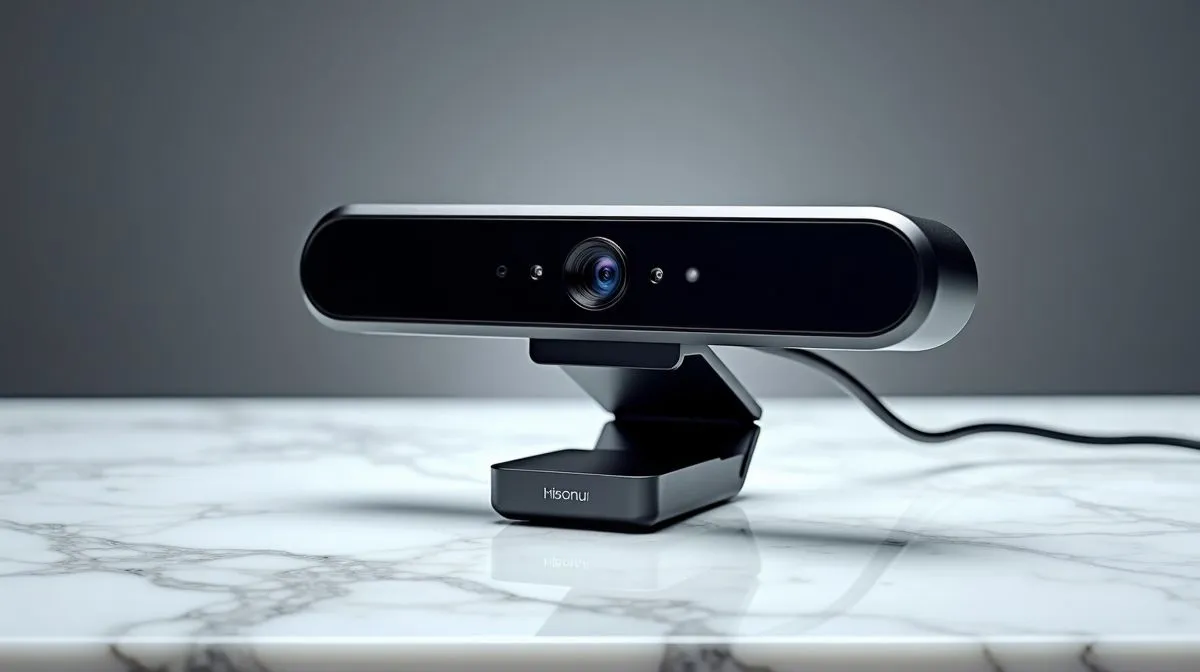
Mastering Razer Synapse Webcam Controls for a Sharper Image
South African gamers and streamers know the value of crystal-clear visuals in competitive play and content creation. Unlocking the full potential of your setup means mastering tools like Razer Synapse webcam controls. Whether you’re live-streaming from Johannesburg or Cape Town, better image setup helps you stand out with vivid, true-to-life video quality—no more fuzzy or washed-out shots. Let’s explore how to optimise your webcam settings using Razer’s powerful software and find the perfect accessory for your budget.
Why Razer Synapse Webcam Controls Matter for Image Quality
Razer Synapse is more than just a peripheral manager; it’s your gateway to fine-tuning webcam image quality. The software lets you adjust exposure, focus, white balance, and colour gain—all critical to producing lifelike video in varying lighting conditions. For South Africans dealing with different home office or gaming room setups, this can be a subtle yet impactful upgrade.
Adjusting your webcam’s brightness through Synapse can avoid overexposure on sunny Pretoria afternoons. Meanwhile, the focus controls help capture sharp detail whether you're showcasing your latest build or reaction face during gameplay.
Before you dive in, check out Evetech’s wide range of webcams priced under R1000 to find affordable, quality options that integrate seamlessly with Razer Synapse.
Step-by-Step Guide to Get the Best Image Setup
1. Open Razer Synapse and Select Your Webcam
Start by launching Razer Synapse and selecting your connected webcam device. If you’re using a Razer Kiyo or other supported model, you’ll see webcam controls pop up.
2. Adjust Exposure and Contrast
Slide exposure to suit your room’s lighting—for low-light setups, increase exposure slightly. But don’t push too far, or your image looks washed out. Contrast tweaks add depth to colours and details, especially useful for darker scenes.
Evetech’s selection of webcams priced between R1000 and R2000 offers excellent sensors that benefit from these Synapse tweaks, allowing you to capture richer colour in your streams.
3. Tune White Balance for Natural Colours
White balance makes skin tones and background colours look natural. Razer Synapse lets you manually adjust it or enable auto mode. Manual adjustment is best if your lighting has a strong colour tint (e.g., cool white LEDs or warm bulbs common in South African setups).
4. Use Focus and Zoom for Clarity
If your webcam has manual focus, use Synapse to sharpen your image. Digital zoom isn’t always ideal, as it can reduce picture quality—better to physically position your camera.
For a high-end choice, browse Evetech’s premium webcams priced up to R3000 that offer superb focus and zoom capabilities compatible with Razer Synapse controls.
Pro Tip to Enhance Webcam Performance
Focus on lighting first—perfect your room’s lighting before adjusting software controls. A simple ring light or LED panel can make Razer Synapse settings much more effective.
Troubleshooting Common Webcam Issues in Razer Synapse
Sometimes video appears grainy or colours look off despite adjustments. This usually relates to lighting or outdated drivers rather than Synapse itself. Ensure you’ve updated Synapse and webcam firmware for the latest compatibility.
If performance issues persist after tweaks, consider swapping to a different webcam model. Evetech’s extensive webcam collection makes upgrading easy without breaking the bank.
Enhance Your Streaming or Video Calls Today
Optimising your webcam settings with Razer Synapse gives your streams and video chats an edge. Whether streaming from Johannesburg or joining a Zoom call in Cape Town, a sharper image brings professionalism and confidence.
Browse carefully priced options under R1000 for budget solutions, or invest a bit more in models between R1000 and R2000 or R2000 to R3000 for enhanced quality and features—all compatible with Razer Synapse software.
Upgrade Your Visuals with Evetech Don’t settle for blurry or dull video. Shop now at Evetech to find the perfect webcam for your Razer Synapse setup and elevate your image quality instantly.











