

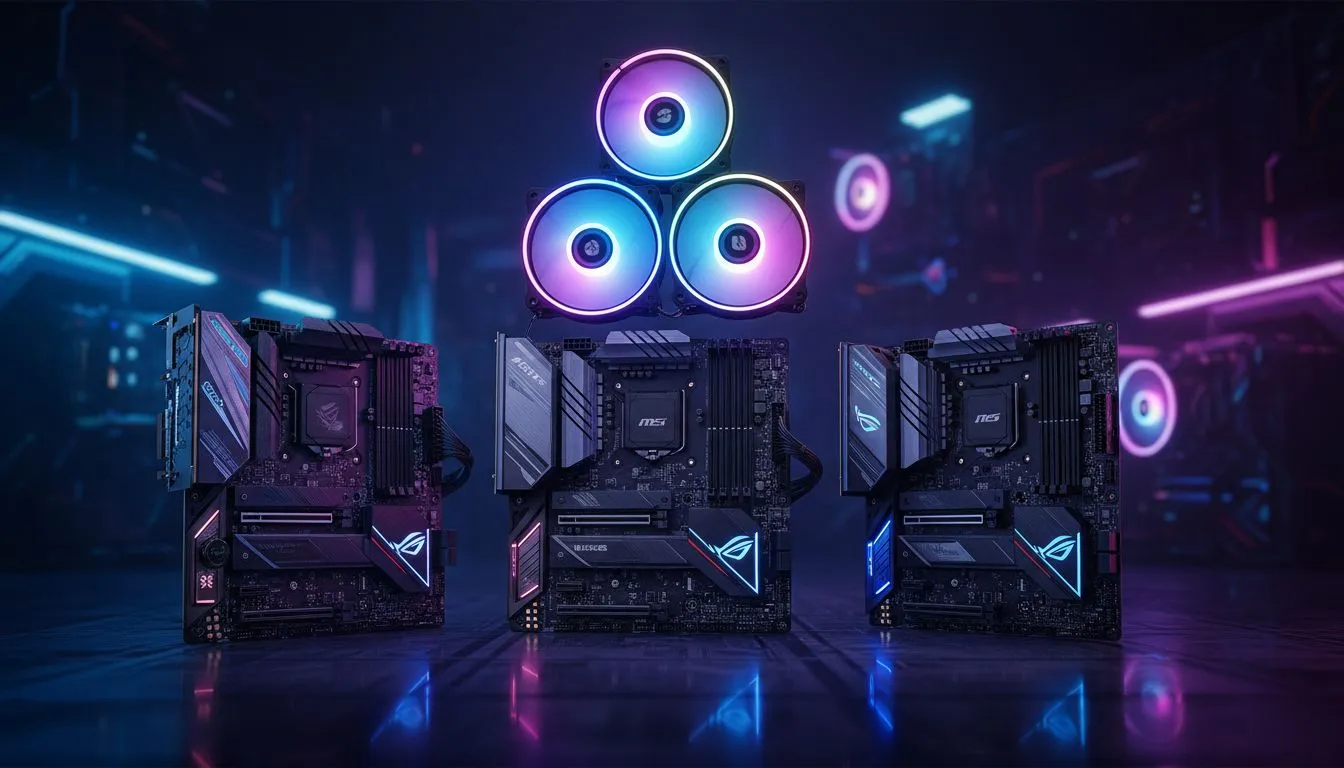
Building a beast of a PC in South Africa is one thing, but getting all your RGB lights to dance in perfect harmony? That’s a whole other level. If your case fans are doing their own thing while your motherboard pulses a cool blue, you're not alone. This guide will help you master RGB fan sync with the two biggest players in the game: ASUS Aura Sync and MSI Mystic Light. Let's get your rig looking absolutely brilliant. ✨
The Foundation: Understanding RGB Connectors
Before you even touch any software, you need to get the hardware right. The biggest mistake PC builders make is mixing up the two main types of RGB connectors on a motherboard. Getting this wrong won't just leave your lights off… it could permanently damage your components.
- 4-Pin (12V) RGB: This is the older standard. It allows all the LEDs on a strip or fan to be the same colour at any given time. You can have a solid red, a breathing blue, or a rainbow cycle, but the entire device will be one uniform colour.
- 3-Pin (5V) ARGB (Addressable RGB): This is the magic one. Each LED can be controlled individually, allowing for complex effects like rainbow waves, chasing lights, and other dynamic patterns.
Mixing them up is a recipe for disaster. Plugging a 3-pin ARGB fan into a 4-pin RGB header will send 12 volts where only 5 are expected, frying the LEDs instantly.
Check Your Header! ⚡
double-check your motherboard manual and the fan's packaging to confirm whether you're working with 12V RGB or 5V ARGB. Most modern motherboards have both, but they are not interchangeable. A solid build starts with [a quality computer case](https: www.evetech.co.za components computer-cases-70) that provides good cable management to keep these different wires organised.
How to Achieve Perfect RGB Fan Sync with ASUS Aura Sync
ASUS Aura Sync is one of the most popular ecosystems for controlling your rig's lighting. If you have an ASUS motherboard, achieving a full system RGB fan sync is straightforward.
Step-by-Step Guide:
- Hardware Connection: Connect your Aura Sync-compatible fans to the correct 3-pin (5V) or 4-pin (12V) headers on your ASUS motherboard. If you have multiple fans, you can often daisy-chain them together or use an RGB hub that came with your fans or case. Cases from top brands like these Fractal Design cases often include hubs designed for clean and easy RGB management.
- Install Armoury Crate: Download and install the latest version of Armoury Crate from the official ASUS support website for your motherboard model. This software is the command centre for all your ASUS components.
- Sync Your Devices: Launch Armoury Crate and navigate to the "Aura Sync" tab. You should see all your compatible devices listed, including your motherboard, RAM, and connected fans.
- Choose Your Effect: Select the devices you want to sync, and then choose from the vast library of lighting effects. From "Static" to "Comet" and "Starry Night," you can customise the colours, speed, and direction to create your signature look.
Syncing Your Setup with MSI Mystic Light
MSI's Mystic Light offers a similarly powerful suite for achieving total RGB fan synchronisation. The process is very similar to ASUS's, focusing on MSI's own software hub.
Step-by-Step Guide:
- Connect Your Fans: Just like with ASUS, connect your ARGB or RGB fans to the corresponding JRAINBOW (5V) or JRGB (12V) headers on your MSI motherboard. Many modern Gamdias gaming cases are designed to integrate seamlessly with these ecosystems.
- Install MSI Center: Head to MSI's website and download the MSI Center software. During installation, make sure you select the "Mystic Light" feature from the list of available utilities.
- Configure in Mystic Light: Open MSI Center and launch Mystic Light. It will automatically detect all compatible components. You can select individual components or sync them all together using the "link" icon at the top.
- Customise Your Lighting: Play around with the different profiles and effects. Mystic Light allows you to create a cohesive theme across your entire setup, ensuring your fans, motherboard, and GPU all pulse in perfect unison. 🚀
Troubleshooting Common RGB Sync Headaches 🔧
Sometimes, things just don't want to cooperate. If your RGB fan sync isn't working, here are a few common culprits:
- Fans Not Detected: Ensure all cables are securely plugged into the correct headers. If you're using a hub, make sure it has power (usually via a SATA connection) and is connected to the motherboard.
- Software Conflicts: Running multiple RGB control programs (e.g., Armoury Crate and a third-party software for your RAM) can cause conflicts. Try to stick to one primary ecosystem for control.
- Outdated Drivers/Software: Always make sure your motherboard's BIOS and RGB software are updated to the latest versions.
- Component Incompatibility: In some rare cases, a fan might just not be fully compatible, even if it uses the right connector. Sometimes, the simplest fix is upgrading your chassis to one with an integrated controller. You can find some great budget-friendly options under R1500 that solve this problem out of the box.
Getting your RGB lighting perfectly synced transforms a PC from a collection of parts into a personalised masterpiece. With the right connections and software, you can easily create a setup that looks as good as it performs.
Ready to Unify Your Rig's Lighting? Getting your RGB fan sync right starts with the right hardware. From cases with built-in controllers to fans that play nice with your motherboard, we've got you covered. Explore our wide range of PC cases and find the perfect foundation for your masterpiece.











