

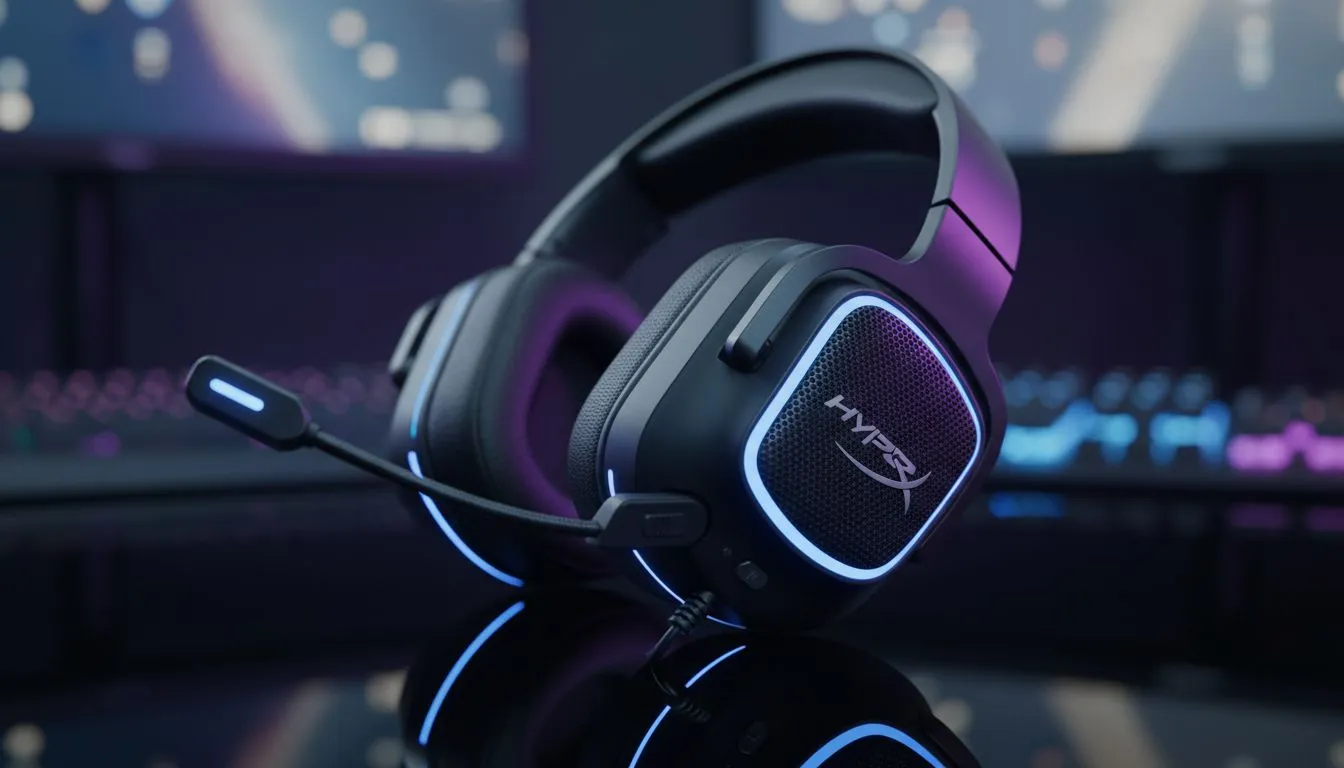
Master Your Audio: How to Set Up Wireless Headphones on Windows 11
Tired of your teammates complaining about your "robot voice" during a late-night session? Setting up wireless headphones on Windows 11 shouldn't feel like a difficult boss fight. Whether you are rocking a budget pair or a premium set, getting the mic, audio, and app settings right is the difference between immersive gaming and total frustration. Let us get your gear properly tuned for the win...
Pairing Your Wireless Headset Correctly
The first step is the handshake between your PC and your gear. If you have just unboxed a new Razer Barracuda X Chroma, you will likely use a 2.4GHz dongle or Bluetooth. For the best latency in South Africa’s competitive gaming scene, always choose the Type-C dongle. Windows 11 usually picks this up instantly, but you should still head to Settings > Bluetooth & devices to ensure everything is recognised as a "Communication Device" rather than just generic speakers.
Fine-Tuning Audio and Mic Settings for Windows 11
Once connected, your audio might sound a bit flat. This is because Windows often defaults to lower sample rates to save bandwidth. To fix this, right-click the speaker icon and select Sound settings. Scroll down to More sound settings to open the legacy control panel... it is still the most reliable way to manage hardware.
Under the Playback tab, right-click your headset and select Properties. Ensure the "Default Format" is set to at least 48,000Hz (DVD Quality). For your microphone, do the same under the Recording tab. If you are browsing the latest Razer headphones and headsets, many of these units support high-definition voice which requires this manual toggle to sound crystal clear.
Mic Check Pro Tip ⚡
Always disable "Allow applications to take exclusive control of this device" in the Advanced tab if you use Discord and game audio simultaneously. This prevents one app from "hogging" the mic and leaving your teammates in silence while you are mid-clutch.
Optimising App Settings and Spatial Sound
Windows 11 includes "Windows Sonic for Headphones," which provides a basic spatial audio experience. However, most gamers prefer dedicated software like Razer Synapse or Dolby Access. When you invest in high-quality headphone headsets, using the official manufacturer app allows you to customise EQ profiles and monitor battery levels.
Check your privacy settings too. Navigate to Settings > Privacy & security > Microphone and ensure that "Microphone access" is toggled on. It is a common reason why a perfectly good headset seems "broken" after a fresh Windows update. Spending a few minutes in these menus ensures you get the full value of your ZAR investment.
Ready to Upgrade Your Audio Experience? Getting your settings right is only half the battle... the other half is having the right hardware. Explore our massive range of gaming headsets and find the perfect gear to hear every footstep and command with absolute clarity.











