


Complete Guide: Setting Up Monitor Light
Setting Up Monitor Light. Tested & verified settings for best FPS and visual quality on SA hardware budgets.
Read moreLearn how to optimize HP laptops for speed in South Africa 🚀. Discover expert tips to enhance performance and efficiency.
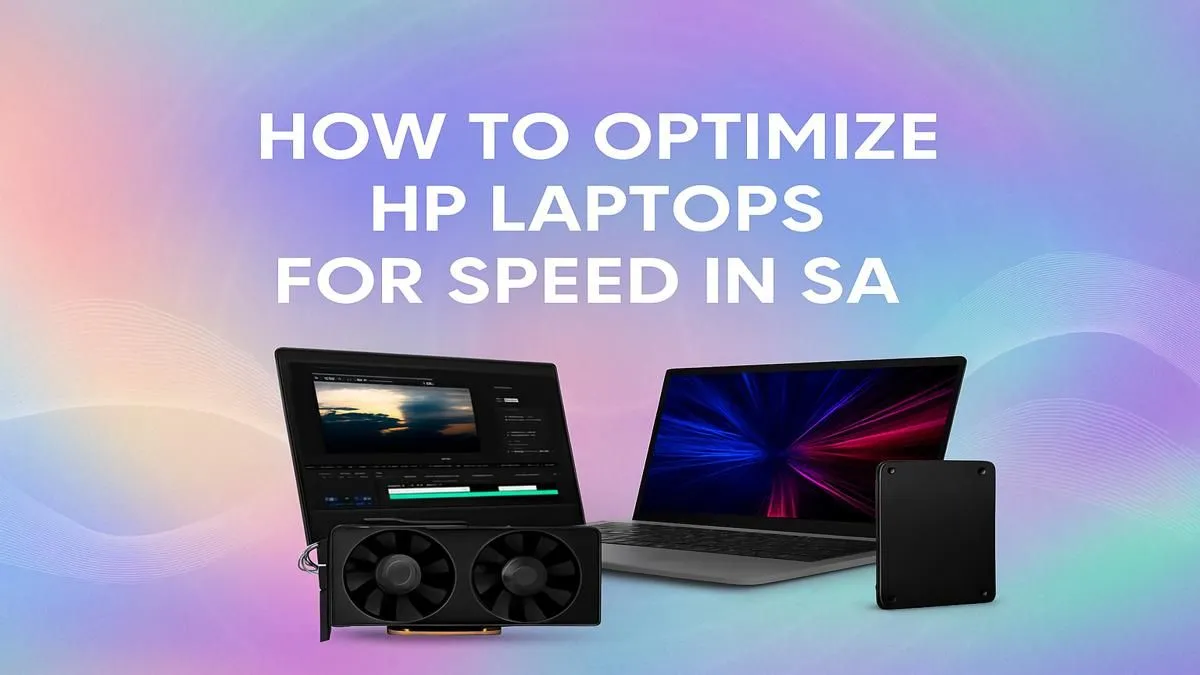
Ever been deep into a crucial online match, only for your HP laptop to stutter at the worst possible moment? Or maybe you're just trying to get work done, and every click feels like a marathon? You're not alone. In South Africa, where reliable performance is key to everything from gaming to remote work, a slow laptop can be a real headache. But before you panic, know this: there are plenty of ways to revitalise your machine. Let's dive into how you can effectively speed up your HP laptop in South Africa and get it running like new again.
Often, the biggest culprits behind a sluggish HP laptop are software-related. A few simple adjustments can make a world of difference, boosting your system's responsiveness without needing to open up the chassis.
Think of drivers as the instruction manuals for your hardware. Outdated ones can cause inefficiencies. Regularly check for updates for your graphics card (NVIDIA, AMD, Intel), chipset, and other components directly from HP's support site or through Windows Update. Similarly, ensure your Windows operating system is always current. Microsoft frequently releases performance enhancements and bug fixes that can noticeably optimise your HP laptop's speed.
Every app running in the background, from chat clients to cloud storage, consumes precious RAM and CPU cycles. Go to your Task Manager (Ctrl+Shift+Esc), navigate to the "Startup" tab, and disable any non-essential programs from launching with Windows. For apps already running, check the "Processes" tab and close anything you don't actively need. This frees up resources, making your HP laptop feel snappier.
By default, your HP laptop might be set to a "Balanced" power plan, which prioritises energy saving over raw performance. For those moments when you need maximum grunt, switch to "High Performance." You can find this in your Control Panel under "Power Options." Just remember, this might reduce battery life, so it's best for when you're plugged in. For a comprehensive look at HP's latest innovations, explore the HP Shop in Shop at Evetech.
Regularly delete temporary files and uninstall programs you no longer use. Windows' built-in Disk Cleanup tool (type "Disk Cleanup" in search) is a great starting point, or consider a reputable third-party cleaner. Less clutter means a faster drive and a more responsive system.
Sometimes software tweaks aren't enough, especially if your HP laptop is a few years old. Thankfully, certain hardware upgrades are surprisingly affordable and can drastically improve your HP laptop's performance.
If your HP still uses a traditional Hard Disk Drive (HDD), upgrading to a Solid State Drive (SSD) is arguably the single most impactful upgrade you can make. SSDs read and write data significantly faster, translating to lightning-quick boot times, snappier application launches, and smoother overall operation. It's like upgrading from a gravel road to a superhighway for your data. Many older HP models allow for an easy HDD to SSD swap.
Running multiple applications, browser tabs, or modern games demands sufficient RAM (Random Access Memory). If your HP laptop has 4GB or 8GB of RAM, upgrading to 16GB can dramatically speed up your HP laptop in South Africa, especially for power users or gamers. More RAM means your system can handle more tasks simultaneously without resorting to slower virtual memory on your storage drive. You might even find some excellent deals on new machines that come with ample RAM already installed, like the HP laptops on special at Evetech.
South Africa's climate can be tough on electronics. Dust accumulation inside your laptop's cooling system can lead to overheating, which forces your CPU and GPU to "throttle" down their performance to prevent damage. A professional clean-out and reapplication of thermal paste every couple of years can work wonders, ensuring your HP laptop maintains optimal temperatures and consistent performance.
For the gamers out there, squeezing every frame per second from your HP laptop is crucial. Beyond the general tips, here are some gaming-specific strategies.
It sounds obvious, but many gamers overlook fine-tuning their in-game graphics settings. Experiment with lowering shadows, anti-aliasing, or texture quality. Often, a slight adjustment can yield a significant FPS boost without a noticeable drop in visual fidelity. For those who demand top-tier gaming performance, consider the power of the HP Victus Gaming Laptops, designed to handle demanding titles.
This is paramount for gaming. NVIDIA and AMD frequently release game-ready drivers that are specifically optimised for the latest titles. Always install these updates as soon as they're available. They can dramatically improve frame rates and stability.
If your current HP laptop is struggling even after all these optimisations, it might be time to consider a machine built for gaming from the ground up. Modern gaming laptops, like those in the OMEN series, are engineered with powerful processors, dedicated graphics cards, and advanced cooling systems to deliver an uncompromised experience. Check out the latest HP OMEN Gaming Laptop Deals for an upgrade that truly transforms your play.
While these tips can certainly speed up your HP laptop in South Africa, there comes a point where an older machine simply can't keep up with modern demands. If your laptop is more than 5-7 years old, struggling with basic tasks, or if the cost of upgrades approaches that of a new, entry-level model, it might be time for an upgrade. New HP laptops offer not just raw power but also improved battery life, better displays, and enhanced features that provide a smoother, more efficient experience right out of the box. Explore the full range of HP Gaming Laptops at Evetech to see what's possible.
Ready for Blazing Speed? Don't let a slow laptop hold you back. Whether you're optimising your current machine or eyeing an upgrade, Evetech has the HP solutions you need for peak performance. Shop the latest HP laptops and components at Evetech today and experience computing without compromise.
Upgrade to an SSD, increase RAM, clean up startup programs, and ensure software is updated. These steps can significantly boost performance.
Access Task Manager to disable unnecessary startup programs, enable high-performance mode, and regularly clear cache and temporary files.
Yes, boosting RAM enhances multitasking and speeds up data access, improving overall performance and responsiveness for your HP laptop.
Regular updates are crucial—set automatic updates to ensure your system runs efficiently and stays compatible with HP's latest optimizations.
Adjusting power settings, disabling visual effects, and using disk cleanup tools can all contribute to a faster, more responsive HP laptop.
Yes, replacing an HDD with an SSD dramatically improves boot times and application performance, making it a top HP laptop speed optimization tip.
Use reliable antivirus, avoid overloading the desktop, and schedule regular system maintenance to keep your HP laptop running smoothly.
Setting Up Monitor Light. Tested & verified settings for best FPS and visual quality on SA hardware budgets.
Read more
Assassins Creed Shadows Ultrawide Support: 21:9. Clear setup instructions with SA-specific considerations, troubleshooting tips & recommended components.
Read more
Complete Gaming Setup Guide for the Collector. Clear setup instructions with SA-specific considerations, troubleshooting tips & recommended components.
Read more
Will the Steam Deck 2 Have an OLED Screen? Leaked. Plain-English explanation of what it means, why it matters & how it affects your buying decisions in SA.
Read more
Setting Up Ultrawide 144Hz. Tested & verified settings for best FPS and visual quality on SA hardware budgets.
Read more
Kingdom Come: Deliverance 2 Ultrawide Support. Clear setup instructions with SA-specific considerations, troubleshooting tips & recommended components.
Read more
When Will the RTX 6090 Launch in South Africa Detailed answer with SA data, expert analysis & practical recommendations for local buyers.

Top Valorant Settings for RTX 5070: FPS Optimisation picks evaluated on performance, value & SA availability with current Rand pricing from Evetech.

RDNA 3.5 Graphics in Ryzen AI 400? Can You Game. Plain-English explanation of what it means, why it matters & how it affects your buying decisions in SA.

GPU Price Index : December Report. Current stock data & price tracking for SA buyers. See what is available and where prices are heading.

Core i5-14600K + B760 + RTX 5060 Build Under. Full parts list, Rand pricing & expected performance. Build confidently with SA-available components.

RX 7600 Apex Legends at 4K: FPS Benchmark. Real-world benchmark data, FPS numbers & performance analysis. What SA gamers can actually expect.

RX 7900 XTX GTA 6 at 4K: FPS Benchmark & Optimal. Real-world benchmark data, FPS numbers & performance analysis. What SA gamers can actually expect.

Head-to-head comparison of RTX 5070 vs RX 9070 XT: Gaming Performance for SA gamers. Performance benchmarks, Rand pricing & which delivers better value.
Starfield Max Settings on RTX 5070. Tested & verified settings for best FPS and visual quality on SA hardware budgets.
Top RX 7800 XT Model Under R8,000 picks evaluated on performance, value & SA availability with current Rand pricing from Evetech.
RTX 5070 Valorant Optimised Settings: Graphics. Real-world benchmark data, FPS numbers & performance analysis. What SA gamers can actually expect.

Top Laptop with Core i7 + RX 7700S: Picks picks evaluated on performance, value & SA availability with current Rand pricing from Evetech.