

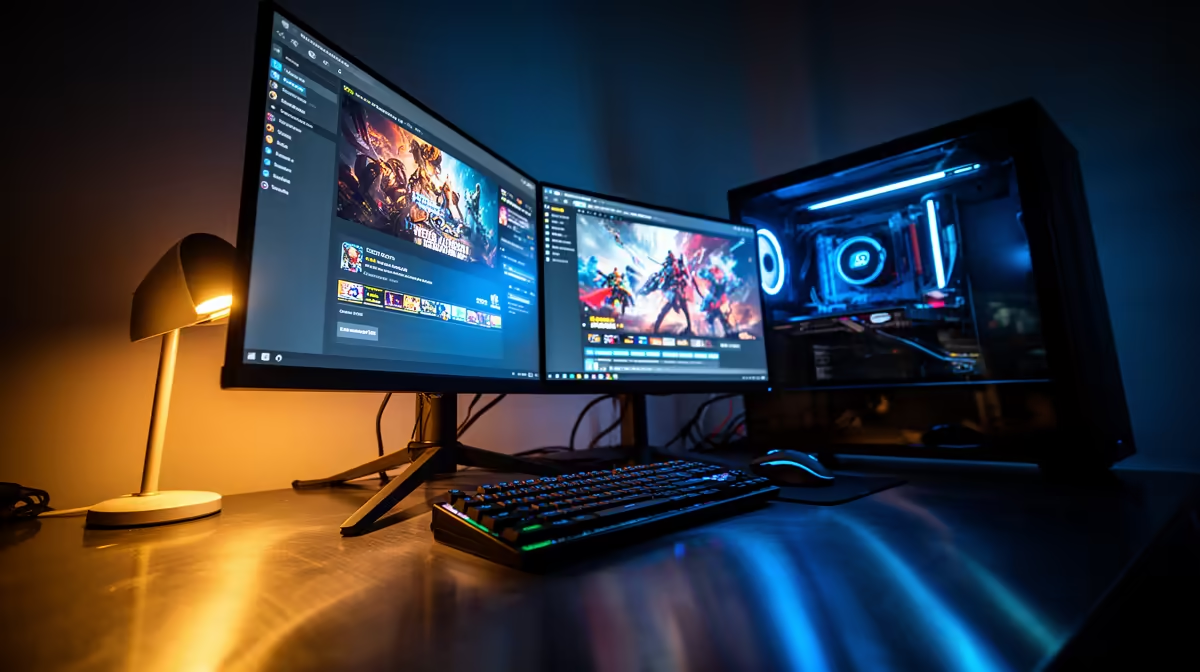
Hitting 'Go Live' only to see a pixelated mess or stuttering frames is a real gut-punch, especially after you've invested in a lekker gaming rig. You've got the skills, the personality… but your stream just isn't doing you justice. The secret isn't always more power; it's smarter configuration. This streaming software optimization guide is your roadmap to a butter-smooth, professional-looking broadcast that will have your viewers hooked from the first minute. Let's get it sorted. 🚀
The Core of Streaming Software Optimization
Before we dive into the nitty-gritty settings, let's understand the goal. Proper streaming software optimization is about creating a perfect balance between your PC's power, your internet's upload speed, and the quality you're sending to platforms like Twitch or YouTube. It’s about making your software, like OBS or Streamlabs, work efficiently. A key part of this is ensuring your source quality is top-notch, and that journey often begins with a solid entry-level webcam that provides a clean signal, making it easier for your software to encode.
Mastering Your Encoder Settings
Your encoder is the engine of your stream. It compresses your gameplay and camera feed into a video format that can be broadcast online. You generally have two choices:
x264 (CPU Encoding)
This uses your processor to do the heavy lifting. It can produce amazing quality at lower bitrates but is very demanding on your CPU, which can hurt in-game performance if your processor is already working hard.
NVENC / AMD VCE (GPU Encoding)
This uses a dedicated chip on your graphics card. This frees up your CPU almost entirely for the game. Modern NVIDIA (NVENC) encoders, found on RTX and recent GTX cards, offer quality that is virtually indistinguishable from x264 for live streaming. For most South African gamers, using your GPU encoder is the key to effective stream software optimization without sacrificing precious FPS. ✨
Pro Encoder Tip
For NVIDIA users, start with the NVENC (New) encoder in OBS. Set the preset to Quality and the profile to High. This is the sweet spot for 99% of gaming streams, offering fantastic performance and visual fidelity.
Bitrate & Resolution: The SA Internet Challenge 🇿🇦
Here’s where we get real about streaming in South Africa. Your bitrate—the amount of data you send per second—is entirely dependent on your internet upload speed. A high-quality 1080p 60fps stream looks amazing, but it needs a stable 6,000 kbps bitrate. If your fibre line can't consistently sustain that, you'll get buffering and dropped frames.
The solution? Be realistic. Run an internet speed test and set your video bitrate to about 70-80% of your average upload speed to leave some headroom. For many, streaming at 900p or even a crisp 720p at 60fps is the perfect balance for a stable, professional stream. This is where investing in your facecam pays off. A great 1080p webcam captures so much detail that even when downscaled for the stream, it still looks incredibly sharp.
Quick Wins for Immediate Improvement 🔧
Sometimes the biggest gains come from the smallest tweaks. This part of our streaming software optimization guide is all about those quick fixes for a smoother experience.
- Run as Administrator: Right-click your streaming software icon (OBS, Streamlabs, etc.) and select "Run as administrator." This gives it priority access to system resources, especially your GPU.
- Game Mode On: Ensure Windows Game Mode is enabled in your system settings. It helps by preventing background tasks and notifications from stealing resources while you're live.
- Tame Your Sources: Is your webcam software trying to output at 4K before it even gets to OBS? The control software that comes with many premium webcams gives you the power to fine-tune these settings for optimal performance.
- Close the Clutter: Every browser tab, Discord overlay, and background app eats up valuable CPU and RAM. Before you go live, close everything you don't absolutely need for the stream.
Ready to Perfect Your Stream's Image? A smooth stream is one thing, but a crystal-clear camera feed is what makes you look like a pro. Browse our full range of webcams at Evetech and find the perfect match for your newly optimised setup.











