

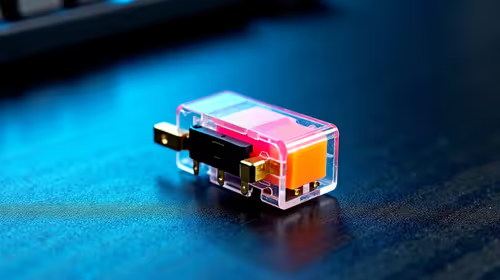
Glorious Keyboard Switches Explained: Which Switch Is Right for You?
Glorious Keyboard Switches Explained: Which. Plain-English explanation of what it means, why it matters & how it affects your buying decisions in SA.
Read moreTP-Link Archer BE550 setup guide: step-by-step instructions to configure Wi‑Fi 6E bands, optimize channels, update firmware, and boost coverage for gaming and streaming. 🚀🔧
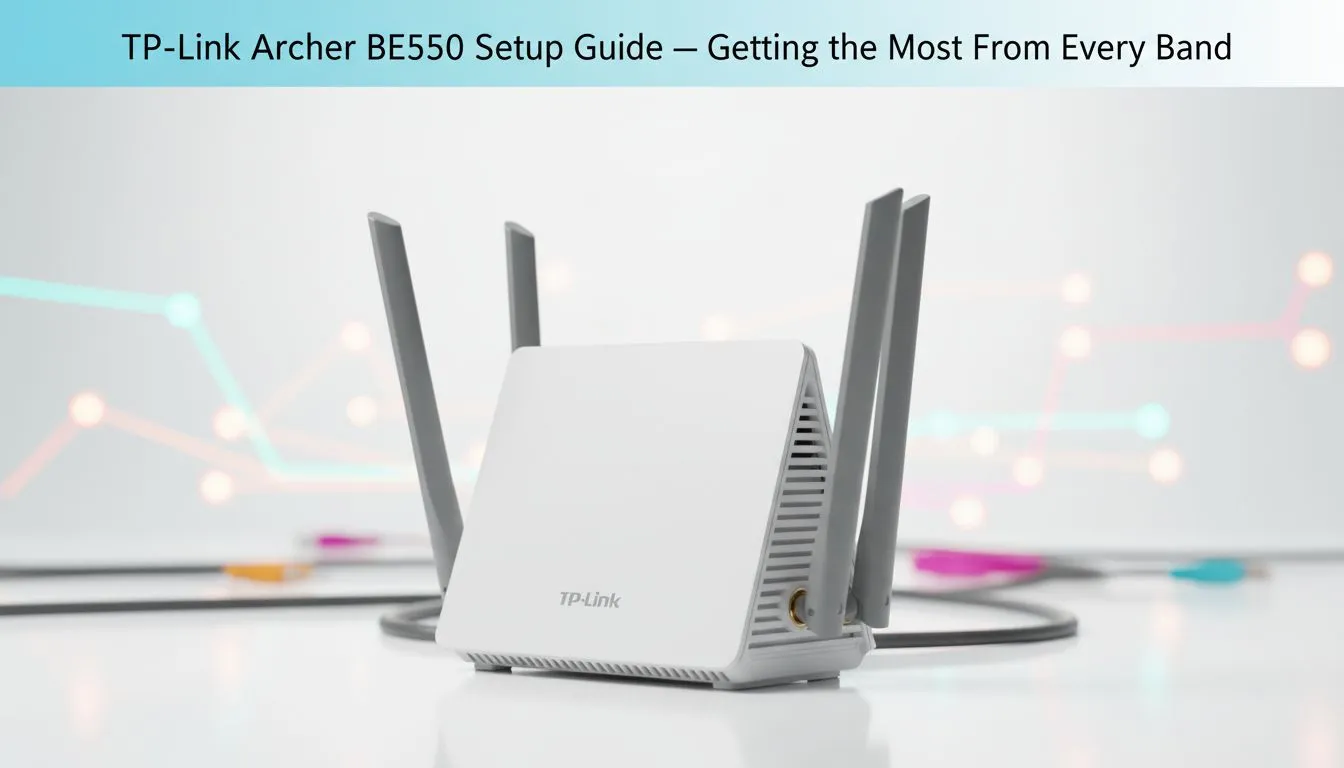
So, you've got your hands on the beastly TP-Link Archer BE550. Nice one. But just plugging it in won't magically crush lag or unlock those insane Wi-Fi 7 speeds. To get the performance you paid for, you need a smart setup. This guide will walk you through the essential TP-Link Archer BE550 setup steps, ensuring every device in your South African home gets the lightning-fast, stable connection it deserves. Let's get you sorted. 🚀
Before we dive into the setup, it's crucial to understand what you're working with. Unlike older wireless routers, the Archer BE550 is a tri-band router. This means it broadcasts three separate networks, or "bands," which you can use to organise your devices for optimal performance.
A proper TP-Link Archer BE550 setup involves assigning the right devices to the right band.
Getting started is simple with the TP-Link Tether app or web interface. During the initial setup wizard, you'll be prompted to create names (SSIDs) and passwords for your Wi-Fi networks. Here’s how to think about each band.
This band is perfect for all your "low and slow" devices that don't need blistering speed but do need a reliable, long-range connection.
This is your go-to band for most modern devices. It offers an excellent balance of speed and range for demanding tasks.
This is where the magic happens. The 6 GHz band is a clean, uncongested superhighway built for next-gen performance. To use it, your device must be Wi-Fi 7 or Wi-Fi 6E compatible.
Once the basics are done, a few tweaks can elevate your network from great to incredible.
The TP-Link Tether app (available on iOS and Android) is your best friend for managing your Archer BE550. It simplifies the initial setup and lets you tweak settings, check connected devices, and run network diagnostics right from your phone. You can even set up a guest network in seconds when you have mates over.
For larger homes in SA, even a powerful router can have dead spots. If you find your signal dropping off in the braai room or a back bedroom, consider adding one of these wireless range extenders to create a seamless mesh network.
By taking a few minutes to complete a strategic TP-Link Archer BE550 setup, you ensure every device performs at its peak. You've invested in top-tier hardware; now it's time to enjoy the rewards with a flawless connection across your entire home. A great network is the foundation of any modern tech setup, forming the backbone of your entire wireless networking ecosystem.
Ready to Build Your Ultimate Network? A powerful router is the heart of your digital life. Whether you're upgrading to Wi-Fi 7 or building a new setup from scratch, getting the core components right is everything. Explore our massive range of PC components and find the perfect gear to conquer your world.
Use the web or Tether app: connect WAN, power on, run the quick setup, choose SSIDs for each band, set passwords, and apply. See the TP-Link Archer BE550 setup section for details.
Separate SSIDs for 2.4GHz, 5GHz, and 6GHz, assign devices by need, and enable smart connect only if it helps device roaming to optimize Archer BE550 bands.
Enable Wi‑Fi 6E for compatible devices to gain lower latency and wider channels. Keep 5GHz for legacy devices and 2.4GHz for range.
Check the router admin page or Tether app for firmware updates, then download and install. Regular firmware updates improve stability and security.
Use auto for 2.4GHz and 5GHz if you’re unsure. For 6GHz pick wide channels and low interference; test channels with a Wi‑Fi analyzer for best Archer BE550 channel settings.
Yes. The Archer BE550 supports mesh via TP-Link OneMesh or compatible extenders; follow mesh with Archer BE550 steps to unify SSIDs and roaming.
Use WPA3 or WPA2-AES, strong unique passphrases, disable WPS, update firmware, and enable guest networks for visitors to tighten Archer BE550 security setup.
Glorious Keyboard Switches Explained: Which. Plain-English explanation of what it means, why it matters & how it affects your buying decisions in SA.
Read more
Winter Keyboard Buying Guide. Everything you need to know with SA pricing, step-by-step instructions & expert recommendations.
Read more
Keyboard Buying Guide. Everything you need to know with SA pricing, step-by-step instructions & expert recommendations.
Read more
LGBTQ+ Gamers Keyboard Guide: January Edition. Everything you need to know with SA pricing, step-by-step instructions & expert recommendations.
Read more
Keyboard Maintenance Guide Gamers. Everything you need to know with SA pricing, step-by-step instructions & expert recommendations.
Read more
Accessibility Focused Keyboard Guide: January. Everything you need to know with SA pricing, step-by-step instructions & expert recommendations.
Read more
Snapdragon X2 NPU Explained: How 80 TOPS Changes. Plain-English explanation of what it means, why it matters & how it affects your buying decisions in SA.

HBM? High Bandwidth Memory Used in GPUs and AI. Plain-English explanation of what it means, why it matters & how it affects your buying decisions in SA.

How much should you spend on sim racing accessories in South Africa for a realistic setup? We break down budgets by quality tiers, so you buy smart gear and avoid overspending 🎮💸

G-Sync and FreeSync? Variable Refresh Rate. Plain-English explanation of what it means, why it matters & how it affects your buying decisions in SA.

AMD Laptop: Value. SA-focused analysis with local pricing data, real-world insights & actionable buying advice.

How MacBook Neo Handles 30+ Chrome Tabs with Only. SA-focused analysis with local pricing data, real-world insights & actionable buying advice.

Why Apple Put 8GB RAM in MacBook Neo: The A18 Pro. SA-focused analysis with local pricing data, real-world insights & actionable buying advice.

Upgrade your work laptop with a New Motherboard. Step-by-step instructions with SA-specific tips, common pitfalls to avoid & expert recommendations.

MacBook Pro 16-Inch M5 Max: Complete Specs,. Everything you need to know with SA pricing, step-by-step instructions & expert recommendations.

Travelling With a MacBook: Travellers. Everything you need to know with SA pricing, step-by-step instructions & expert recommendations.

Back-to-School Parent Guide: Laptops. Everything you need to know with SA pricing, step-by-step instructions & expert recommendations.

MacBook Air 13-Inch M5: Complete Specs, Features. Everything you need to know with SA pricing, step-by-step instructions & expert recommendations.