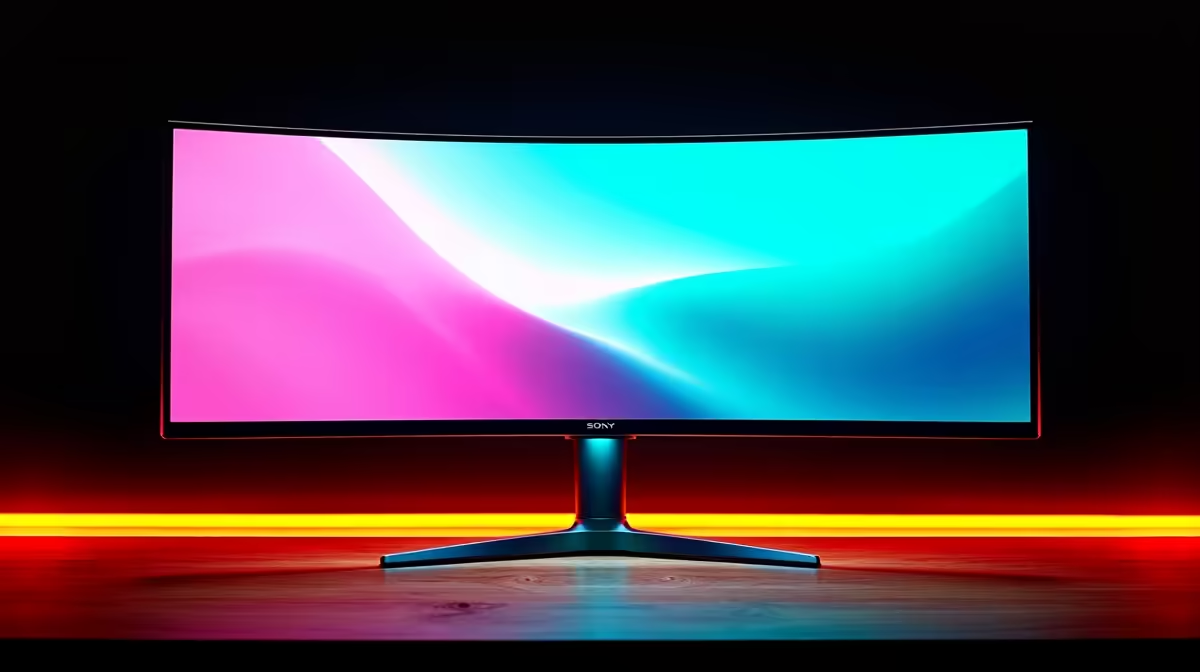
Quick Answer
Setting up an ultrawide 144Hz monitor requires a GPU with DisplayPort 1.4 or HDMI 2.1 output, the correct cable, and manual configuration in your operating system's display settings. Enable the full refresh rate in Windows Display Settings or your GPU's control panel after connecting, as monitors often default to 60Hz on first connection.
Connecting Your Ultrawide 144Hz Monitor Correctly
The first step in any ultrawide 144Hz setup is getting the physical connection right. Not all cables and ports are equal. HDMI 2.0 is limited to 144Hz only at 1080p; for an ultrawide resolution like 3440x1440, you need either DisplayPort 1.4 or HDMI 2.1. Most desktop GPUs released in the last few years include at least one DisplayPort 1.4 output, which is capable of driving a 3440x1440 144Hz panel without compression.
If your monitor shipped with an HDMI cable, check its spec sheet before assuming it supports the full refresh rate. Many bundled HDMI cables are version 1.4 or 2.0, which will cap your refresh rate at lower values on an ultrawide panel. A DisplayPort 1.4 cable is the safer choice for guaranteed 144Hz delivery at ultrawide resolutions.
After connecting the monitor, Windows often defaults to 60Hz. Open Display Settings, click Advanced Display Settings, and manually set the refresh rate to 144Hz. Confirm the change and check the monitor's on-screen menu to verify it is running at the target refresh rate.
Configuring Resolution and Refresh Rate in Windows
With the cable confirmed and the monitor connected, navigate to Windows Display Settings and select the ultrawide monitor if you have multiple displays. Under Display Resolution, set it to your monitor's native ultrawide resolution, typically 3440x1440 for a 34-inch panel or 2560x1080 for a 29-inch panel. Then open Advanced Display Settings and locate the Refresh Rate dropdown.
If 144Hz does not appear in the dropdown, the issue is usually the cable or port. Try a different cable or switch from HDMI to DisplayPort. GPU drivers also affect what refresh rate options appear. Make sure your AMD or NVIDIA drivers are fully updated before troubleshooting further.
For NVIDIA users, the NVIDIA Control Panel offers additional resolution and refresh rate options, including the ability to create a Custom Resolution if your monitor supports rates between standard options. AMD users can do the same through Radeon Software.
In-Game Settings and Performance Optimisation
Driving an ultrawide at 144Hz is demanding. The jump from a 1080p 144Hz to a 3440x1440 144Hz panel dramatically increases the number of pixels the GPU must render each frame. For South African gamers with a mid-range GPU, you may need to adjust in-game settings to consistently reach 144Hz rather than dipping below it.
Prioritise shadow quality, anti-aliasing method, and ambient occlusion when looking for performance headroom. These three settings often carry the highest GPU cost relative to their visual impact in fast-paced games. Enabling DLSS (NVIDIA) or FSR (AMD) in Quality mode at your native ultrawide resolution can significantly boost frame rates while maintaining sharpness close to native.
Check that G-Sync or FreeSync is enabled in your monitor's on-screen menu and in your GPU control panel. Variable refresh rate technology smooths out the frames when your GPU cannot lock to 144Hz, eliminating the screen tearing that would otherwise appear. Most ultrawide monitors sold in South Africa support FreeSync, which is compatible with both AMD and NVIDIA GPUs.
FAQ
Why is my ultrawide monitor only showing 60Hz after setup?
This usually means the connected cable does not support the required bandwidth, or the port being used is not capable of the resolution and refresh rate combination. Switch to a DisplayPort 1.4 cable and use a DisplayPort output on your GPU. Also confirm you have manually set the refresh rate in Windows Advanced Display Settings.
Does an ultrawide 144Hz monitor need a powerful GPU?
Yes. Driving 3440x1440 at 144Hz is significantly more demanding than 1920x1080. A mid-range GPU can handle this resolution at 60 to 100Hz in many titles, but consistently reaching 144Hz in demanding games requires a high-end GPU. Use DLSS or FSR to extend performance further.
Is G-Sync or FreeSync necessary for an ultrawide 144Hz setup?
It is not strictly necessary, but it greatly improves the experience. When your frame rate drops below 144Hz, which is common in demanding scenes, G-Sync or FreeSync eliminates screen tearing and reduces stuttering. Most ultrawide monitors support FreeSync, which works with both AMD and NVIDIA cards.
Ready to Find Your Perfect Match? Pair your ultrawide monitor with a capable GPU and complete your setup. Browse Graphics Cards at Evetech