


GTA 6 Max Settings on RTX 5070: Complete Guide
GTA 6 Max Settings on RTX 5070. Tested & verified settings for best FPS and visual quality on SA hardware budgets.
Read moreUnlock your ultrawide monitor's picture in picture potential! 🚀 Learn how to connect multiple devices like a PC and console, boost your productivity, and master multitasking with our expert tricks and step-by-step demo. Get the most out of every pixel. ✨
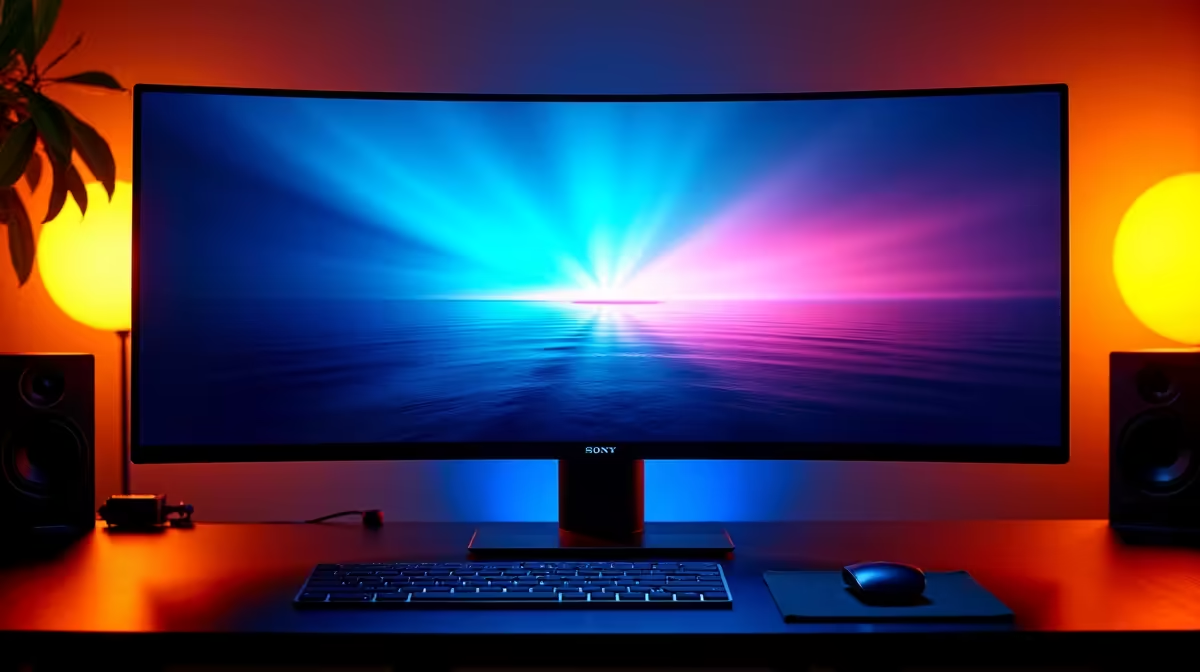
Got an ultrawide monitor? You're sitting on a productivity goldmine that most people never touch. We're talking about running your PC and a console... or your work laptop and your gaming rig... on the same screen, at the same time. This isn't science fiction; it's the magic of ultrawide monitor Picture in Picture (PiP), and mastering it is simpler than you think. Let's unlock your monitor's true potential.
Think of it as having two screens in one. Most modern ultrawides come with two killer features:
Essentially, these features let you plug two separate devices into one of our powerful PC monitors and view them simultaneously.
Knowing the feature exists is one thing; using it to level up your workflow is another. An ultrawide PiP setup isn't just a gimmick, it’s a genuine workflow optimiser.
Ever wanted to follow a complex build guide for Elden Ring without having your phone propped up next to your screen? With PiP, you can. Run your game full-screen from your PC and overlay a small window with a YouTube guide playing from a connected laptop or even a smart device. It’s also brilliant for streamers who want to monitor their console gameplay feed via a capture card on the same screen they use for OBS. This is where a dedicated display from our range of all gaming monitors truly shines.
For a clean PiP PbP setup, use cable sleeves or clips to bundle the two input cables (e.g., HDMI and DisplayPort) together. This prevents a tangled mess behind your screen and makes your battle station look incredibly professional. A tidy desk is a tidy mind!
For professionals, using Picture by Picture on an ultrawide is a revelation. You can have your primary Windows desktop taking up two-thirds of the screen, with your work MacBook connected and displayed on the final third. You're controlling two different computers with one screen, keyboard, and mouse (with the right software or KVM switch). The sheer screen real estate on modern 5K & 4K monitors makes this setup incredibly sharp and usable, eliminating the need for a second physical display.
While the exact steps vary by brand (like Dell, LG, or Samsung), the basic process for an ultrawide monitor picture in picture setup is universal.
The immersion you get, especially on widescreen curved monitors, makes managing two sources feel seamless and natural.
That depends on your needs. A separate secondary screen, like one of these handy portable monitors, gives you more total pixels. However, an ultrawide with PiP or PbP offers a cleaner, bezel-free experience that saves a ton of desk space. For many South Africans looking to create a sleek and powerful setup without clutter, the integrated solution is superior. It's about maximising the hardware you already own and finding amazing value in the latest PC monitor deals. ✨
Ready to Upgrade Your View? An ultrawide monitor with PiP is more than a display; it's a command centre. Stop juggling windows and start multitasking like a pro. Explore our massive range of PC monitors and find the perfect screen to conquer your work and play.
PiP displays a second input source in a small window on your main screen. It's perfect for watching a video or monitoring a stream while working on your primary task.
PbP is often better for productivity as it splits the screen to show two inputs side-by-side. This is ideal when you need to connect two computers to one ultrawide monitor.
You can typically enable PiP or PbP through your monitor's On-Screen Display (OSD) menu. Look for settings related to 'PiP/PbP', 'Multi-Source', or 'Inputs'.
Yes! Using Picture-by-Picture mode is a fantastic way to have your gaming console and PC displayed simultaneously, making it one of the best ultrawide monitor productivity tricks.
No, not all models include PiP or PbP features. Always check the monitor's specifications before purchasing if this functionality is important for your setup.
You will need separate video cables (like HDMI or DisplayPort) for each device you want to connect. Ensure your monitor has enough input ports to support your devices.
GTA 6 Max Settings on RTX 5070. Tested & verified settings for best FPS and visual quality on SA hardware budgets.
Read more
Cyberpunk 2077 Max Settings on RTX 5080. Tested & verified settings for best FPS and visual quality on SA hardware budgets.
Read more
Starfield Max Settings on RTX 5070 Ti. Tested & verified settings for best FPS and visual quality on SA hardware budgets.
Read more
AMD RX 9050 XT: Rumoured Specs, Price & Release. SA-focused analysis with local pricing data, real-world insights & actionable buying advice.

Can RTX 4080 Super Run AI Workloads for SA Developers Detailed answer with SA data, expert analysis & practical recommendations for local buyers.

Can RTX 4090 Run AI Workloads for SA Developers Detailed answer with SA data, expert analysis & practical recommendations for local buyers.

Top Settings for Intel Arc B580 at Ultrawide 1440p picks evaluated on performance, value & SA availability with current Rand pricing from Evetech.

RTX 4060 CS2 Low Settings at 1080p: FPS Results. Real-world benchmark data, FPS numbers & performance analysis. What SA gamers can actually expect.

Visual Artifacts: Possible GPU Issue Issue #1. Diagnosis steps, proven fixes & when to seek professional help. SA-specific support info included.

Can the RTX 4090 Handle 1440p 144Hz Gaming. Performance testing verdict with real data & practical recommendations for SA buyers.

Top ASUS GPU Under R15000 picks evaluated on performance, value & SA availability with current Rand pricing from Evetech.
GTA 6 Max Settings on RTX 5070. Tested & verified settings for best FPS and visual quality on SA hardware budgets.
Cyberpunk 2077 Max Settings on RTX 5080. Tested & verified settings for best FPS and visual quality on SA hardware budgets.
Starfield Max Settings on RTX 5070 Ti. Tested & verified settings for best FPS and visual quality on SA hardware budgets.

Top RTX 5090 Under R5000 picks evaluated on performance, value & SA availability with current Rand pricing from Evetech.