

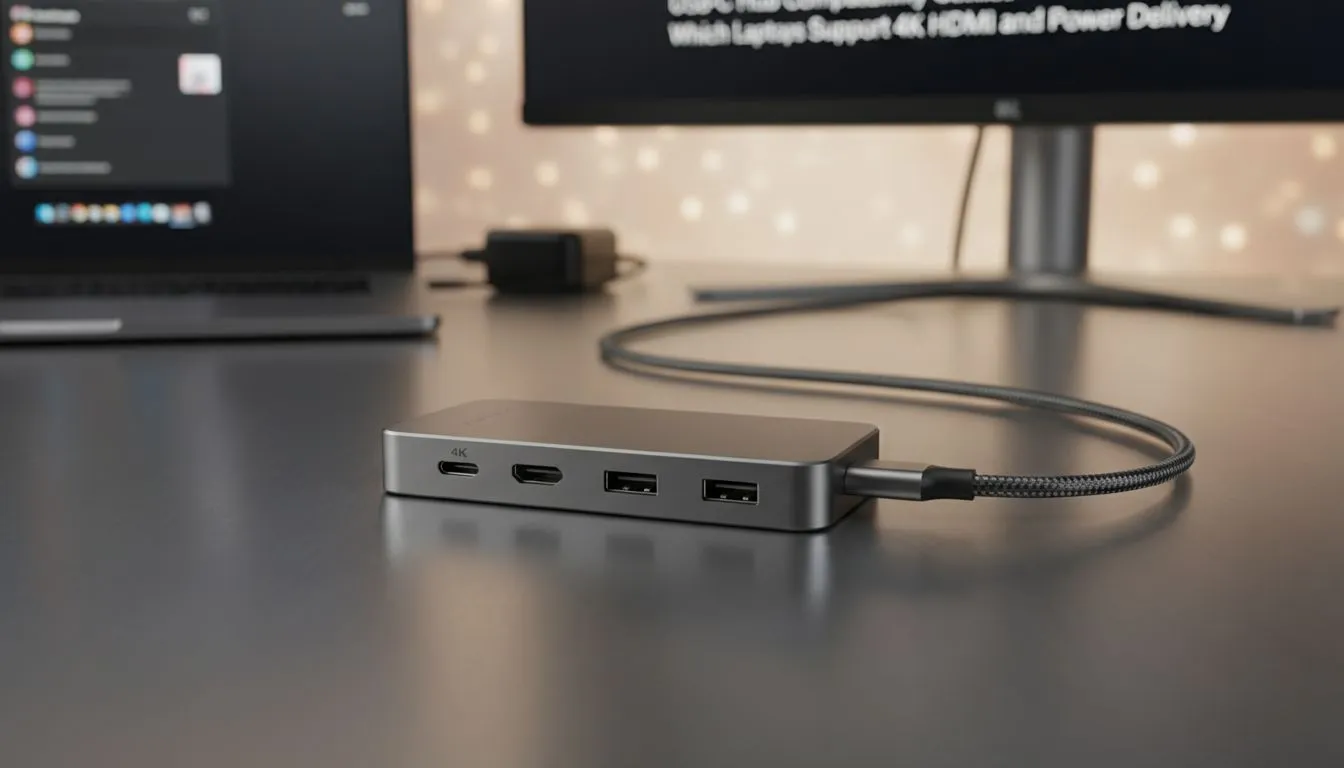
So, you’ve just unboxed a shiny new USB-C hub, ready to create the ultimate work-from-home or gaming setup in your Mzansi home. You plug it in, connect your 4K monitor and... nothing. Or maybe your laptop isn't charging. What gives? The truth is, not all USB-C ports are created equal. Understanding USB-C hub compatibility is the key to avoiding frustration and unlocking your laptop's true potential. Let's dive in.
Decoding Your Laptop's USB-C Port
Think of the USB-C port as a multi-tool. While it always has the same physical shape, the tools inside can differ wildly. This is the core of ensuring USB-C hub compatibility—knowing what your specific port can actually do. The features you're looking for, like 4K video output and charging, depend on special protocols the port supports.
For most users, there are three main types to be aware of:
- Thunderbolt 3 & 4 (⚡): The king of connectivity. These ports, marked with a lightning bolt icon, do it all: ultra-fast data transfer, multiple 4K displays, and Power Delivery (PD). If your laptop has Thunderbolt, you're golden.
- USB-C with DisplayPort Alt Mode (D): This is the magic ingredient for video. A port with this feature (often marked with a DisplayPort logo) can send a video signal to your monitor via the hub's HDMI port.
- Basic USB-C: Some ports on budget laptops are for data transfer only. They won't support video out or charging, which can be a real letdown.
Finding the right gear is crucial for a seamless setup, and it all starts with knowing which gaming accessories will work with your machine.
Unlocking 4K HDMI: What Your Laptop Needs
Want to drive that crisp 4K display for immersive gaming or detailed design work? Your laptop's USB-C port must support DisplayPort Alternate Mode (DP Alt Mode). This technology essentially lets the USB-C connection speak the same language as your HDMI monitor.
Without DP Alt Mode, the hub simply can't pass the video signal through. As mentioned, Thunderbolt ports always include this feature, making them a safe bet. For other USB-C ports, you need to verify. If there's no icon next to the port, it's time to do a quick search for your laptop's exact model number and check the official specifications. Look for "DisplayPort 1.4 over USB-C" or similar phrasing. It's a small detail that makes a massive difference to your setup's capabilities. Don't forget to check out the latest gaming accessories deals to find a hub that matches your laptop's specs.
Check Your Specs Like a Pro 🔧
Can't find an icon next to your USB-C port? Don't stress. Go to your laptop manufacturer's website (e.g., Dell, HP, Lenovo) and search for your specific model number. Navigate to the 'Technical Specifications' or 'Ports' section. It will explicitly state if the port supports 'DisplayPort Alt Mode' or 'Thunderbolt'. This 30-second check can save you hours of troubleshooting!
Powering Up: Understanding USB-C Power Delivery (PD)
The dream of a one-cable setup—power, display, and peripherals all through a single connection—is made possible by USB-C Power Delivery (PD). This feature allows your laptop to draw power through the hub, keeping it charged while you work or play. 🔌
However, USB-C hub compatibility for charging has two parts. First, your laptop must support being charged via its USB-C port. Second, the hub's power output (measured in watts) must be high enough for your device. A gaming laptop that came with a 100W power brick won't charge properly with a hub that only delivers 45W. Always check your laptop's power requirements and choose a hub that meets or exceeds them to ensure a stable charge. Having the right hub is just one piece of the puzzle; you can browse a full selection of Gaming Accessories to complete your perfect desk setup.
Your Quick Guide to USB-C Hub Compatibility ✅
Before you add that hub to your cart, run through this quick checklist:
- Check the Port Icon: Look for a lightning bolt (⚡) for Thunderbolt or a 'D' logo for DisplayPort. These are good signs.
- Verify the Spec Sheet: If there's no icon, search for your laptop model online and confirm it supports "DisplayPort Alt Mode" for video and "Power Delivery" for charging.
- Match the Watts: Ensure the hub's PD wattage is high enough to charge your laptop effectively.
Getting this right from the start saves you time, money, and the headache of returns. Now you're equipped to choose with confidence.
Ready to Find Your Perfect Match? The Mac vs Windows debate is complex, but for maximum power, choice, and value in South Africa, Windows is hard to beat. Explore our massive range of laptop specials and find the perfect machine to conquer your world.











