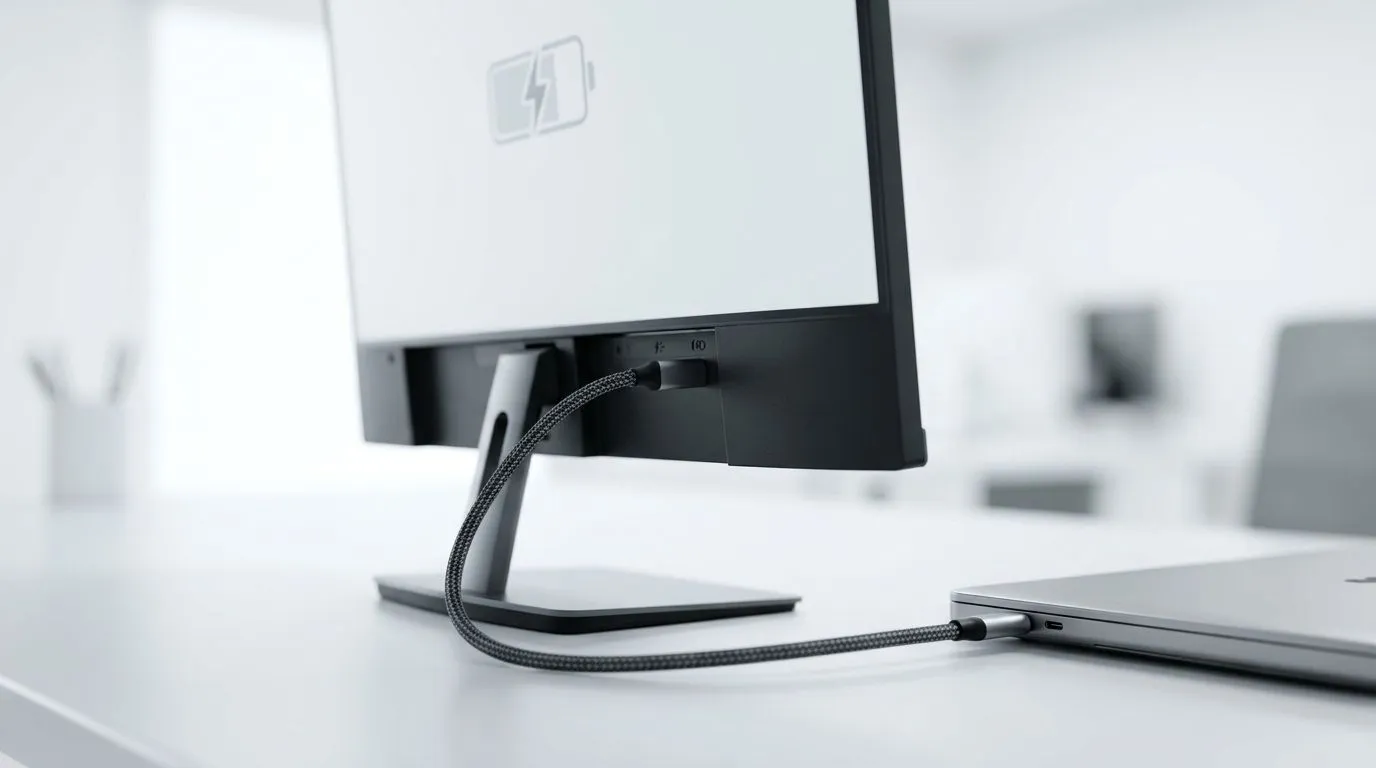
USB-C Monitor Power Delivery: Can It Charge Your Laptop? (Quick SA Buyer Reality Check)
If you’ve ever plugged a USB-C cable into a monitor and hoped your laptop would just… charge, you’re not alone. In South Africa, desk setups are getting smarter, and space is getting tighter. ⚡
The big question is simple: USB-C Monitor Power Delivery: Can It Charge Your Laptop? The answer is often yes… but only when the monitor, cable, and laptop all support the right power profile.
Let’s make sure you don’t buy the wrong combo, fry your workflow, or end up with a “charges slowly” surprise.
What “Power Delivery” Actually Means for Monitors (and Why It Matters)
Power Delivery (PD) is a USB-C feature that negotiates power between devices. In practice, your monitor can act like a charging dock, sending power to your laptop over a single USB-C cable.
However, not every “USB-C” port is equal. Many displays provide video only, or limited power. The ports to look for are usually labelled USB-C with Power Delivery (PD) or USB-C (charging) in product details.
The three requirements: Port, cable, and laptop
- Monitor port supports PD (and ideally lists wattage like 65W, 75W, or 90W).
- Your USB-C cable supports charging (not all cables are created equal).
- Your laptop supports charging over USB-C and uses the negotiated wattage safely.
If any one of these fails, your monitor may display video but won’t charge (or will trickle charge). 🔧
How to Tell if a Monitor’s USB-C Port Will Charge Your Laptop
Let’s turn this into a fast checklist you can use while shopping.
1) Check the monitor’s advertised PD wattage
Higher wattage usually means fewer compromises. A laptop that needs 65W may still charge at lower rates, but gaming laptops and heavy CPU workloads often reduce charging performance.
For South African buyers, always cross-check the exact monitor model’s specs on the product page.
2) Match the laptop charger needs (realistic expectation)
Even if PD is supported, your laptop will only draw what the monitor can supply. If your laptop’s original brick is, say, 90W, a 65W monitor might still charge, but not keep up under load.
3) Use a charging-capable USB-C cable
Look for cables marketed for charging or USB-C PD. Cheap “USB-C to USB-C” cables sometimes only handle data and video, or carry less power.
Cable-Check Pro Tip 🔌
For charging over USB-C, use a cable rated for Power Delivery (often listed as supporting charging up to the required wattage). If a cable doesn’t explicitly support charging, it may run your display but refuse to deliver enough power to charge your laptop reliably.
Where USB-C PD Works Best for South African Setups
In SA homes and offices, USB-C PD shines when:
- You use a single-cable desk workflow (laptop to monitor to peripherals).
- You want tidy cable management behind your monitor.
- You’re gaming occasionally, but mostly using productivity and content apps. ✨
For heavy gaming sessions, your laptop may still charge slower than expected, especially if power demand is high. That doesn’t mean USB-C PD is “broken”, it means physics is doing its thing.
Buying the Right Monitor for USB-C Laptop Charging (What to Look For)
If you’re shopping monitors and want charging capability, start with the categories that typically fit your workflow.
- If you want best value with strong office and mixed-use options, browse these deals: best PC monitor deals
- For a broader selection that includes business-friendly specs, check: PC monitors collection
- If you’re aiming for a more gaming-led display but still want modern connectivity, compare options in: all gaming monitors
- If your setup benefits from immersive widescreen, start with: curved monitors
- If desk space is tight or you travel between home and work, consider: portable monitors
- If your content work or games lean toward ultra-high clarity, explore: 5K and 4K monitors
- And don’t forget the essentials like hubs and cabling accessories here: monitor accessories
In other words… shop for the right monitor first, then build a cable and accessory setup that matches.
Troubleshooting: “It Charges… but Why So Slow?”
If your laptop charges but slowly, try these fixes in order:
- Confirm the PD wattage your monitor advertises.
- Try a different USB-C cable that supports charging.
- Update laptop power settings (some laptops reduce power draw on “battery saver” modes).
- Reduce load (rendering, heavy installs, or GPU-heavy games can outpace PD).
- Check the port: some monitors have multiple USB-C ports and only one supports charging.
Most “it doesn’t charge” cases are cable or port capability mismatches. ⚡
Your Next Best Move (So You Don’t Waste Money)
Want a clean single-cable setup without guesswork? Use the checklist above, then pick monitors that clearly align with your laptop’s USB-C charging needs. That’s how you avoid returning packages and re-buying cables.
Ready to Find Your Perfect Match? The Mac vs Windows debate is complex, but for maximum power, choice, and value in South Africa, Windows is hard to beat. Explore our massive range of laptop specials and find the perfect machine to conquer your world.