

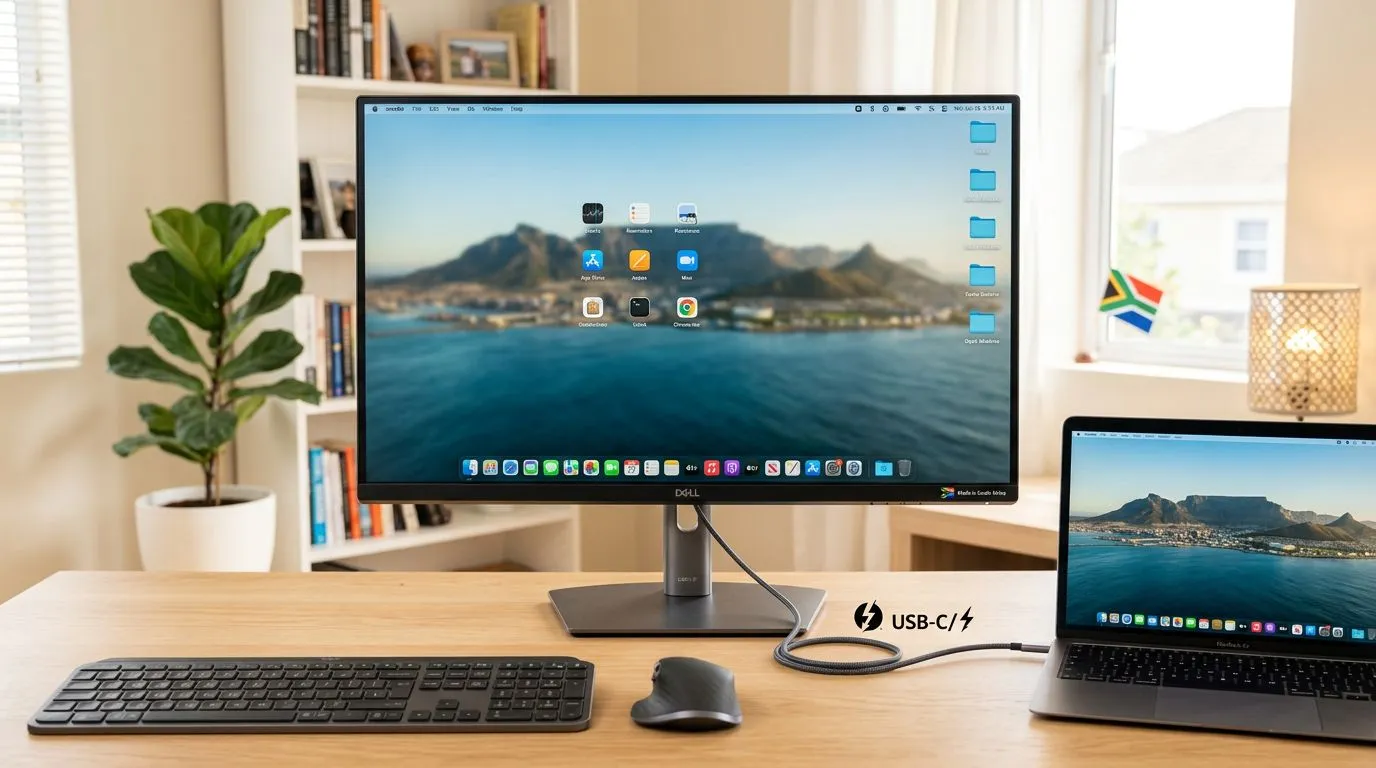
USB-C Monitor Setup for a Clutter-Free Home Office That Actually Works
Setting up a new monitor should feel exciting… not like you’re fighting a cable hydra. In South Africa, where loadshedding and desk space both matter, a clean USB‑C workflow can make your home office (and gaming station) easier to manage. Whether you’re jumping between work calls and late-night sessions, this guide will help you build a clutter-free setup with the right cables, the right ports, and sensible settings 🔧.
USB-C Monitor Setup: Start With the Right USB‑C Reality Check
Not every USB‑C port is equal. Before you buy anything, confirm your monitor supports “USB‑C video over USB‑C” (DisplayPort Alt Mode) and ideally Power Delivery (so it can charge your laptop). Why does this matter? Because if your monitor only supports charging, you’ll still need a separate video cable, which defeats the whole clutter-free goal.
On laptops, look for USB‑C ports that support video output. Many modern models do, but not all. If you’re unsure, check the laptop manual or the monitor’s product spec sheet.
What to look for on the monitor
- USB‑C video input (DP Alt Mode) for a single-cable setup
- Power Delivery (PD) if you want power through the monitor
- Built-in USB hub if you want keyboard, mouse, and headset plugged into the monitor
Choose your monitor path (deals first, regrets later) ✨
If you want options that fit different desk styles and budgets, start with Evetech’s monitor categories:
- Browse the best PC monitor deals here: https://www.evetech.co.za/best-pc-monitor-deals/x/047.aspx
- Explore all PC monitors: https://www.evetech.co.za/PC-Components/pc-monitors-89.aspx
- If you’re gaming, narrow down from the start: https://www.evetech.co.za/all-gaming-monitors/x/1587.aspx
USB-C Monitor Setup for a Clutter-Free Home Office: Cable Management That Looks Clean
Once you know your monitor truly supports USB‑C video, you can design your desk around one main connection. The goal is simple: one USB‑C cable from laptop to monitor for video (and possibly power), and then short, tidy cables for peripherals.
A clean desk plan that South African gamers will appreciate
- Position the monitor first. Get the ideal viewing height and distance.
- Run the USB‑C cable behind the monitor stand if possible.
- Route power separately and keep it behind the desk line.
- Plug peripherals into the monitor hub (USB‑B or USB‑C upstream, depending on the model) so the laptop stays “one cable away”.
Avoid the most common “why is it black?” mistake ⚡
If your screen stays black after connecting USB‑C:
- Try the monitor’s USB‑C input selection on the OSD menu
- Switch to the other USB‑C port on your laptop
- Test with a different USB‑C cable if the one you used is “charge-only”
Productivity Pro Tip ⚡
Windows, use the built-in Display settings to verify the USB-C monitor’s resolution and refresh rate after setup. Then create a repeating layout habit: game at your preferred refresh for smoother play, and switch to a readable resolution for work. If your monitor has a USB hub, plug your mouse and keyboard into the monitor so they reconnect instantly when you swap inputs or power-cycle.
USB-C Monitor Setup for a Clutter-Free Home Office: Pick the Right Form Factor
A clutter-free setup isn’t only cables. It’s also how the monitor fits your desk.
Curved vs flat: when the “clean look” matters
Curved monitors can feel more immersive, but desk alignment becomes more important. If you want that curved experience while keeping your cable strategy simple, browse options here: https://www.evetech.co.za/buy-curved-monitors/x/1588.aspx
Portable screens for the “work laptop + gaming console” life
If you travel for work or you sometimes shift between locations, a portable monitor helps you keep your setup consistent. Start here: https://www.evetech.co.za/buy-portable-monitors/x/1590.aspx
4K and 5K monitors: clarity, but plan your scaling
Higher resolution can look amazing, yet text scaling and GPU load need attention. If you’re aiming for detail without sacrificing comfort, explore:
- 5K/4K monitors: https://www.evetech.co.za/buy-5k-4k-monitors/x/1591.aspx
USB-C Monitor Setup for a Clutter-Free Home Office: Optimise Settings for Both Work and Play
Now that your physical setup is tidy, dial in the software side.
Set refresh rate and resolution (don’t guess)
For gaming, higher refresh can reduce motion blur and improve responsiveness. For work, crisp text matters most. In Windows:
- Go to Display settings
- Choose the correct resolution
- Pick the refresh rate your monitor actually supports via USB‑C
If you’re unsure what a monitor supports, check Evetech’s product listings under the relevant category links above.
Use a practical workflow between tasks
If you’re constantly switching between work and games:
- Keep one “work profile” (readable scaling, notification focus, calmer brightness)
- Keep one “gaming profile” (higher refresh, lower distractions)
Even small habits cut down cable swapping, alt-tab chaos, and desk clutter.
USB-C Monitor Setup for a Clutter-Free Home Office: Accessories That Remove Chaos
The best cable plan still needs basic hardware. Think of accessories as “desk safety equipment” 🔧
What actually helps
- Cable sleeves or clips to keep runs tight
- Monitor riser if you need clearance for audio interfaces and hubs
- USB switch or hub if you have multiple devices using USB‑C
To avoid compatibility headaches, start with Evetech’s monitor accessories range: https://www.evetech.co.za/PC-Components/buy-monitor-accessories-368.aspx
If you’re building a full setup from scratch, combine the right monitor with accessories that match your desk layout, not just your monitor size.
USB-C Monitor Setup for a Clutter-Free Home Office: Quick Checklist Before You Buy
Use this mini checklist before finalising your setup:
- ✅ Monitor has USB‑C video support (not just charging)
- ✅ USB‑C cable supports video (if available, use a known-good spec cable)
- ✅ Laptop USB‑C port supports video output
- ✅ You have a plan for power (especially if PD power isn’t supported)
- ✅ Peripherals can plug into the monitor hub for true desk simplicity
Want zero guesswork and a deal that fits your budget in ZAR? That’s exactly why browsing the right Evetech categories first helps.
Ready to Find Your Perfect Match? The Mac vs Windows debate is complex, but for maximum power, choice, and value in South Africa, Windows is hard to beat. Explore our massive range of laptop specials and find the perfect machine to conquer your world.











