

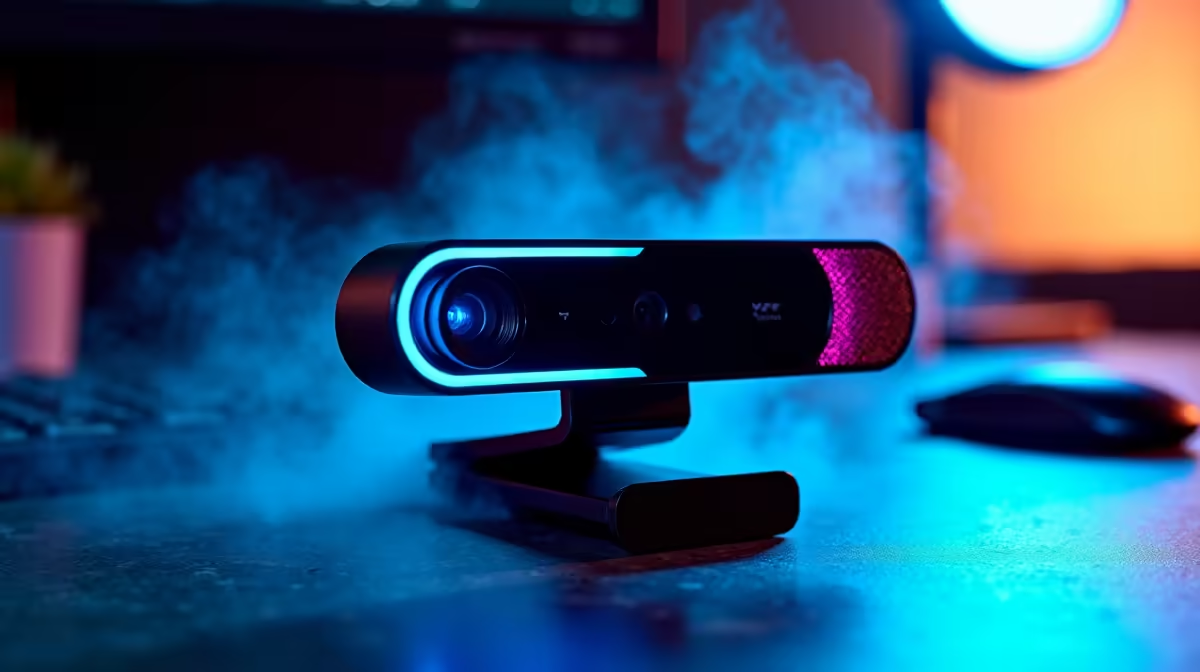
Tired of looking like a pixelated potato during your Monday morning meetings or late-night Twitch streams? Whether you are dodging load shedding or just trying to look professional, mastering your USB webcam setup and configuration is essential. Let us walk through how to get crisp video quality without needing a Hollywood budget.
The Basics of USB Webcam Setup and Configuration 📸
Before tweaking sliders, you need a solid physical foundation. Most modern webcams are simple plug-and-play devices. Simply connect the camera to a high-speed USB port on your motherboard. If you are using one of the latest notebooks for sale in South Africa, a direct Type-C or Type-A connection ensures the best data transfer.
A proper USB webcam setup and configuration requires decent bandwidth. Avoid using unpowered USB hubs... they often cause annoying flickering, dropped frames, or audio sync issues.
Perfecting Placement and Lighting ✨
Your camera hardware means nothing if your lighting is terrible. Position your webcam at eye level to avoid that dreaded double-chin angle. Next, face your primary light source. A cheap ring light or a bright window works wonders to illuminate your face evenly.
If you are building a dedicated streaming room, you might be hunting for pre-built PC deals to handle the heavy video encoding load. A strong machine ensures your feed never stutters while gaming. Keep an eye out for daily specials to grab affordable lighting or peripherals with your hard-earned ZAR.
Lighting Pro Tip 💡
Always ensure your brightest light source is behind your webcam, facing you. If a window is behind you, your webcam will auto-expose for the bright background, turning you into a shadowy silhouette.
Fine-Tuning Advanced Software Settings
Now we dive into the software side of your USB webcam setup and configuration. Download the official software for your specific brand... like Logitech G HUB or Razer Synapse.
The biggest secret to professional video is turning off auto-focus and auto-exposure. Manually locking these settings stops the camera from constantly hunting for focus every time you move your hands. Additionally, adjust your white balance so your skin tones look natural rather than overly blue or aggressively orange.
If you plan on using NVIDIA Broadcast for AI background removal, you will need serious GPU power. Upgrading your rig? You can easily buy graphics cards that feature dedicated Tensor cores to handle this heavy lifting. Pairing a good GPU with one of our best gaming PC deals guarantees your stream looks flawless.
Do Not Forget About Audio Quality 🎙️
While visual USB webcam setup and configuration is vital, poor audio will ruin the entire experience. Most webcams feature built-in microphones... but they often sound tinny and pick up too much room echo. Consider a dedicated USB microphone positioned close to your mouth, and lower the gain to cut out background noise like taxi hooters or barking dogs.
Ready to Upgrade Your Stream? A perfect webcam setup deserves a powerhouse PC to run it. Whether you are broadcasting to the world or presenting to the boardroom, Evetech has the hardware you need. Explore our massive range of laptop specials and find the perfect machine to conquer your world.











