

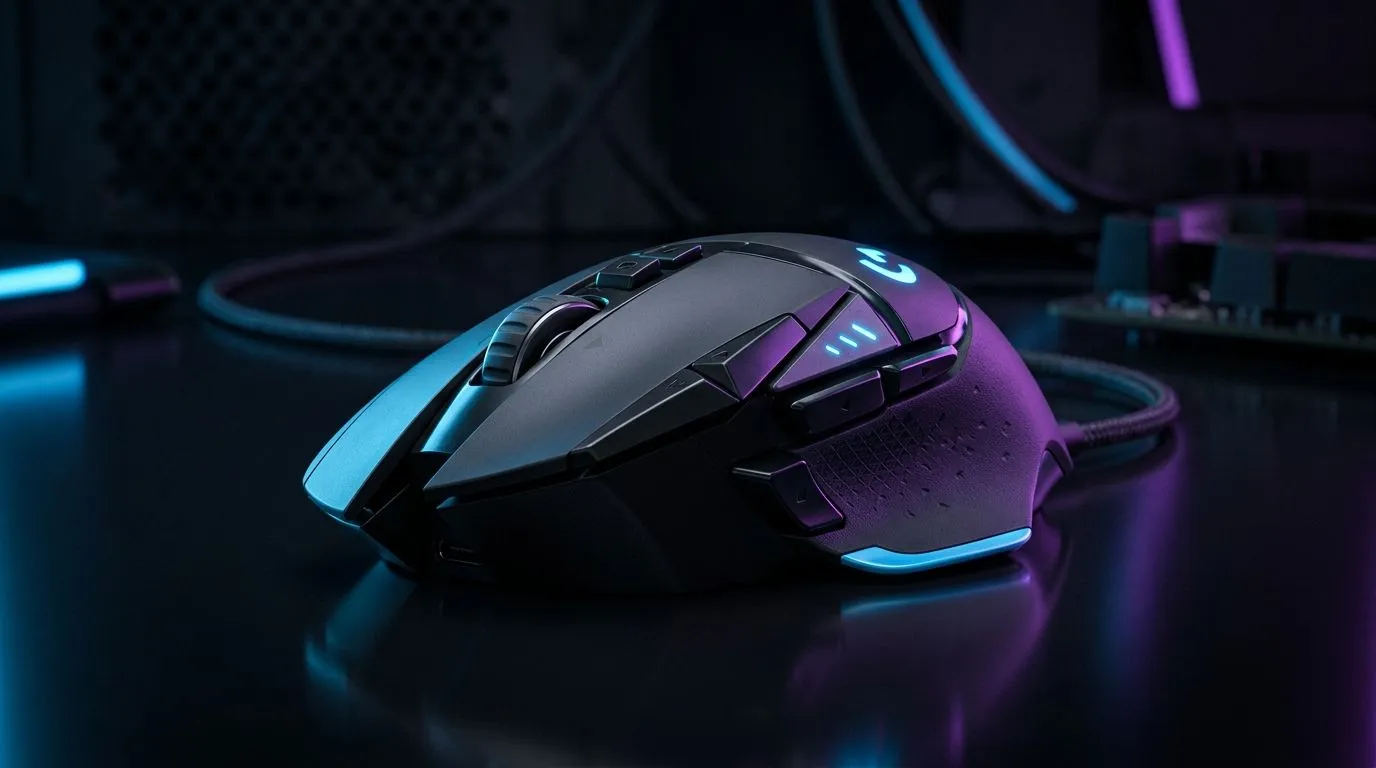
Wireless gaming mouse inconsistent? Let’s get your clicks back on target
If your aim feels “off” even when you swear you didn’t change anything, you’re not alone. In South Africa, loads of households deal with Wi‑Fi congestion, power fluctuations, and sweaty mousepads that shift surface tracking. One minute your crosshair is crisp… the next it judders, DPI seems wrong, or your cursor lags like it’s buffering. Let’s fix it fast, step-by-step. 🔧
Wireless gaming mouse inconsistent: Start with the connection (before you chase DPI)
Wireless issues often look like tracking problems. They’re not always the sensor.
- Move the receiver: Put it on your desk (or use a short USB extension) so it’s not blocked by your PC case or the router.
- Change USB ports: Front-panel ports can be noisier depending on the motherboard and case wiring.
- Reduce interference: Keep the receiver away from USB hubs, RGB controllers, and speakers.
If you’re still using a wireless mouse but want to rule out wireless variables, compare your setup against Evetech’s options here: wireless mouse range.
Wireless gaming mouse inconsistent: Fix tracking with surface + settings
Tracking depends on surface type and sensor behaviour. A cheap desk can cause inconsistent glide.
- Use a proper mouse pad: Prefer cloth or a stable hard pad that matches the sensor’s intended surface.
- Clean the sensor window: Dust affects optical tracking. Use a soft brush or gentle compressed air.
- Check your polling/USB settings: If your mouse has adjustable polling (like 1000 Hz vs lower), set it consistently, then test again.
If you’re considering going wired for “set-and-forget” stability, Evetech stocks wired options too: wired gaming mouse picks. 🚀
Productivity Pro Tip ⚡
On Windows, keep your DPI behaviour predictable by disabling pointer enhancements and then testing in a single game for 10 minutes. It helps you separate “mouse tuning” from “Windows smoothing” so you can actually measure what improved the tracking.
Wireless gaming mouse inconsistent: Verify DPI, then lock in sensitivity
“Wrong DPI” is often the mouse, but sometimes it’s the way games scale sensitivity.
- Confirm DPI on the mouse: Press the DPI button and watch for the indicator colour change, then note the exact value.
- Set game sensitivity once: Don’t flip between ads/sensitivity menus while debugging.
- Avoid mixed profiles: Some mice save per-app profiles. If your mouse has onboard memory, ensure the profile is consistent for your main game.
Want to compare DPI and tuning behaviour across models? Start with accessory options and sensor-focused picks here: mouse accessories at Evetech. ✨
Wireless gaming mouse inconsistent: Quick diagnostic checklist (10 minutes)
Do this in order. You’ll usually find the culprit fast.
- Clean + re-seat: wipe the sensor and re-seat the receiver (or replace the USB port).
- Test on another surface: swap to your best mouse pad for one match.
- Turn off nearby interference: pause downloads, move closer to the router if needed.
- Lower variables: one profile, one game, one sensitivity value.
- If still inconsistent: consider a different model or connection style.
If you’d rather stop troubleshooting and just get something reliable, browse current offers and pricing in ZAR: best gaming mouse deals. ⚡
Wireless gaming mouse inconsistent: When to switch (and what to look for)
Wireless can be fantastic, but inconsistency usually means your setup is fighting your gear. If you’re competing seriously, prioritise:
- stable wireless link,
- a sensor that matches your pad,
- consistent DPI steps you can trust.
To explore controller-ready, gaming-focused mice, check Evetech’s mouse category page: gaming mouse lineup.
Ready to Find Your Perfect Match? The Mac vs Windows debate is complex, but for maximum power, choice, and value in South Africa, Windows is hard to beat. Explore our massive range of laptop specials and find the perfect machine to conquer your world.











