



BIOS Settings for Gaming Performance: The Ultimate Guide
Unlock peak performance with the best BIOS settings for gaming performance on your laptop. Learn how to safely tweak your system's core settings, from enabling XMP to undervolting, for higher FPS and smoother gameplay. Ready to dominate the game? Let's dive in! 💻🚀
|
Loading tags...

Kitted out your rig with the best gear but still feel like you're lagging behind in Warzone? That fancy new GPU is only half the story. The secret to unlocking every last drop of power often lies hidden in a place many gamers fear to tread: the BIOS. Getting your BIOS settings for gaming performance dialled in correctly is one of the most effective ways to boost your FPS... for free. Let's dive in. 🚀


Understanding Your BIOS for Peak Gaming Performance
Think of your PC’s BIOS (or its modern successor, UEFI) as the control room for all your hardware. It’s the very first thing that loads when you power on your machine, telling your CPU, RAM, and graphics card how to talk to each other.
Most PCs ship with safe, default settings designed for stability, not speed. By spending a few minutes in this control room, you can change key BIOS settings for gaming, ensuring your components are running at their full, advertised potential. It’s the difference between driving a sports car in economy mode and truly opening it up on the track.
Essential BIOS Settings for Gaming You Can Tweak Today
Before you start, remember that every BIOS interface looks a bit different depending on your motherboard brand (ASUS, MSI, Gigabyte, etc.). However, the names for these critical settings are usually very similar. You typically access the BIOS by pressing Delete, F2, or F12 during startup.
Unlock Your RAM Speed with XMP/DOCP/EXPO
This is the big one. If you only change one thing, make it this. Your high-speed gaming RAM often runs at a much slower default speed until you tell it otherwise.
- What it is: A pre-configured overclocking profile for your memory.
- What to do: Find a setting called XMP (Extreme Memory Profile) for Intel systems, or DOCP/EXPO for AMD systems. Enable it. That’s it! This simple tweak ensures your RAM runs at the speed you paid for, giving you a noticeable performance lift in many games.




TIP FOR YOU
First Things First: Update Your BIOS! 🔧
Before you start tweaking, check your motherboard manufacturer's website for the latest BIOS update. These updates often include crucial stability fixes, better memory compatibility, and sometimes even performance improvements. It's the best foundation for optimising your BIOS settings for gaming. Just be sure to follow the instructions carefully!
CPU Optimisations: Beyond the Basics
While manual CPU overclocking is a deep topic for enthusiasts, there are simpler tweaks. Disabling certain power-saving states (like C-States) can sometimes provide a more stable frequency for gaming, preventing micro-stutters. For demanding tasks that require consistent power, a system built for it, like many powerful workstation laptops, often has these optimisations prioritised from the start.
Enable Resizable BAR for a Free FPS Boost ✨
Resizable BAR (or Smart Access Memory on AMD systems) is a feature that allows your CPU to access your GPU's entire memory buffer at once, instead of in small chunks.
- What it is: A direct data lane between your CPU and GPU memory.
- What to do: Look for "Resizable BAR Support" or a similar term in your PCI Subsystem settings and enable it. This can provide a 5-10% FPS boost in supported titles. You'll find this feature enabled on almost all of the best gaming laptop deals available today.



A Quick Safety Check Before You Change BIOS Settings
Feeling a bit nervous? That’s smart. The BIOS is powerful, so it pays to be cautious.
- One Change at a Time: Tweak one setting, then save, reboot, and test for stability. If something goes wrong, you know exactly what caused it.
- Take a Picture: Use your phone to snap a photo of the original settings before you change anything.
- Know How to Reset: If your PC fails to boot, don't panic. Look for a "Load Optimised Defaults" or "Reset to Default" option in the BIOS to get back to a working state.
Tweaking these settings can breathe new life into an older machine. But if your hardware is showing its age, no amount of optimisation can close the gap. Sometimes, a fresh start is the best upgrade, and you can find incredible value across our wide range of laptop specials built with modern, performance-ready components.
Ready for a Performance Upgrade? Tweaking your BIOS is powerful, but sometimes you need a fresh start. If you're ready for a machine that's optimised for peak performance right out of the box, we've got you covered. Explore our massive range of laptop specials and find the perfect rig to dominate your game.
Related Products
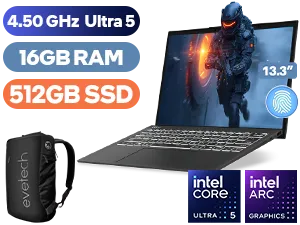
MSI Prestige 13 AI Evo 16GB/512GB
R16,999In Stock
Dell Pro 13 Premium 16GB/512GB Ultra 5
R33,999In Stock

MSI Cyborg 15 16GB/512GB i7
R22,999In Stock
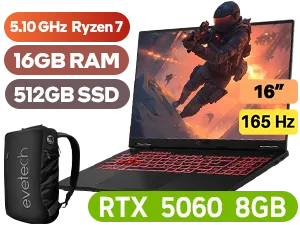
ASUS TUF Gaming A16 16GB/512GB RTX 5060
R25,999In Stock

Dell Pro 15 PV15250 16GB/512GB Core i7
R12,999In Stock

Lenovo LOQ 15IAX9 8GB/512GB Core i5
R13,499In Stock
The best BIOS settings for FPS often include enabling XMP for faster RAM, disabling unused devices, and carefully undervolting the CPU/GPU for better thermal performance.
Yes, it is generally safe if you follow instructions carefully. However, incorrect changes can cause instability. Always note default settings before making adjustments.
To access the BIOS on a gaming laptop, restart your computer and press a specific key (like F2, F10, or DEL) repeatedly during the initial boot-up screen.
Updating your BIOS for better gaming can be beneficial. Updates often include performance improvements, new feature support, and crucial security patches for your system.
Enabling XMP (Extreme Memory Profile) in the BIOS allows your RAM to run at its advertised higher speeds, which can significantly improve frame rates and loading times in games.
Absolutely. Proper BIOS optimization for gaming can unlock your hardware's full potential, leading to higher FPS, reduced stuttering, and a more stable gaming experience.











