



How to Connect a Soundbar to Nintendo Switch: Complete Guide
Learn how to connect a soundbar to Nintendo Switch easily for immersive audio. From Bluetooth pairing to HDMI and Aux cables, we cover every method to upgrade your gaming setup. 🎮🔊
|
Loading tags...
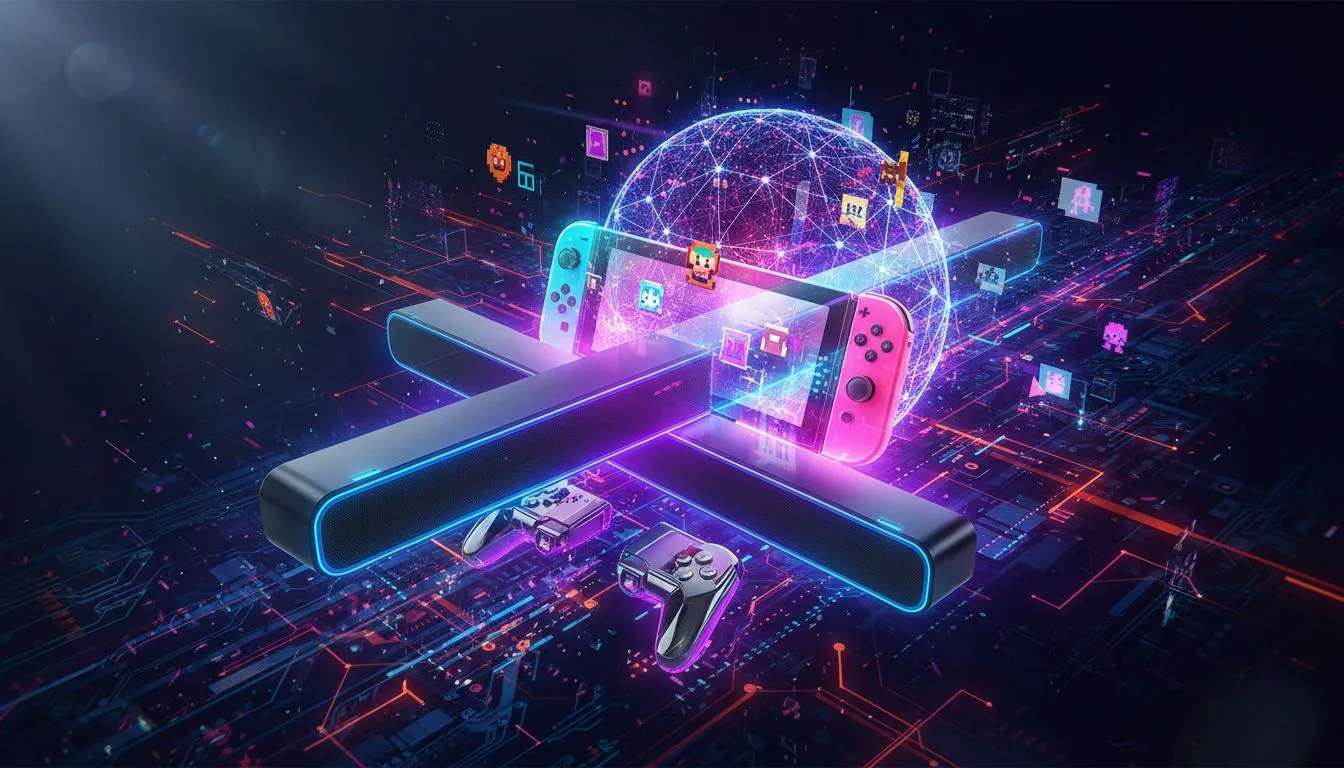
So, you’ve just beaten another boss in Tears of the Kingdom or drifted perfectly around a corner in Mario Kart 8 Deluxe. Epic, right? But something’s missing. The Nintendo Switch is a phenomenal console, but its built-in speakers are… well, tiny. To truly feel the roar of Bowser’s engine or the sweeping orchestral score of Hyrule, you need to connect a soundbar to your Nintendo Switch. It’s easier than you think! 🔊

MARVO SG-286 RGB Gaming Speakers / USB Bluetooth RGB Lighting Soundbar / Frequency Range: 60Hz-20KHz / Easily Accessible Volume Knob / SG-286
R299.00In Stock

Promate Bluetooth Speaker, 20W True Wireless Portable HD Speaker with RGB Lights, IPX5 Water-Resistance, Long Playtime, Quick Music Navigation, USB Port, TF Card Slot and Top Handle / Spectro-20
R699.00In Stock

Razer Leviathan V2 X: PC Soundbar with Full-Range Drivers / Compact Design / Chroma RGB / USB Type C Power and Audio Delivery / Bluetooth 5.0 / Supports PC, Laptop, Smartphones, Tablets & Nintendo Switch / RZ05-04280100-R3M1
R1999.00In Stock
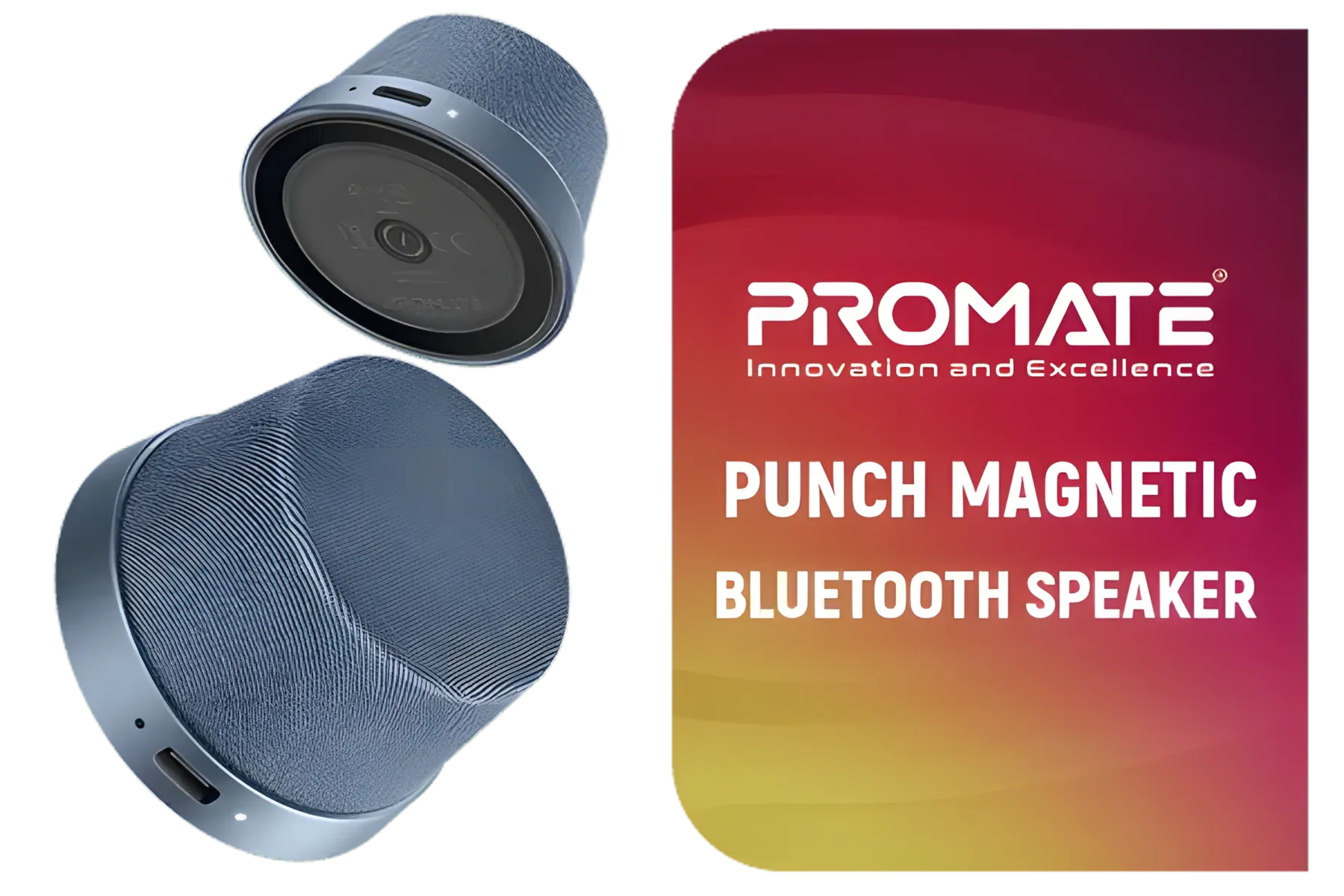
Promate Magnetic Bluetooth Speaker, 3W TWS Small Bluetooth Speaker with HD Sound, 40mm Dynamic Drivers, Long-Lasting 12H Playtime, and Bluetooth V5.3 for Magsafe Compatible Devices / PUNCH.NAVY
R299.00In Stock
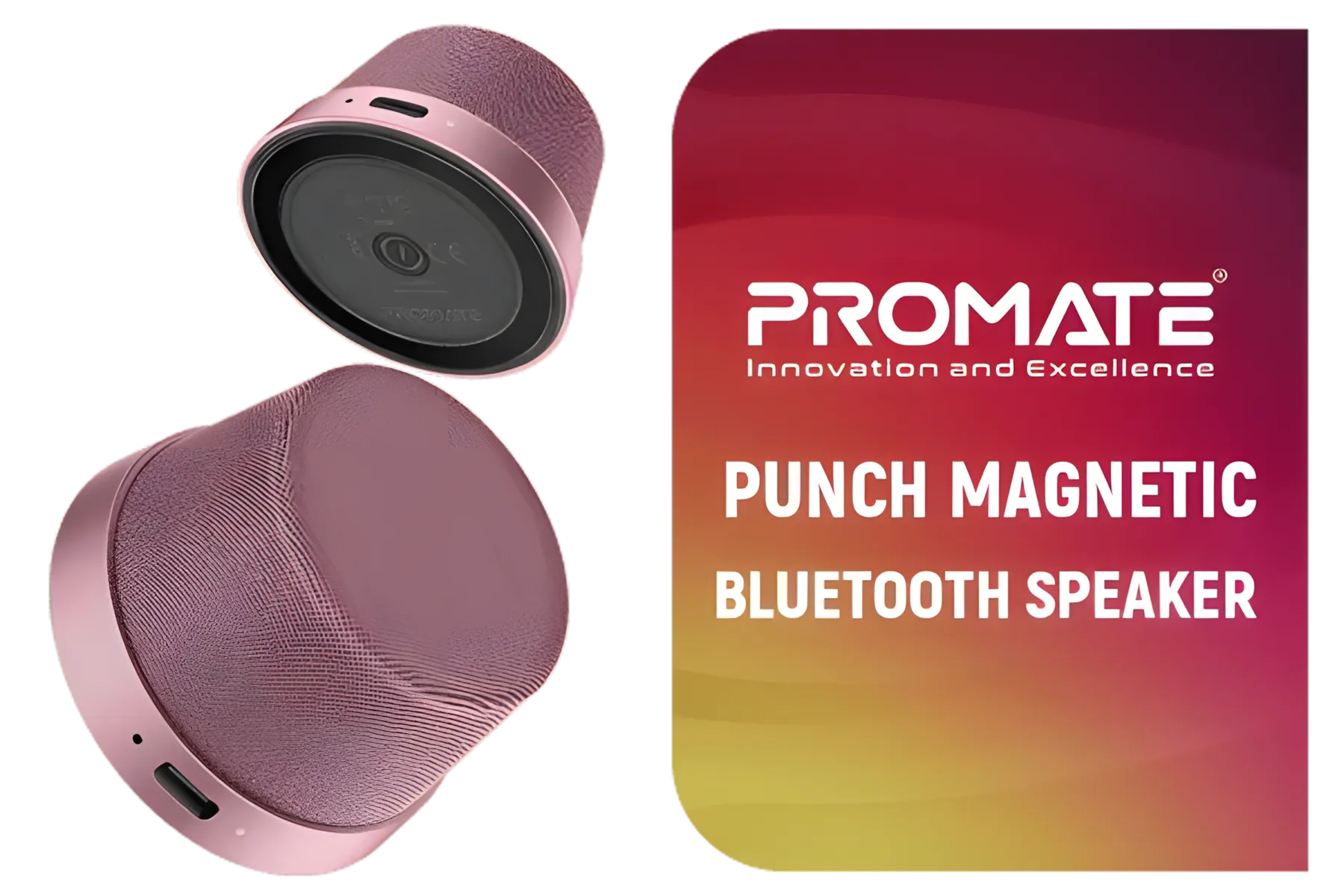
Promate Magnetic Bluetooth Speaker, 3W TWS Small Bluetooth Speaker with HD Sound, 40mm Dynamic Drivers, Long-Lasting 12H Playtime, and Bluetooth V5.3 for Magsafe Compatible Devices / PUNCH.PINK
R299.00In Stock
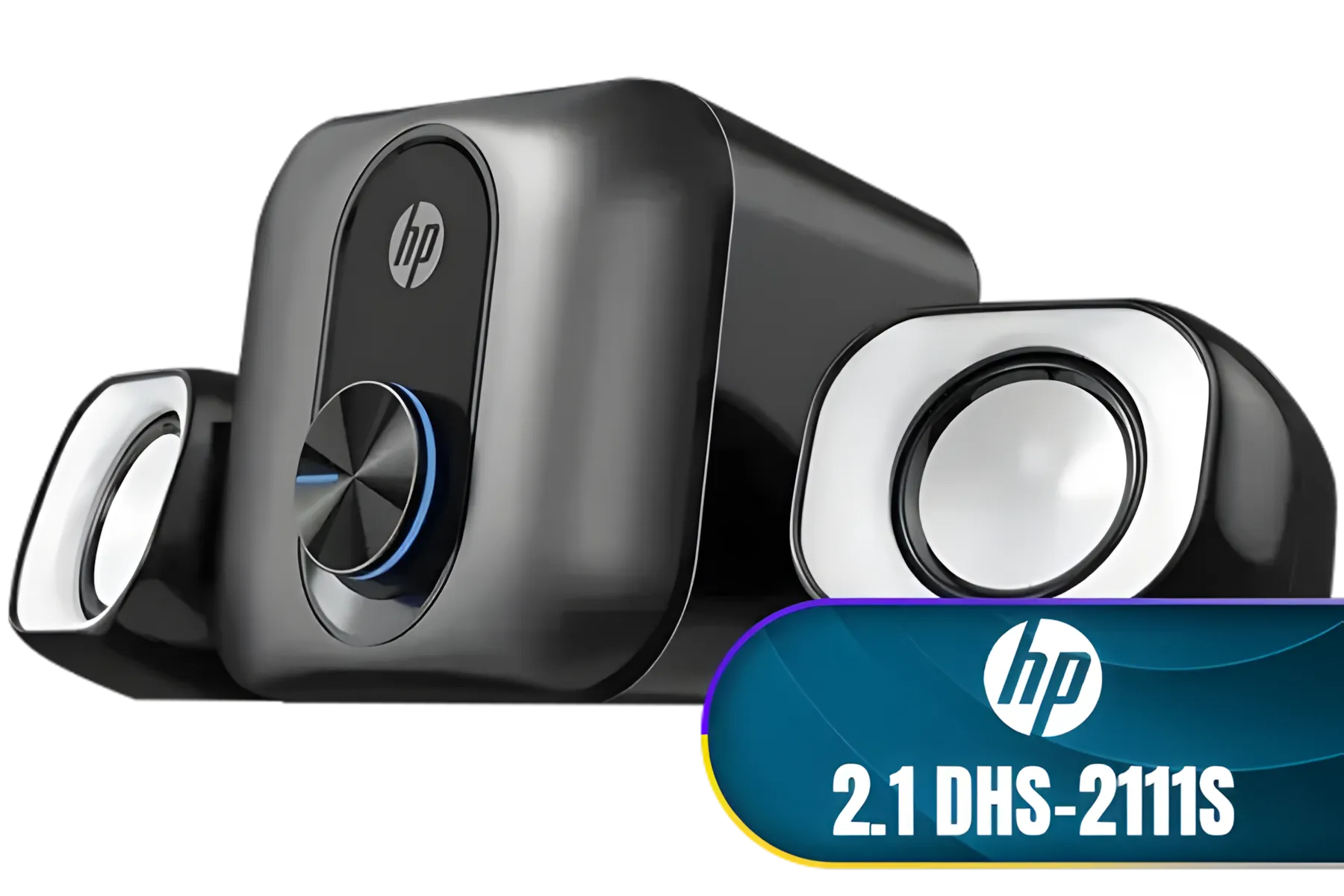
HP 2.1 DHS-2111S Black Speaker with USB Power and 3.5mm Connector Subwoofer Power 5W 2B285AA / DHS-2111S
R499.00In Stock
Why Upgrade Your Switch's Audio?
Before we dive into the how, let's talk about the why. The Switch’s standard audio is fine for on-the-go gaming, but when docked, it just doesn’t do justice to the incredible sound design of modern games. A dedicated soundbar delivers richer bass, clearer dialogue, and a much wider soundstage. Suddenly, you're not just playing the game; you're inside it. This simple upgrade transforms your gaming sessions from fun to fully immersive.
Method 1: Connecting Through Your TV (Docked Mode)
This is the most common and straightforward way to get your soundbar working with your Switch. The audio signal travels from the Switch, through the dock to your TV, and then from your TV to the soundbar.
Here’s the basic setup:
- Dock Your Switch: Place your Nintendo Switch firmly in its dock.
- Connect Dock to TV: Ensure the dock is connected to your TV with an HDMI cable.
- Connect Soundbar to TV: Connect your soundbar to your TV’s HDMI ARC (Audio Return Channel) port. If your TV or soundbar is a bit older, an optical audio cable is your next best bet.
- Select the Right Input: In your TV’s audio settings, make sure you select the correct output (it might be labelled ‘External Speaker’ or ‘HDMI ARC’).
That's it! Your TV will now pass all audio, including your Switch gameplay, directly to your soundbar. This method works brilliantly with almost any model from our full range of speakers.
Method 2: Connecting Directly to the Switch 🎮
What if you want better audio in handheld mode or have a unique monitor setup? No problem. There are two excellent ways to connect a soundbar directly to the Nintendo Switch console itself.
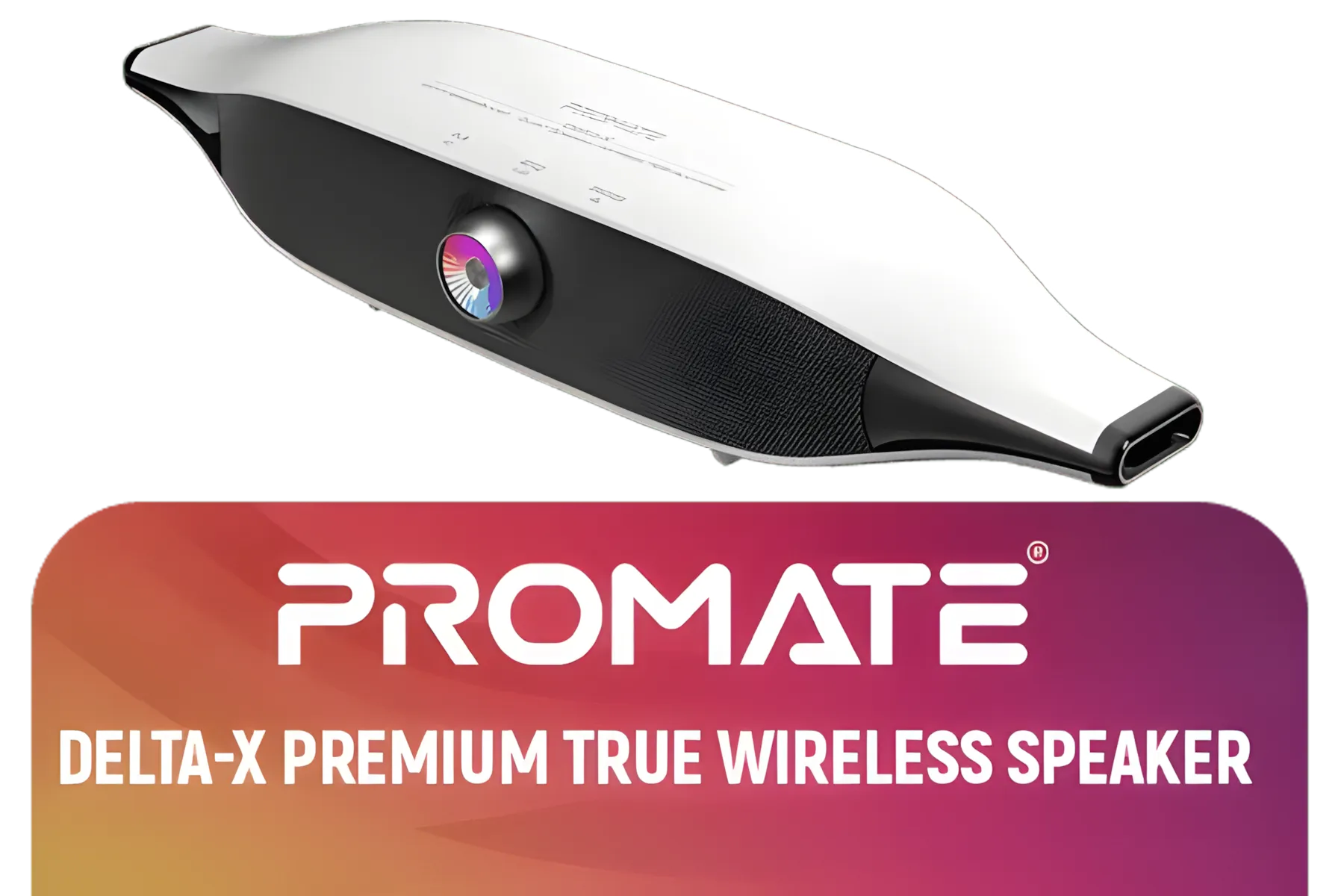
Promate Delta-X Futuristic True Wireless Speaker – 20W Sound, Audio-Reactive Lights, Long Battery Life – Portable Bluetooth Speaker for Party, Music & Outdoor Use / Delta-X.White
R1199.00In Stock

Monster Superstar S110 Wireless Bluetooth Speaker - Black / Portable Bluetooth Speakers 5.0 with TWS Pairing for 360° Louder Stereo Sound, Built-in Mic, Portable Wireless Speaker for Home or Indoor Use, IPX5 Water Resistance Wireless Speaker / MS11901
R499.00In Stock

Promate Portable Bluetooth Speaker, High-Definition True Wireless Speaker and Headphone Stand with USB-C and Dual USB-A Hub, Colorful RGB Lighting, Ergonomic Futuristic Design, Fast Charging / Alpha-X
R499.00In Stock
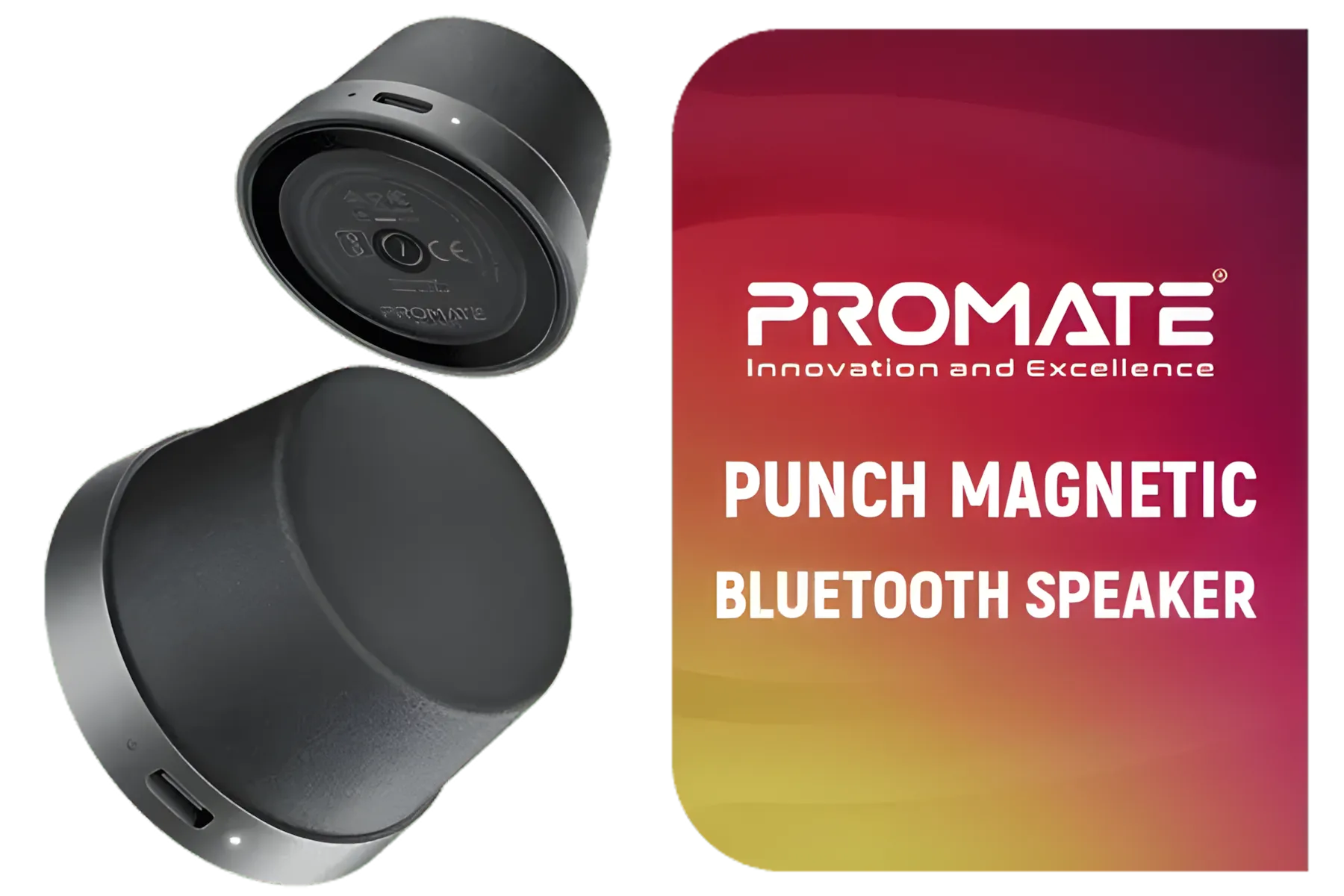
Promate Magnetic Bluetooth Speaker, 3W TWS Small Bluetooth Speaker with HD Sound, 40mm Dynamic Drivers, Long-Lasting 12H Playtime, and Bluetooth V5.3 for Magsafe Compatible Devices / PUNCH.BLACK
R199.00In Stock

Promate Wireless Bluetooth Karaoke Microphone, Handheld 5-in-1 Karaoke Microphone & Speaker, LED Lights, TWS Duet Mode, 10-Hour Play Time, 3.5mm AUX, Headphone Port, Kids, Adults / VOCALMIC.BLACK
R799.00In Stock
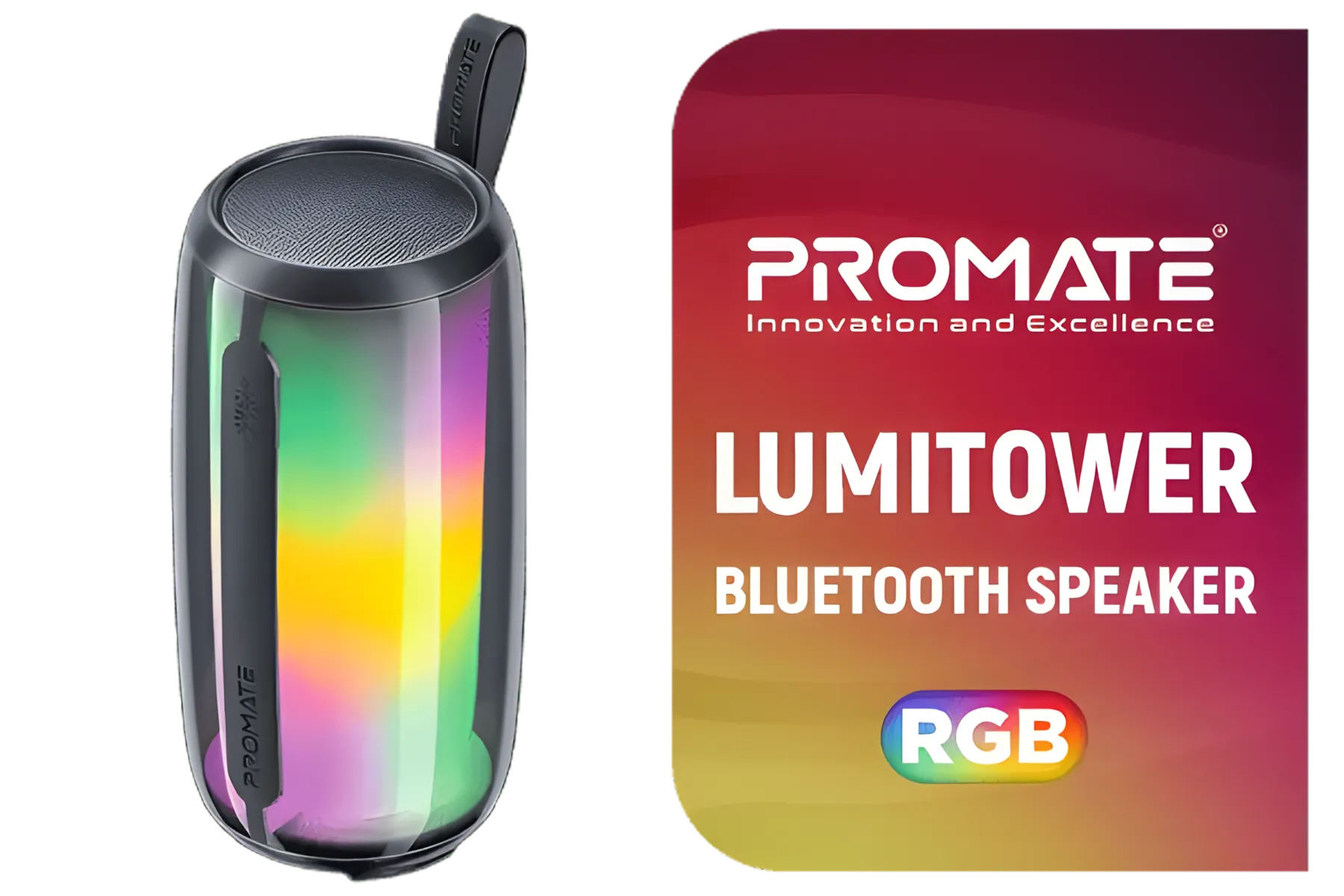
Promate Bluetooth Speaker, 8W True Wireless Portable HD Speaker with RGB Lights, Bluetooth v5.3, Long Playtime, Quick Music Navigation, Water-Resistance, USB Port and TF Card Slot for iPhone / LumiTower
R499.00In Stock
Using Bluetooth Audio
Thanks to a handy system update, the Switch now supports native Bluetooth audio! This is perfect for a clean, cable-free setup.
- Navigate to System Settings on your Switch’s home screen.
- Scroll down to Bluetooth® Audio.
- Select Pair Device.
- Put your soundbar into Bluetooth pairing mode (check its manual if you’re unsure how).
- Select your soundbar from the list on the Switch.
You’re all set for wireless sound! This is a fantastic feature for decluttering your gaming space with modern wireless audio solutions.
TIP FOR YOU
Firmware First! 🔧
For the smoothest Bluetooth connection, always make sure both your Nintendo Switch and your soundbar have the latest firmware installed. Manufacturers often release updates that improve stability and reduce audio lag (latency), giving you a much better gaming experience.
Using the 3.5mm Headphone Jack
The classic, reliable headphone jack is another great option for a direct connection. This method guarantees zero audio lag, which can be crucial for rhythm or competitive games. All you need is a standard 3.5mm male-to-male aux cable.
Simply plug one end into the Switch’s headphone jack at the top and the other into your soundbar’s AUX-in port. It’s a plug-and-play solution that works every time, and there are plenty of wired soundbars that support this simple connection.
Promate Wireless Bluetooth Karaoke Microphone, Handheld 5-in-1 Karaoke Microphone & Speaker, LED Lights, TWS Duet Mode, 10-Hour Play Time, 3.5mm AUX, Headphone Port, Kids, Adults / VOCALMIC.BLACK
R799.00In Stock

MARVO SG-269 2.0 Stereo LED Gaming Speakers / 3.5mm Audio Jack / Wired Audio Mode And Wireless Mode / 14-Color Lighting With Rainbow Effects / Volume Control / 2x 3W Speakers / SG-269
R199.00In Stock
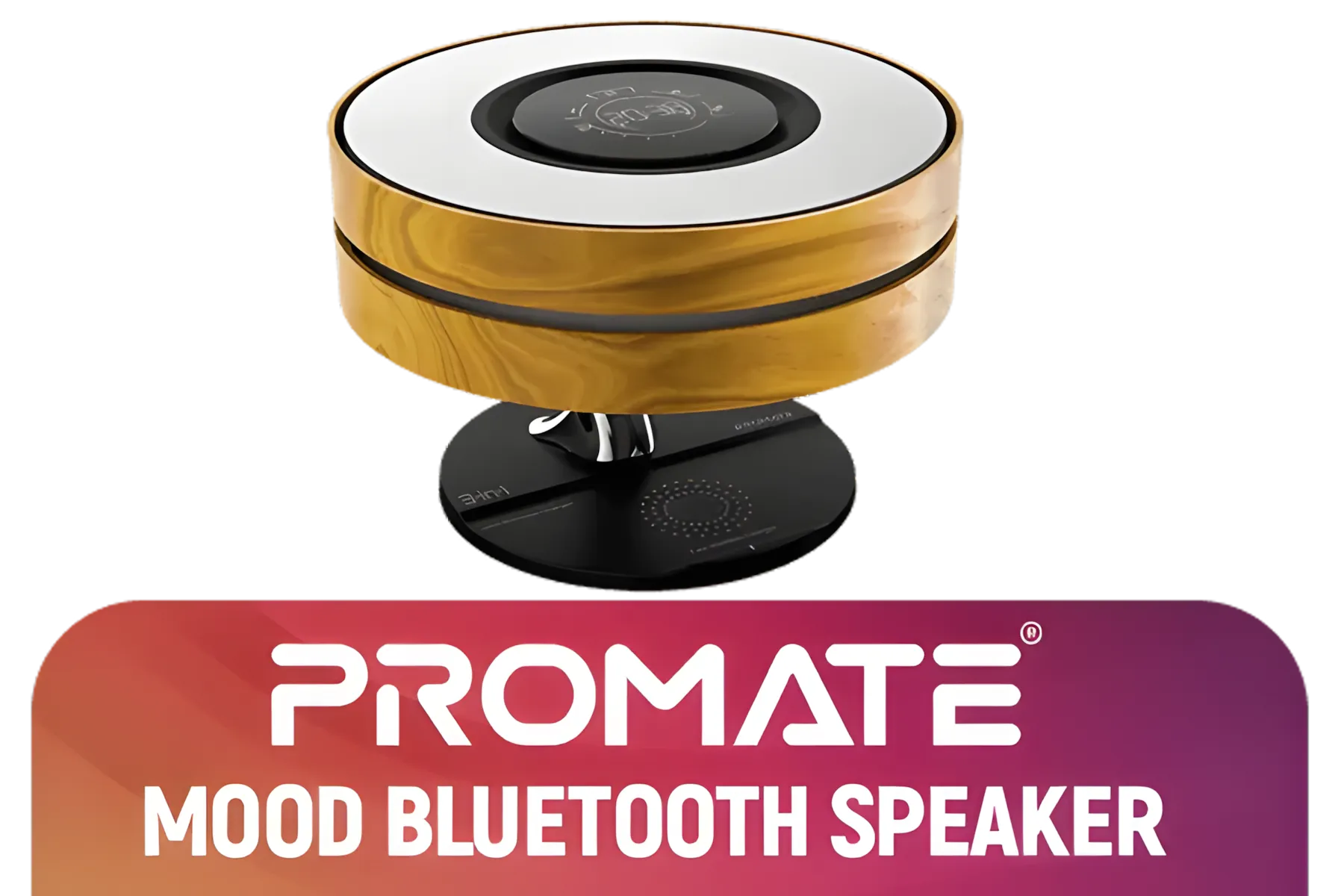
Promate 3-in-1 Contemporary Designed Desk Lamp Bluetooth Speaker with Qi Wireless Charger / 10W Bluetooth Speaker / Auto-Time Sync / Touch Control Brightness / MIRTH.UNI
R1499.00In Stock
Monster Superstar S110 Wireless Bluetooth Speaker - Black / Portable Bluetooth Speakers 5.0 with TWS Pairing for 360° Louder Stereo Sound, Built-in Mic, Portable Wireless Speaker for Home or Indoor Use, IPX5 Water Resistance Wireless Speaker / MS11901
R499.00In Stock
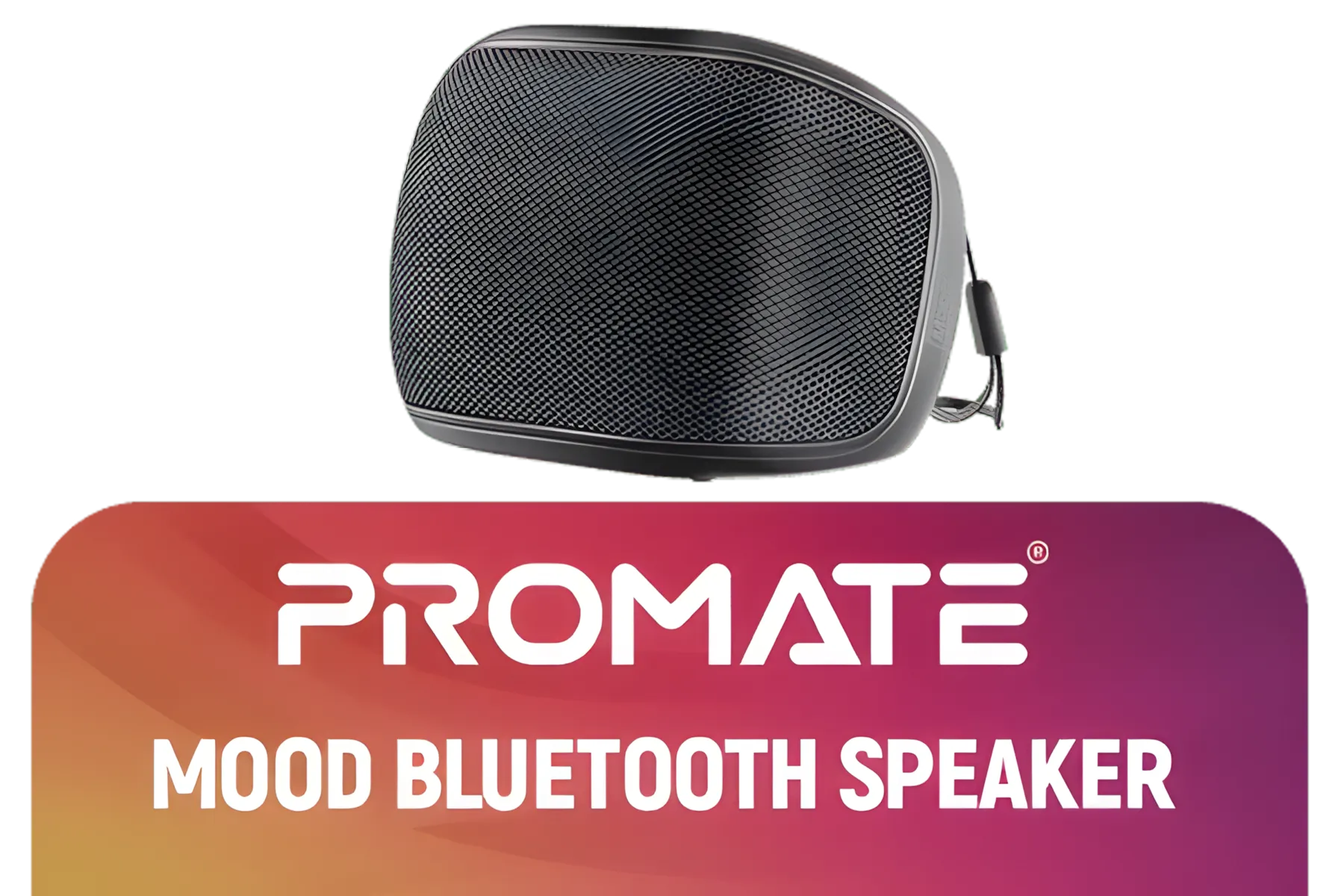
Promate Bluetooth Speaker, 5W True Wireless IPX4 Water Resistant Portable Speaker, HD Sound, Long 24H Playtime, USB Flash Port, AUX, TF Card Slot for iPhone 15, iPad Air, Galaxy S23 / MOOD.BLACK
R149.00In Stock
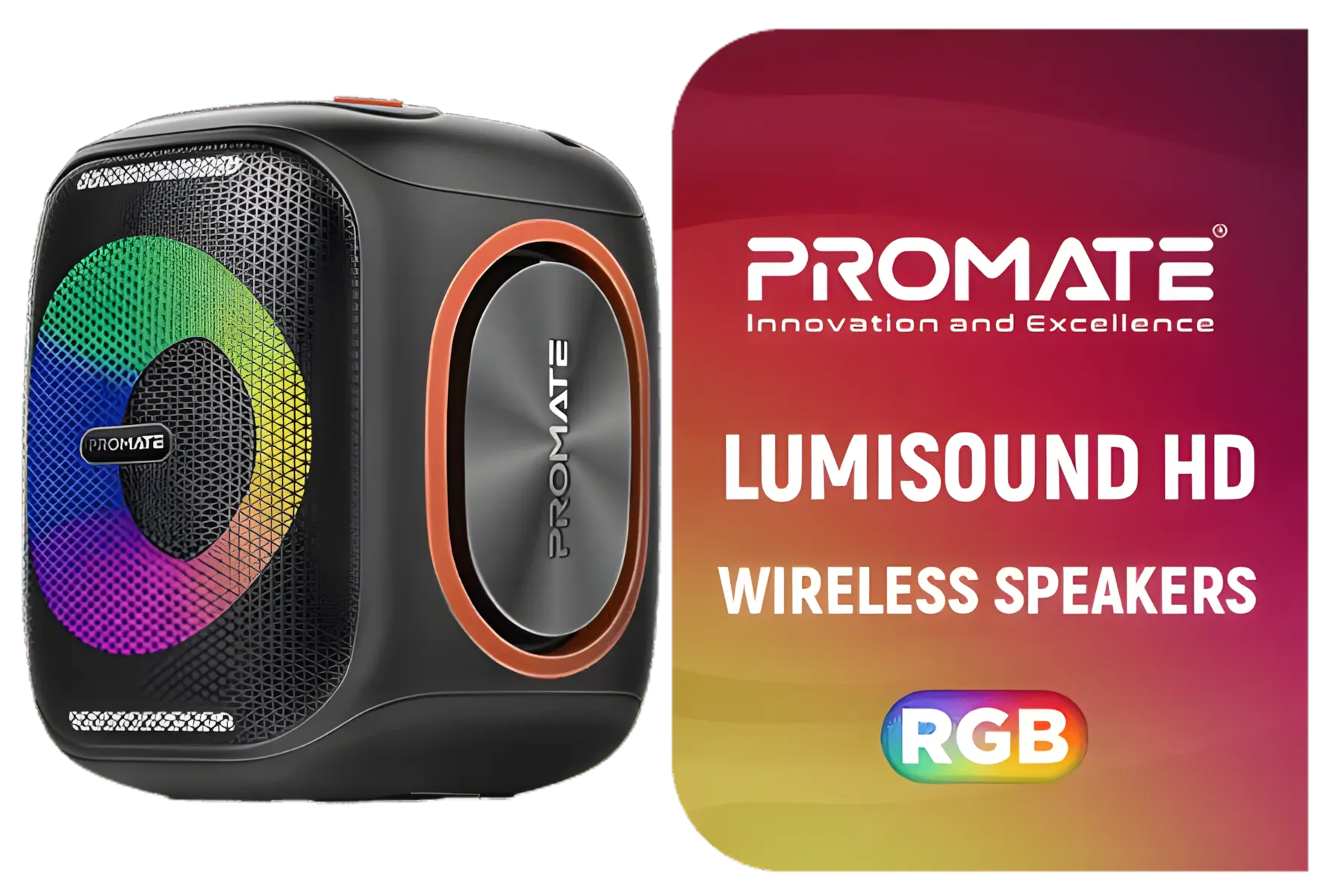
Promate LumiSound™ HD 40W True Wireless Speaker with RGB Lights / 6Hrs Playback / AUX, USB & TF Card Playback / 9 RGB Modes / IPX5 Rating / TWS Compatible / Strike-40
R1199.00In Stock
Finding the Perfect Soundbar for Your Setup ✨
Choosing the right soundbar doesn't have to be complicated. For a minimalist desk or TV stand, sleek 2.0 channel soundbars provide excellent stereo sound without taking up much space. If you want to feel every explosion and rumble, upgrading to a punchy 2.1 setup with a dedicated subwoofer is the way to go. Brands like Promate offer incredible value and quality, making it easy to find an option that fits your budget and elevates your gaming.
A proper Switch soundbar setup is one of the best quality-of-life upgrades a South African gamer can make. Now go enjoy those games the way they were meant to be heard!
Ready to Hear the Difference? Don't let weak audio hold your games back. Upgrading your sound is simple and makes a massive impact. Explore our incredible range of speakers and soundbars and find the perfect audio solution to bring your gaming world to life.
Related Products

Monster Superstar S310 Wireless Bluetooth Speaker - Black / Portable Bluetooth Speakers 5.0 with TWS Pairing Deliver Rich Bass, Dynamic Stereo Sound, Built-in Mic, Wireless Speakers for Home or Outdoor Use, IPX5 Water Resistance Wireless speaker / MS11902
R799.00In Stock
MARVO SG-269 2.0 Stereo LED Gaming Speakers / 3.5mm Audio Jack / Wired Audio Mode And Wireless Mode / 14-Color Lighting With Rainbow Effects / Volume Control / 2x 3W Speakers / SG-269
R199.00In Stock
HP 2.1 DHS-2111S Black Speaker with USB Power and 3.5mm Connector Subwoofer Power 5W 2B285AA / DHS-2111S
R499.00In Stock
Promate Bluetooth Speaker, 5W True Wireless IPX4 Water Resistant Portable Speaker, HD Sound, Long 24H Playtime, USB Flash Port, AUX, TF Card Slot for iPhone 15, iPad Air, Galaxy S23 / MOOD.BLACK
R149.00In Stock
Promate Delta-X Futuristic True Wireless Speaker – 20W Sound, Audio-Reactive Lights, Long Battery Life – Portable Bluetooth Speaker for Party, Music & Outdoor Use / Delta-X.White
R1199.00In Stock
Razer Leviathan V2 X: PC Soundbar with Full-Range Drivers / Compact Design / Chroma RGB / USB Type C Power and Audio Delivery / Bluetooth 5.0 / Supports PC, Laptop, Smartphones, Tablets & Nintendo Switch / RZ05-04280100-R3M1
R1999.00In Stock
Yes, the Nintendo Switch supports Bluetooth audio natively. Go to System Settings > Bluetooth Audio to pair your wireless soundbar directly to the console.
The Switch dock does not support ARC directly. You must connect the Switch to your TV via HDMI, and the TV sends audio to the soundbar via its own HDMI ARC port.
You can plug a 3.5mm Aux cable into the Switch's headphone jack while it is docked, or connect the cable from your TV's audio output to the soundbar.
Bluetooth latency happens due to codec processing. To eliminate lag, use a wired Aux connection or a dedicated low-latency USB-C Bluetooth transmitter.
Absolutely. You can connect wirelessly via Bluetooth or plug a 3.5mm audio cable directly from the soundbar into the console's top headphone jack.
Navigate to System Settings > TV Settings > TV Sound. Select 'Surround Sound' if your soundbar supports 5.1, otherwise choose 'Stereo' for the best clarity.











