



DDR5 BIOS Settings: Optimize Memory Stability and Speed
DDR5 BIOS settings guide to boost memory stability and speed with tested timing, voltage, and XMP steps. Learn safe tweaks, validation tools, and troubleshooting. ⚙️📈
|
Loading tags...
So, you've just built your beast of a PC. The CPU is seated, the GPU is glowing, and you’ve installed a shiny new DDR5 kit. You boot into Windows, open CPU-Z, and… wait, what? Why is your expensive 6000MHz RAM running at a sluggish 4800MHz?
Don’t panic. You haven’t been ripped off. You’ve just encountered the first hurdle for every new builder: the default BIOS settings. Let's dive into the essential DDR5 BIOS settings to unlock the stability and speed you paid for. 🚀
Why Your RAM Isn't at Full Speed by Default
Motherboards prioritise stability above all else. When you first install new memory, your motherboard defaults to a safe, industry-standard speed set by JEDEC (Joint Electron Device Engineering Council). This ensures your PC will post without issues, regardless of the RAM kit's quality.
The lightning-fast speeds advertised on the box—like 6000MT/s or 7200MT/s—are overclocked profiles. To access them, you need to tell your BIOS to load them. This is where technologies like Intel XMP (Extreme Memory Profile) and AMD EXPO (Extended Profiles for Overclocking) come in. Optimising your DDR5 BIOS settings is the key to unleashing that performance.
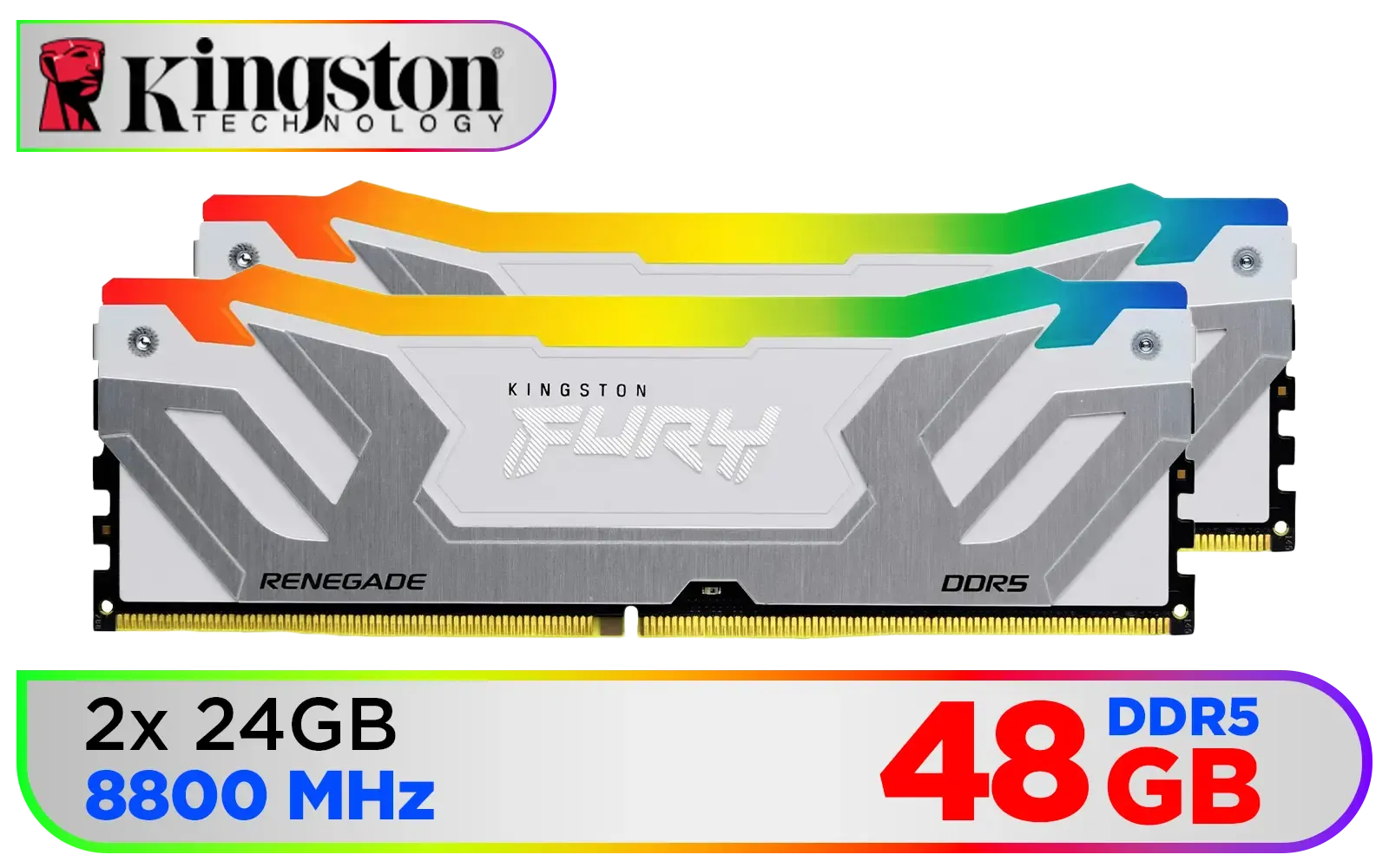
Kingston Fury Renegade RGB 48GB (24GB x 2) 8800Mhz DDR5 Desktop Memory - White / Kit of 2 / 18 Customisable RGB Effects / Intel® XMP 3.0 Certified / Qualified by the world’s leading motherboard manufacturers / Patented Kingston FURY Infrared Sync Technology / KF588CU42RWAK2-48
R12499.00In Stock
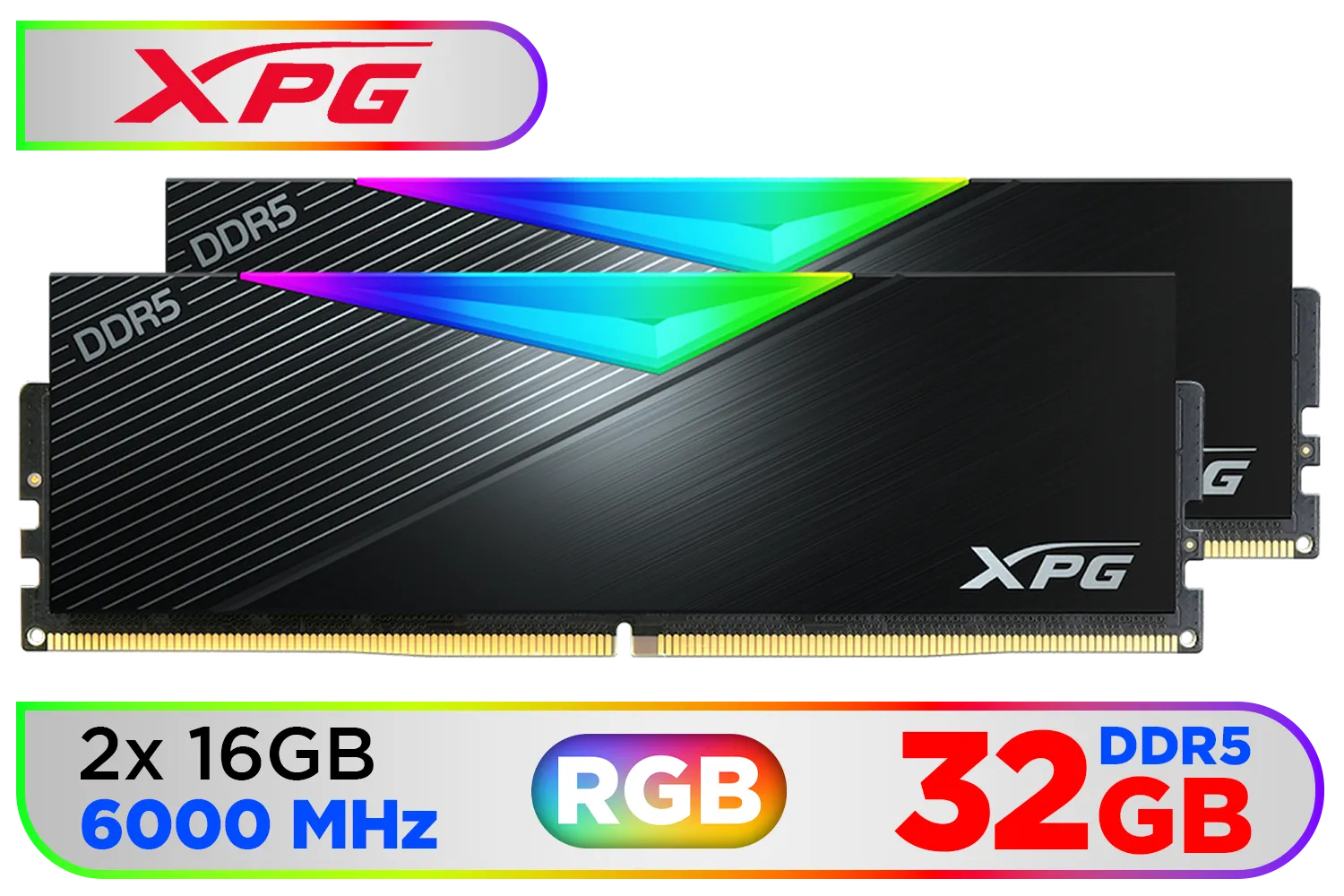
ADATA XPG Lancer 32GB (2x16GB) DDR5 RGB Memory - Black / 6000MHz / CL30 / RGB Heat Sink / AX5U6000C3016G-DCLARBK
R6099.00In Stock

Teamgroup T-Force XTREEM 48GB DDR5 Desktop Memory - Black / 48GB (2x24GB) / 7600MHz / CL36 / FFXD548G7600HC36EDC01
R7999.00In Stock

Kingston Technology Fury Beast Black 32GB 5600MT/s DDR5 CL40 XMP 3.0 Ready Computer Memory Single Module KF556C40BB-32
R5199.00In Stock

Corsair Vengeance 32GB (1 x 32GB) 5600MHz DDR5 C40 Memory - Black / Dynamic Multi-Zone / Speed Rating PC5-44800 / Voltage 1.1V / Aluminum Heat Spreader / CMK32GX5M1B5600C40
R5199.00In Stock

ADATA XPG Lancer Blade DDR5 5600MHz CL46 32GB (32GB) PC5-44800 RAM 288-Pins UDIMM Desktop Memory Black Heatsink / AX5U5600C4632G-SLABBK
R5199.00In Stock
The One-Click Wonder: Enabling XMP or EXPO
For 90% of gamers in South Africa, this is the only step you'll need. Enabling the memory profile is the single most important performance tweak you can make. It's a concept that has been around for years, even with the incredibly popular DDR4 memory standard.
Here’s the simple process:
- Restart your PC and repeatedly press the
DeleteorF2key to enter the BIOS. - Find the Memory Profile Setting. This is usually on the main or "Tweaker" page. Look for a setting labelled "XMP," "EXPO," "A-XMP," or "D.O.C.P."
- Select the Profile. Click the dropdown and choose Profile 1. This will load the manufacturer's tested settings for speed, timings, and voltage.
- Save & Exit. Press
F10, confirm you want to save the changes, and let your PC reboot.
Your system might restart a few times. This is called "memory training," where the motherboard fine-tunes the settings for your specific CPU and RAM combo. Be patient! ✨
Key DDR5 BIOS Settings for Advanced Stability
If you're an enthusiast looking to push your system further or troubleshoot instability, a few other DDR5 BIOS settings are worth knowing.
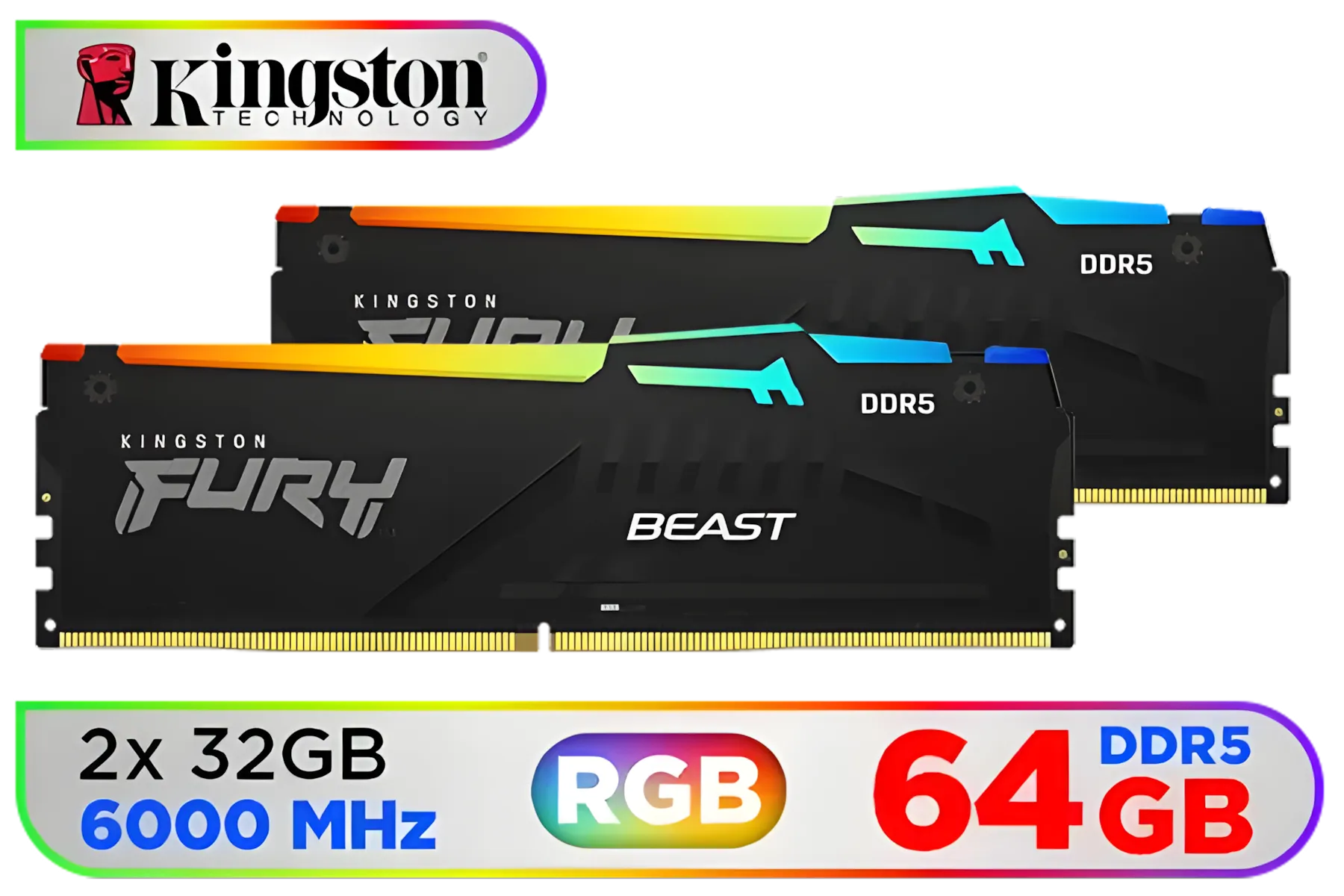
Kingston Fury Beast RGB 64GB (2x32GB) 6000MT/s DDR5 CL36 Desktop Memory / AMD Expo / Plug N Play / Kit of 2 / KF560C36BBEAK2-64
R11499.00In Stock
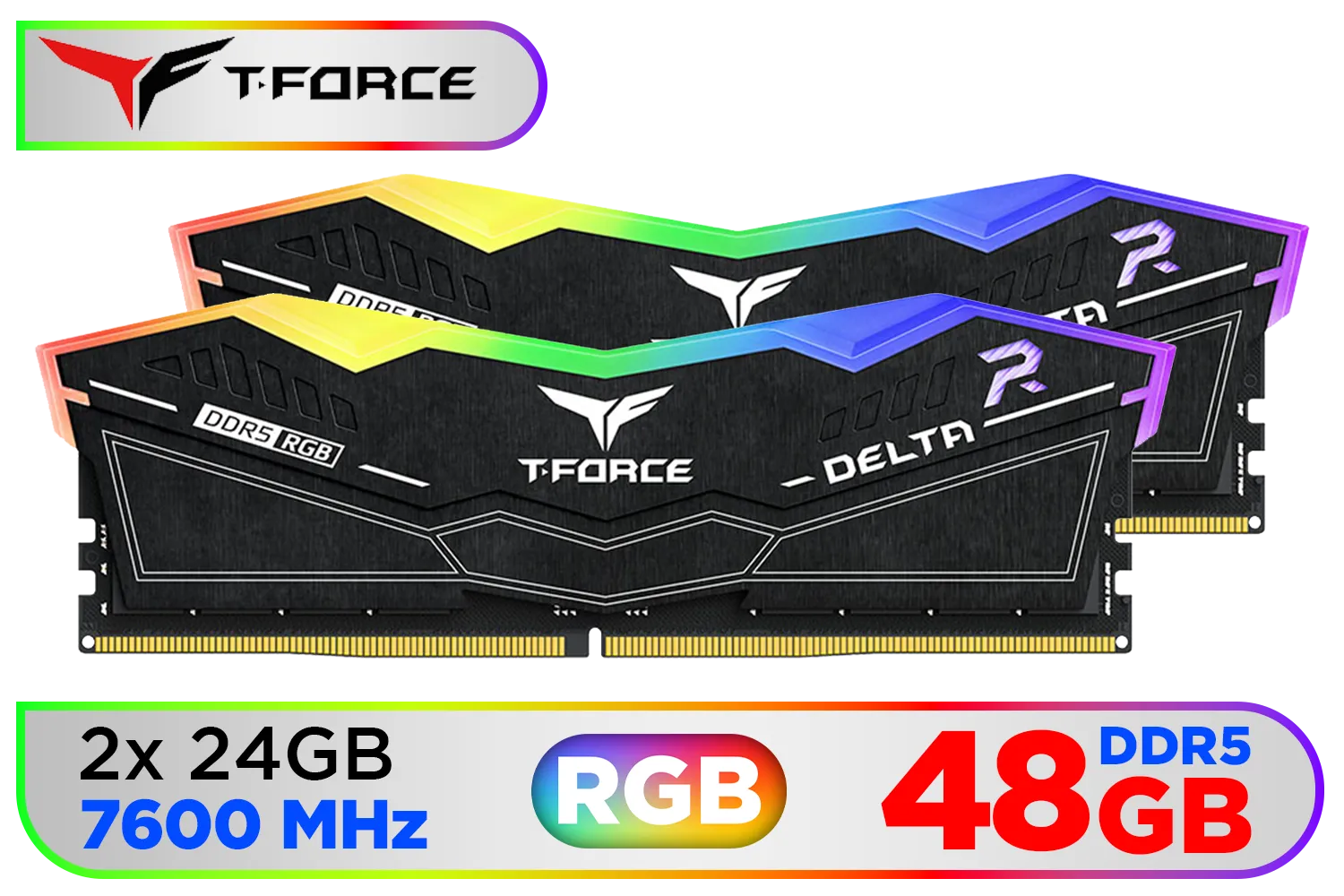
Teamgroup T-Force DELTA RGB 48GB DDR5 Desktop Memory - Black / 48GB (2x24GB) / 7600MHz / CL36 / FF3D548G7600HC36EDC01
R8699.00In Stock
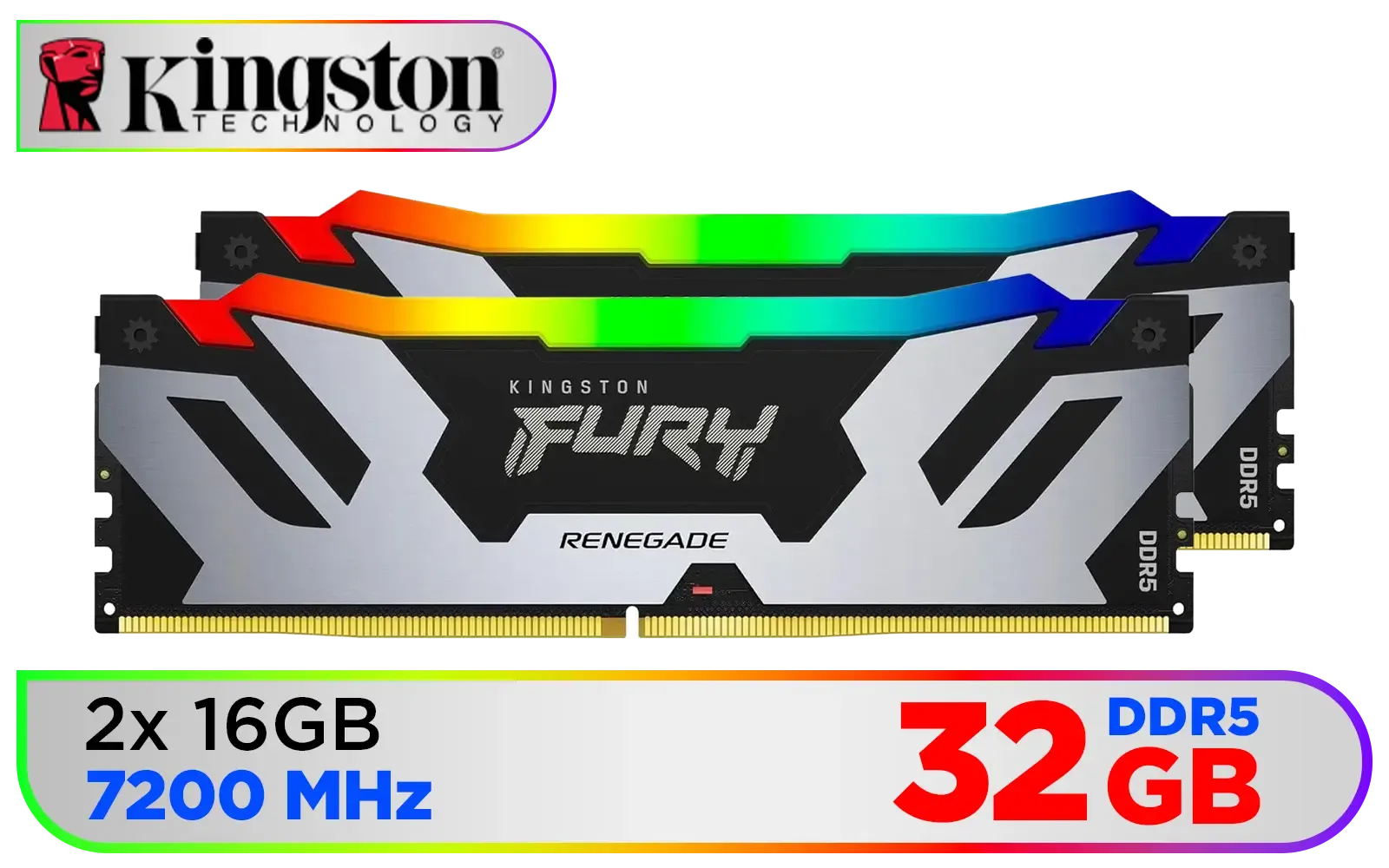
Kingston Fury Renegade RGB 32GB (16GB x 2) 7200Mhz DDR5 Desktop Memory - Black / Kit of 2 / 18 Customisable RGB Effects / Infrared Sync Technology / Intel XMP 3.0 certified / KF572C38RSAK2-32
R6299.00In Stock
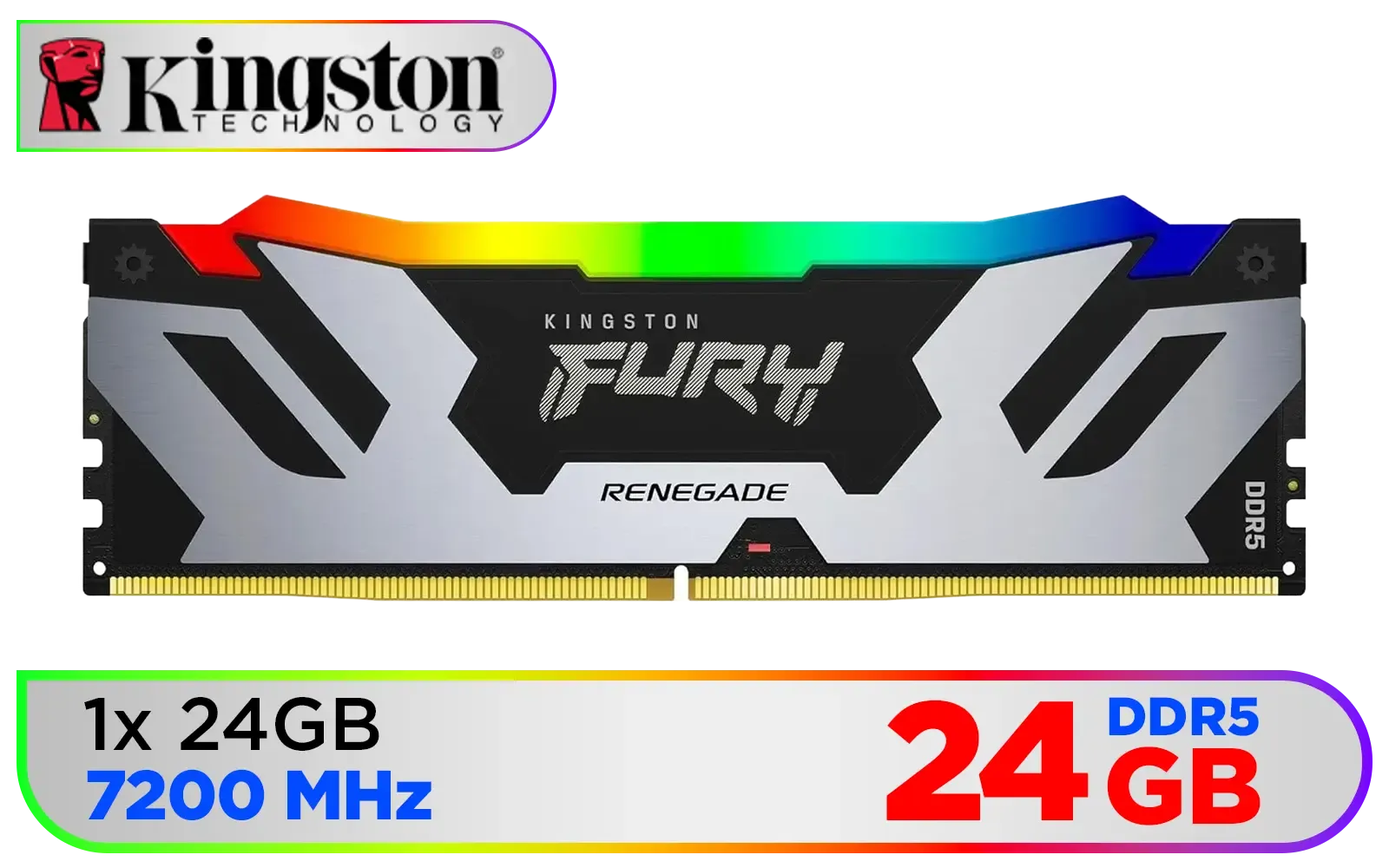
Kingston Fury Renegade RGB 24GB (24GB x 1) 7200Mhz DDR5 Desktop Memory - Black / 18 Customisable RGB Effects / Infrared Sync Technology / Intel XMP 3.0 certified / KF572C38RSA-24
R3999.00In Stock

Kingston FURY Beast RGB 16GB DDR5 5200MT/s - Black / CL36 CAS Latency / AMD EXPO / 1x 16GB DIMM / KF552C36BBEA-16
R3299.00In Stock

ADATA XPG Lancer Neon 32GB (2 x 16GB) DDR5 DRAM 8000MHz Desktop Memory / High-Quality Materials / On-die ECC error correction / Supports Intel® XMP 3.0 / AX5U8000C3816G-DCLANRSG
R7999.00In Stock
Understanding Key Voltages
Your memory profile automatically sets voltages, but it helps to know what they are. The two main ones are:
- DRAM VDD Voltage: This is the power going directly to the memory modules themselves.
- DRAM VDDQ Voltage: This is the power for the memory's input/output buffer.
For most kits, these will be set around 1.25V to 1.4V. Unless you are an experienced overclocker, it's best to leave these on "Auto" and let the XMP/EXPO profile handle them. Pushing them too high without proper cooling can damage your hardware.
TIP FOR YOU
Speed Up Your Boot Times ⚡
Many motherboards have a setting called "Memory Context Restore." Enabling this can dramatically shorten boot times after the initial memory training is complete. It tells the motherboard to reuse the previously successful training data instead of re-training every time. If you experience instability, try disabling it again.
A Quick Look Back: How Far We've Come
It's amazing to see the speeds DDR5 can achieve with just a few clicks. It wasn't long ago that builders were carefully tweaking older DDR3 gaming RAM to squeeze out every last drop of performance. Back then, getting a stable overclock required far more manual intervention. Even so, quality kits from reliable brands like Teamgroup and even high-capacity 32GB kits of DDR3 laid the groundwork for the user-friendly overclocking profiles we enjoy today.
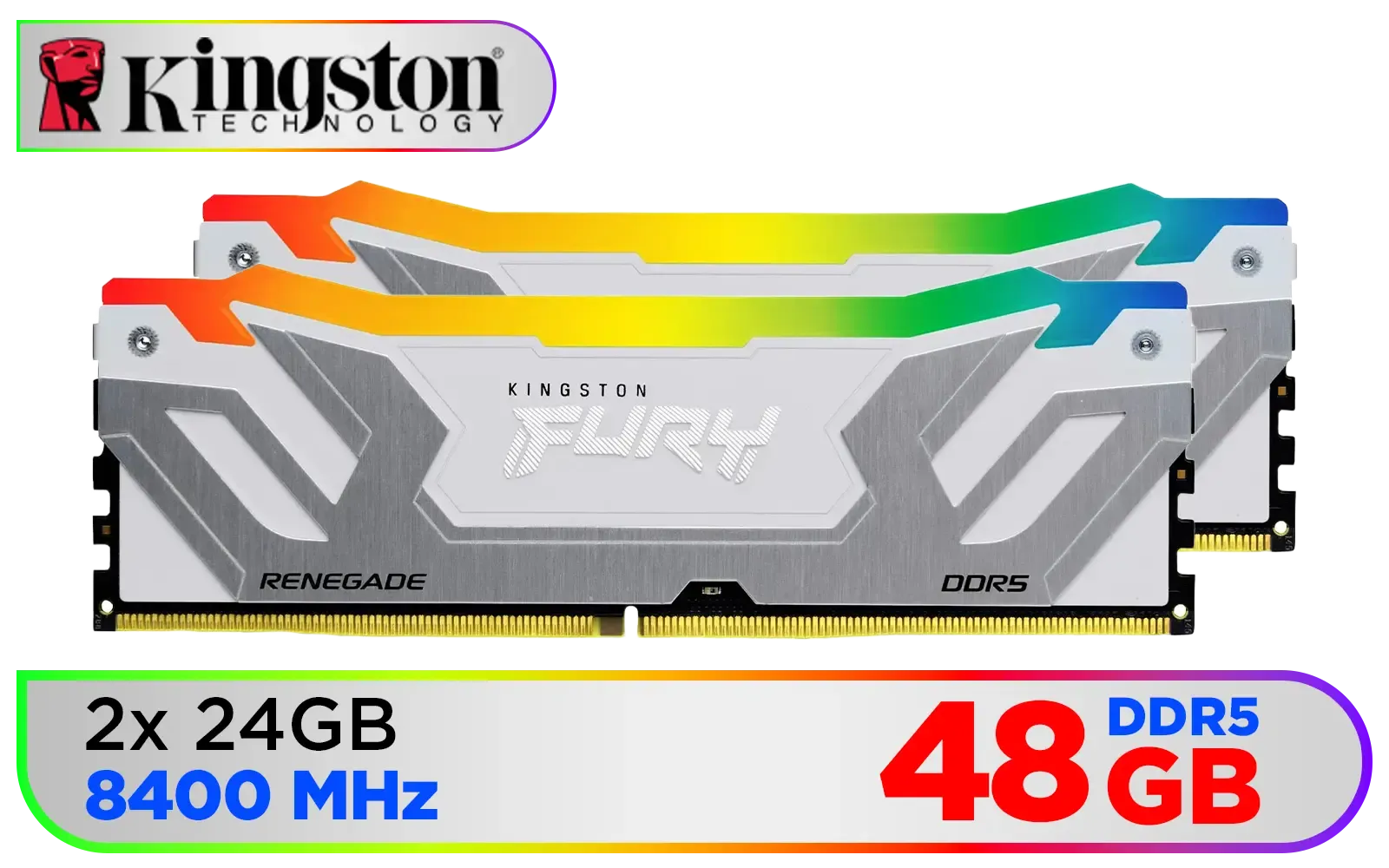
Kingston Fury Renegade RGB 48GB (24GB x 2) 8400Mhz DDR5 Desktop Memory - White / Kit of 2 / 18 Customisable RGB Effects / Intel® XMP 3.0 Certified / Qualified by the world’s leading motherboard manufacturers / Patented Kingston FURY Infrared Sync Technology / KF584CU40RWAK2-48
R11499.00In Stock

Corsair Vengeance RGB DDR5 32GB (2x16GB) 6000MHz C36 Intel Optimized Desktop Memory (Dynamic Ten-Zone RGB Lighting, Onboard Voltage Regulation, Custom XMP 3.0 Profiles, Tight Response Times) Black / CMH32GX5M2E6000C36
R5999.00In Stock
Kingston Fury Beast RGB 64GB (2x32GB) 6000MT/s DDR5 CL36 Desktop Memory / AMD Expo / Plug N Play / Kit of 2 / KF560C36BBEAK2-64
R11499.00In Stock

Kingston Fury Beast RGB 32GB (2x16GB) 6400MT/s DDR5 CL32 Desktop Memory / AMD Expo/Intel XMP / Plug N Play / Kit of 2 / KF564C32BBEAK2-32
R6499.00In Stock

Kingston Fury Beast RGB 32GB (2x16GB) 6000MT/s DDR5 CL36 Desktop Memory - White / AMD Expo/Intel XMP / Plug N Play / Kit of 2 / KF560C36BWE2AK2-32
R6199.00In Stock
Kingston FURY Beast RGB 16GB DDR5 5200MT/s - Black / CL36 CAS Latency / AMD EXPO / 1x 16GB DIMM / KF552C36BBEA-16
R3299.00In Stock
Troubleshooting Common Stability Issues
Sometimes, even with XMP/EXPO enabled, you might face issues like random crashes or the dreaded Blue Screen of Death (BSOD). If this happens, here are a few simple steps to take:
- Update Your BIOS: Motherboard manufacturers constantly release updates that improve memory compatibility and stability. This is often the easiest fix.
- Check for a Second Profile: Some RAM kits come with two profiles—one for maximum speed and a slightly slower, more stable one. Try loading the second profile.
- Reseat Your RAM: It sounds simple, but sometimes a module isn't seated perfectly. Power down, unplug your PC, and carefully remove and reinstall your RAM sticks, ensuring they click firmly into place.
Mastering these basic DDR5 BIOS settings transforms your PC from a "works out the box" machine into a finely tuned gaming rig. Take a few minutes to dive into your BIOS... the performance waiting for you is well worth it. 🔧
Ready to Unleash Full Speed? Mastering your DDR5 BIOS settings is the final step to unlocking your PC's true potential. Whether you're upgrading or building new, Evetech has the perfect memory kit for your rig. Explore our massive range of DDR5 memory and find the speed you paid for.
Related Products
Corsair Vengeance 32GB (1 x 32GB) 5600MHz DDR5 C40 Memory - Black / Dynamic Multi-Zone / Speed Rating PC5-44800 / Voltage 1.1V / Aluminum Heat Spreader / CMK32GX5M1B5600C40
R5199.00In Stock
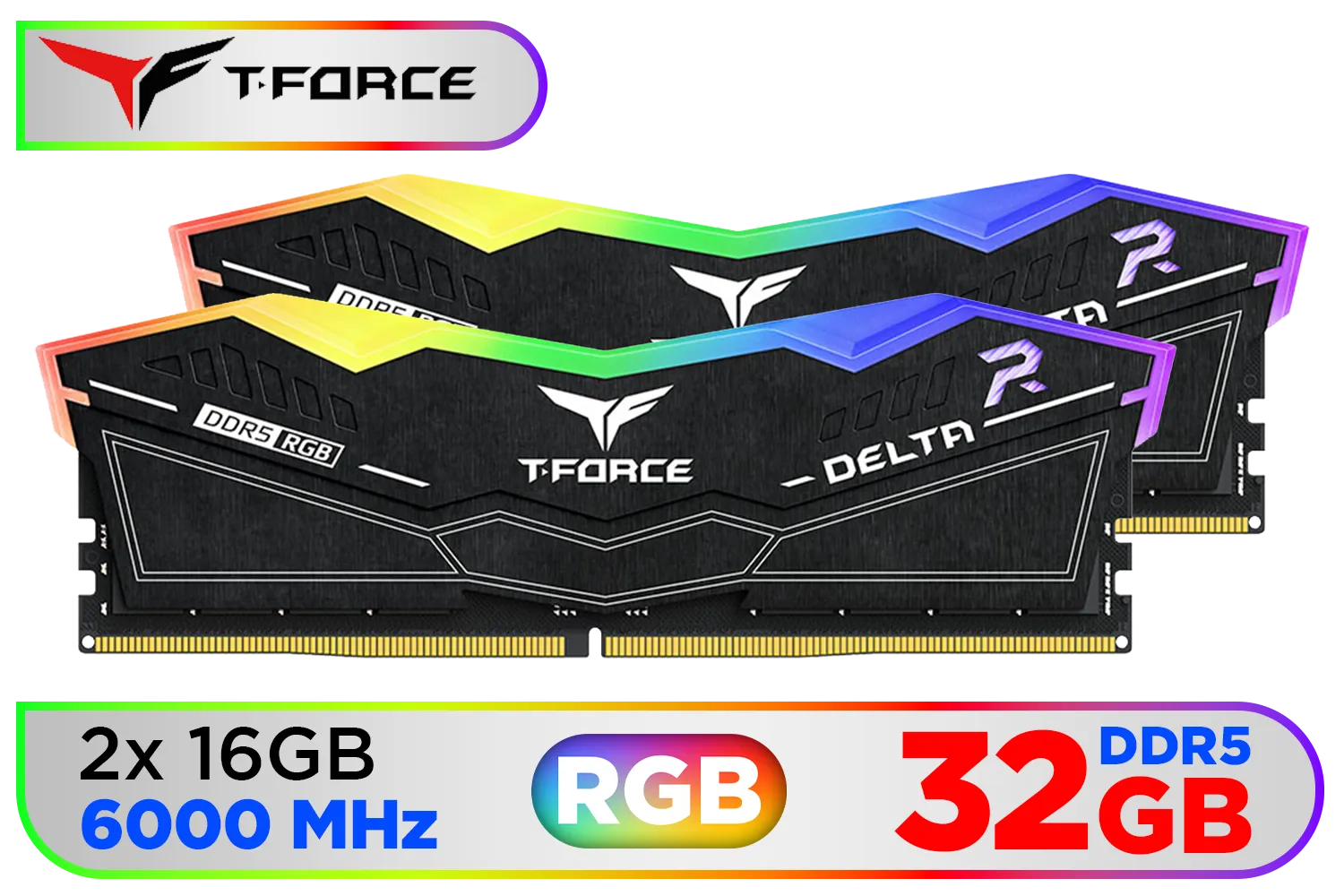
Teamgroup T-Force DELTA RGB 32GB DDR5 Desktop Memory - Black / 32GB (2x16GB) / 6000MHz / CL30 / FF3D532G6000HC30DC01
R5999.00In Stock
Teamgroup T-Force DELTA RGB 48GB DDR5 Desktop Memory - Black / 48GB (2x24GB) / 7600MHz / CL36 / FF3D548G7600HC36EDC01
R8699.00In Stock
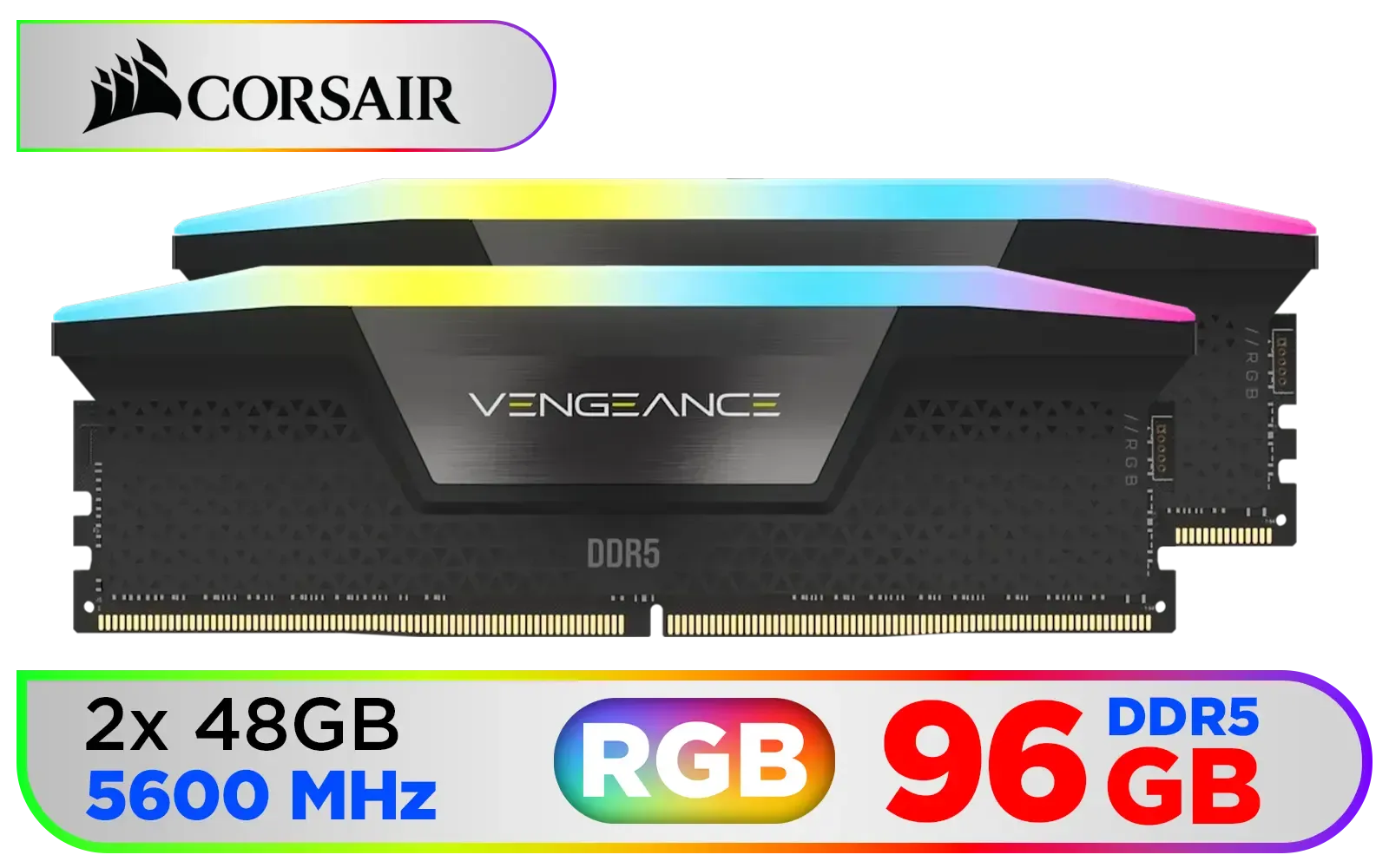
Corsair Vengeance RGB DDR5 96GB (2x48GB) DDR5 5600MHz CL40 Memory – Black / Ten-zone panoramic RGB lighting / Custom Intel XMP 3.0 profiles / Onboard voltage regulation / CMH96GX5M2B5600C40
R14499.00In Stock

Kingston Fury Beast RGB 64GB (2x32GB) 6400MT/s DDR5 CL32 Desktop Memory / AMD Expo/Intel XMP / Plug N Play / Kit of 2 / KF564C32BBEAK2-64
R12499.00In Stock

ADATA XPG Lancer RGB 48GB (2 x 24GB) DDR5 DRAM 7200MHz Desktop Memory - Black / High-Quality Materials / Customizable RGB light effects / Supports Intel® XMP 3.0 / AX5U7200C3424G-DCLARBK
R7599.00In Stock
Enable XMP/EXPO, keep default timings, set recommended DIMM voltage (+0.01–0.05V headroom), and run a stability test. Use motherboard guidance.
Enabling XMP applies vendor-tested higher frequency and timings for speed. It boosts performance but may need voltage tweaks for stability.
Start with XMP/auto to confirm stability. Manually tweak primary timings (CL, tRCD, tRP) only after validation to improve latency and speed.
Follow module specs; most DDR5 kits are safe up to 1.4V for daily use. Increase in small steps and stress-test after each change.
Use MemTest86, HCI MemTest, or Prime95 with memory stress options. Run several passes and monitor for errors and system crashes.
Yes. BIOS updates often add memory compatibility and improve DDR5 training. Update BIOS if your kit shows instability or unsupported speeds.
Basic overclocking via XMP/EXPO is user-friendly. Manual overclocking needs knowledge of frequency, voltage, and timings plus thorough testing.











