



Dual Monitor Setup NVIDIA: Entry-Level GPU Guide
dual monitor setup nvidia: Step-by-step guide to connect two monitors with entry-level NVIDIA cards, pick cables, install drivers, and troubleshoot common issues. 🖥️⚡
|
Loading tags...
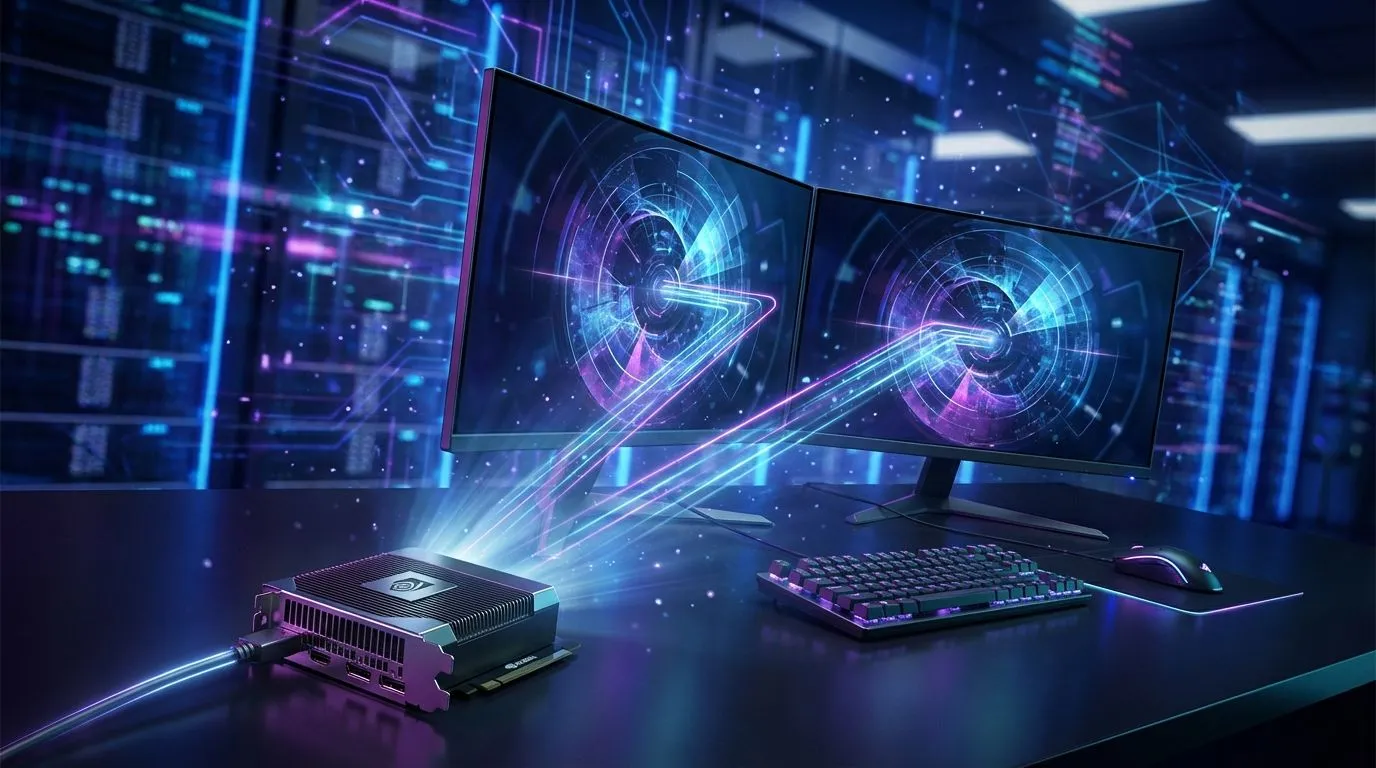
Thinking of levelling up your PC battle station or home office? A dual monitor setup with an NVIDIA GPU is one of the best upgrades you can make. It’s not just for pro streamers; it's a productivity powerhouse for anyone in South Africa juggling Discord and a game, or a spreadsheet and an email client. Forget the idea that you need a beastly, expensive graphics card. We’ll show you how to get it done on a budget. 🚀
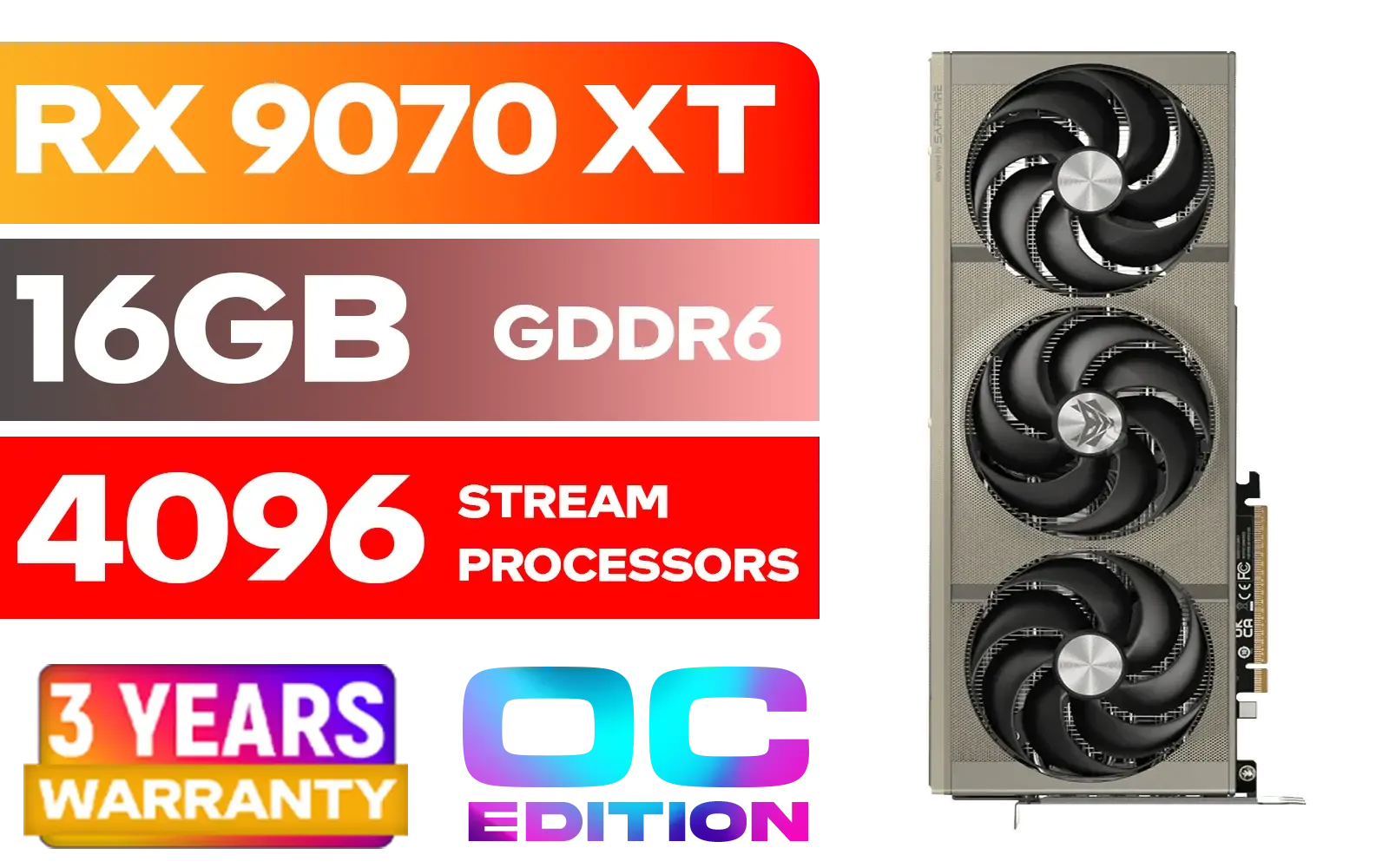
SAPPHIRE NITRO+ RX 9070 XT Gaming OC 16GB Graphics Card / 16GB GDDR6 Memory / 4096 Stream Processors / 256-bit Memory Interface / Boost Clock : 3060 MHz / AMD RDNA™ 4 Architecture / 64 Ray Accelerators / 11348-01-20G
R14999.00In Stock

MSI GeForce RTX 5070 Ti 16G Ventus 3X OC / 16GB GDDR7 / 28Gbps Memory Speed / PCI Express® Gen 5 / 912-V531-092
R19999.00In Stock
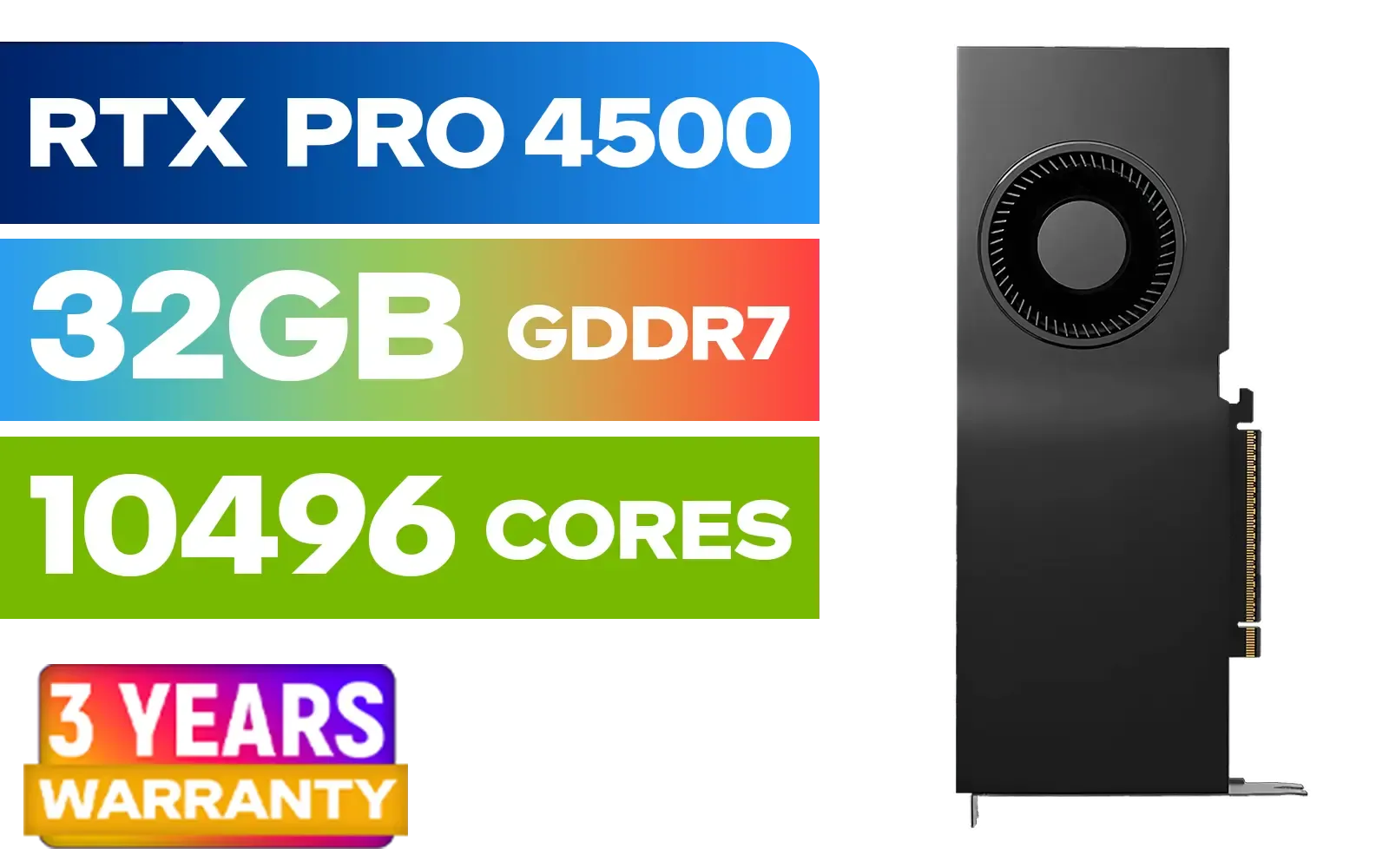
PNY NVIDIA RTX PRO 4500 32GB Blackwell Workstation Graphics Card / 10,496 CUDA Cores / 32GB GDDR7 with ECC / 4x Display Ports / VCNRTXPRO4500-PB
R54499.00In Stock
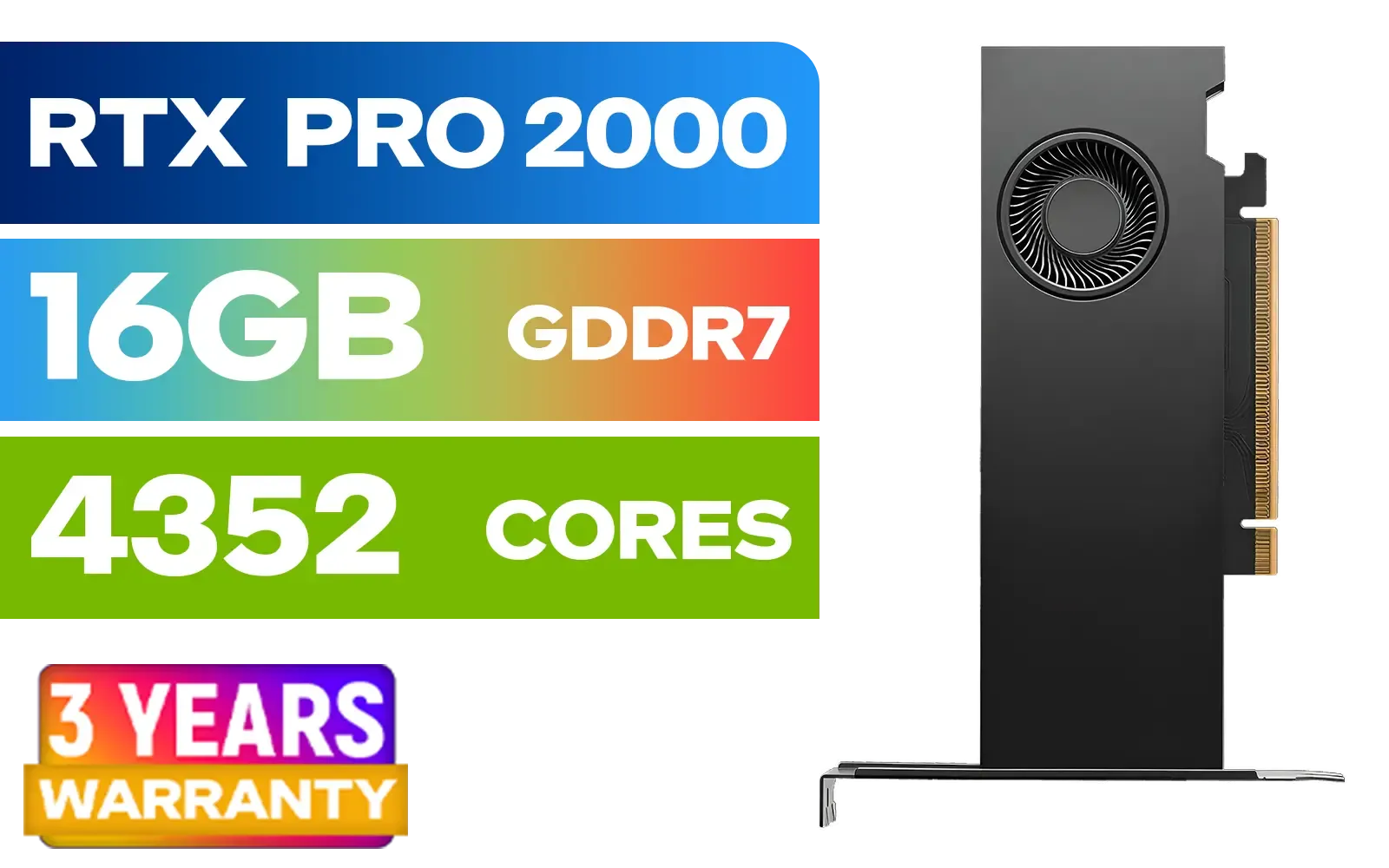
PNY RTX PRO 2000 Blackwell 16GB Graphics Card / 4352 CUDA CORES / 16GB GDDR7 with ECC / 128-bit Memory / NVIDIA Blackwell Architecture / VCNRTXPRO2000-PB
R15399.00In Stock

XFX Quicksilver AMD Radeon RX 9070 XT Graphics Card / 4096 Stream Processors / 256-bit Memory Interface / Boost Clock : 2970 MHz / AMD RDNA™ 4 Architecture / RX-97TQICKB9
R14999.00In Stock

MSI GeForce RTX 5070 12G Gaming Trio OC Graphics Card / 12GB GDDR7 / 6144 Cuda Cores / 192-bit Memory Interface / Boost Clock : 2610 MHz / NVIDIA Blackwell & DLSS 4 / TRI FROZR 4 Thermal Design / Metal with Airflow Vents / 912-V532-019
R15199.00In Stock
Why an NVIDIA Dual Monitor Setup is a Smart Move
For years, NVIDIA has been a go-to for gamers and creators, and for good reason. When it comes to running multiple displays, their driver support is rock-solid. The real magic happens in the NVIDIA Control Panel, a powerful tool that gives you granular control over your screens, from colour settings to alignment, making the process straightforward.
A dual monitor setup with an NVIDIA card isn't just about having more space... it's about smarter space. Imagine this: you're in a tense Apex Legends match, and your squad is calling out positions on Discord. Instead of alt-tabbing and risking a crash, you just glance at your second screen. Or perhaps you're editing a video, with your timeline on one monitor and a full-screen preview on the other. This is the kind of workflow efficiency that, once you have it, you can't live without.
Choosing the Right Entry-Level NVIDIA GPU
You don't need to spend R20,000 to power two screens effectively. The key is to match the GPU to your needs, which for most people is smooth 1080p performance on one or both monitors. Here are our top picks for an entry-level NVIDIA dual monitor setup.
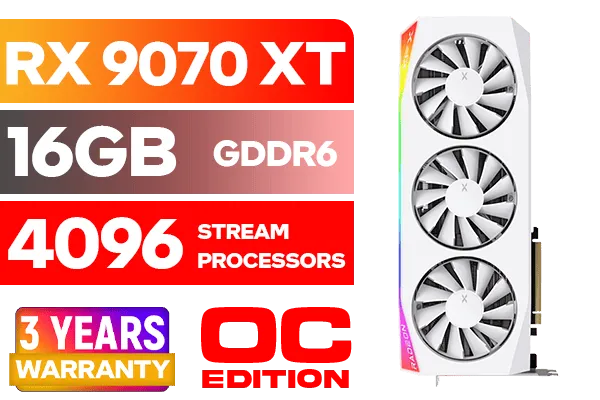
XFX Mercury AMD Radeon RX 9070 XT OC Magnetic Air Edition Graphics Card - White / 4096 Stream Processors / 256-bit Memory Interface / Boost Clock : 3100 MHz / AMD RDNA™ 4 Architecture / RX-97TMARGW9
R16299.00In Stock

Palit GeForce RTX 5070 Infinity 3 12GB Graphics Card / 12GB GDDR7 / 6144 Cuda Cores / 192-bit Memory Interface / Boost Clock : 2512 MHz / NVIDIA Blackwell & DLSS 4 / NE75070019K9-GB2050S
R10799.00In Stock

MSI GeForce RTX 5080 16G VENTUS 3X OC Plus Graphics Card / PCI Express Gen 5 / 10752 Cuda Cores / 16GB GDDR7 / Nickel-plated Copper Baseplate / 912-V531-293
R27999.00In Stock

Leadtek NVIDIA RTX 5000 ADA 32GB GDDR6 Workstation Graphics Card / 12800 Nvidia CUDA Cores / 576GB/s Memory Bandwidth / Ada Lovelace GPU architecture / 126V5000100
R96999.00In Stock
MSI GeForce RTX 5070 Ti 16G Ventus 3X OC / 16GB GDDR7 / 28Gbps Memory Speed / PCI Express® Gen 5 / 912-V531-092
R19999.00In Stock

XFX SWIFT AMD Radeon RX 9070 XT Triple Fan 16GB GDDR6 GPU - White / AMD RDNA 4 Architecture / 3rd Gen Radeon Raytracing Accelerators/ AMD Fidelity FX Super Resolution 4.0 Upscaling Technology / RX-97TSWF3W9
R14799.00In Stock
The Solid Starting Point: GeForce RTX 3050 / RTX 4060
The GeForce RTX 3050 remains a capable card for anyone on a tight budget. It typically comes with multiple DisplayPort and HDMI outputs, making it easy to connect two monitors right out of the box. It handles most modern games at 1080p and breezes through any productivity task you throw at it.
For a bit more future-proofing, the GeForce RTX 4060 is a fantastic option. It's more power-efficient and gives you access to newer tech like DLSS 3, which can significantly boost frame rates in supported games. You can find plenty of excellent MSI models that offer a great balance of cooling and performance. Both are part of the huge family of NVIDIA graphics cards available.
What About the Competition?
While we're focusing on Team Green, it's worth knowing the landscape. For those looking at different price points, AMD's Radeon GPUs often offer competitive performance. More recently, Intel's Arc series has emerged as a new contender in the entry-level space, with solid multi-monitor support.
For users focused purely on professional work—like CAD, graphic design, or financial modelling—and not gaming, dedicated workstation graphics cards are designed for stability across many high-resolution displays. ✨
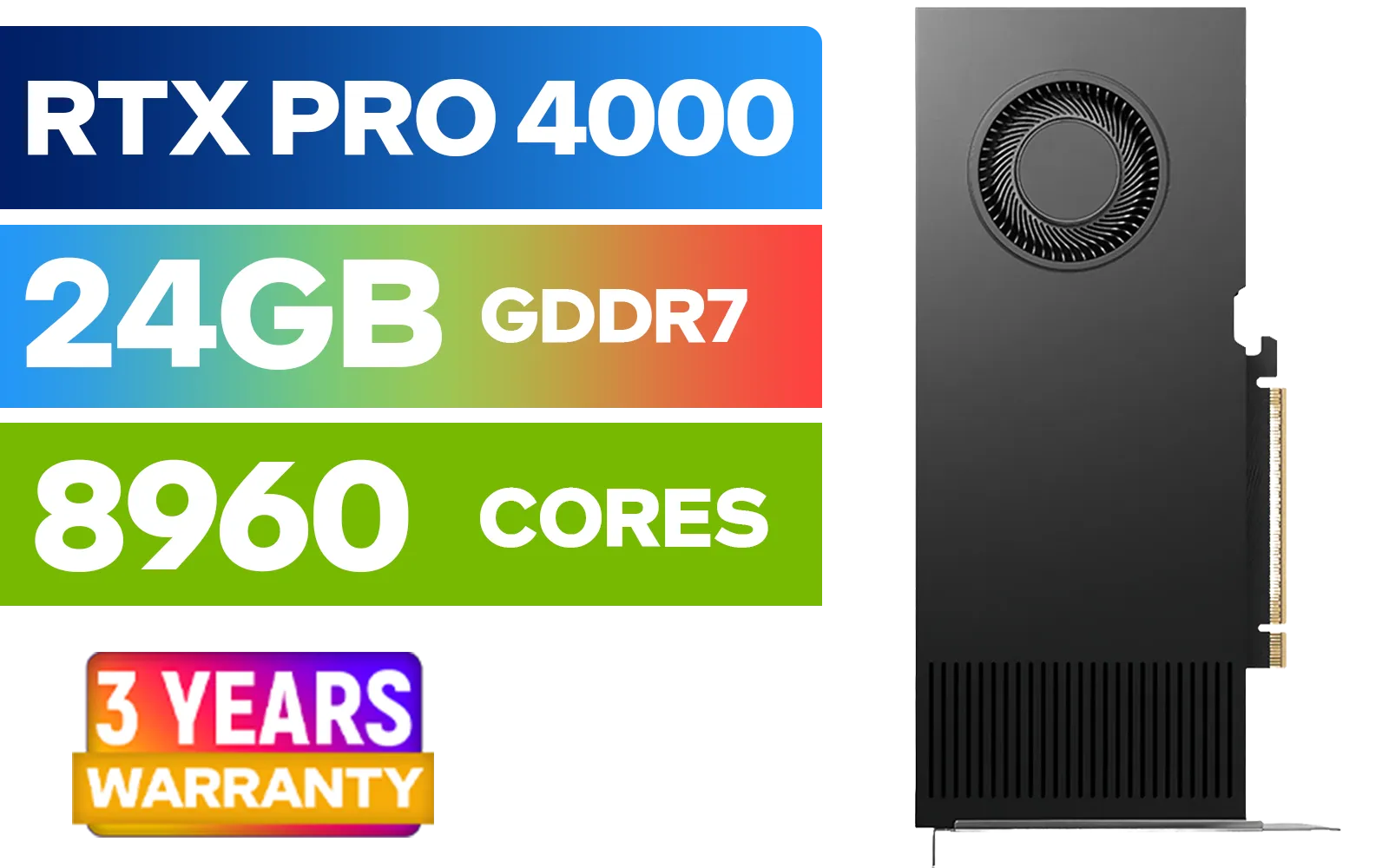
LEADTEK NVIDIA RTX PRO 4000 Blackwell 24GB GDDR7 Workstation Graphics Card / 8,960 Nvidia CUDA Cores / 672GB/s Memory Bandwidth / NVIDIA Blackwell Architecture / 126X4000100
R32999.00In Stock

MSI GeForce RTX 5070 Ti 16G Gaming Trio OC Graphics Card / 16GB GDDR7 / 8960 Cuda Cores / 256-bit Memory Interface / Boost Clock : 2572 MHz / PCI Express® Gen 5 / 912-V531-272
R21199.00In Stock

MSI Geforce RTX 5070 Ventus 2X 12G OC Graphics Card / 12GB GDDR7 / 6144 Cuda Cores / 192-bit Memory Interface / Boost Clock : 2542 MHz / NVIDIA Blackwell & DLSS 4 / 28Gbps Memory Speed / PCI Express® Gen 5 / 912-V532-009
R13999.00In Stock

MSI GeForce RTX 5070 12GB Shadow 2X OC Graphics Card / 6144 Cuda Cores / 192-bit Memory Interface / Boost Clock : 2542 MHz / NVIDIA Blackwell & DLSS 4 / TORX Fan 5.0 / Nickel-Plated Copper Baseplate / 912-V532-011
R11999.00In Stock

LEADTEK NVIDIA RTX PRO 6000 Blackwell 96GB GDDR7 GPU / Compatible with RTX PRO Sync / GDDR7 Memory with ECC / 126W0000100
R186999.00In Stock
Leadtek NVIDIA RTX 5000 ADA 32GB GDDR6 Workstation Graphics Card / 12800 Nvidia CUDA Cores / 576GB/s Memory Bandwidth / Ada Lovelace GPU architecture / 126V5000100
R96999.00In Stock
How to Set Up Your Dual Monitors with NVIDIA 🔧
Got your new GPU? Awesome. Getting your dual monitor setup with NVIDIA running is a simple three-step process.
- Connect the Cables: First, turn off your PC. Identify the ports on your graphics card (usually a mix of HDMI and DisplayPort). Plug each monitor into a separate port on the GPU. Avoid plugging one into the motherboard and one into the GPU, as this can cause issues.
- Configure in Windows: Power up your PC. Windows should automatically detect both screens. Right-click your desktop and go to "Display settings." Here, you can "Extend these displays" (so they act as one large desktop) and drag the monitor icons to match their physical position on your desk.
- Fine-Tune with NVIDIA Control Panel: For the best results, right-click your desktop and open the NVIDIA Control Panel. Navigate to "Set up multiple displays" under the "Display" tree. Here, you can confirm which monitor is primary, adjust their orientation, and ensure everything is running perfectly.
TIP FOR YOU
Productivity Pro Tip ⚡
Once your displays are set up, use the Windows Snap feature! Press Windows Key + Arrow Keys (left right) to instantly snap a window to one half of a screen. On a dual monitor setup, you can keep pressing the arrow key to move the window across to your second screen. It's a simple trick that massively speeds up your workflow.
And that's it! You're ready to enjoy the multitasking freedom that comes with a dual display. Whether you're gaming, studying, or working, you've just unlocked a whole new level of efficiency.
Ready to Double Your View? A dual monitor setup isn't a luxury... it's a massive upgrade for your gaming and productivity. With the right entry-level NVIDIA GPU, it's more affordable than you think. Explore our massive range of NVIDIA graphics cards and find the perfect engine for your screens.
Related Products

Palit GeForce RTX 5070 Ti GameRock 16G / 16GB GDDR7 / 28Gbps Memory Speed / PCI Express® Gen 5 / NE7507T019T2-GB2030G
R17999.00In Stock
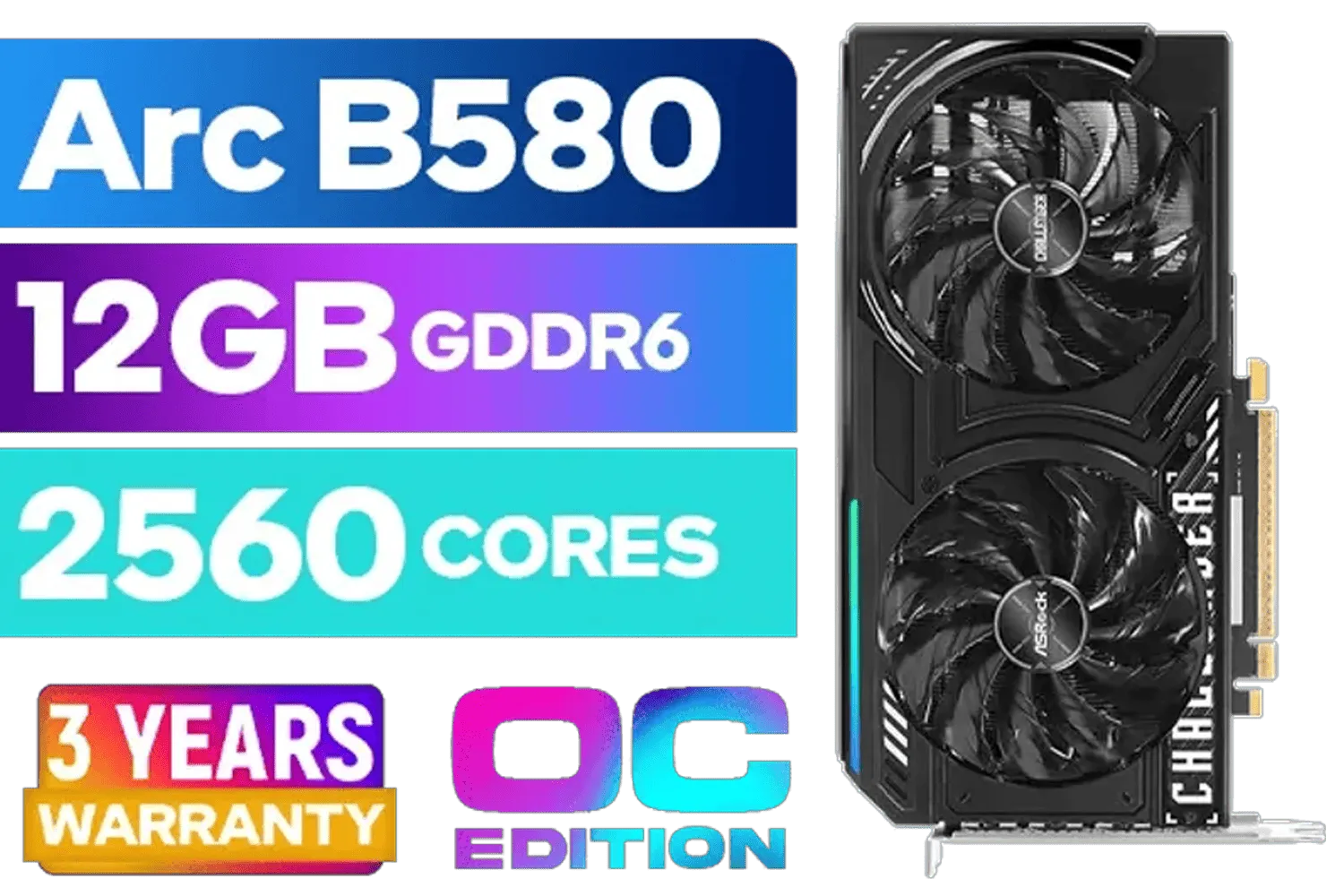
ASRock Intel ARC B580 Challenger OC Graphics Card / 12Gb 192-bit GDDR6 / DirectX 12 Ultimate / 2560 Cores / 2740MHz Engine Clock / 90-GA5LZZ-00UANF
R6499.00In Stock
PNY RTX PRO 2000 Blackwell 16GB Graphics Card / 4352 CUDA CORES / 16GB GDDR7 with ECC / 128-bit Memory / NVIDIA Blackwell Architecture / VCNRTXPRO2000-PB
R15399.00In Stock

MSI GeForce RTX 5070 12G Inspire 3X OC Graphics Card / 12GB GDDR7 / 6144 Cuda Cores / 192-bit Memory Interface / Boost Clock : 2542 MHz / NVIDIA Blackwell & DLSS 4 / 28Gbps Memory Speed / PCI Express® Gen 5 / 912-V532-017
R14499.00In Stock

MSI GeForce RTX 5060 8G Gaming Trio OC Graphics Card / 8GB GDDR7 / 3840 Cuda Cores / 128-bit Memory Interface / Boost Clock : 2625 MHz / PCI Express® Gen 5 / 912-V537-021
R8499.00In Stock
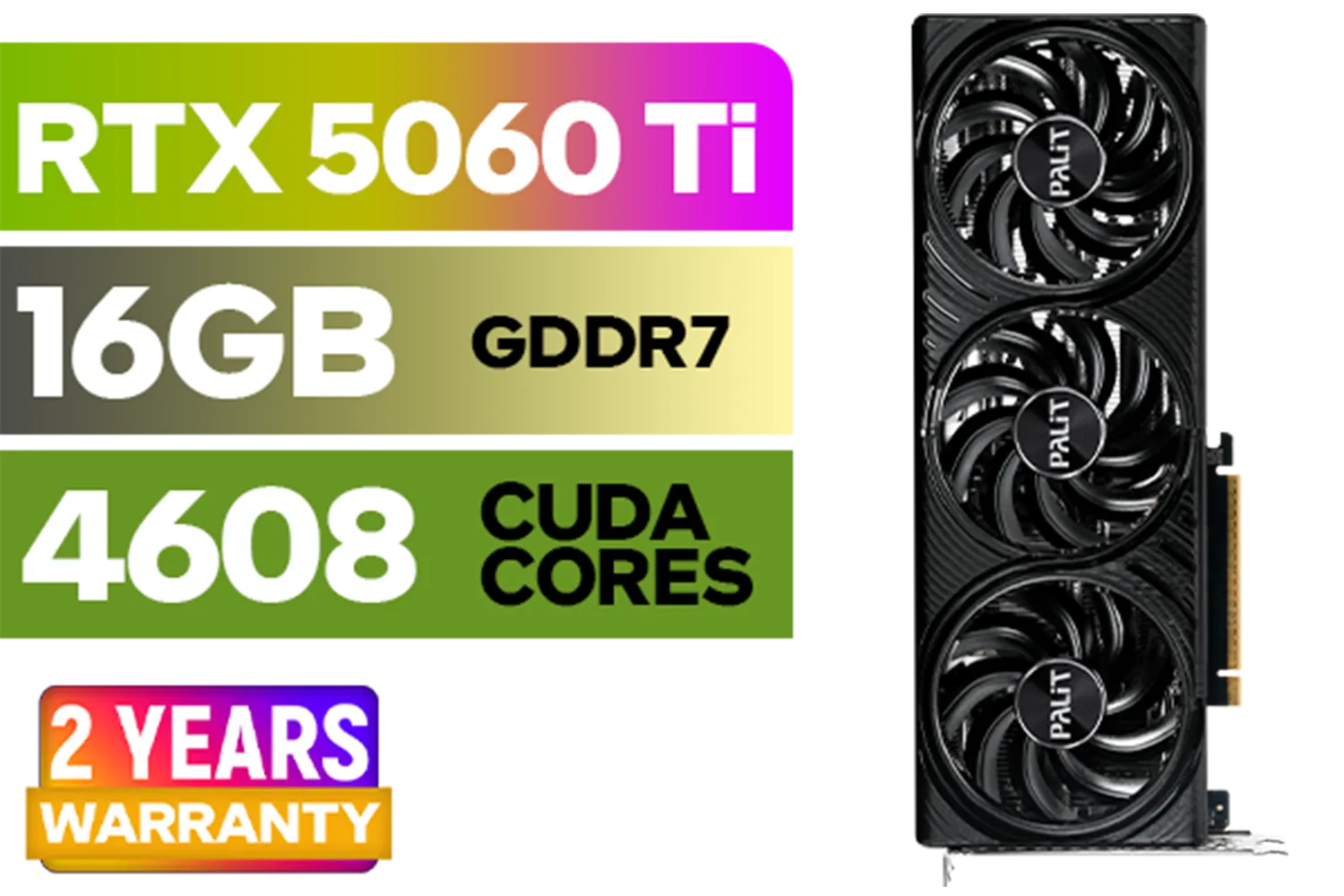
Palit GeForce RTX 5060 Ti Infinity 16GB Graphics Card / 16GB GDDR7 / 4608 Cuda Cores / 128-bit Memory Interface / Boost Clock : 2572 MHz / 28Gbps Memory Speed / PCI Express® Gen 5 / NE7506T019T1-GB2061S
R9799.00In Stock
Yes. Many entry-level NVIDIA cards can support dual monitors—check ports and specs. See our nvidia gt 1030 dual monitor guide for specific models.
Use DisplayPort or HDMI based on GPU ports. For higher refresh or resolutions, prefer DisplayPort. See best cables for dual monitor nvidia.
Open NVIDIA Control Panel > Set up multiple displays, choose primary/extend options, then adjust resolution. Follow extend display nvidia control panel guide steps.
Install the latest NVIDIA drivers from the official site. Updated drivers fix dual display issues and improve compatibility with entry-level cards.
Yes, many GT 1030 variants support two 1080p displays. Check the specific model outputs in our nvidia gt 1030 dual monitor guide.
Common causes: wrong input selected, loose cable, outdated driver, or incorrect display mode. Follow connect two monitors entry level nvidia troubleshooting.
Extend displays for multitasking and productivity. Mirroring is useful for presentations; see how to set up dual monitors with nvidia for both modes.











