



G-SYNC Compatible Explained: Using FreeSync Monitors with Nvidia GPUs
Wondering what G-SYNC Compatible means for your setup? We explain how to use FreeSync monitors with Nvidia cards for tear-free gaming. 🎮 Uncover the benefits of Variable Refresh Rate technology and optimize your display today! 🖥️
|
Loading tags...

Got a powerful Nvidia GPU but staring at a FreeSync monitor, wondering if you've made a costly mistake? Relax. For years, silky-smooth, tear-free gaming meant shelling out for a pricey G-SYNC monitor. But times have changed. Thanks to Nvidia's G-SYNC Compatible program, you can unlock buttery variable refresh rate (VRR) performance on many FreeSync screens.
Let's break down how this tech works and how you can get it running in minutes. 🚀

MSI PRO MP275 E2 27-inch IPS 1920 x 1080 (FHD) Gaming Office Monitor, 120Hz, Free-Synch, HDMI, DisplayPort, VGA Port, VESA Mountable, Tilt, Speaker, 4-Side Slim Bezel 1ms, Black / 9S6-3PD3CM-029
R2599.00In Stock
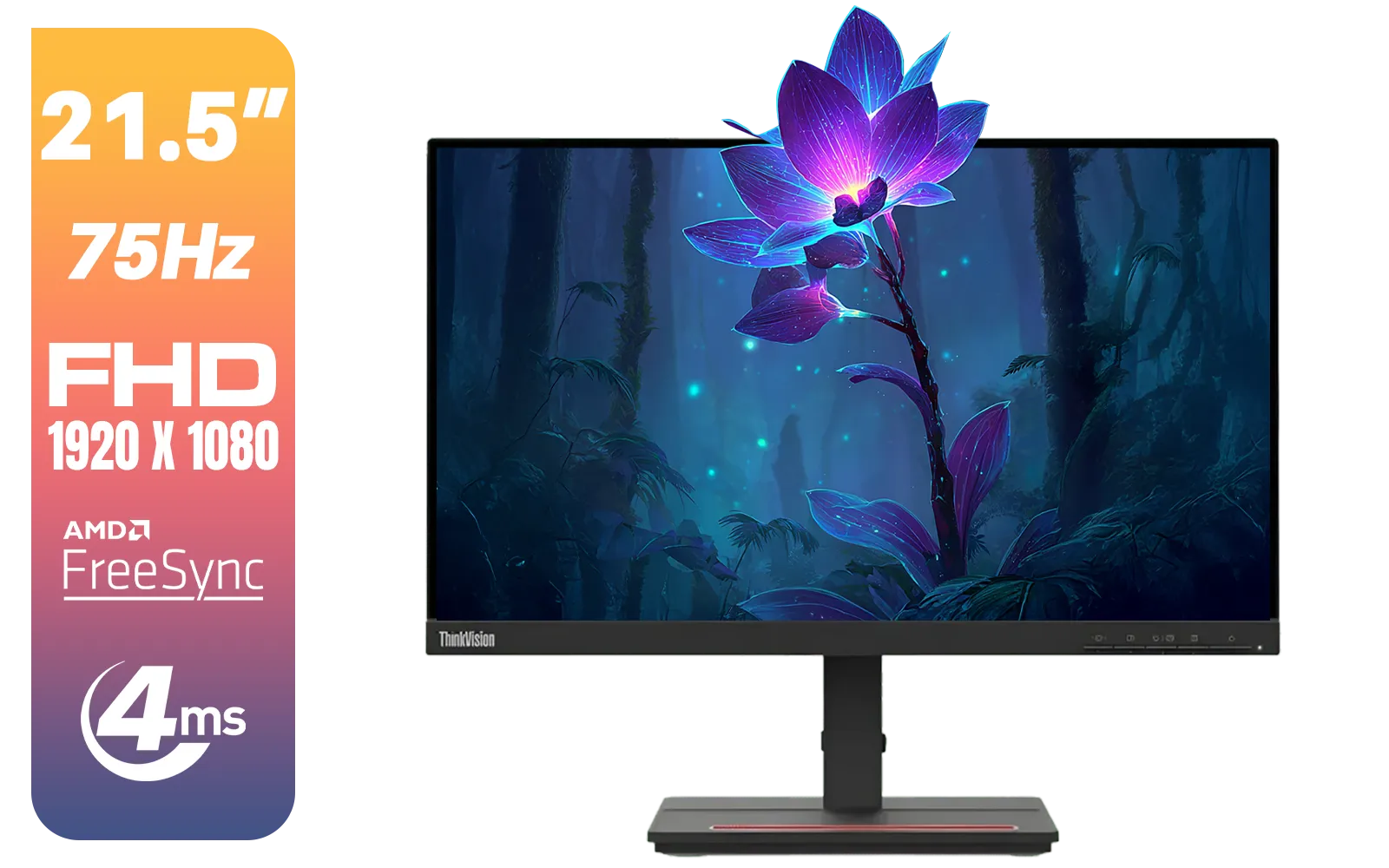
Lenovo ThinkVision Monitor S22E-20 21.5 Inch / 1920x1080 Resolution / Non Touch / 4 ms Response Time / 62C6KAT1SA
R2099.00In Stock

AOC 22B2HN, 21.5 Inch (54.6 cm) LED 1920 x 1080 Pixels Ultra Slim Monitor with 3 Sided Frameless Design, Va Panel, Hdmi/Vga Port, Full Hd, 7 Ms Response Time, 75 Hz Refresh Rate, Flicker Free, Black / AOC-22B2HN
R2099.00In Stock
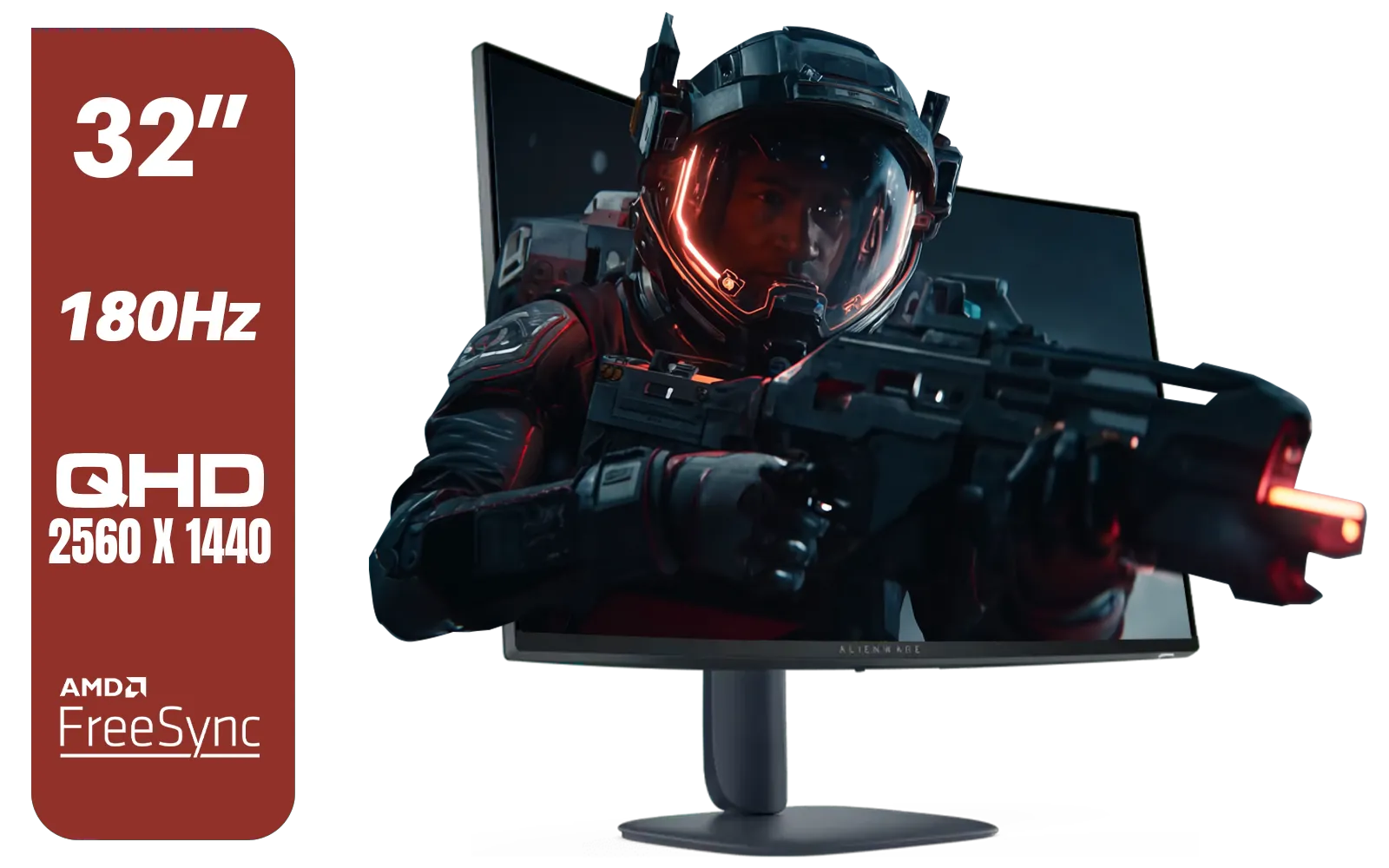
Alienware AW3225DM - 32" Curved Gaming Monitor / 180Hz Refresh Rate / QHD (2560x1440) / 1ms (GTG Extreme Mode) Response Time / AMD FreeSync / AW3225DM
R6499.00In Stock

AOC AGON AG275QXR 27" QHD 2K 170Hz Gaming Monitor - Pink - 2022 Edition ,IPS, Flicker-free technology, AMD FreeSync Premium, G-SYNC Compatible / AOC-AG275QXR
R6999.00In Stock
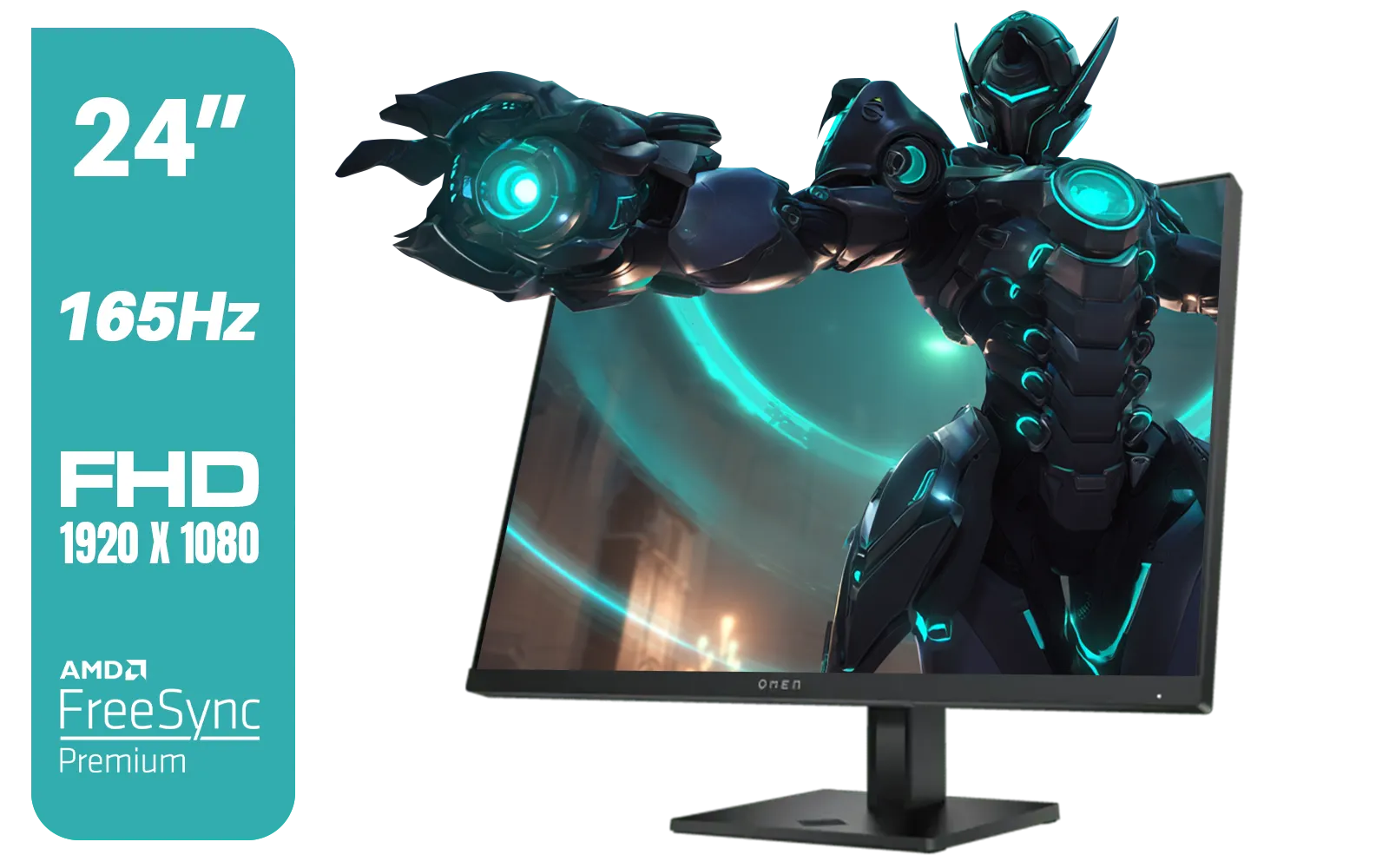
HP OMEN 24 FHD 165Hz Gaming Monitor - Black / 24" FHD (1920 x 1080) Anti-glare Display / AMD FreeSync Premium / Pivot Rotation and Height Adjustable / 780D9AS
R5199.00In Stock
What Exactly is G-SYNC Compatible?
At its core, G-SYNC Compatible is Nvidia's way of validating FreeSync monitors that deliver a solid baseline VRR experience with their GeForce GPUs.
So, what’s VRR? It allows your monitor's refresh rate to dynamically match the frames-per-second (FPS) your graphics card is pushing out. This eliminates ugly screen tearing and stuttering, especially when your frame rate fluctuates.
Previously, this required a special G-SYNC hardware module inside the monitor, which added to the cost. FreeSync, an open standard from AMD, offered a more affordable alternative but was locked to AMD GPUs. Now, the G-SYNC Compatible program bridges that gap, using the VESA Adaptive-Sync standard (which FreeSync is built on) to bring VRR to Team Green users on a wider, more affordable range of PC monitors.

Samsung M70D 32″ Smart Monitor / UHD (3840 x 2160) Resolution / 60Hz refresh rate / 4ms response time / LS32DM702UAXXA
R7799.00In Stock
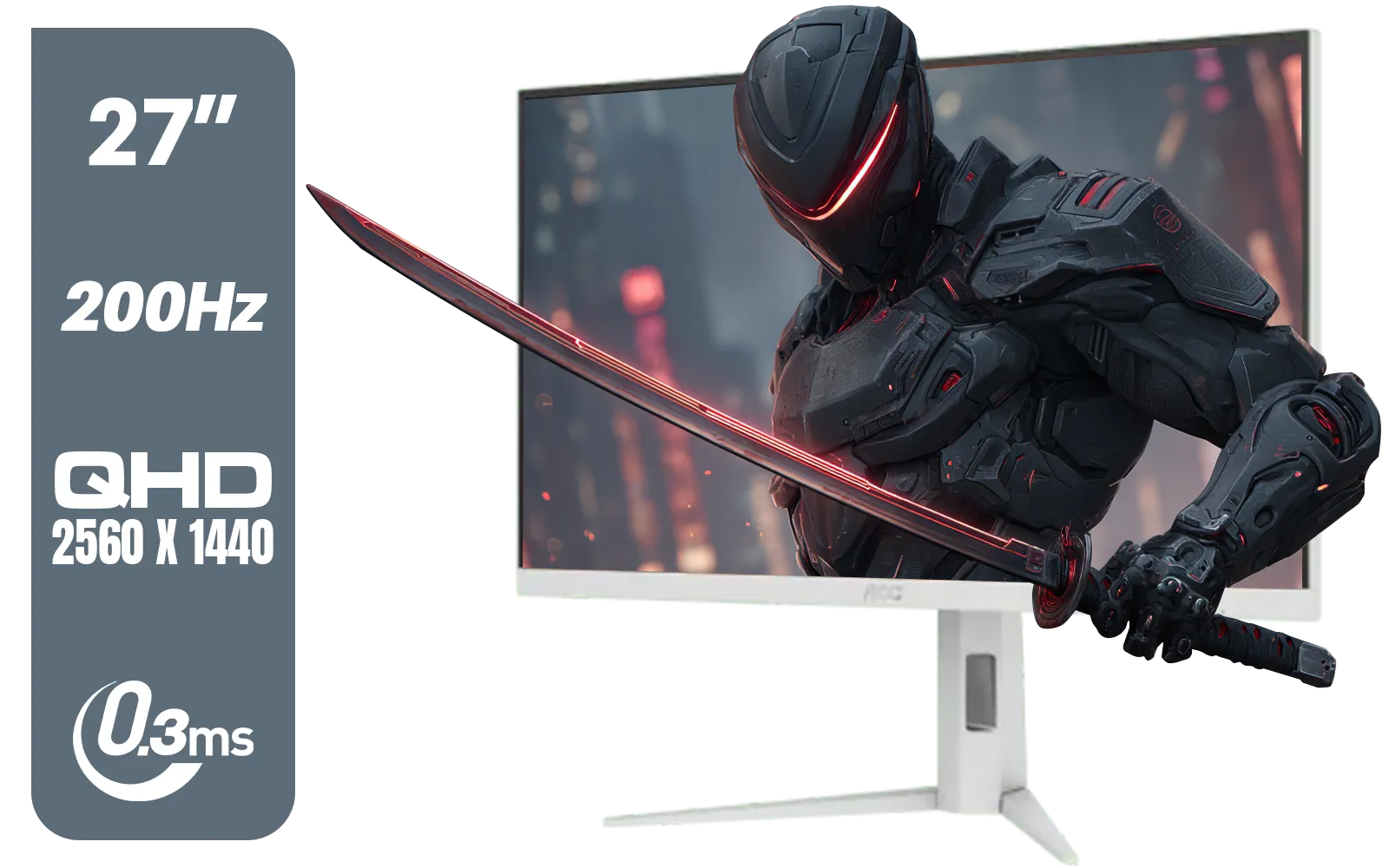
AOC Q27G4/WS 27" Gaming Monitor - White / QHD (2560 × 1440) / 200Hz Refresh Rate / 0.3ms Response Time / IPS-Level Display / Certified HDR400 / Support Adaptive Sync / Q27G4/WS
R4899.00In Stock
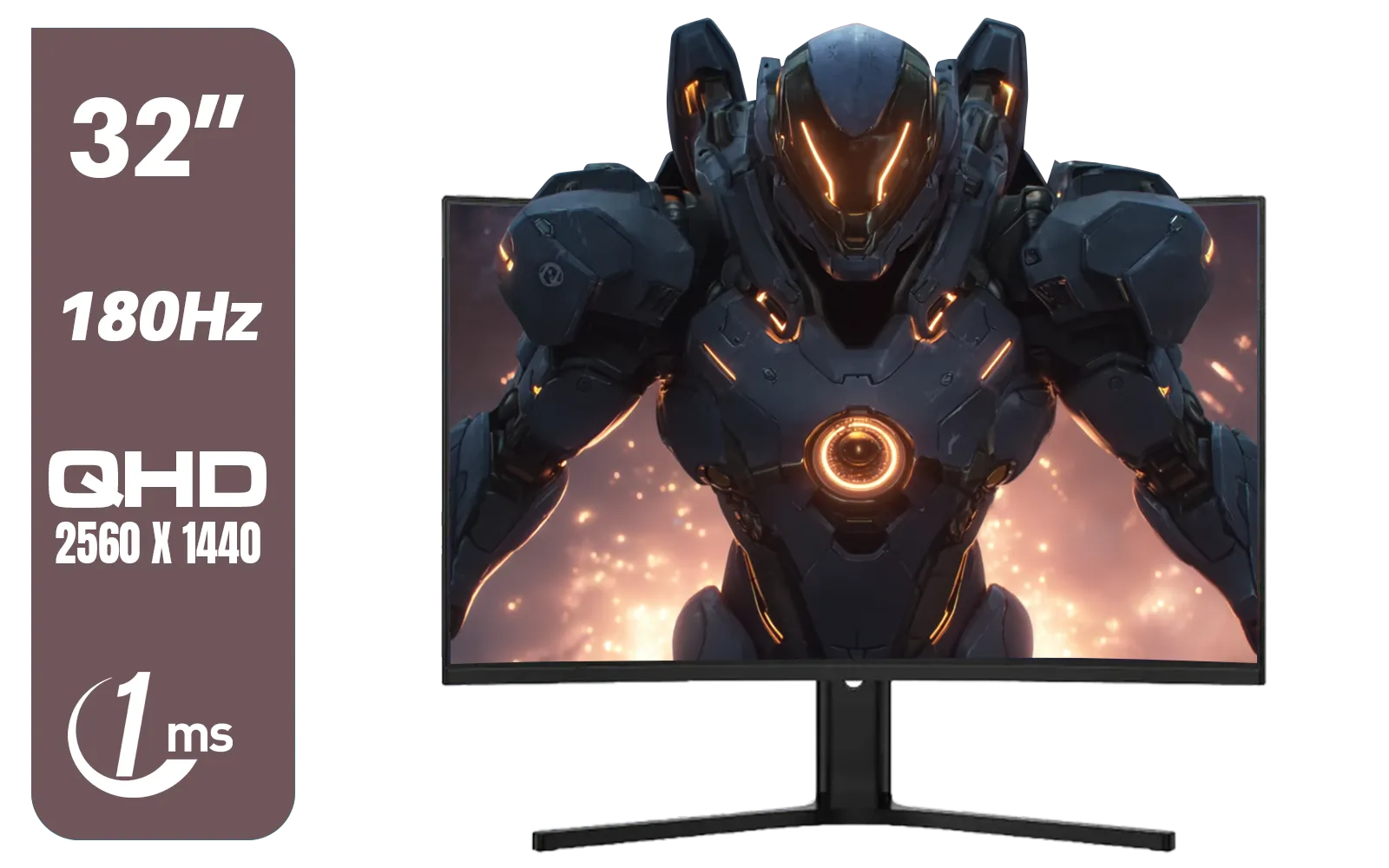
Dahua LM32-E330CA 32" 180Hz LED Monitor / Adaptive-Sync Technology / 1ms Response Time / QHD 2560x1440 / 180Hz Refresh Rate / DHI-LM32-E330CA
R3999.00In Stock

ViewSonic TD1655 15.6" Full HD (1920 x 1080) Portable Touchscreen Monitor / Ultra-portable Design / Advanced in-cell Capacitive Touchscreen / 2-Way Power With USB Type-C / Frameless Design / Portrait and Landscape Modes / dual integrated speakers / TD1655
R5199.00In Stock
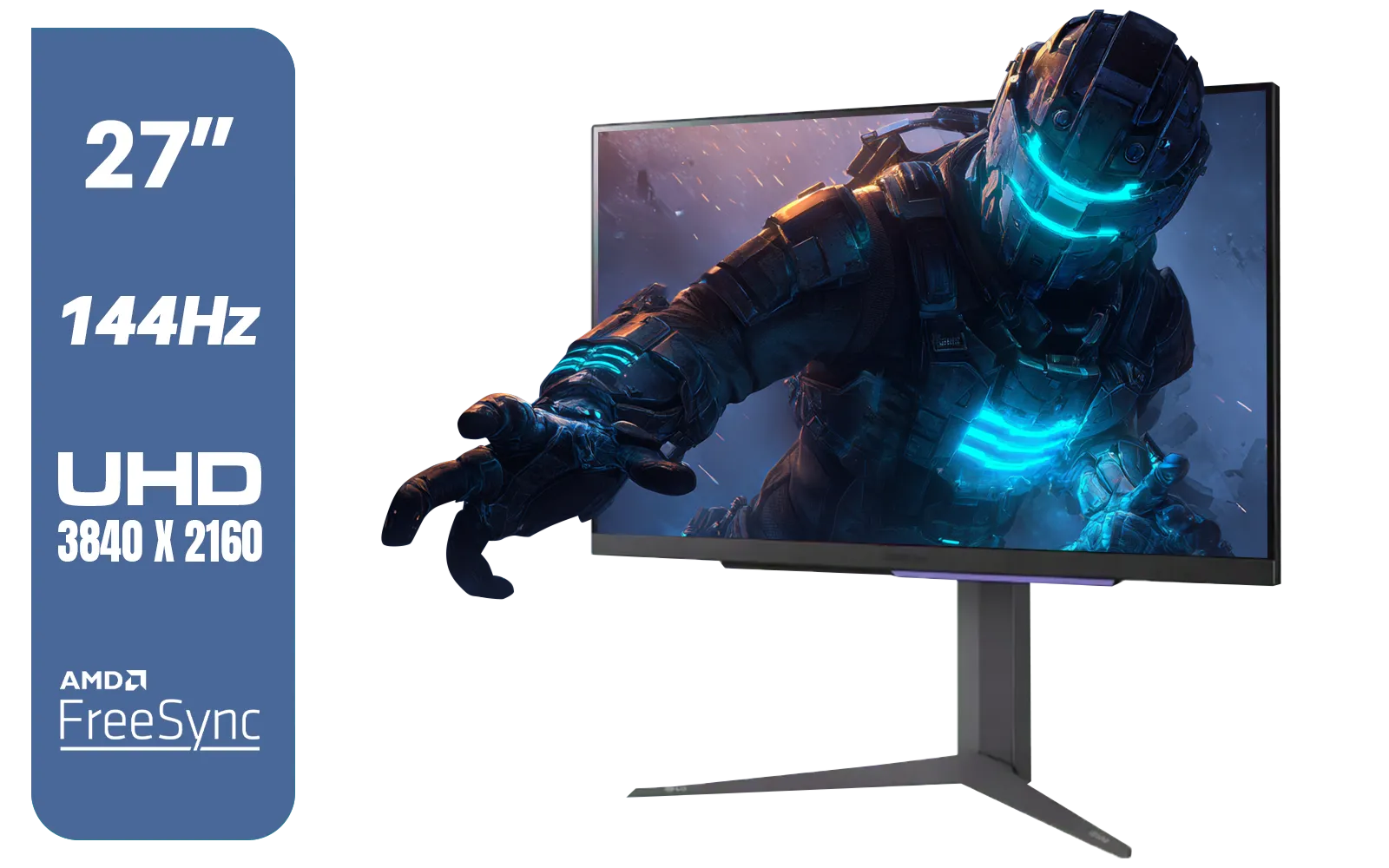
LG 27" UltraGear 4K UHD (3840x2160) Gaming Monitor, 144Hz, 1ms, VESA DisplayHDR 400, G-SYNC and AMD FreeSync Premium, HDMI 2.1, DisplayPort, 4-Pole HP Out DTS HP:X, Tilt/Height/Pivot Stand, Black / 27GR93U
R9999.00In Stock
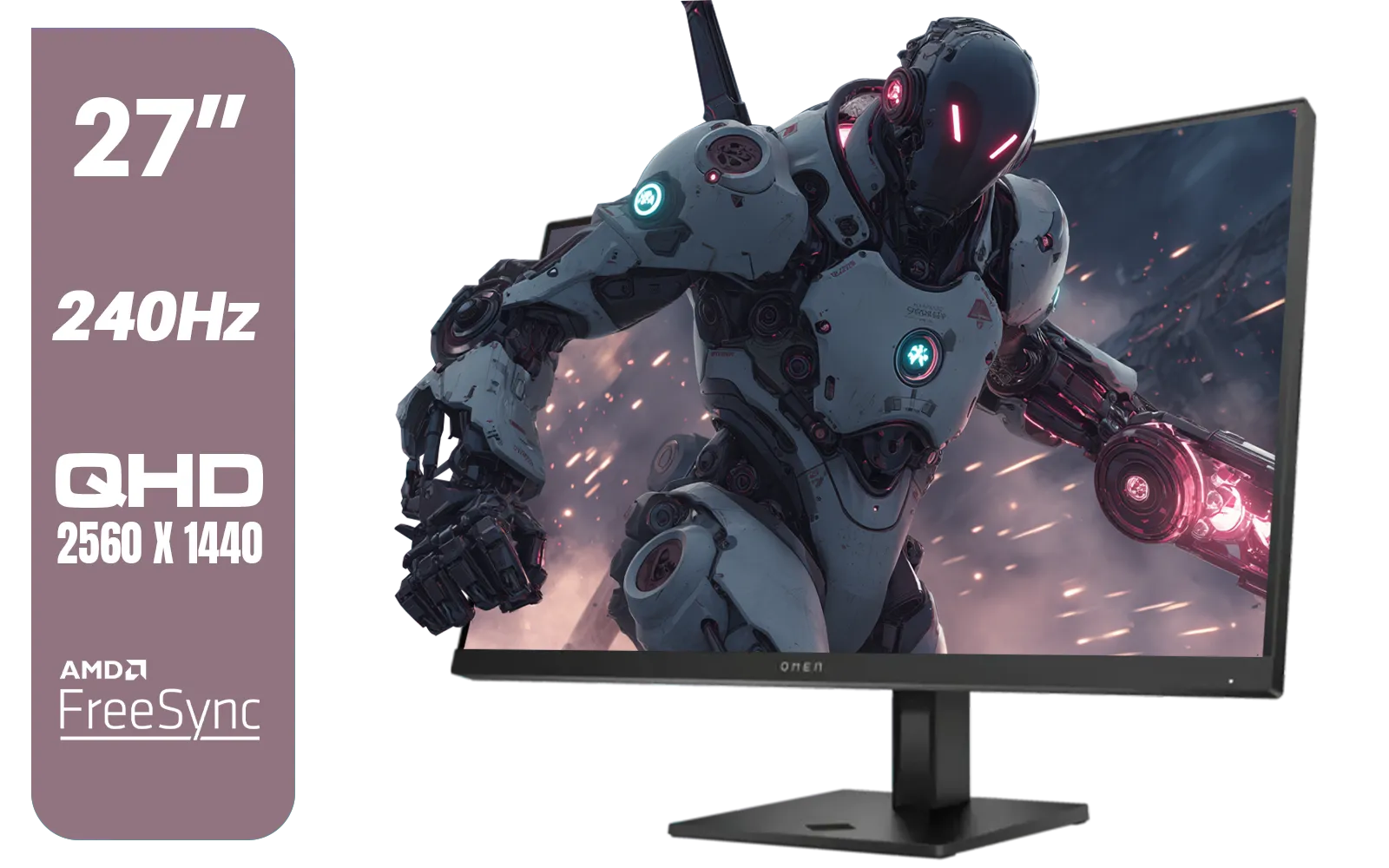
HP OMEN 27qs QHD 240Hz Gaming Monitor / QHD Resolution (2560 x 1440) / AMD FreeSync™ Premium / Eyesafe® certified / Height Adjustable Stand / Pivot Rotation Functionality / 780J4AS
R13499.00In Stock
How to Enable G-SYNC on Your FreeSync Monitor
Ready to give it a try? The process is surprisingly simple, provided you meet a few requirements: an Nvidia GeForce 10-series GPU or newer, and the latest Nvidia drivers.
Here’s the step-by-step:
- Connect via DisplayPort: This is crucial. Ensure your monitor is connected to your GPU using a DisplayPort cable.
- Enable FreeSync on Your Monitor: Dive into your monitor's on-screen display (OSD) menu. Find the setting for Adaptive-Sync or FreeSync and make sure it's turned on.
- Open Nvidia Control Panel: Right-click your desktop and select "NVIDIA Control Panel".
- Set Up G-SYNC: In the left-hand menu, navigate to "Display" > "Set up G-SYNC".
- Enable and Apply: Check the box for "Enable G-SYNC, G-SYNC Compatible". Choose whether you want it for full-screen mode only or for windowed and full-screen mode. Click "Apply".
Your screen might flicker for a moment, and that's it! You're now using your FreeSync monitor with an Nvidia GPU. ✨
TIP FOR YOU
Cable is Key 🔧
monitor might support VRR, but are you using the right connection? G-SYNC Compatible requires a DisplayPort cable. While some newer monitors and GPUs support HDMI 2.1 VRR, DisplayPort is the guaranteed method for this feature. Make sure you're using a quality DP 1.2a or newer cable, which you can find with other essential [monitor accessories](https: www.evetech.co.za buy-monitor-accessories-368.aspx) to optimise your setup.
Does Official Certification Matter?
Nvidia maintains an official list of certified G-SYNC Compatible monitors. These are screens they have personally tested to ensure they provide a flawless VRR experience without flickering, blanking, or other artifacts. Choosing a certified monitor from our list of all gaming monitors is the safest bet for guaranteed performance.
But what if your monitor isn't on the list? You can still manually enable the feature using the steps above. Many unlisted FreeSync monitors work perfectly fine. However, performance isn't guaranteed, and you might encounter issues. It's a bit of a lottery, but one that often pays off.

ViewSonic VA240A-H 24" Monitor / FHD (1920 x 1080) Display resolution / 1ms Response Time / HDMI and VGA inputs / 120Hz Variable refresh rate / VA240A-H - UK Adapter Included
R1949.00In Stock

Philips 49B2U5900CH 49" Dual QHD Curved Business Monitor / Dual QHD (5120 x 1440) / 4ms Response Time / Flicker-Free / LowBlue Mode / 49B2U5900CH/89
R23499.00In Stock
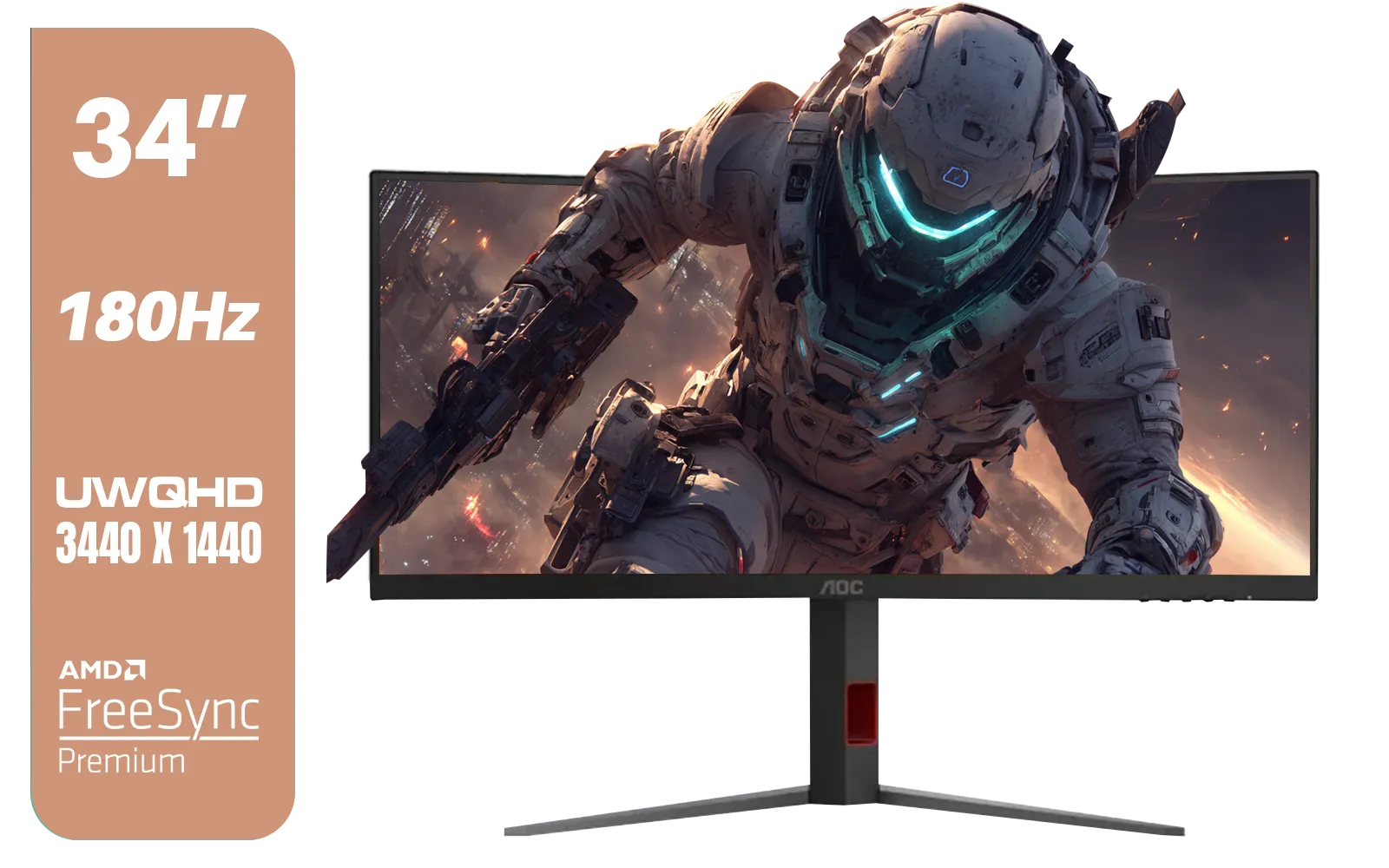
AOC CU34G4 34" Curved Gaming Monitor / UWQHD (3440x1440) / 180Hz Refresh Rate / 1ms Response Time (MPRT) / HDR10 / Adaptive Sync / CU34G4
R6999.00In Stock
Dahua LM32-E330CA 32" 180Hz LED Monitor / Adaptive-Sync Technology / 1ms Response Time / QHD 2560x1440 / 180Hz Refresh Rate / DHI-LM32-E330CA
R3999.00In Stock
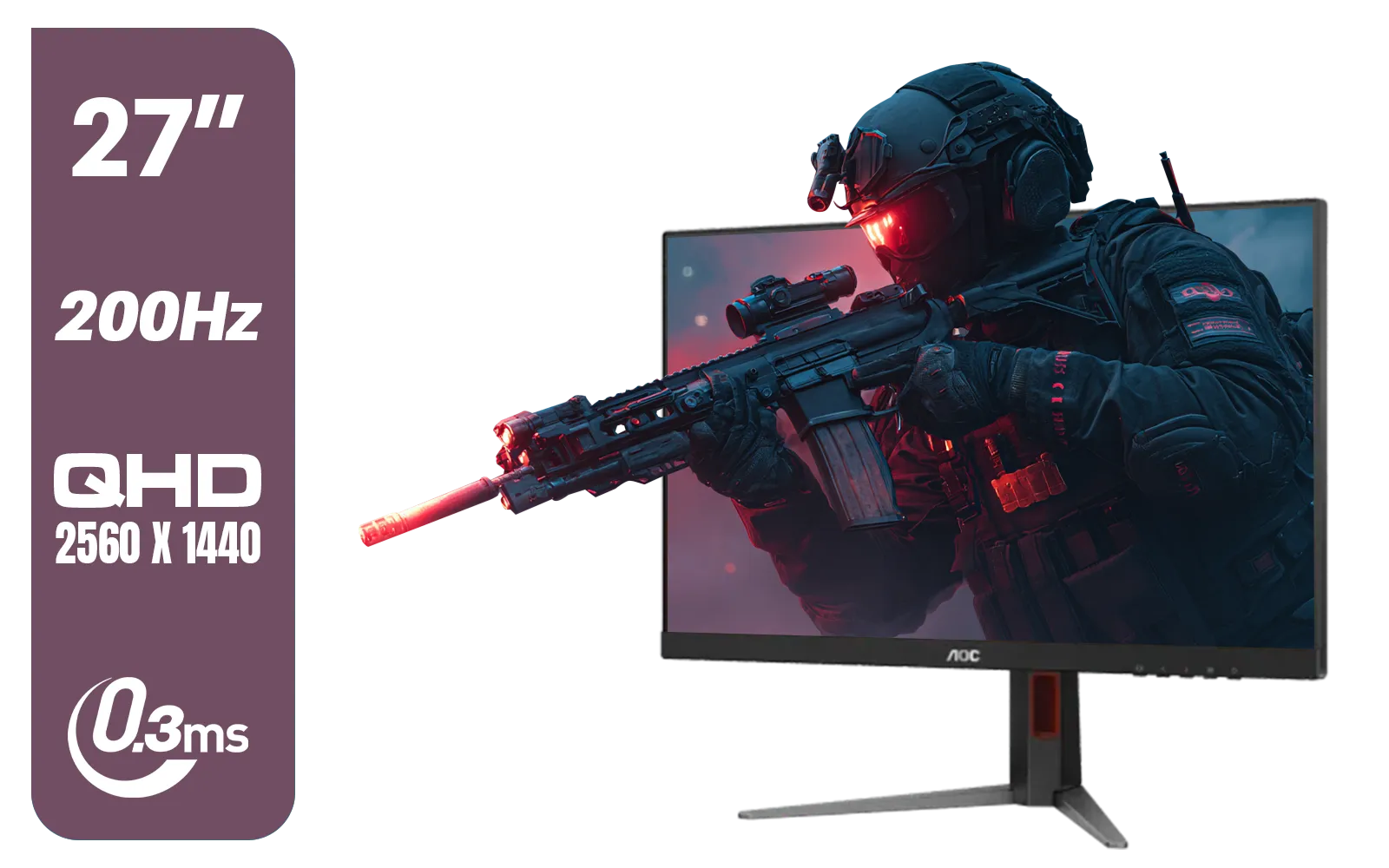
AOC Q27G4/D 27" Gaming Monitor / QHD (2560 × 1440) / 200Hz Refresh Rate / 0.3ms Response Time / IPS-Level Display / Certified HDR400 / Support Adaptive Sync / Q27G4/D
R3899.00In Stock
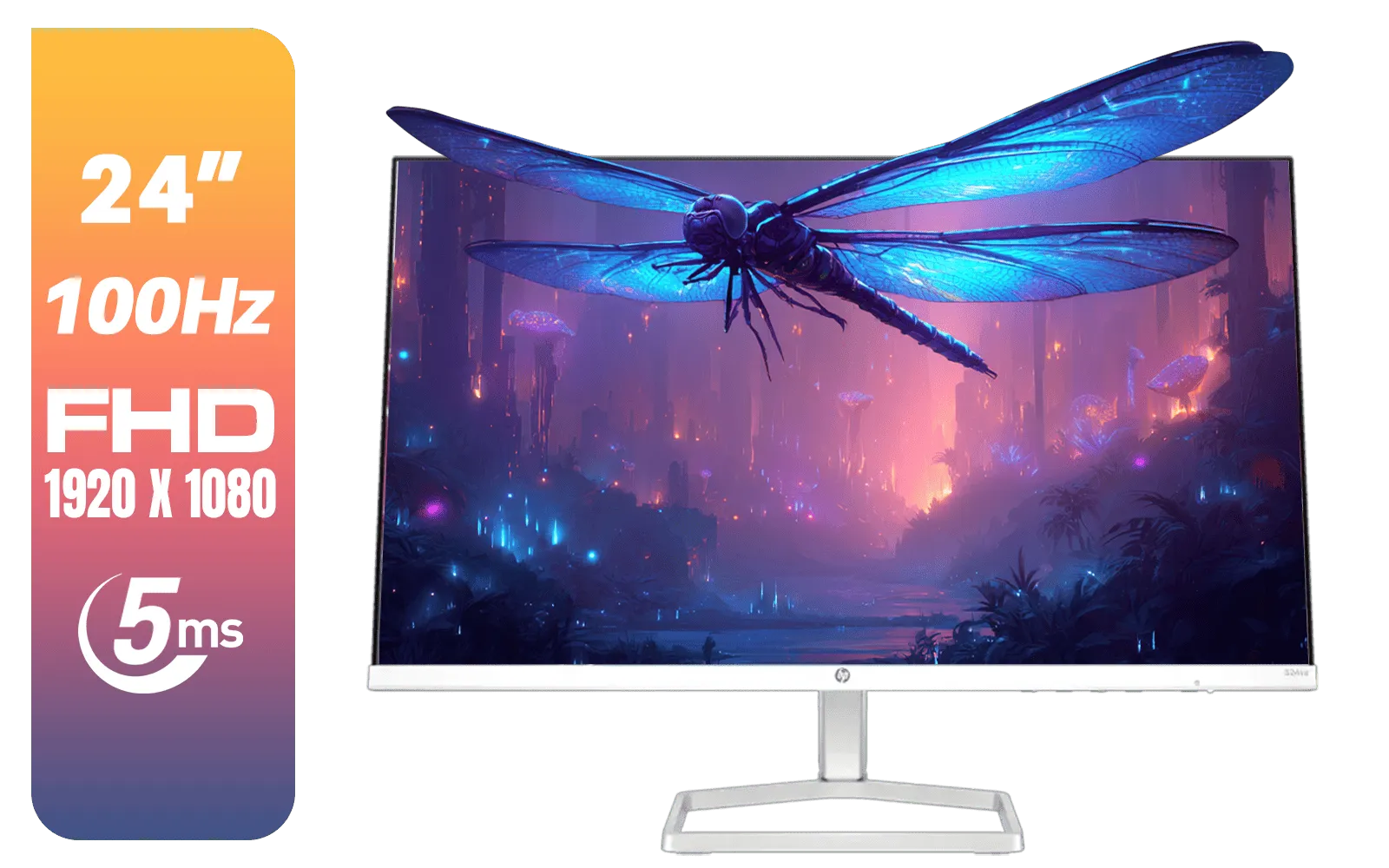
HP 524SA G5 FHD Gaming Monitor - White/Silver / 24" FHD (1920 x 1080) / IPS Panel / 1x HDMI 1.4, 1x VGA / Eye Ease with Eyesafe Certification / 94C36AS
R4199.00In Stock
Choosing the Right Panel for Your Setup
The beauty of the G-SYNC Compatible program is the explosion of choice it gives South African gamers. You're no longer locked into a small ecosystem.
- For Immersion: The wraparound view of curved monitors combined with smooth VRR is a potent combination for racing sims and epic RPGs.
- For Detail: If you're running a top-tier RTX card, pairing it with one of the latest high-resolution 5K and 4K monitors delivers breathtaking visual fidelity, and G-SYNC Compatible ensures it stays smooth even if your FPS dips below that native 4K target.
- For Flexibility: Even the niche world of portable monitors is seeing more high-refresh-rate options, perfect for a LAN party or a powerful on-the-go laptop setup.
Ultimately, using a FreeSync monitor with your Nvidia GPU is one of the best value-for-money upgrades you can make. You get a premium gaming feature without the premium price tag.
Ready to Eliminate Screen Tearing for Good? The world of adaptive sync is now wide open. Whether you're after a certified G-SYNC Compatible screen or a high-refresh-rate beast, we've got the panel for you. Explore our massive range of gaming monitors and find the perfect display to match your Nvidia GPU.
Related Products
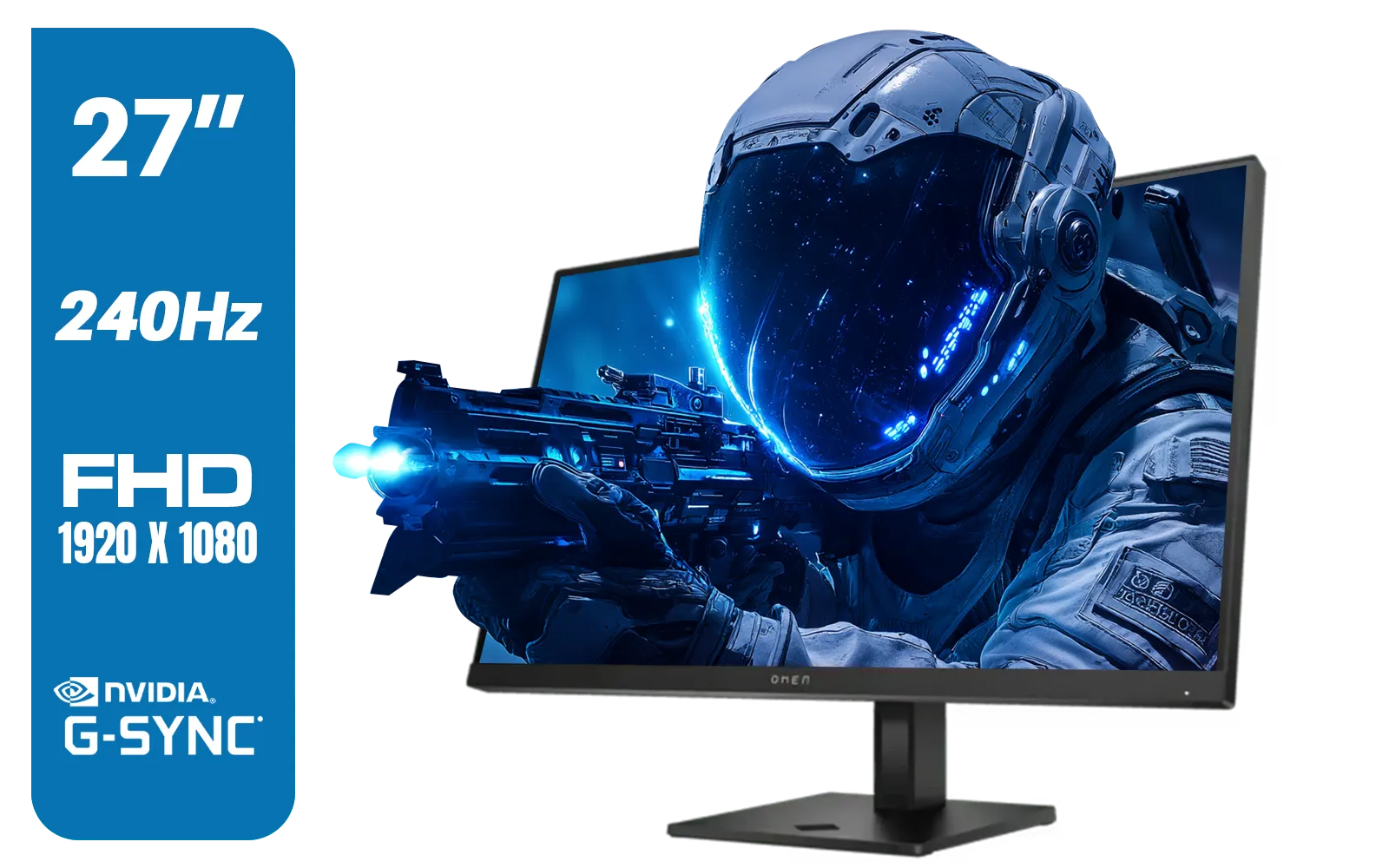
HP OMEN 27s FHD 240Hz Gaming Monitor - Black / VESA DisplayHDR 400 / NVIDIA® G-SYNC® Compatible / Integrated Dual 3W speakers / Customize aRGB lighting through OMEN Light Studio / 780G5AS
R8999.00In Stock

MSI G321Q 31.5" WQHD IPS 2K Flat Monitor, 170Hz Refresh Rate, 1ms MPRT Response Time, 1.07B Display Colors, 16:9 Aspect Ratio, 1200:1 Contrast Ratio, G-Sync / AMD Freesync, HDR, Black / 9S6-3DB91A-041
R6999.00In Stock
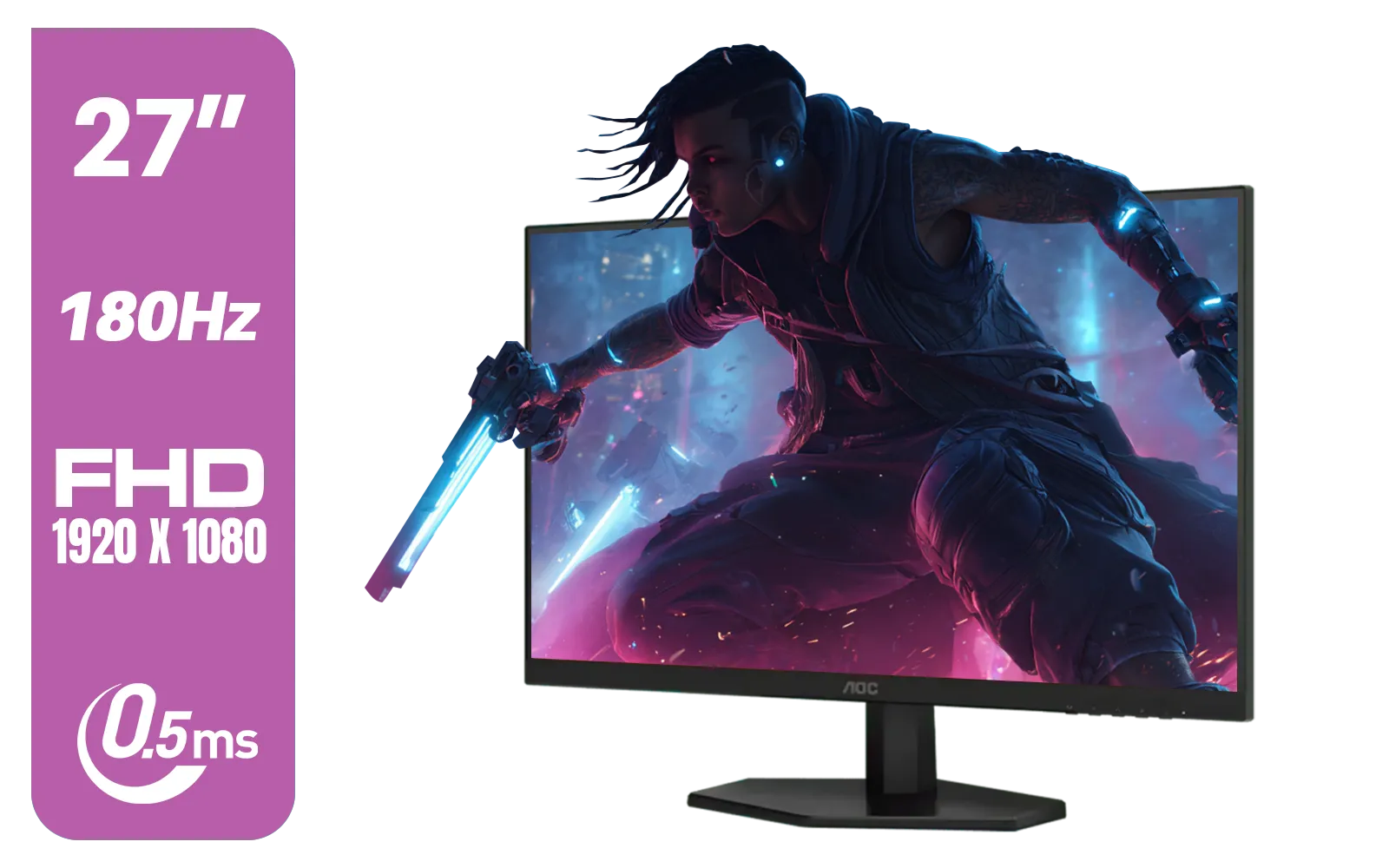
AOC 27G42E 27" 180Hz Ultra-Fast Gaming Monitor, 1920 × 1080 (FHD), 0.5ms, Fast IPS, Adaptive Sync, 3-Sided Frameless Design, Black / 27G42E
R3199.00In Stock

Dahua LM27-A200V 27" Monitor / FHD 1920 x 1080 / 100Hz Refresh Rate / 5ms Response Time / DHI-LM27-A200V
R2499.00In Stock
LG 27" UltraGear 4K UHD (3840x2160) Gaming Monitor, 144Hz, 1ms, VESA DisplayHDR 400, G-SYNC and AMD FreeSync Premium, HDMI 2.1, DisplayPort, 4-Pole HP Out DTS HP:X, Tilt/Height/Pivot Stand, Black / 27GR93U
R9999.00In Stock
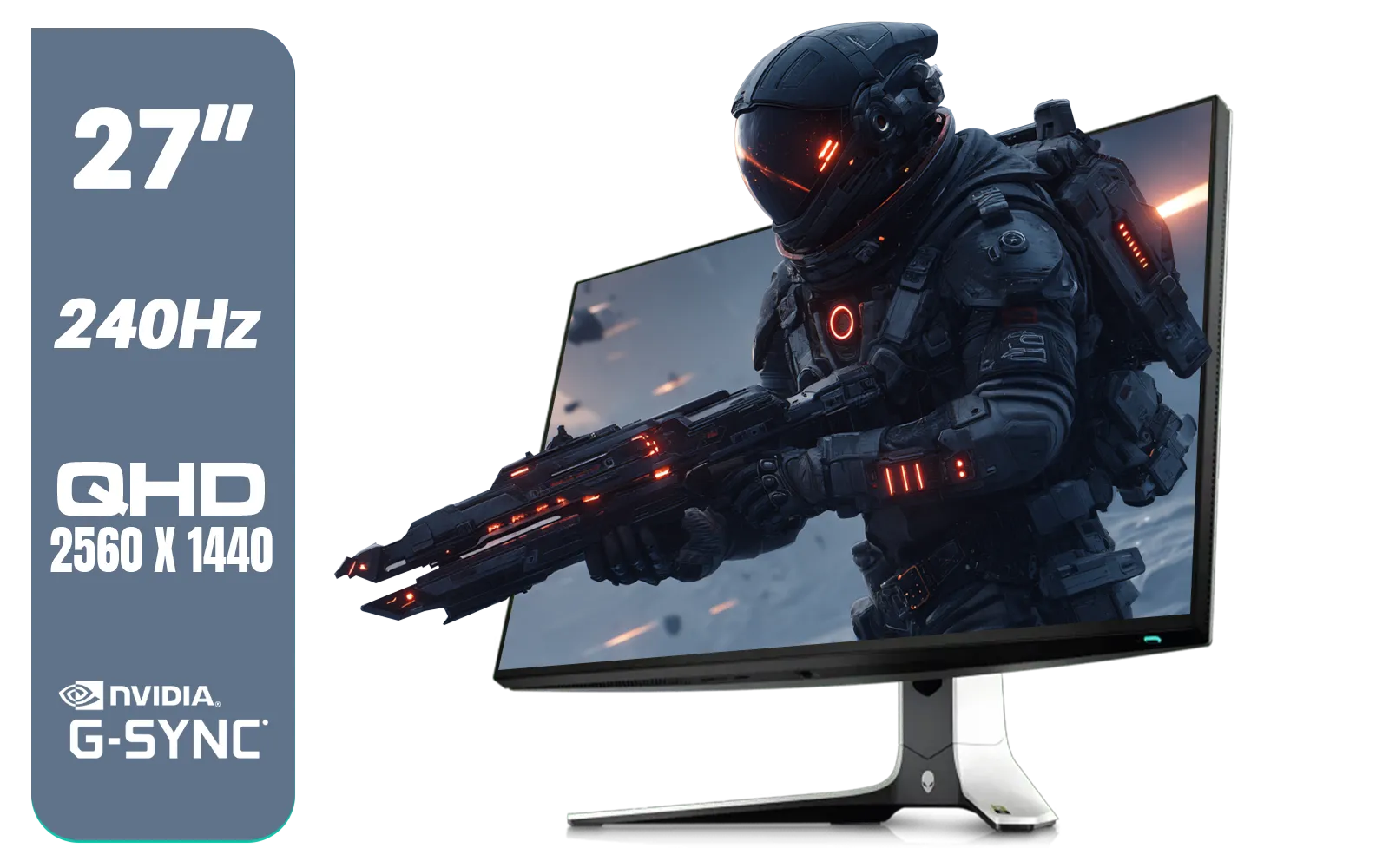
Alienware AW2723DF Gaming Monitor - 27-inch (2560 x 1440) 240Hz Display (DP 1.4), 1ms Response Time, NVIDIA G-Sync, Preset OSD Modes, Height/Tilt/Swivel/Pivot Adjustability - Lunar Light / AW2723DF
R8699.00In Stock
Yes, if your monitor is G-SYNC Compatible, you can enable Variable Refresh Rate using a modern Nvidia graphics card, typically via a DisplayPort connection.
Native G-SYNC uses a dedicated hardware chip inside the monitor, whereas G-SYNC Compatible validates FreeSync monitors to work with Nvidia GPUs via driver software.
Yes, Nvidia cards generally require a DisplayPort connection to activate G-SYNC Compatible mode on FreeSync monitors. HDMI support is limited to specific newer models.
Open the Nvidia Control Panel, navigate to 'Set up G-SYNC,' check the box for 'Enable G-SYNC, G-SYNC Compatible,' and apply the settings to your display.
Most modern FreeSync monitors work via 'G-SYNC Compatible' mode, but only those officially certified by Nvidia are guaranteed to be free of visual glitches.
No, it does not lower FPS. It synchronizes the monitor's refresh rate to the GPU's frame rate to eliminate screen tearing and reduce stuttering without performance loss.











