



G502 Lightspeed G HUB Settings: Top 10 for Esports
G502 Lightspeed G HUB settings — 10 esports tweaks to cut input lag, optimize DPI, polling, lift-off, button mapping and profiles 🎯🖱️ - Highlight top performance tweaks - Tune DPI, polling, LOD, and macros - Build pro-ready profiles
|
Loading tags...

So, you’ve got the legendary Logitech G502 Lightspeed... solid choice, Saffa gamer. But just plugging it in is like having a supercar and never leaving first gear. To truly dominate the local scene, from Apex to Valorant, you need to master its brain: the Logitech G HUB software. Unlocking the best G502 Lightspeed G HUB settings is your secret weapon for cleaner flicks and pinpoint accuracy. Let's get your mouse dialled in. 🚀

Corsair M75 AIR Wireless Ultra-Light FPS Gaming Mouse – 26,000 DPI – Ultra-Fast Input – Symmetric Shape – iCUE Compatible – PC, Mac - White / CH-931D101-AP
R1299.00In Stock

Razer DeathAdder V3 Pro HyperPolling Wireless Gaming Mouse - Black / 63g Ultra Lightweight / Focus Pro 30K Optical Sensor/ Fast Optical Switches Gen-3 / HyperSpeed Wireless / 5 Programmable Buttons / 90 Hr Battery / HyperPolling Dongle Included / RZ01-04630300-R3WL
R2899.00In Stock

Glorious G-Skates Mouse Feet / Fits the Glorious Model O Gaming Mouse / 0.81mm Thickness / GO-GSKATE
R149.00In Stock

SteelSeries Aerox 5 - Lightweight Gaming Mouse - 18000 CPI -- TrueMove Air Optical Sensor - Ultra-Lightweight Water Resistant Design - Universal USB-C Connectivity
R1299.00In Stock

Glorious Model O Pro Wireless Gaming Mouse - Red Fox / Over 80h Of Battery On a Single Charge / Smoothly Rounded Pure PTFE Feet / Textured Surface For Improved Grip / GLO-MS-OW-RF-FORGE-SN
R799.00In Stock

Razer Cobra Pro Wireless Gaming Mouse - White / 10 Customizable Controls / 11-Zone Chroma Lighting with Underglow / Razer™ Focus Pro 30K Optical Sensor / RZ01-04660200-R3G1
R2999.00In Stock
Why Your G HUB Settings Are Your Secret Weapon
Before we dive into the top 10 list, let's be clear: default settings are designed for everyone, which means they’re optimised for no one. Fine-tuning your G502 Lightspeed G HUB settings allows you to tailor the mouse's performance to your specific grip, playstyle, and even your mousepad. This isn't just about comfort; it's about building muscle memory and making the mouse an extension of your hand. A few small tweaks can be the difference between winning a 1v1 and staring at a respawn screen. The G HUB software is the powerful control centre for all your gear, and it's what makes the best Logitech Gaming Mice so customisable.
Top 10 G502 Lightspeed G HUB Settings for Esports Dominance
Ready to get granular? Work through these settings in G HUB to create a profile that gives you a competitive edge. Remember to save your configuration to an on-board memory slot so your settings travel with you.

Razer DeathAdder V3 Pro Wireless Gaming Mouse - White / 64g Ultra Lightweight / Focus Pro 30K Optical Sensor / Fast Optical Switches Gen-3 / HyperSpeed Wireless / 5 Programmable Buttons / 90 Hr Battery / RZ01-04630200-R3G1
R3499.00In Stock
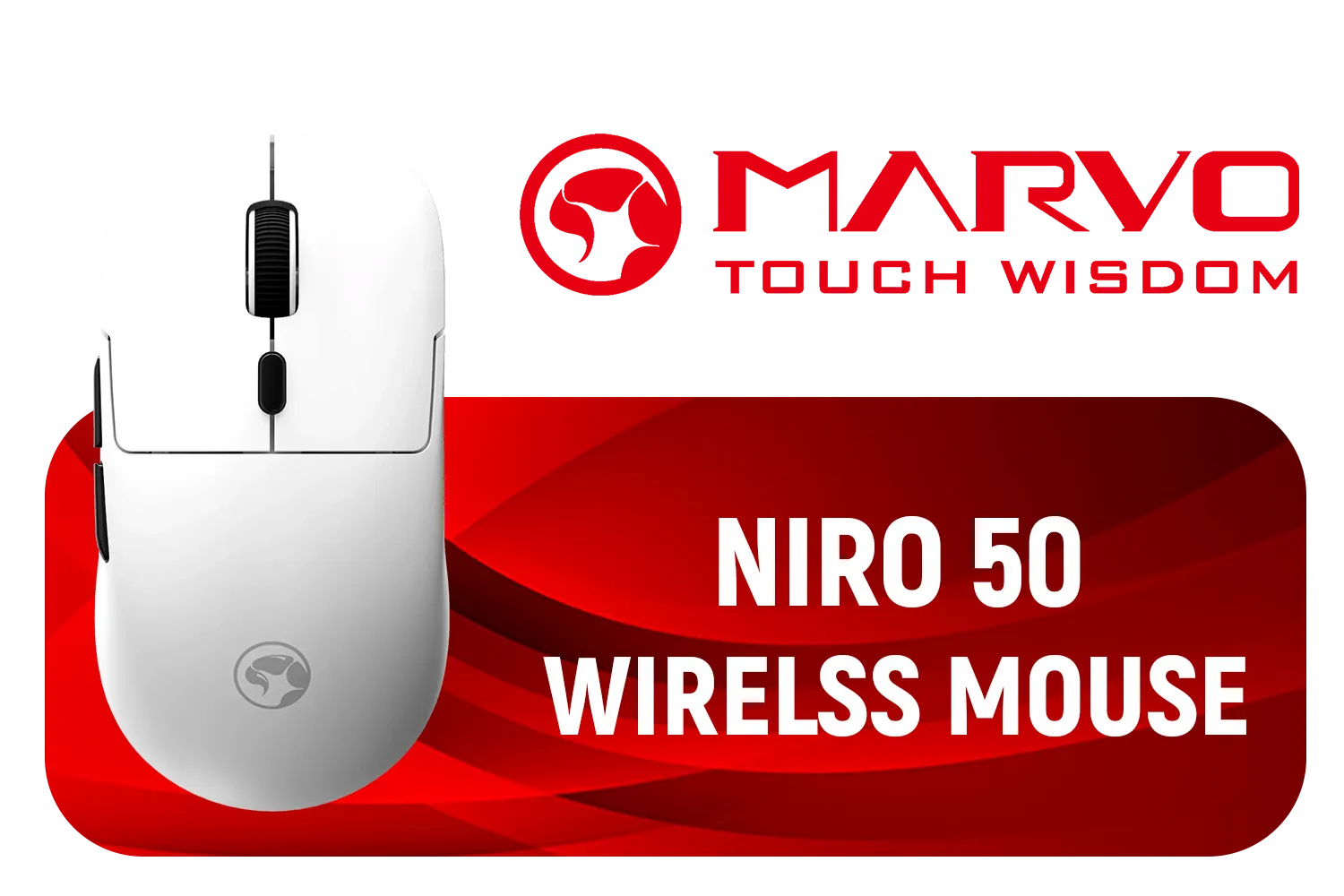
MARVO Niro 50 | G912W – Wireless Gaming Mouse - White / Tri-Mode Connectivity / Precision Optical Sensor / 6 DPI Levels up to 12000 / Durable Mechanical Switches / Long Battery Life / G912W-WT
R449.00In Stock

Steelseries Rival 710 Optical Gaming Mouse / 12000 CPI / 1ms Poling Rate / 7 Buttons / SteelSeries Mechanical Switches / Customizable OLED Screen / SS62334
R2399.00In Stock

SteelSeries Prime Mini Gaming Mouse - Black / 18000 CPI Increments / Prestige OM Optical Magnetic Switches / TrueMove Pro Gaming Sensor / Super Mesh USB-C Cable / 61g Ultra Lightweight / 62421
R1279.00In Stock
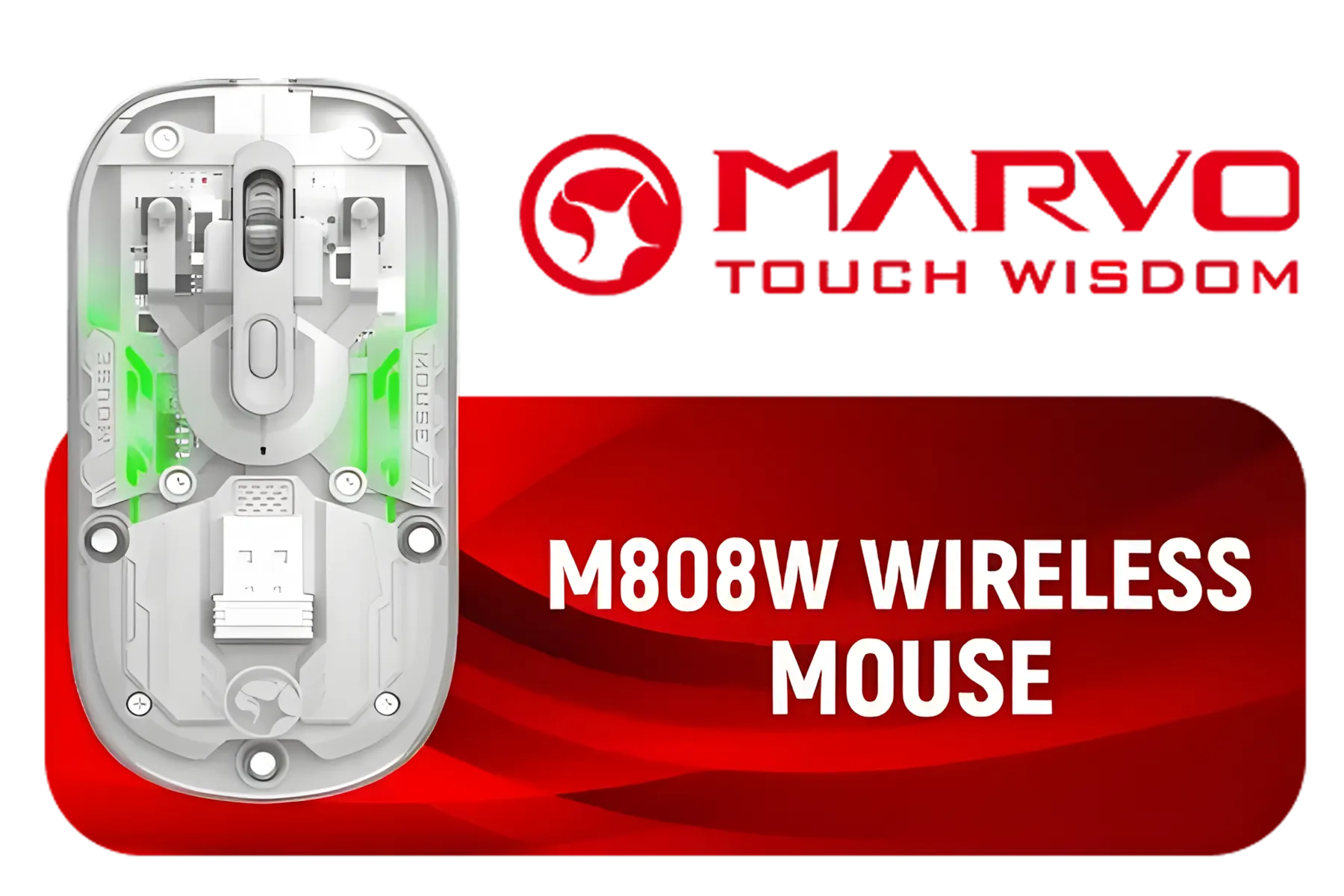
MARVO M808W Wireless Mouse / Up to 1600 DPI / 6 Programmable Buttons / RGB Backlight / polling rate up to 100Hz / M808W
R199.00In Stock
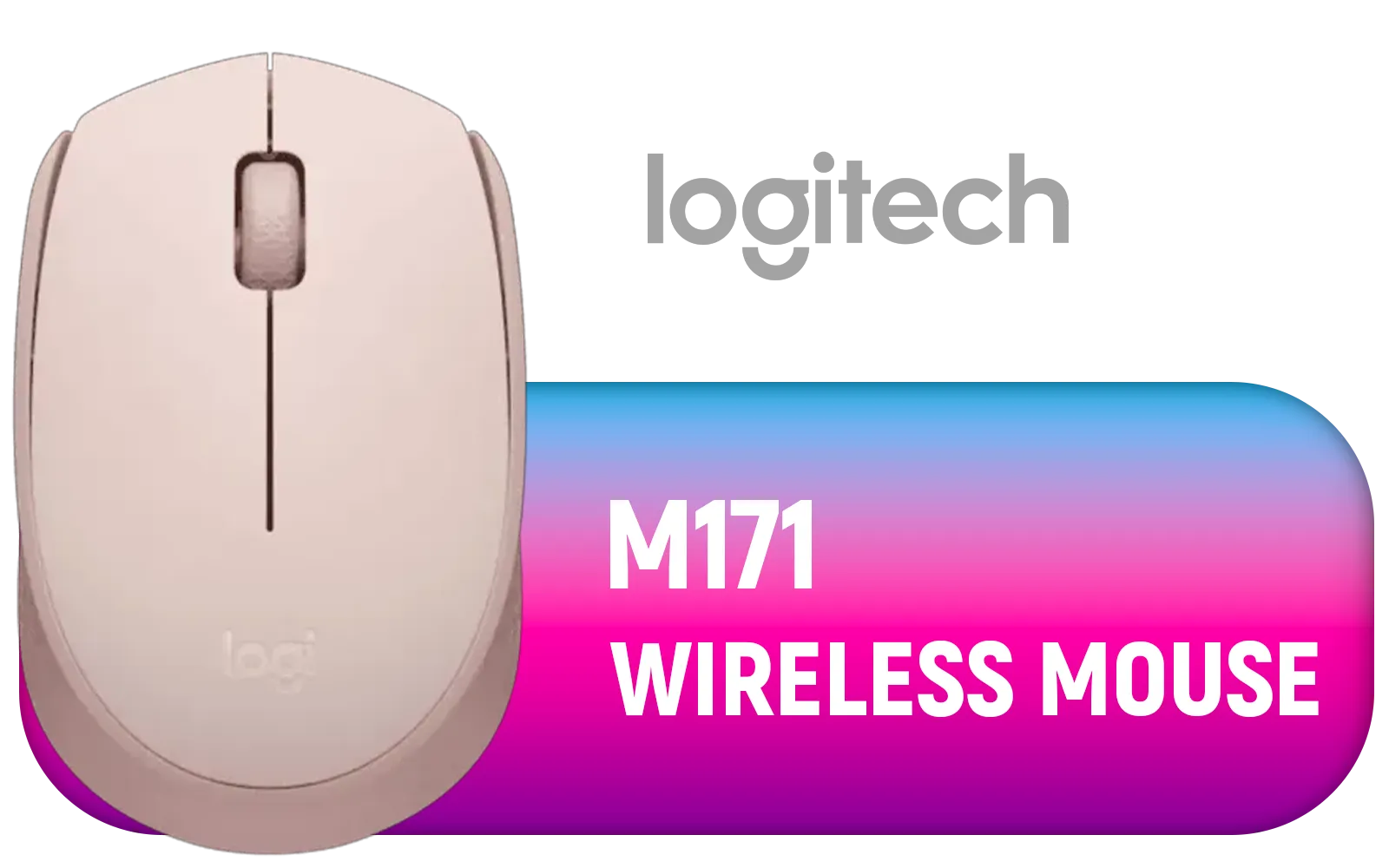
Logitech M171 Wireless Mouse - Pink / Compatible With PC, Mac, Laptop / 2.4 GHz with USB Mini Receiver / Optical Tracking / 12-Months Battery Life / Ambidextrous / 910-006865
R179.00In Stock
1. DPI Sensitivity & On-the-Fly Shifting
Set up at least two DPI levels. A common setup is a lower DPI (400-800) for precise aiming in tactical shooters and a higher DPI (1600+) for general desktop use or fast-paced games. Use the DPI shift button (the thumb "sniper" button) to temporarily drop to your lowest DPI for steady shots.
2. Report Rate (Polling Rate)
Set this to 1000 Hz. Always. This means your mouse reports its position to your PC 1000 times per second, ensuring the lowest possible input lag. There's no reason to use a lower setting for competitive gaming, especially with a high-performance wireless gaming mouse like the G502 Lightspeed.
3. Disable Angle Snapping
Also known as "pointer precision," this setting should be turned off. Angle snapping tries to predict your movement and straighten out lines, which is terrible for the micro-adjustments needed for accurate aiming. You want raw, unfiltered input.
TIP FOR YOU
G-Shift Pro Tip ⚡
G-Shift to the thumb 'sniper' button. This temporarily lowers your DPI for precise aiming. But here's the trick: in G HUB, you can also assign a completely different set of functions to your other buttons while G-Shift is held down. This effectively doubles your available commands, perfect for complex games like MMOs or strategy titles without moving your fingers.
4. Custom Button Assignments
Don't neglect the extra buttons. Map essential functions like push-to-talk, melee, or a specific ability to your side buttons. This keeps your fingers on WASD and reduces reaction time.
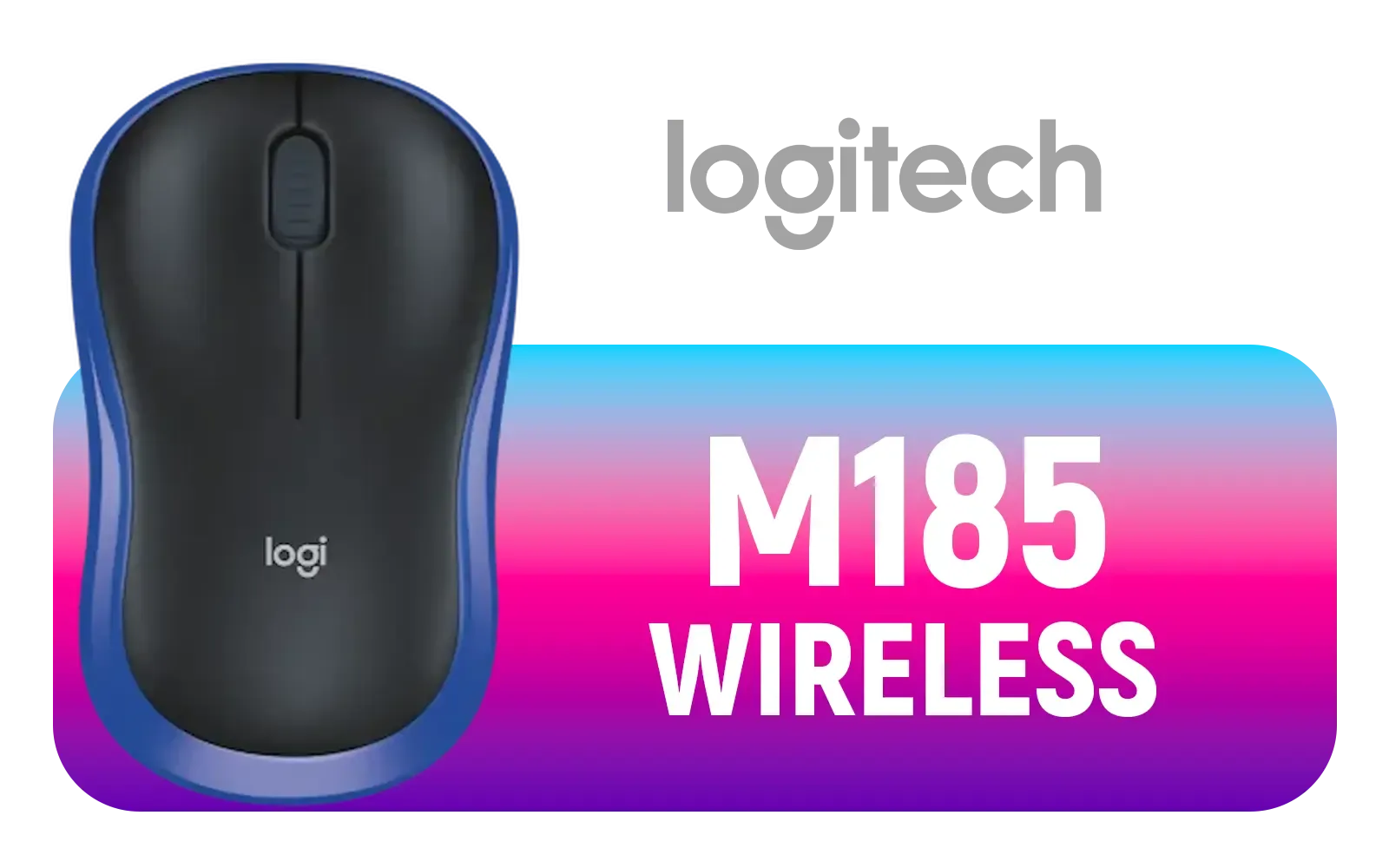
Logitech M185 Wireless Mouse - Blue / 2.4GHz Wireless Connectivity / Plug And Play / 10M Wireless Range / 910-002236
R199.00In Stock
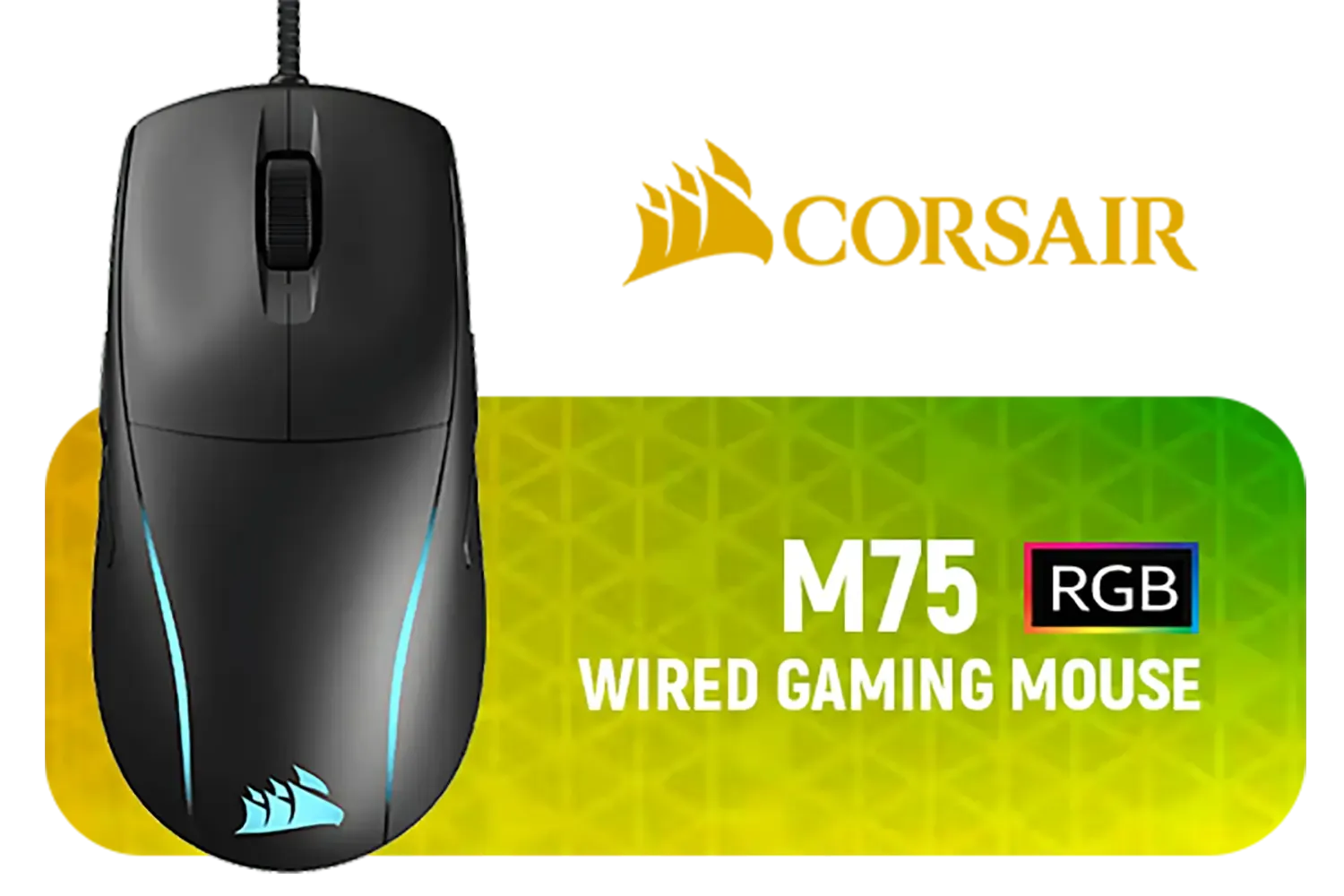
Corsair M75 Lightweight RGB Gaming Mouse (AP) / 1.8m Cable / 26,000 DPI Optical Sensor / Marksman 26K Optical Sensor / CH-930D010-AP
R999.00In Stock
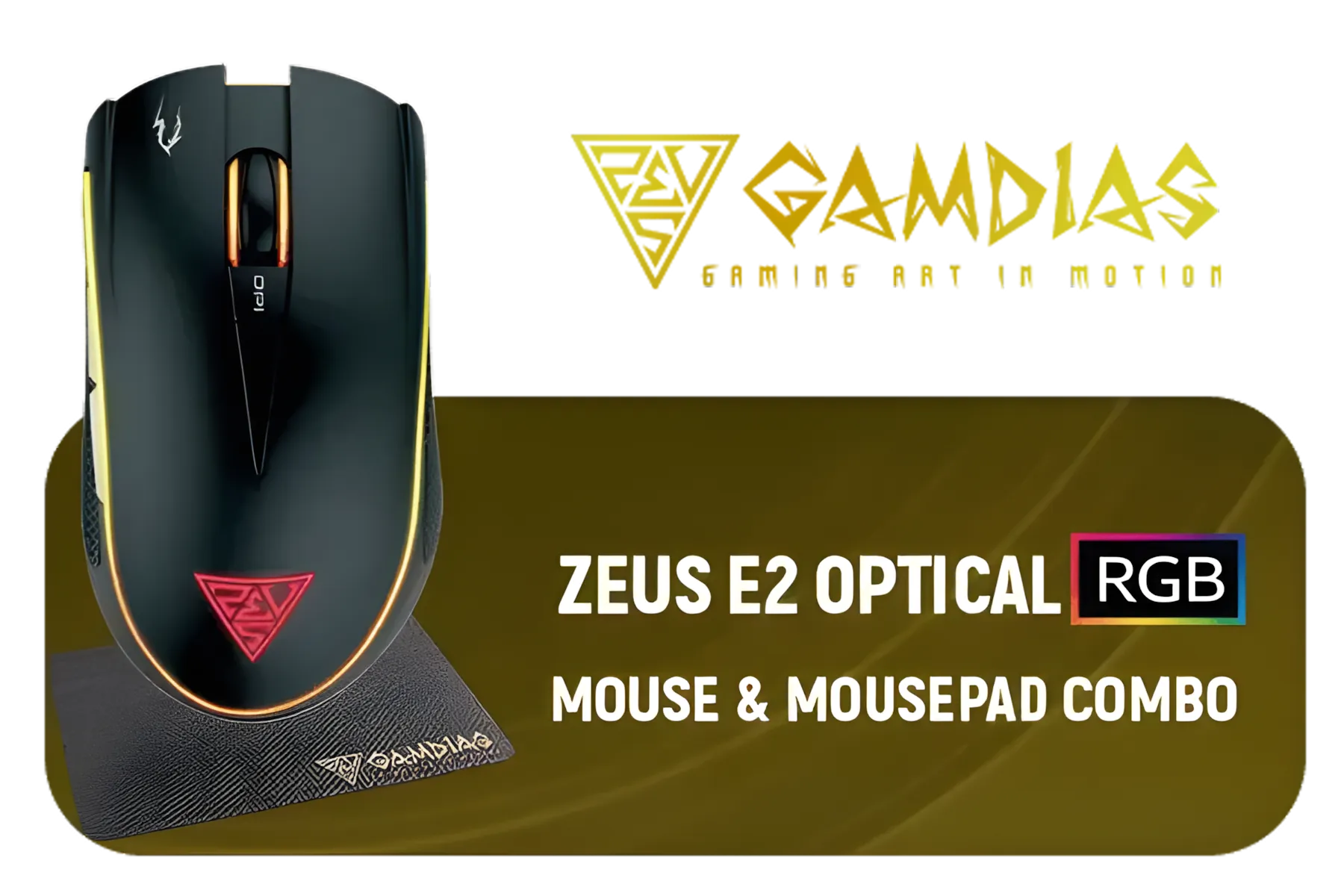
Gamdias ZEUS E2 Optical Gaming Mouse / FREE Included NYX E1 Gaming Mouse Mat / 3200DPI Optical Sensor and switch lifecycle of 3 million clicks / 125Hz Polling Rate / Multi-color breathing lighting / ZEUS E2
R199.00In Stock
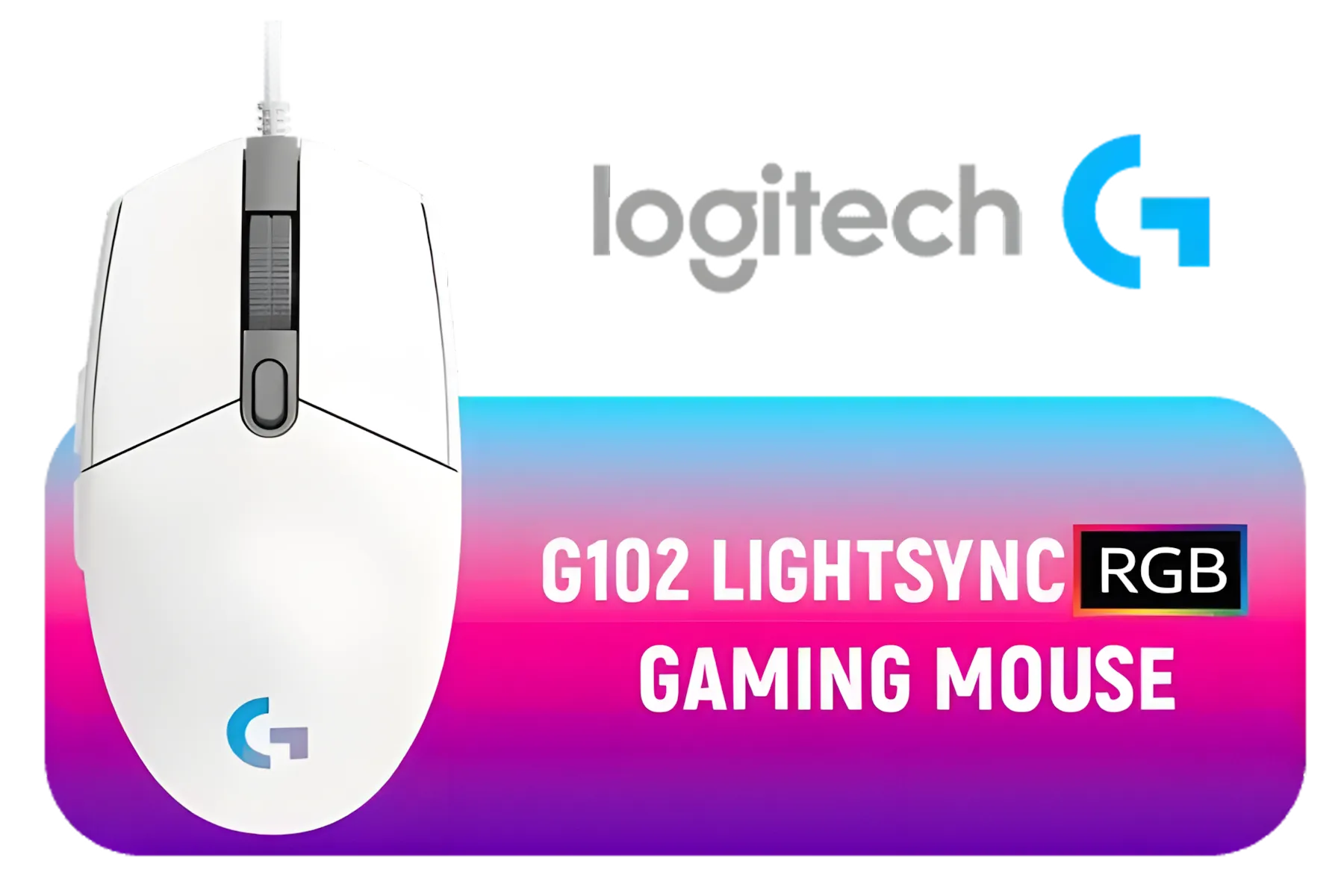
Logitech G102 Lightsync RGB Gaming Mouse - White / 8,000 DPI Gaming-grade Sensor / Fully Customisable LIGHTSYNC RGB / 6 Programmable Buttons / Metal Spring Button / 910-005824
R339.00In Stock
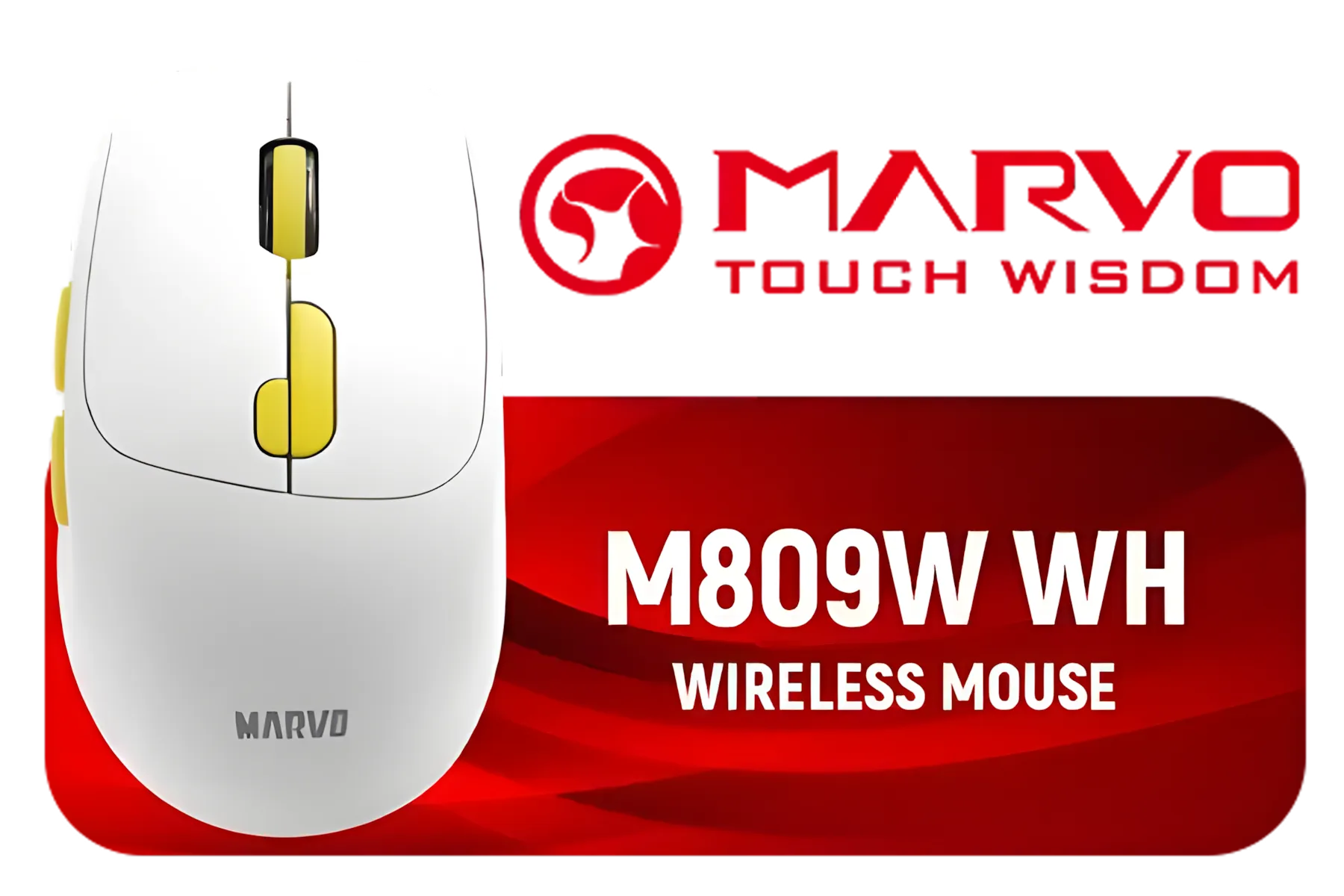
Marvo M809W WH Wireless Mouse / Ergonomic Design / Rechargeable Battery / Dual-Mode Connection / M809W-WH
R249.00In Stock

Glorious G-Skates Mouse Feet (Model D Minus) / Fits the Glorious Model D Minus Gaming Mouse / 0.81mm Thickness / GLO-FT-DM-GSKT
R149.00In Stock
5. Surface Tuning
This is a crucial step many gamers skip. In G HUB, use the surface tuning feature to calibrate the HERO 25K sensor to your specific mousepad. This optimises tracking accuracy and lift-off distance, preventing unwanted cursor movement when you reposition your mouse.
6. Intelligent Lighting
That RGB looks cool, but it drains your battery. For marathon sessions, either dim the brightness or set the lighting to turn off when the mouse is in use. A little extra battery life can be a lifesaver... especially during load-shedding. ✨
7. Weight Tuning
The G502 comes with optional weights. There's no "correct" answer here; it's pure preference. A lighter mouse is easier to flick, while a heavier mouse can feel more stable and deliberate. Experiment to find your perfect balance.
8. On-Board Memory Mode
Once you've perfected your G502 Lightspeed G HUB settings, save the profile directly to the mouse's on-board memory. This ensures your settings work perfectly on any PC, even without G HUB installed—ideal for LANs or tournaments.
9. Profile Management
Create different profiles for different games. Your ideal Valorant settings (low DPI, simple buttons) won't be the same as your World of Warcraft setup (more macros, different keybinds). G HUB can automatically switch profiles when you launch a specific game.
Marvo M809W WH Wireless Mouse / Ergonomic Design / Rechargeable Battery / Dual-Mode Connection / M809W-WH
R249.00In Stock

Logitech G305 Lightspeed Wireless Gaming Mouse - White / Hero 12K Sensor 12,000 max DPI / 6 Programmable Buttons / 250 hours Battery Life / 1ms Wireless Report Rate / 910-005292
R679.00In Stock
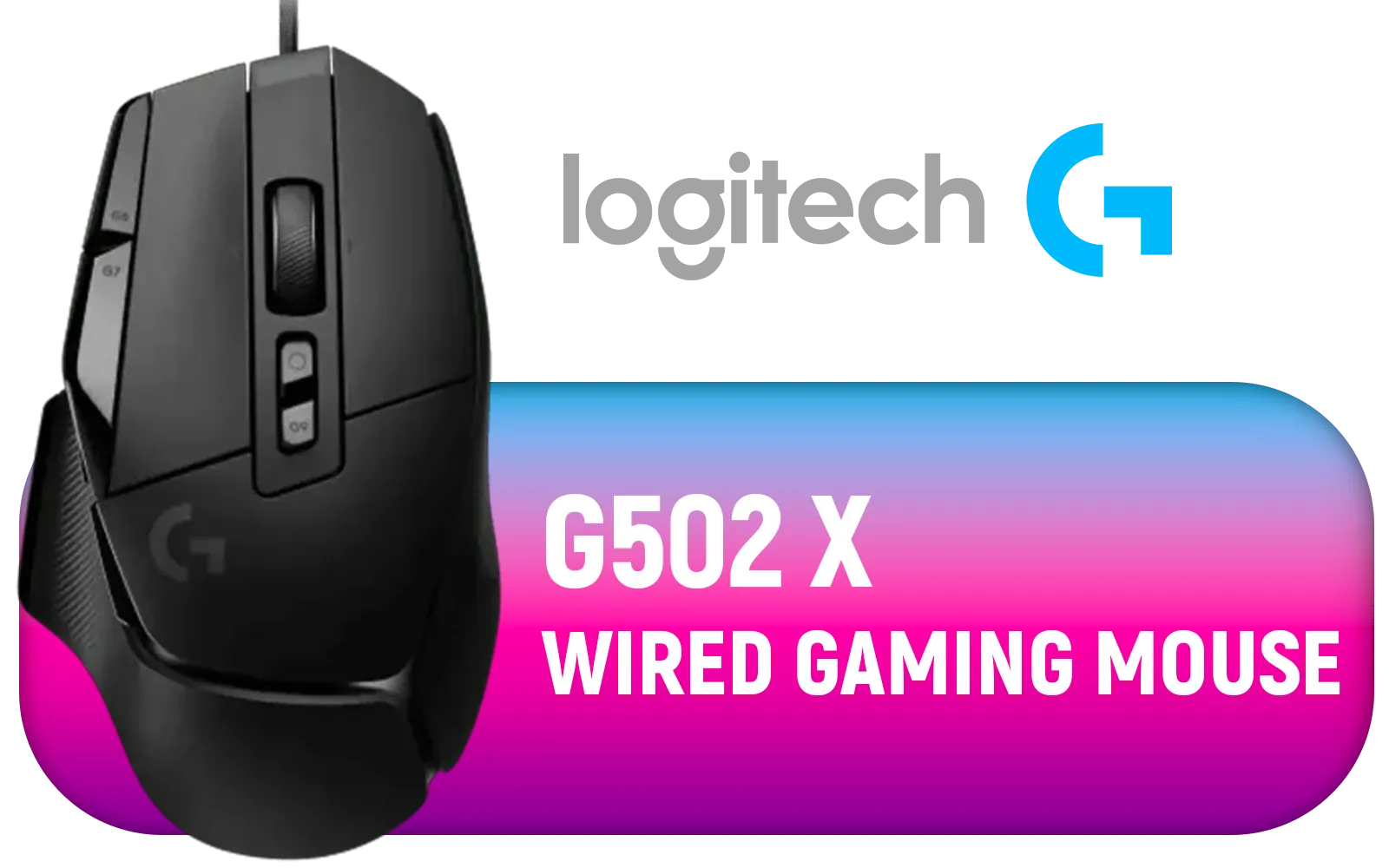
Logitech G502 X Wired Gaming Mouse - LIGHTFORCE hybrid optical-mechanical primary switches, HERO 25K gaming sensor, compatible with PC - macOS/Windows - Black / 910-006139
R1499.00In Stock
Steelseries Rival 710 Optical Gaming Mouse / 12000 CPI / 1ms Poling Rate / 7 Buttons / SteelSeries Mechanical Switches / Customizable OLED Screen / SS62334
R2399.00In Stock
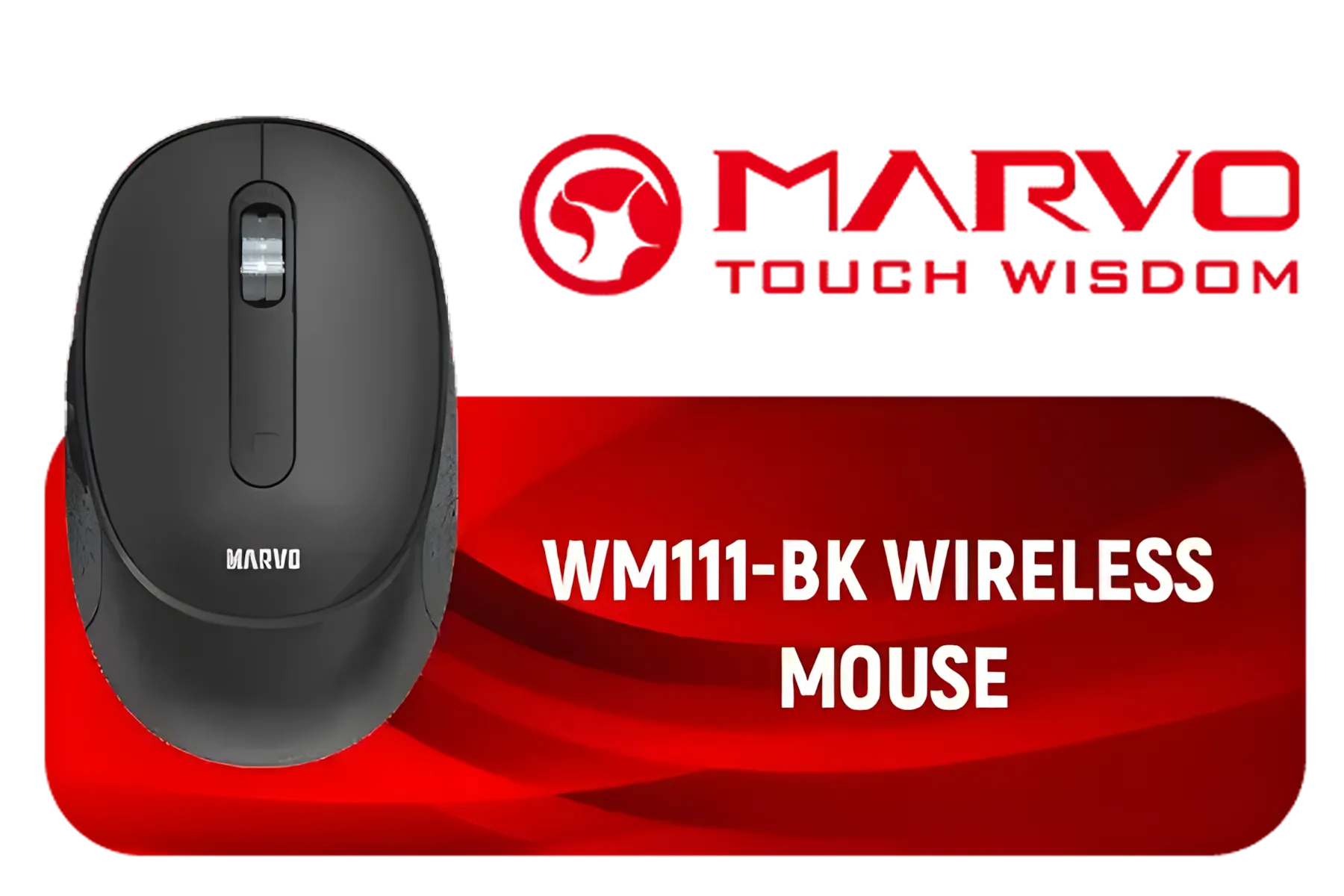
Marvo WM111-BK Wireless Mouse / Up to 1600 DPI / 6 Programmable Buttons / Polling Rate up to 125Hz / WM111-BK
R199.00In Stock
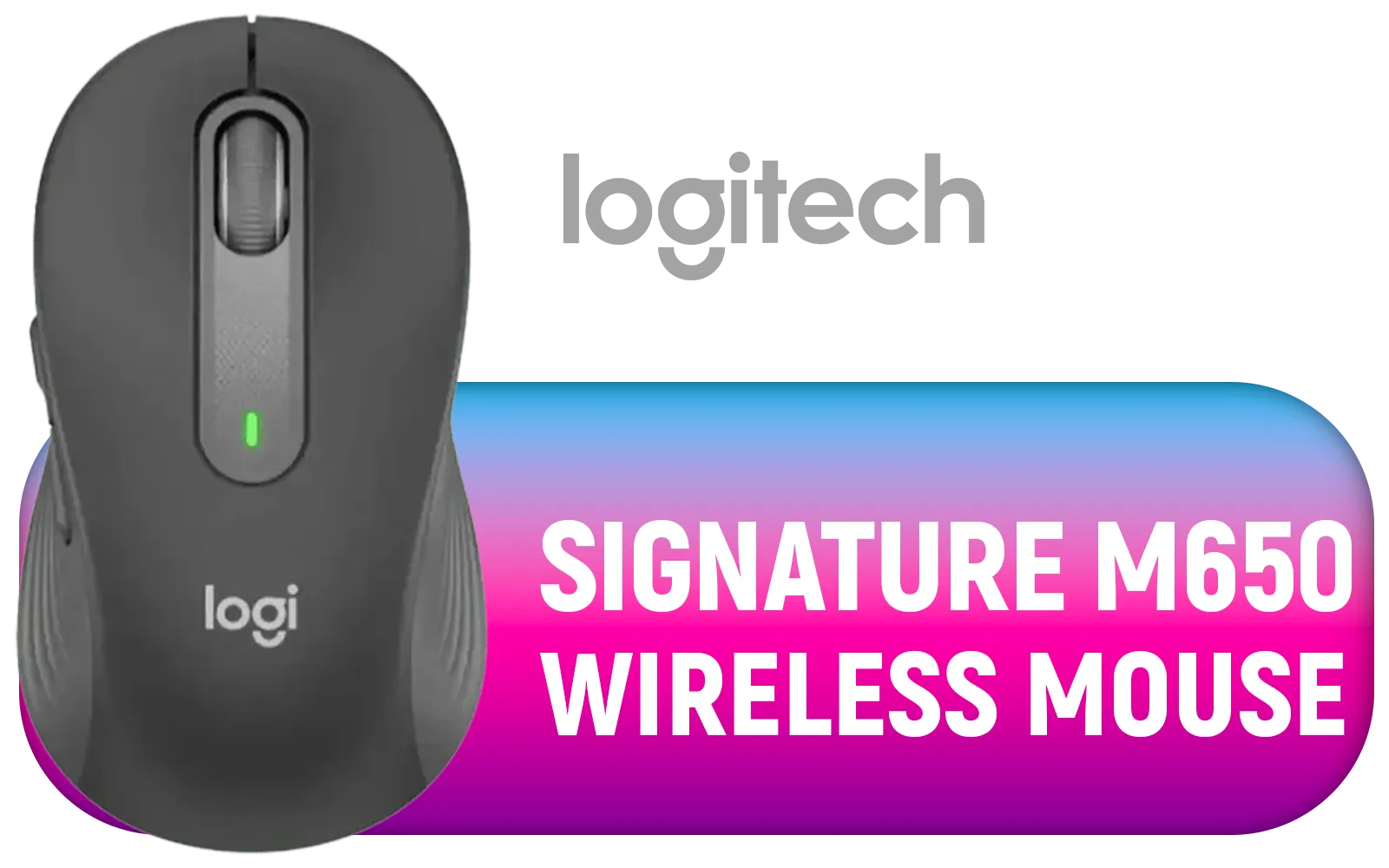
Logitech Signature M650 Wireless Mouse - For Small to Medium Sized Hands, 2-Year Battery, Silent Clicks, Customizable Side Buttons, Bluetooth, for PC/Mac/Multi-Device/Chromebook - Graphite / 910-006253
R649.00In Stock
10. Ditch the Defaults
This final point sums it all up. The best settings are your settings. Use these top 10 points as a starting guide, but spend time in-game tweaking and adjusting. While some pros still swear by the zero-latency connection of a wired gaming mouse, modern wireless tech is virtually indistinguishable and offers total freedom.
Of course, these optimisation principles aren't exclusive to Logitech. Whether you're using a top-tier device or exploring more budget-friendly options like a Marvo Gaming Mouse, taking the time to configure your software is always a worthwhile investment.
Ultimately, a well-tuned mouse is the foundation of any competitive PC gaming setup. Finding the right hardware and dialling in the software is the key to unlocking your true potential on the server. Your journey to better aim starts with the perfect gaming mouse.
Ready to Upgrade Your Clicks? The right settings make a huge difference, but starting with the perfect mouse is key. Whether you're loyal to Logitech or curious about other top brands, we've got the hardware to match your ambition. Explore our massive range of gaming mice and find the perfect tool to conquer the server.
Related Products

Glorious Model O Pro Wireless Gaming Mouse - Blue Lynx / Over 80h Of Battery On a Single Charge / Smoothly Rounded Pure PTFE Feet / Textured Surface For Improved Grip / GLO-MS-OW-BL-FORGE-SN
R799.00In Stock
MARVO M808W Wireless Mouse / Up to 1600 DPI / 6 Programmable Buttons / RGB Backlight / polling rate up to 100Hz / M808W
R199.00In Stock

SteelSeries Rival 3 Wireless Gaming Mouse / 18000 CPI / 1ms Polling Rate / Battery Life Up To 400+ Hours / 40G Acceleration / SteelSeries TrueMove Air Sensor / Quantum 2.0 Wireless / Durable Smart Construction / 62521
R1299.00In Stock

Razer Viper V3 HyperSpeed Wireless Esports Gaming Mouse: 82g Lightweight Design - 30K DPI Optical Sensor - Up to 280 Hr Battery Life - Mechanical Switches Gen-2 - Classic Black / RZ01-04910100-R3M1
R1599.00In Stock
Corsair M75 Lightweight RGB Gaming Mouse (AP) / 1.8m Cable / 26,000 DPI Optical Sensor / Marksman 26K Optical Sensor / CH-930D010-AP
R999.00In Stock

Corsair Harpoon RGB Wireless Gaming Mouse / Advance Optical Sensor With 10,000 DPI / Dynamic RGB Lighting / Up to 60 Hours of Battery Life / Six Fully Programmable Buttons / Ultra-Durable Omron Switches / CH-9311011-AP
R1099.00In Stock
Use 800–1600 DPI, 1000Hz polling, low lift-off, custom button mapping, and enable surface tuner for consistent tracking and minimal input lag.
Open Logitech G HUB, select the G502 profile, adjust DPI stages (eg. 800/1600), and save to profile or onboard memory for matches.
Yes. 1000Hz polling reduces latency for competitive play—confirm stability on your PC and Lightspeed connection before matches.
Enable Surface Tuner in G HUB, disable angle snapping, and test LOD settings on your mousepad to lower lift-off distance.
Yes. G HUB settings like polling, power mode, and firmware updates can reduce wireless input lag on Lightspeed mice.
Assign core actions to primary buttons, map utilities to easy-reach keys, avoid heavy macros, and create game-specific profiles in G HUB.
Yes. Save DPI stages, profiles, and key mappings to the G502 onboard memory via G HUB for consistent settings without software.











