



Gaming PC Setup Guide: Drivers, Software, and Bloatware Removal
Master your gaming pc setup guide with our step-by-step walkthrough! 🚀 From installing essential drivers to removing pesky bloatware, we ensure your rig runs at peak performance. Get ready to game without the lag! 🎮
|
Loading tags...
So, you’ve just unboxed your shiny new gaming rig. The smell of fresh components is in the air, and the protective plastic is satisfyingly peeled off. But before you jump into Apex Legends, that first hour is crucial. This gaming PC setup guide is your ultimate checklist to ensure your machine runs at peak performance from day one, transforming it from a powerful box into a perfectly tuned gaming weapon. Let's get it done. 🔧
AMD RYZEN 5 3600 4.2GHz A400 4GB Workstation PC
R9449.00In Stock
Intel 14th Gen Core i3 14100F 4.7GHz GT 710 2GB PC
R9869.00In Stock

Intel Core Ultra 5 225F ARC A380 6GB Gaming PC
R14174.00In Stock
Intel Core Ultra 7 265K 5.5GHz RX 9070 XT 16GB DDR5 Gaming PC
R40109.00In Stock
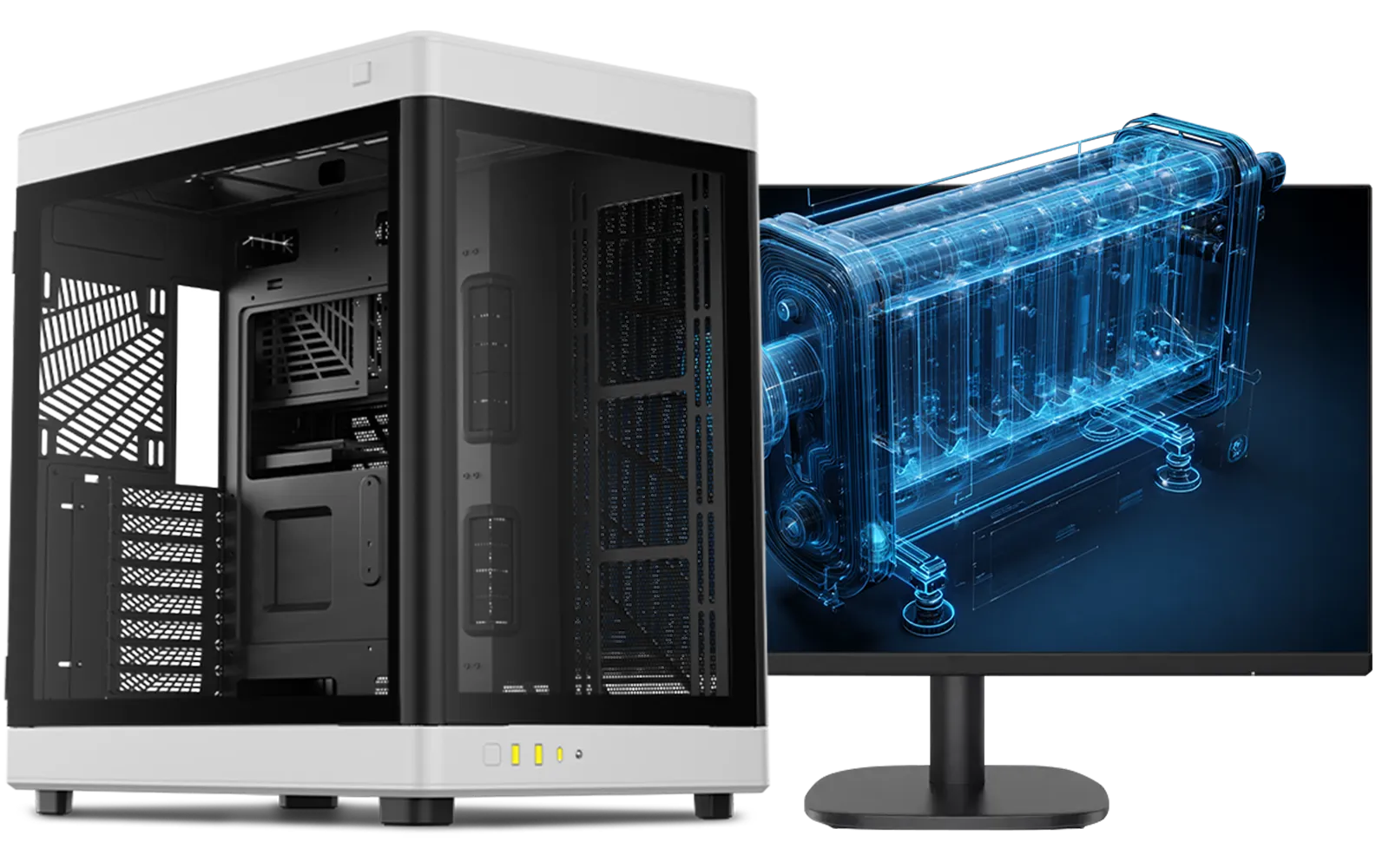
Intel Core Ultra 7 265K RTX Pro 4500 DDR5 Workstation PC
R77909.00In Stock
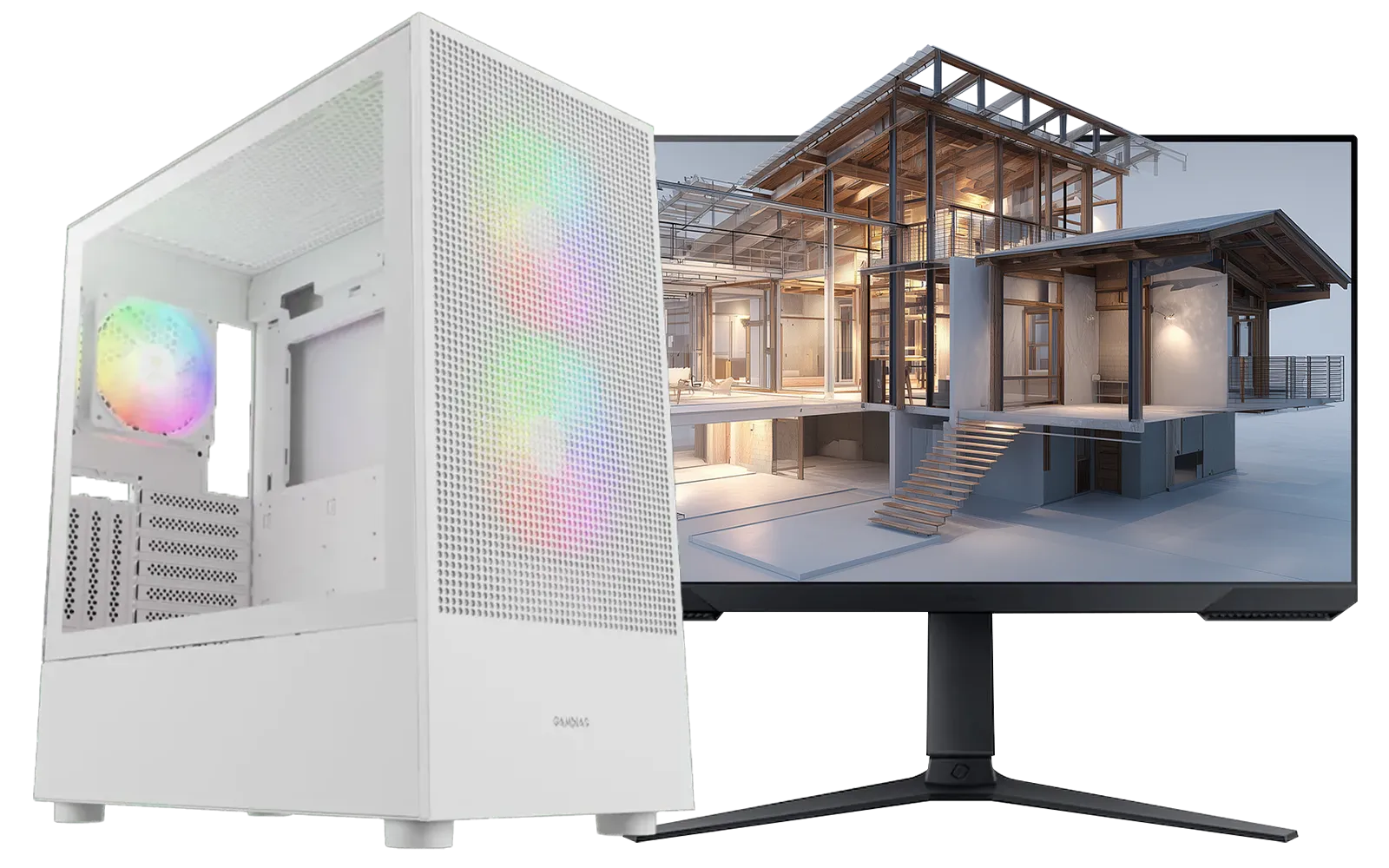
AMD RYZEN 7 5700 4.6GHz A1000 8GB Workstation PC
R20159.00In Stock
Mastering Your Drivers: The First Step in Any Gaming PC Setup
Think of drivers as the language your components use to talk to each other. Outdated or generic drivers can cause stuttering, crashes, and leave serious performance on the table. This is the non-negotiable first step for setting up your gaming PC.
### Graphics Card (GPU) Drivers
This is the big one. Your GPU is the heart of your gaming experience, and it needs the latest software to truly shine.
- For NVIDIA Cards: Head straight to the NVIDIA website and download GeForce Experience. It not only fetches the latest "Game Ready" drivers but also lets you optimise game settings with a single click.
- For AMD Cards: Grab the AMD Software: Adrenalin Edition. This package includes everything you need to control your graphics settings and keep your drivers updated.
When installing, always look for a "Clean Installation" option. This removes old versions completely, preventing potential conflicts. This is especially vital for high-performance PCs over R20k, where every frame counts.
### Chipset Drivers
The unsung hero of your PC's stability. Chipset drivers manage the flow of data across your motherboard, from your CPU to your USB ports. Grab the latest version directly from Intel's or AMD's website based on your motherboard's chipset (e.g., B760, X670E). A stable foundation is key.
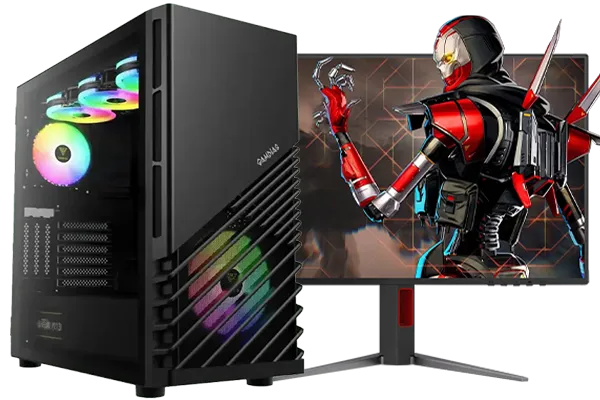
RYZEN 7 5700 4.6GHz RTX 5060 Ti 16GB Budget Gaming PC
R20264.00In Stock
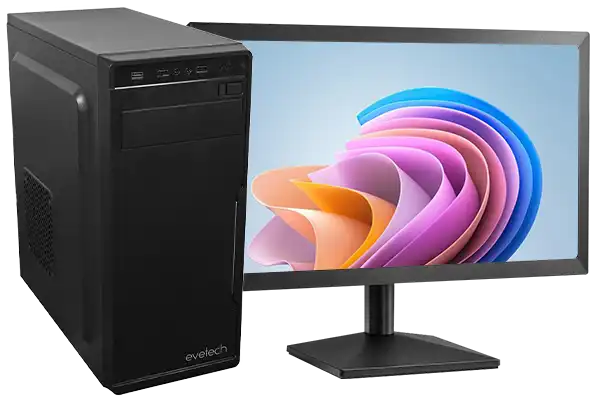
Intel Core Ultra 5 225F 4.9GHz A400 4GB DDR5 Workstation PC
R14174.00In Stock
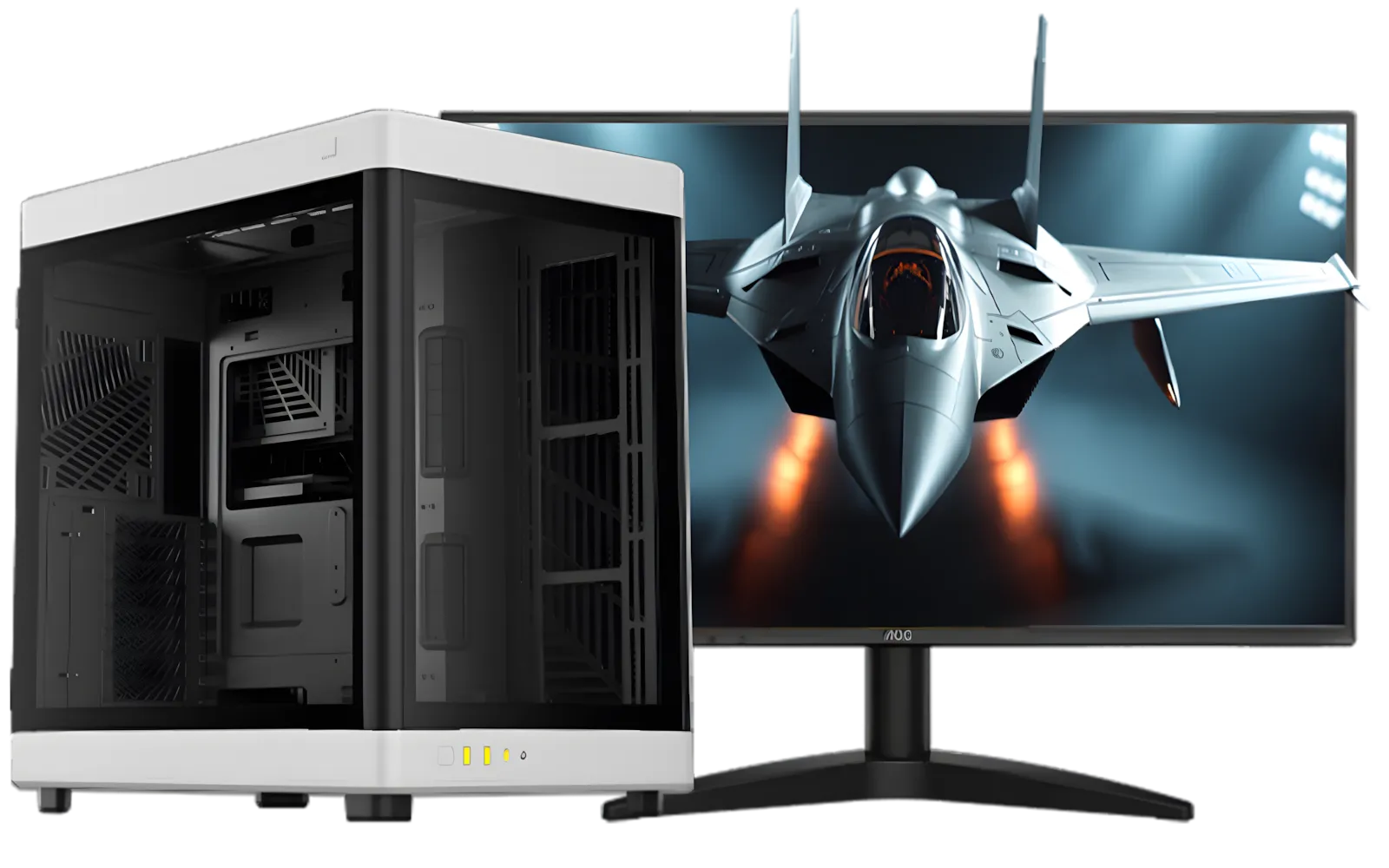
RYZEN 7 9700X RTX Pro 2000 DDR5 Workstation PC
R35699.00In Stock
RYZEN 5 9600X 5.4GHz A1000 8GB DDR5 Workstation PC
R25199.00In Stock
Intel 14th Gen Core i3 14100F 4.7GHz GT 710 2GB PC
R9869.00In Stock
![[Pre Built] HP OMEN 35L B1ZR4EA Intel Core Ultra 7 265K RTX 4080 SUPER Gaming PC](https://img.evetech.co.za/repository/ProductImages/intel-core-ultra-7-265-k-rtx-4080-super-gaming-pc-pbs-main-1600px-v1.webp)
[Pre Built] HP OMEN 35L B1ZR4EA Intel Core Ultra 7 265K RTX 4080 SUPER Gaming PC
R49349.00In Stock
Equipping Your Rig: Essential Software for Gamers
With drivers sorted, it's time to install the essential toolkit every gamer needs. Beyond the obvious launchers like Steam and the Epic Games Store, a few key utilities will make your life easier.
- Discord: The standard for in-game chat and community.
- MSI Afterburner: Don't let the name fool you; it works with most graphics cards. It's the gold standard for monitoring your PC's temperatures, clock speeds, and frame rates in real-time.
- Your Preferred Browser: Chrome, Firefox, Brave… your call.
- Windows Defender: Honestly, for most gamers, the built-in Windows security is excellent and has a very low performance impact.
This core software suite is a must-have, whether you're running one of our beastly powerful rigs under R20k or a custom-built monster.
TIP FOR YOU
Streamline Your Installs ⚡
Use a website called Ninite. It allows you to select all your favourite free applications (like Steam, Discord, Chrome, etc.) in one go and creates a single, custom installer that downloads and installs them all for you... completely hands-free and with no bundled adware. It's a massive time-saver for any new PC setup.
The Bloatware Purge: Reclaiming Your PC's Speed 🚀
Bloatware is any unwanted, pre-installed software that clutters your system and consumes resources. While we keep our pre-built PC deals as clean as possible, Windows itself comes with a few things you might not need. A proper bloatware removal is a critical part of a good gaming PC setup.
Head to Settings > Apps > Installed apps in Windows 11. Sort by "Install date" and carefully review what's there.
What to look for:
- Trial Antivirus Software: If you see a trial for McAfee or Norton, and you plan to use Windows Defender, uninstall it.
- Manufacturer Utilities: Some are useful (like fan control software), but many are not. If you're not sure what something does, a quick Google search will tell you if it's safe to remove.
- Pre-installed Games: Unless you plan on playing them, free up that disk space.
This step is especially beneficial for our budget gaming PCs, where freeing up every bit of RAM and CPU power directly translates to smoother gameplay.
![[Pre Built] Intel Core Ultra 9 285K RTX 5080 Gaming PC](https://img.evetech.co.za/repository/ProductImages/intel-core-ultra-9-285-k-rtx-5080-gaming-pc-48-gb-main-1600px-v1.webp)
[Pre Built] Intel Core Ultra 9 285K RTX 5080 Gaming PC
R76649.00In Stock
Intel Core Ultra 5 225F ARC A380 6GB Gaming PC
R14174.00In Stock
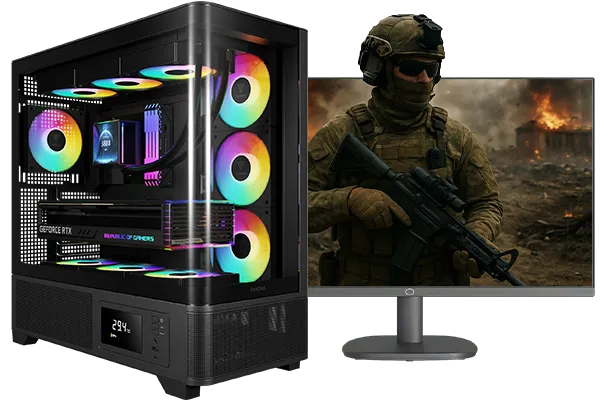
Ryzen 5 9600X 5.4GHz RTX 5060 8GB DDR5 Budget Gaming PC
R21524.00In Stock
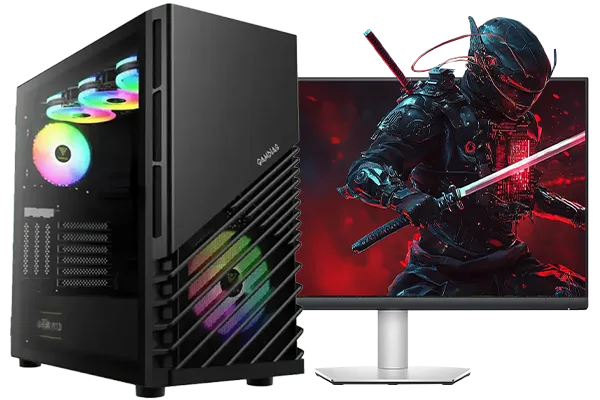
AMD RYZEN 7 5700 4.6GHz RX 9060 XT 16GB Gaming PC
R19634.00In Stock
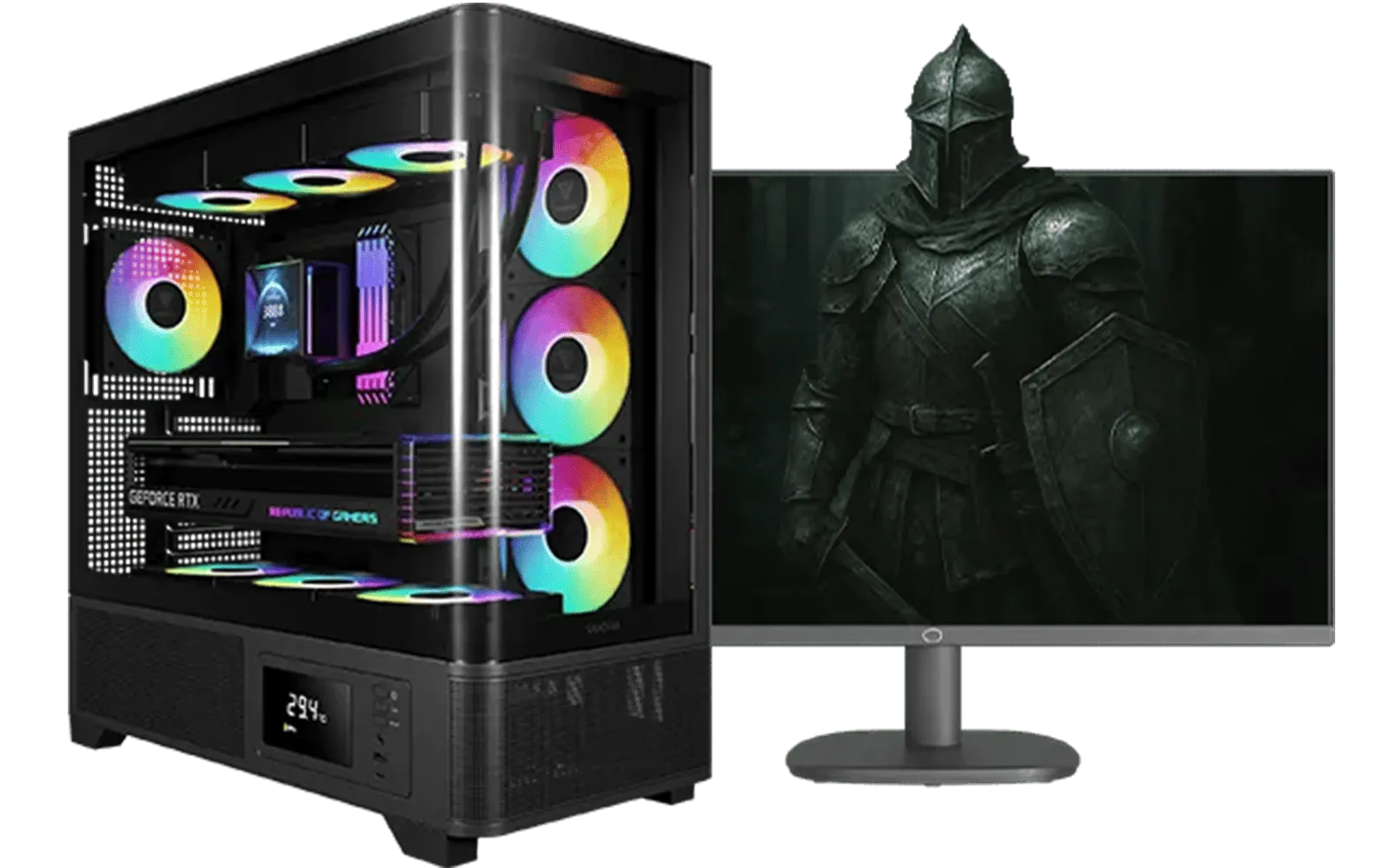
AMD RYZEN 5 3600 RTX 3050 Budget Gaming PC
R11024.00In Stock
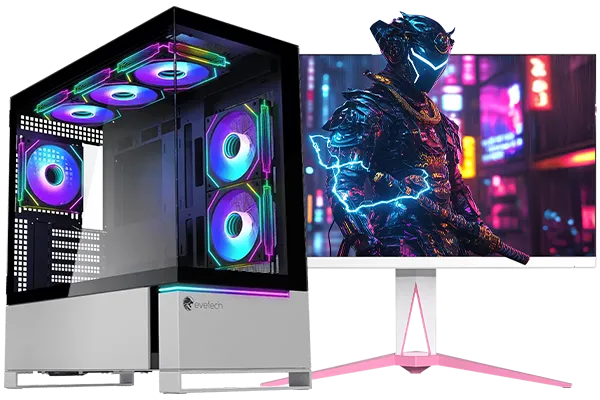
RYZEN 7 9800X3D 5.2GHz RTX 5080 16GB DDR5 Gaming PC
R51869.00In Stock
Final Tweaks for Peak Performance ✨
You're almost there! These final optimisations will unlock your hardware's full potential.
- Enable XMP / EXPO: Restart your PC and enter the BIOS (usually by pressing DEL or F2 on startup). Find the setting called XMP (for Intel) or EXPO (for AMD) and enable it. This makes your RAM run at its advertised speed, not the slower default.
- Set Your Monitor's Refresh Rate: Right-click your desktop, go to Display settings > Advanced display, and make sure your refresh rate is set to the maximum your monitor supports (e.g., 144Hz, 165Hz). Windows often defaults to 60Hz!
- Run Windows Update: Finally, run Windows Update one last time to catch any final security patches or system updates.
And that's it. Your PC is now a clean, mean, gaming machine. You've completed the essential gaming PC setup. Now go on... your games are waiting.
Ready for a Fresh Start? A clean, perfectly optimised rig makes all the difference. Whether you're upgrading or buying your first PC, this guide ensures you get the best performance from day one. Explore our best gaming PC deals and find the perfect machine to conquer your world.
Related Products
![[Pre Built] AMD RYZEN 7 5700 RTX 5060 Gaming PC](https://img.evetech.co.za/repository/ProductImages/ryzen-7-5700-rtx-5060-gaming-pc-pbs-main-1600px-v1.webp)
[Pre Built] AMD RYZEN 7 5700 RTX 5060 Gaming PC
R18794.00In Stock
![[Pre Built] Intel Core Ultra 7 265K RTX 5070 Gaming PC](https://img.evetech.co.za/repository/ProductImages/intel-core-ultra-7-265-kf-rtx-5070-gaming-pc-pbs-main-1600px-v1.webp)
[Pre Built] Intel Core Ultra 7 265K RTX 5070 Gaming PC
R38114.00In Stock
RYZEN 5 8500G 5.0GHz with Vega Graphics DDR5 PC
R11024.00In Stock
RYZEN 7 9700X RTX Pro 2000 DDR5 Workstation PC
R35699.00In Stock
AMD RYZEN 7 5700 4.6GHz RX 9070 16GB Gaming PC
R28349.00In Stock
[Pre Built] HP OMEN 35L B1ZR4EA Intel Core Ultra 7 265K RTX 4080 SUPER Gaming PC
R49349.00In Stock
Start by running Windows Updates immediately. This ensures your operating system has the latest security patches and stability fixes before installing games.
Download the latest drivers directly from the manufacturer's website (NVIDIA or AMD) or use their suites like GeForce Experience to ensure optimal FPS.
Bloatware consumes valuable system resources like RAM and CPU cycles. Removing it streamlines background processes, resulting in smoother gaming performance.
Updating the BIOS is crucial for system stability and hardware compatibility, especially with newer CPUs, but follow instructions carefully to avoid errors.
Prioritize a web browser, game launchers like Steam or Epic Games, Discord for comms, and hardware monitoring tools to check temps during your initial setup.
Navigate to Windows Display Settings > Advanced Display. confirm the refresh rate matches your monitor's maximum Hz (e.g., 144Hz) for fluid motion.











