



How to Enable 180Hz Refresh Rate on Windows & Drivers
Learn how to enable 180Hz refresh rate settings in Windows and GPU drivers to unleash your monitor's full potential. 🖥️ Don't settle for 60Hz smoothness when you paid for speed! Follow our guide to fix display bottlenecks and optimize gameplay. 🚀
|
Loading tags...

You've just unboxed that brand new 180Hz monitor, plugged it in, and are ready for some silky-smooth gaming. But hold on... does the gameplay feel as fluid as you expected? Often, high-refresh-rate monitors default to a standard 60Hz setting right out of the box. Don't worry, you haven't been short-changed! You just need to tell Windows and your graphics card to unleash the full power. This guide shows you exactly how to enable your 180Hz refresh rate. 🚀

VIEWSONIC VX2758A-2K-PRO-3 27" 2K Gaming Monitor / 240Hz Refresh Rate / 1ms MPRT Response Time / AMD FreeSync™ Premium & NVIDIA G-Sync Compatible / Dual HDMI & DisplayPort Inputs / VX2758A-2K-PRO-3
R5499.00In Stock
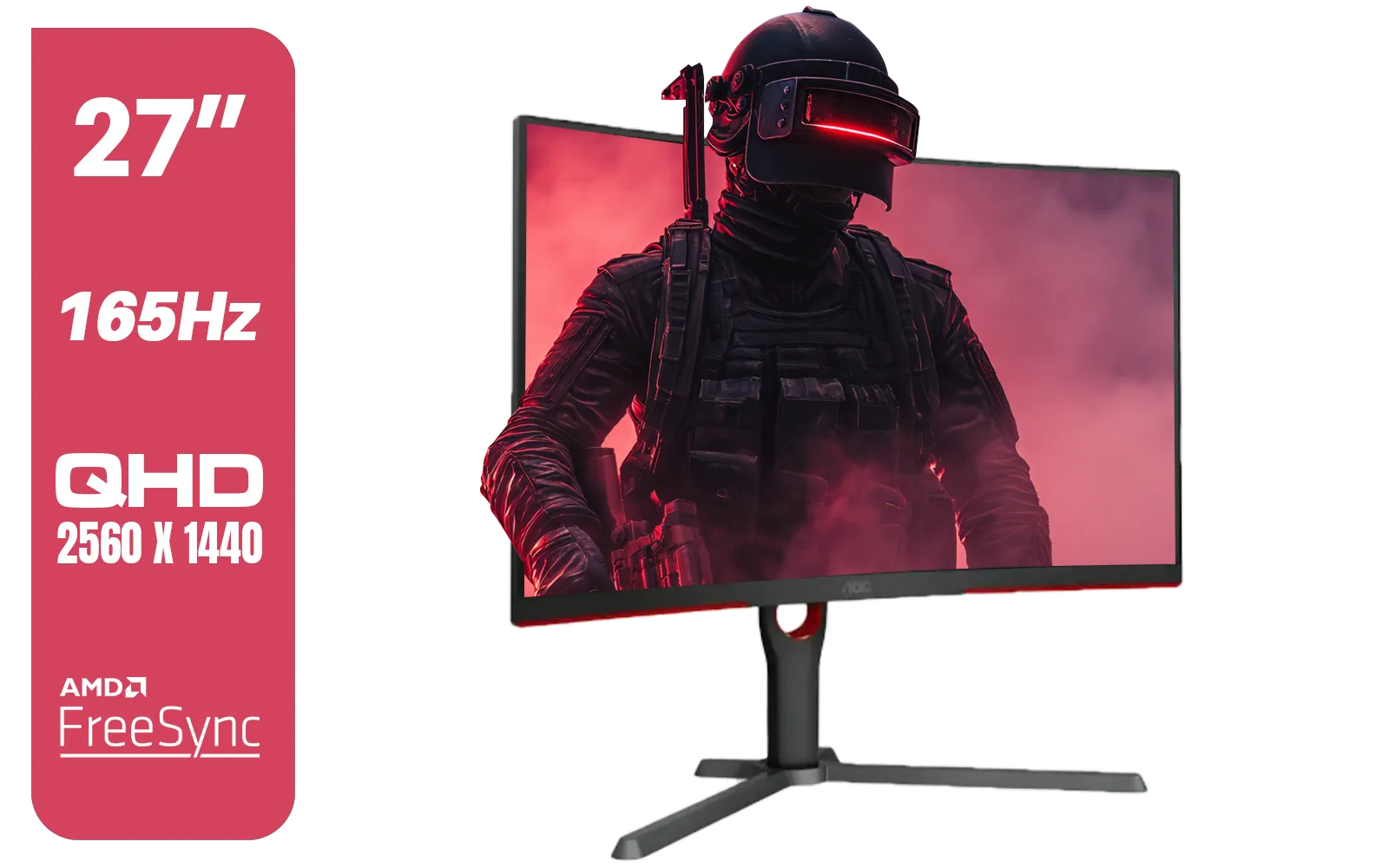
AOC CQ27G3S 27" QHD (2560x1440) 165Hz 1ms VA Curved FreeSync HDR Gaming Monitor / Superior High Quality Viewing / Ultra-smooth Tear-free Gaming / Enjoy top-tier Gaming Performance / Instant Response Times / Illuminate Your Visuals / Reducing Shortwave Blue Light / CQ27G3S
R6399.00In Stock
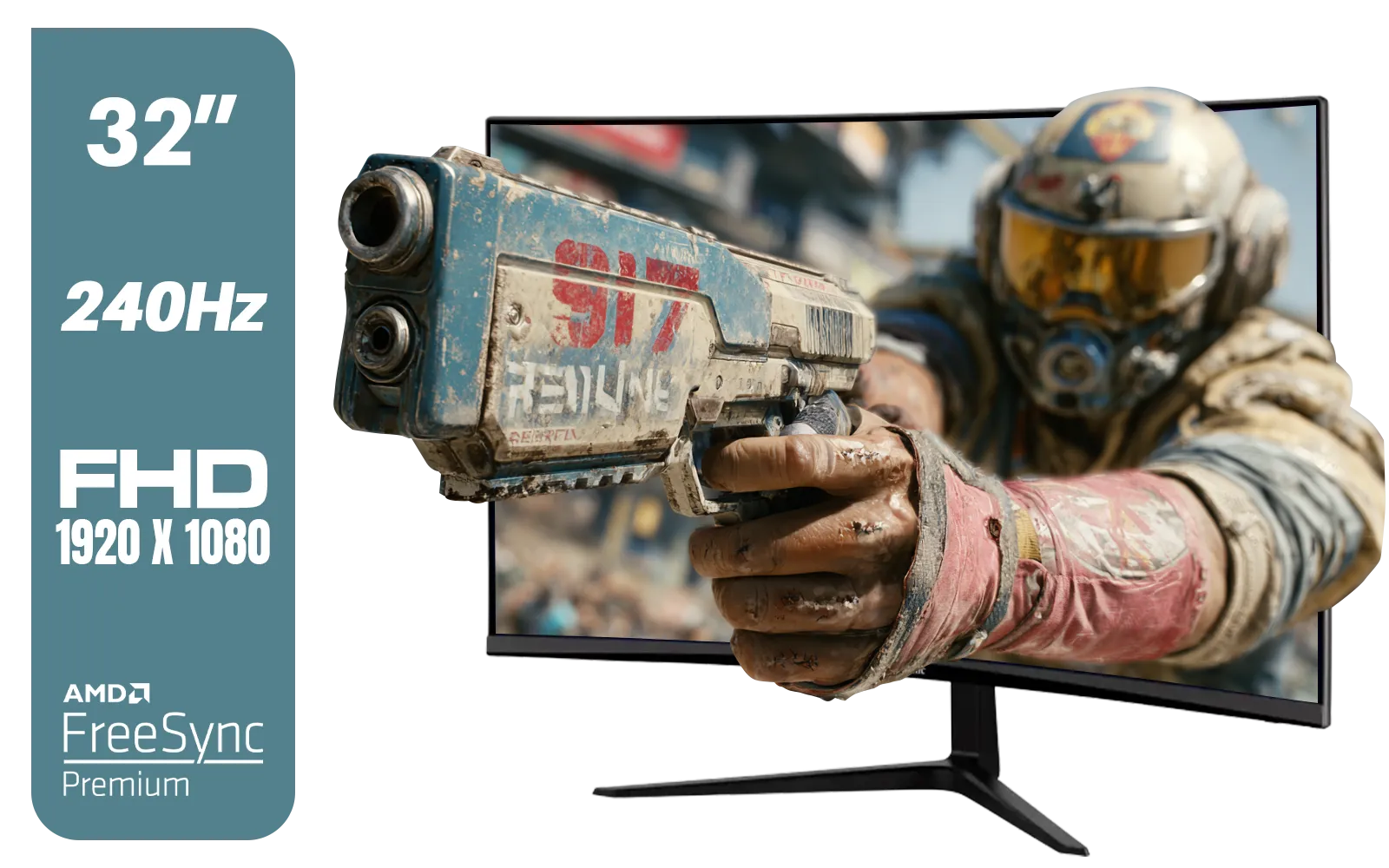
ViewSonic VX3219 32" Curved Gaming Monitor / Full HD (1920 x 1080) / 240Hz Refresh Rate / 1ms MPRT Response Time / Adaptive Sync Prevents Screen Tearing / 1500R Curve Ultimate Immersion / VX3219-PC-MHD-SN
R4899.00In Stock
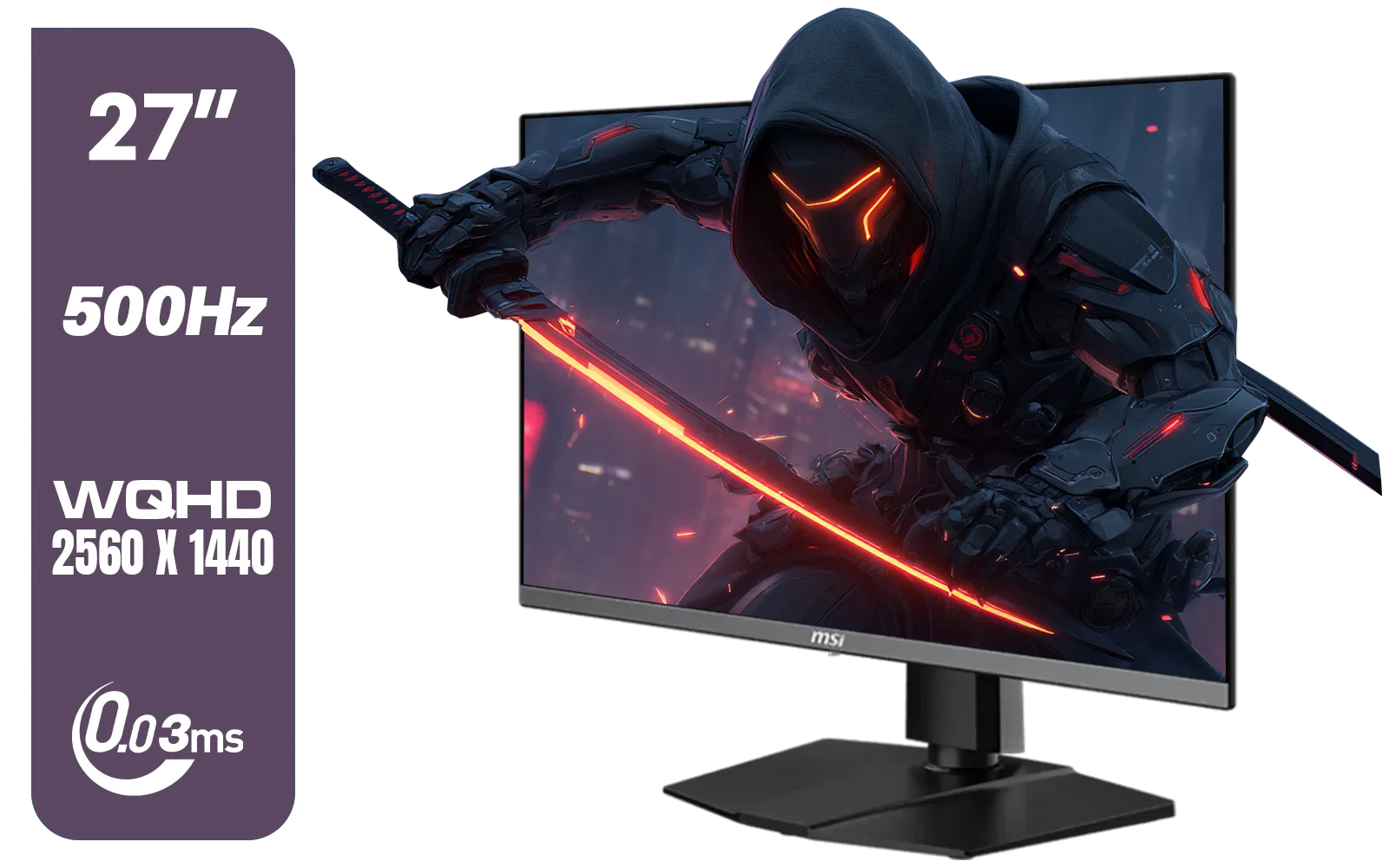
MSI MAG 272QP 27" 2560 x 1440 (WQHD) QD-OLED Monitor / 0.03ms GtG Response Time / 500Hz Refresh Rate / VESA DisplayHDR True Black 500 / Optimized for PS5 & Xbox / 9S6-3CD79A-071
R18999.00In Stock

ViewSonic VA1903H-2 19” WXGA Monitor / 5ms / (1366x768) TN display / Anti-Glare / VA1903H-2
R1299.00In Stock
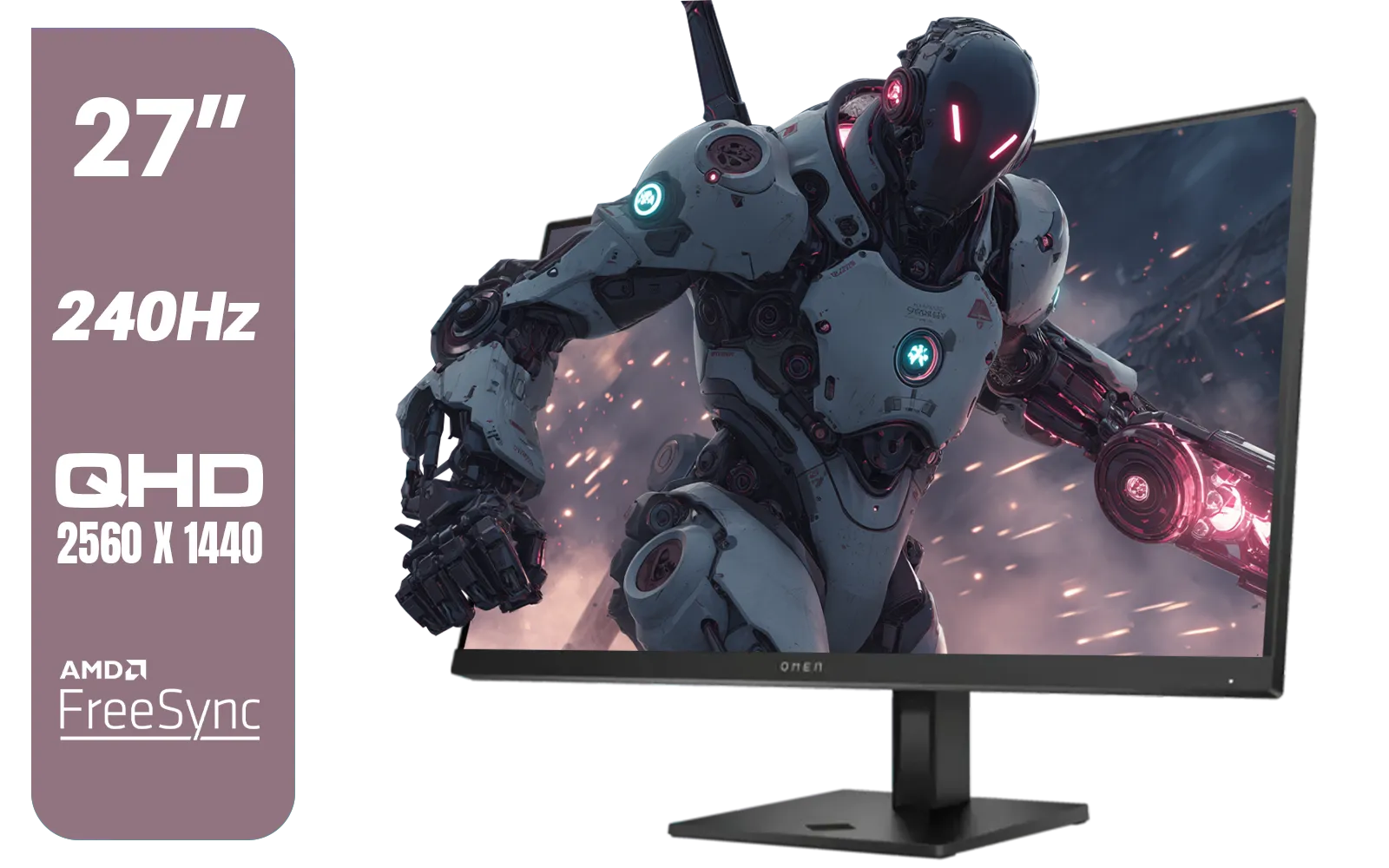
HP OMEN 27qs QHD 240Hz Gaming Monitor / QHD Resolution (2560 x 1440) / AMD FreeSync™ Premium / Eyesafe® certified / Height Adjustable Stand / Pivot Rotation Functionality / 780J4AS
R13499.00In Stock
Why You Need to Manually Set Your Refresh Rate
Think of it this way: your PC is trying to be efficient. By default, Windows often chooses a 60Hz refresh rate because it works with nearly any screen and uses less power. It doesn't automatically know your new screen is a high-performance beast. To get the competitive edge and visual smoothness you paid for, you need to dive into the settings and manually select the correct refresh rate. It's a quick, one-time fix that unlocks your monitor's true potential.
Most modern PC monitors with high refresh rates require this simple tweak to perform at their peak.
How to Enable 180Hz Refresh Rate in Windows 11
Getting your monitor running at its advertised speed is straightforward. Just follow these steps in Windows, and you'll be enjoying buttery-smooth visuals in no time.
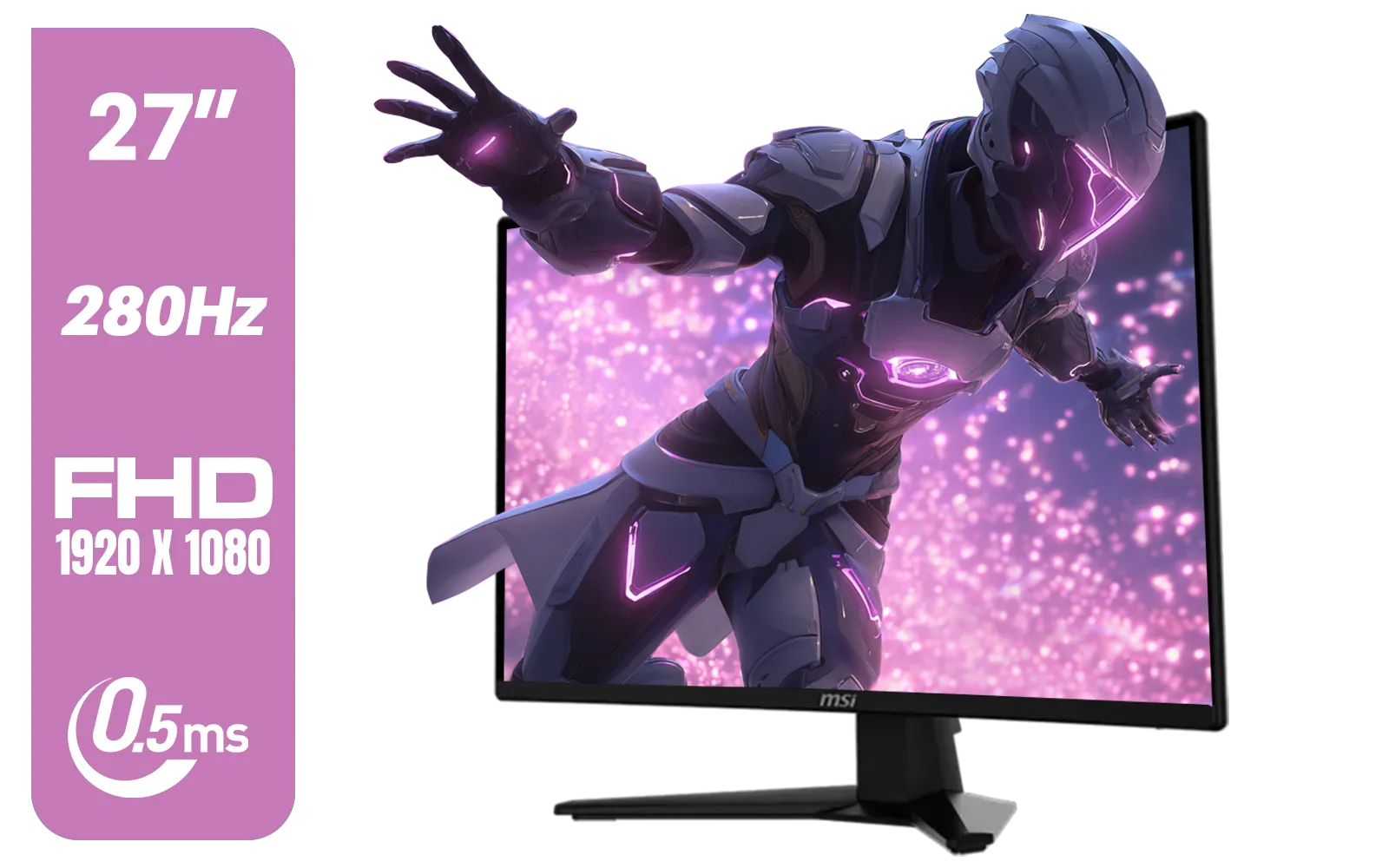
MSI MAG 274CXF Monitor / 27" FHD (1920x1080) Rapid VA Display / 280Hz Refresh Rate / Curved 1500R / 0.5ms Response Time / AMD FreeSync™ Premium / 9S6-3CE31T-028
R4999.00In Stock

ViewSonic TD1655 15.6" Full HD (1920 x 1080) Portable Touchscreen Monitor / Ultra-portable Design / Advanced in-cell Capacitive Touchscreen / 2-Way Power With USB Type-C / Frameless Design / Portrait and Landscape Modes / dual integrated speakers / TD1655
R5199.00In Stock

MSI G321Q 31.5" WQHD IPS 2K Flat Monitor, 170Hz Refresh Rate, 1ms MPRT Response Time, 1.07B Display Colors, 16:9 Aspect Ratio, 1200:1 Contrast Ratio, G-Sync / AMD Freesync, HDR, Black / 9S6-3DB91A-041
R6999.00In Stock
AOC CQ27G3S 27" QHD (2560x1440) 165Hz 1ms VA Curved FreeSync HDR Gaming Monitor / Superior High Quality Viewing / Ultra-smooth Tear-free Gaming / Enjoy top-tier Gaming Performance / Instant Response Times / Illuminate Your Visuals / Reducing Shortwave Blue Light / CQ27G3S
R6399.00In Stock
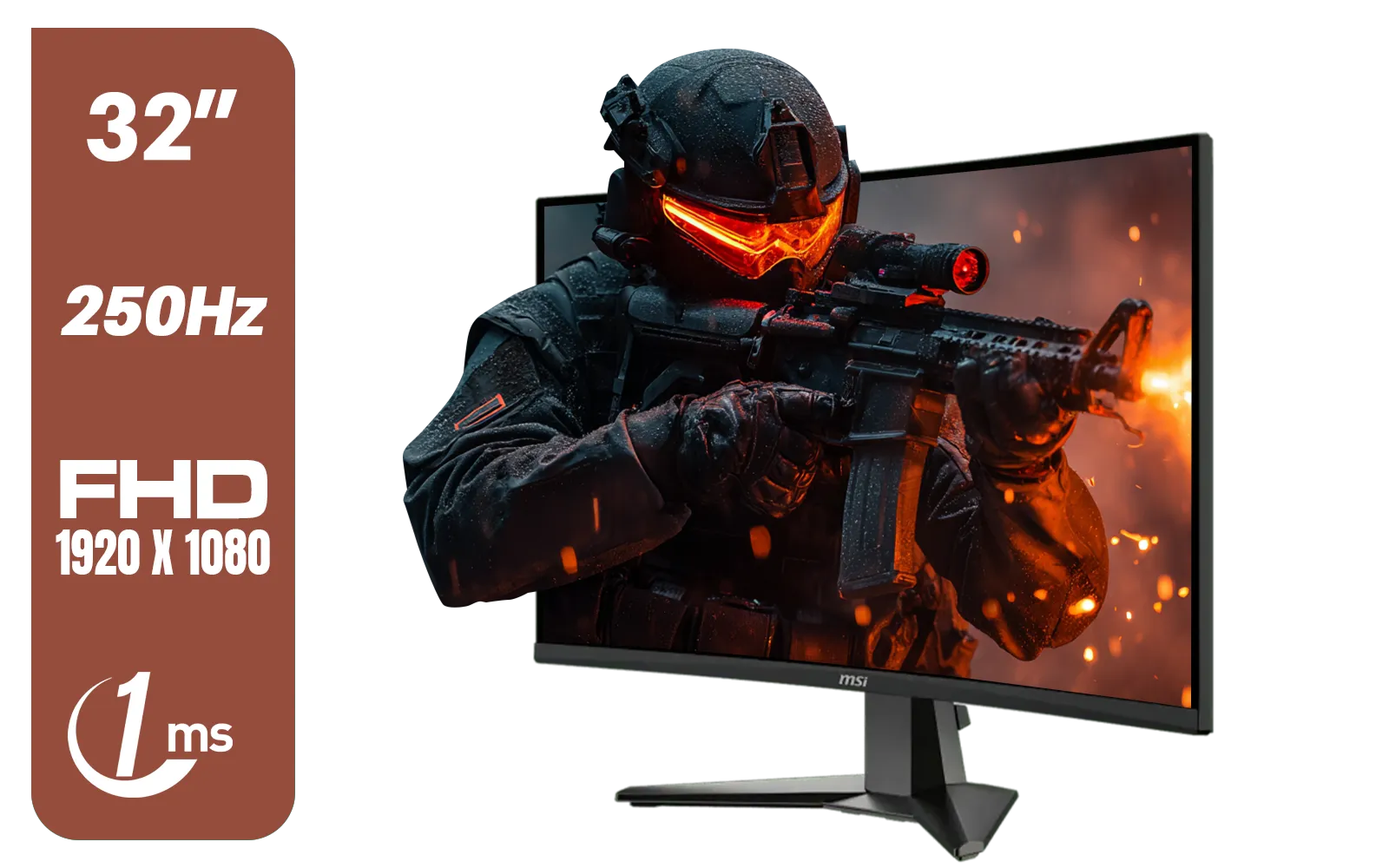
MSI MAG 32C6X 31.5-inch 1920 x 1080 (FHD) Computer Monitor, 250Hz, Adaptive-Sync, HDR Ready, HDMI, VGA Port, Display Port,VESA Mountable, Tilt, 1ms, Black / 9S6-3DD41M-027
R4799.00In Stock

MSI PRO MP275 E2 27-inch IPS 1920 x 1080 (FHD) Gaming Office Monitor, 120Hz, Free-Synch, HDMI, DisplayPort, VGA Port, VESA Mountable, Tilt, Speaker, 4-Side Slim Bezel 1ms, Black / 9S6-3PD3CM-029
R2599.00In Stock
Step-by-Step Windows Configuration
- Right-click on your desktop and select "Display settings".
- Scroll down and click on "Advanced display". If you have multiple monitors, make sure you've selected the correct one from the dropdown at the top.
- Look for the "Choose a refresh rate" dropdown menu.
- Click the menu and select the highest available value, which should be 180Hz (or similar, like 179.98Hz).
- Your screen will flicker for a moment as it applies the new setting. A dialogue box will ask you to confirm the change. Click "Keep changes".
And that's it! You've successfully told Windows to use the full 180Hz. This simple change makes a massive difference across all gaming monitors, from standard flat panels to immersive curved screens.
TIP FOR YOU
Check Your Cable! 🔧
Are you not seeing 180Hz as an option? Make sure you're using a high-quality DisplayPort 1.4 cable. While some HDMI 2.1 ports can handle it, DisplayPort is the most reliable way to guarantee you can enable the full 180Hz refresh rate, especially at resolutions like 1440p. An older cable can be a hidden bottleneck!
Confirming Your Settings in GPU Drivers
For peace of mind, it's a good idea to double-check that your graphics card software is also on the same page. Both NVIDIA and AMD have control panels where you can verify and adjust these settings.

Dahua 27" QHD Gaming Monitor - E331 / 1000:1 Contrast ratio / 16.7M Colors / 2560x1440 / 180Hz Refresh Rate / 1ms Response Time / DHI-LM27-E331
R3199.00In Stock

Samsung M70D 32″ Smart Monitor / UHD (3840 x 2160) Resolution / 60Hz refresh rate / 4ms response time / LS32DM702UAXXA
R7799.00In Stock

VIEWSONIC 24" FHD Led Backlit Display / 120Hz Refresh Rate / Windows Hello–Certified 5MP Webcam With privacy cover / Dual Mics & Stereo Speakers / USB-C for Audio, Video & Data / USB 3.2 Hub with HDMI & DisplayPort / Ergonomic Adjustable Stand / VG2441V
R3699.00In Stock

Dell SE2425HM Monitor 210-BQZT / FHD (1920 x 1080) Resolution / 5ms Response Time / IPS level Display / 178° Horizontal and Vertical Viewing Angles / SE2425HM
R1899.00In Stock
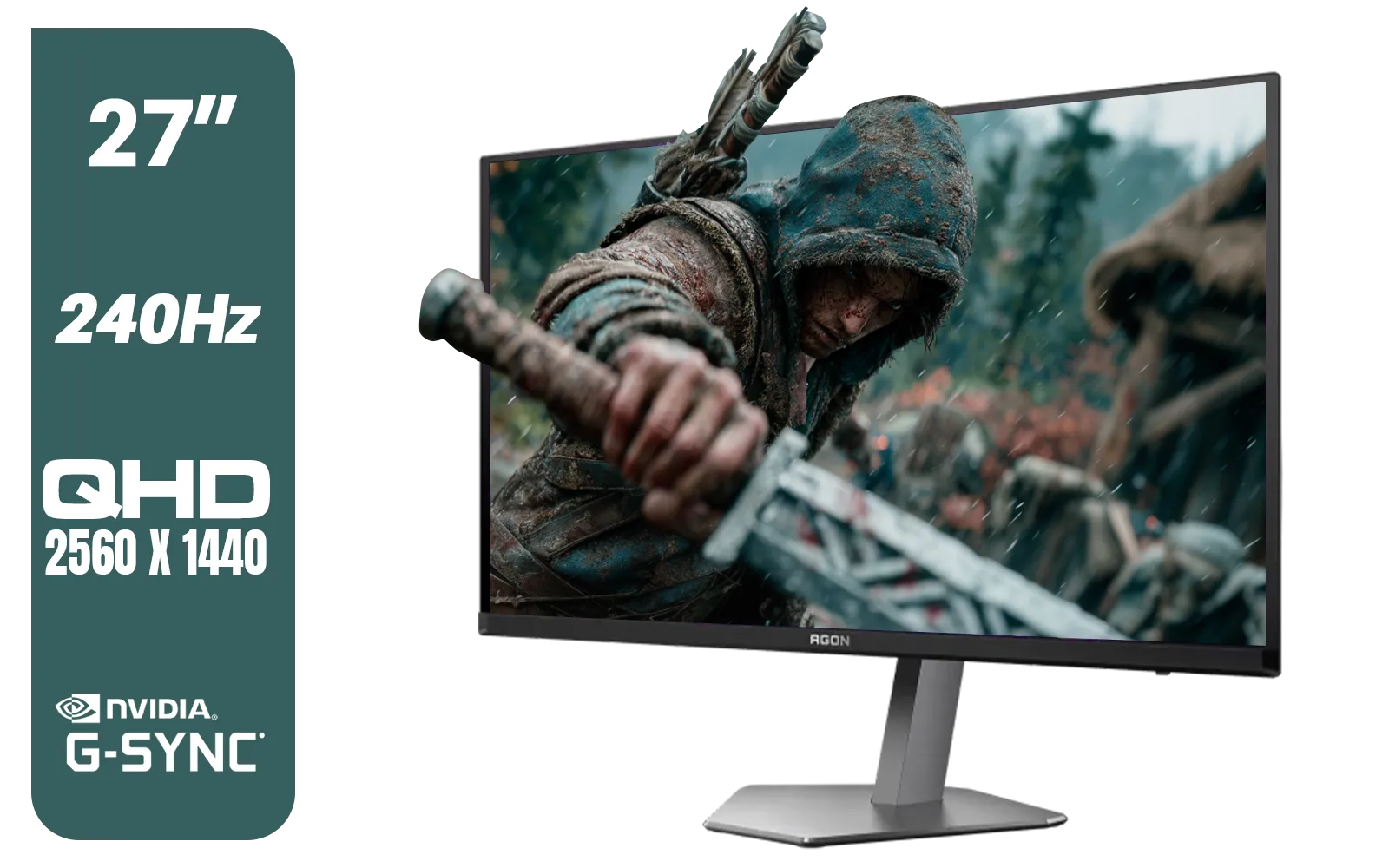
AOC Agon Pro AG276QZD2 27" 240Hz Gaming Monitor / QHD (2560x1440) OLED Display / 0.03 ms Response Time / G-SYNC Compatible / USB 3.2 Gen 1, USB Hub, USB Downstream / AG276QZD2
R15499.00In Stock
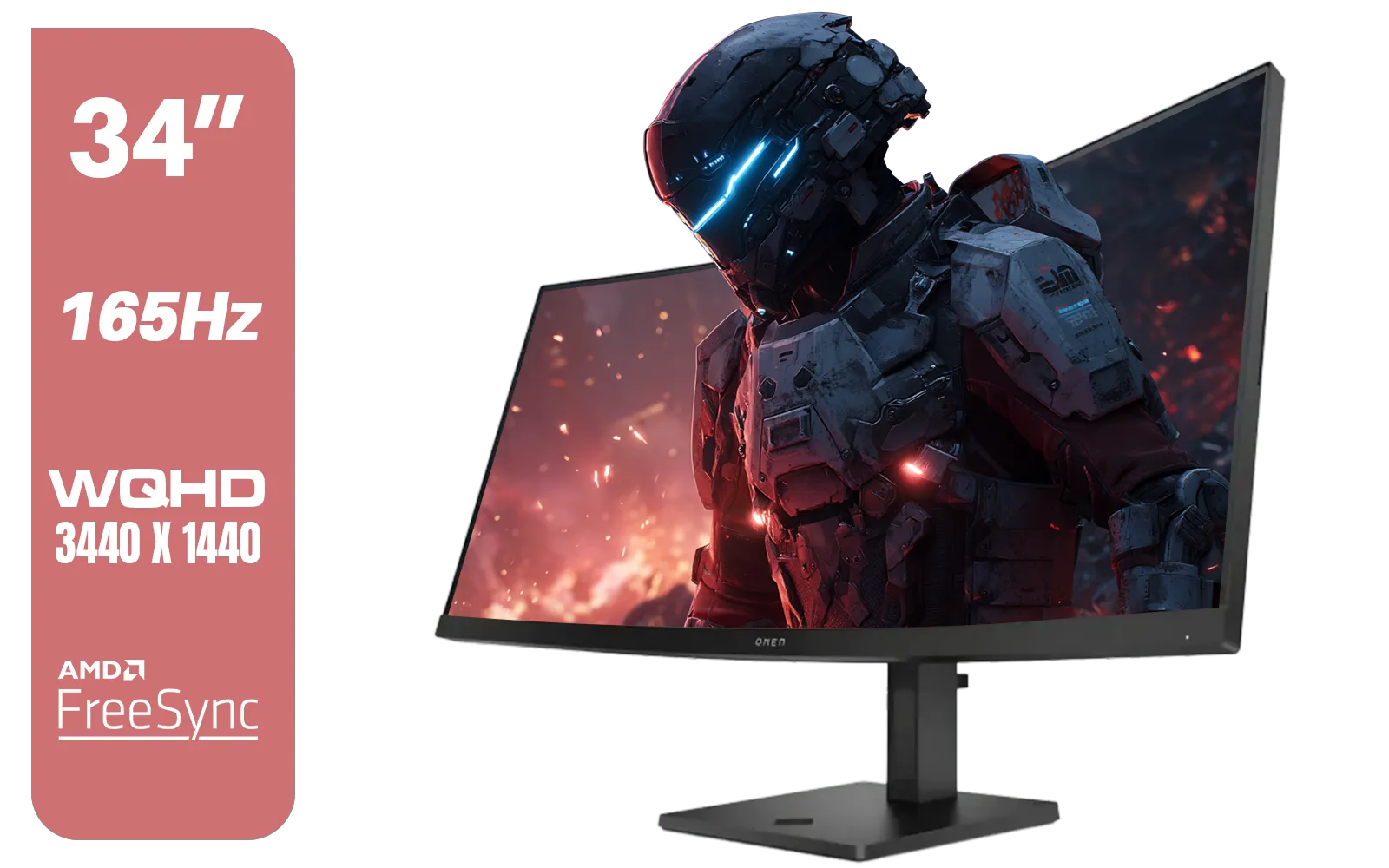
HP OMEN 34c Curved Monitor — 34' WQHD VA 165hz — Gaming Console Compatible — 2x HDMI 2.0 — 1x DisplayPort 1.4 — AMD FreeSync Premium — Dual Speakers — Tilt & height adjustments — VESA Mountable - Black / 780K8AS
R12999.00In Stock
For NVIDIA GeForce Graphics Cards:
- Right-click on your desktop and open the NVIDIA Control Panel.
- Navigate to "Display" > "Change resolution".
- Select your monitor.
- Under "Refresh rate:", confirm that 180Hz is selected. Click "Apply" if you need to make a change.
For AMD Radeon Graphics Cards:
- Right-click on your desktop and open AMD Software: Adrenalin Edition.
- Click the "Gaming" tab, then select "Display".
- Under "Display Options", you should see your current refresh rate listed. If it's not correct, look for an option like "Custom Resolutions" to create a profile or ensure "Display Specs" shows the monitor's 180Hz capability.
This step is crucial for all types of high-performance screens, whether you're gaming on stunning 5K & 4K monitors or ultra-immersive curved monitors.
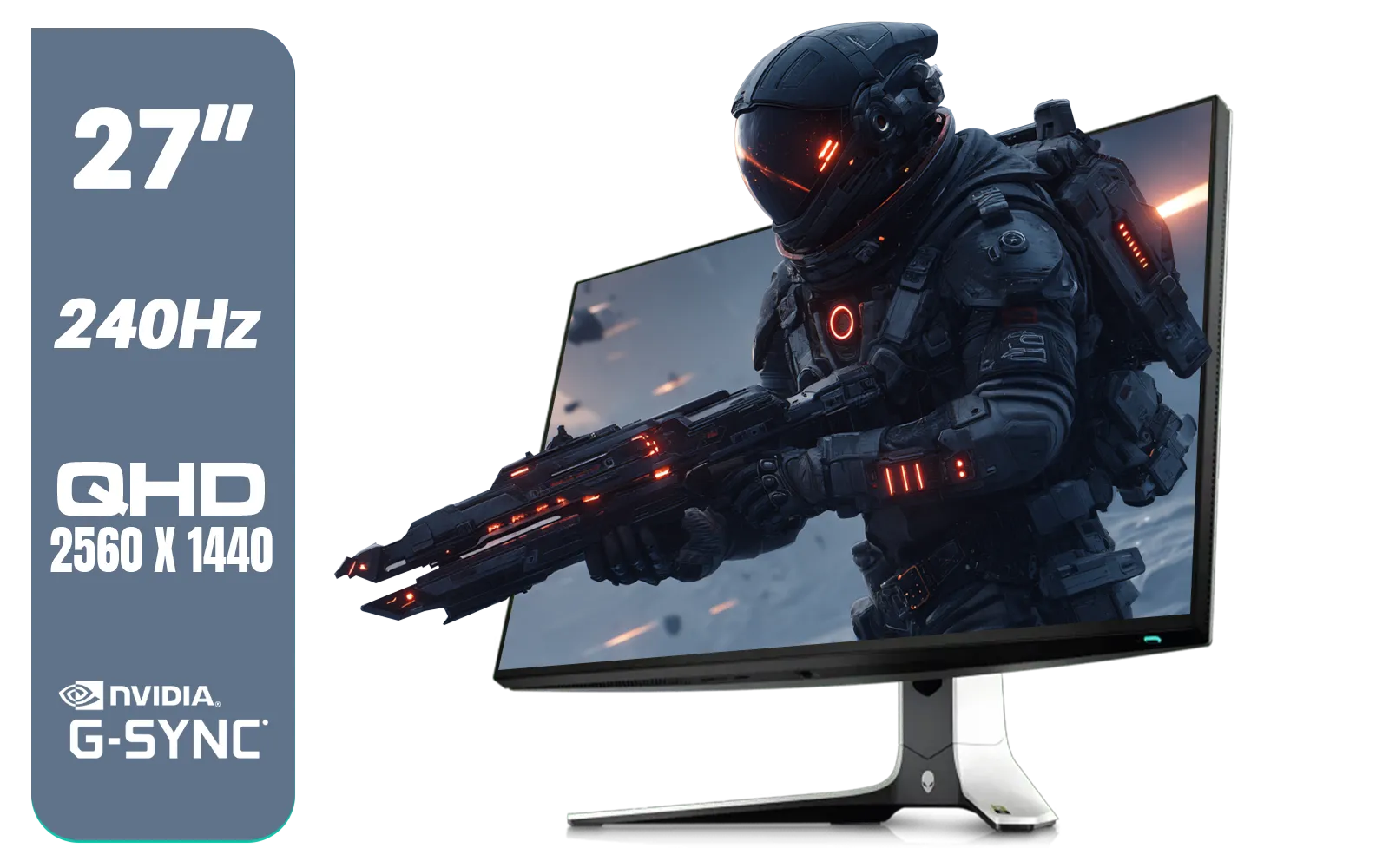
Alienware AW2723DF Gaming Monitor - 27-inch (2560 x 1440) 240Hz Display (DP 1.4), 1ms Response Time, NVIDIA G-Sync, Preset OSD Modes, Height/Tilt/Swivel/Pivot Adjustability - Lunar Light / AW2723DF
R8699.00In Stock
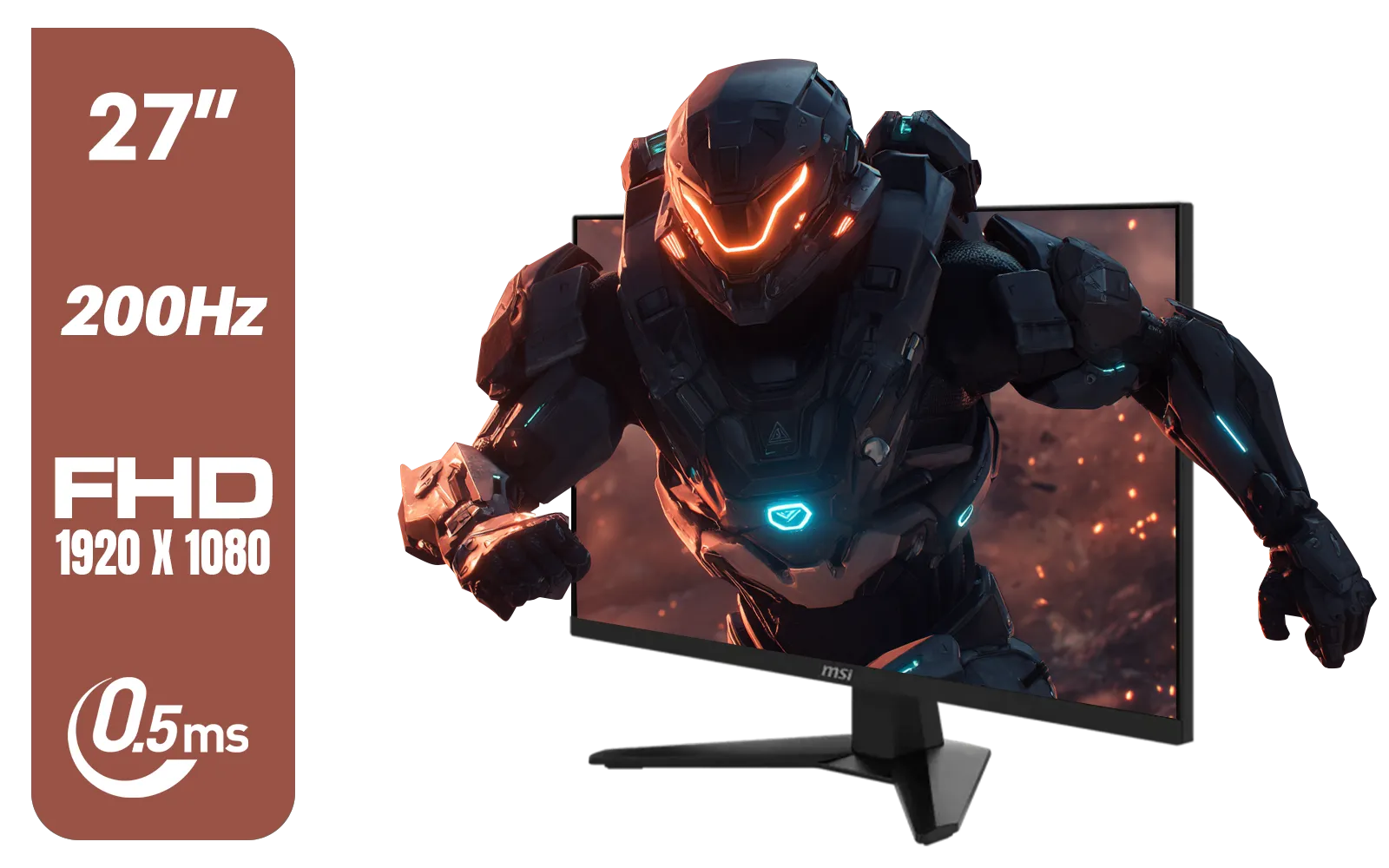
MSI MAG 274F 27" FHD (1920 x 1080) Monitor / 200Hz Refresh Rate / Rapid IPS Panel / 0.5ms Response Time / AI Vision Enhances Brightness, Colors / 9S6-3CE41H-062
R3699.00In Stock
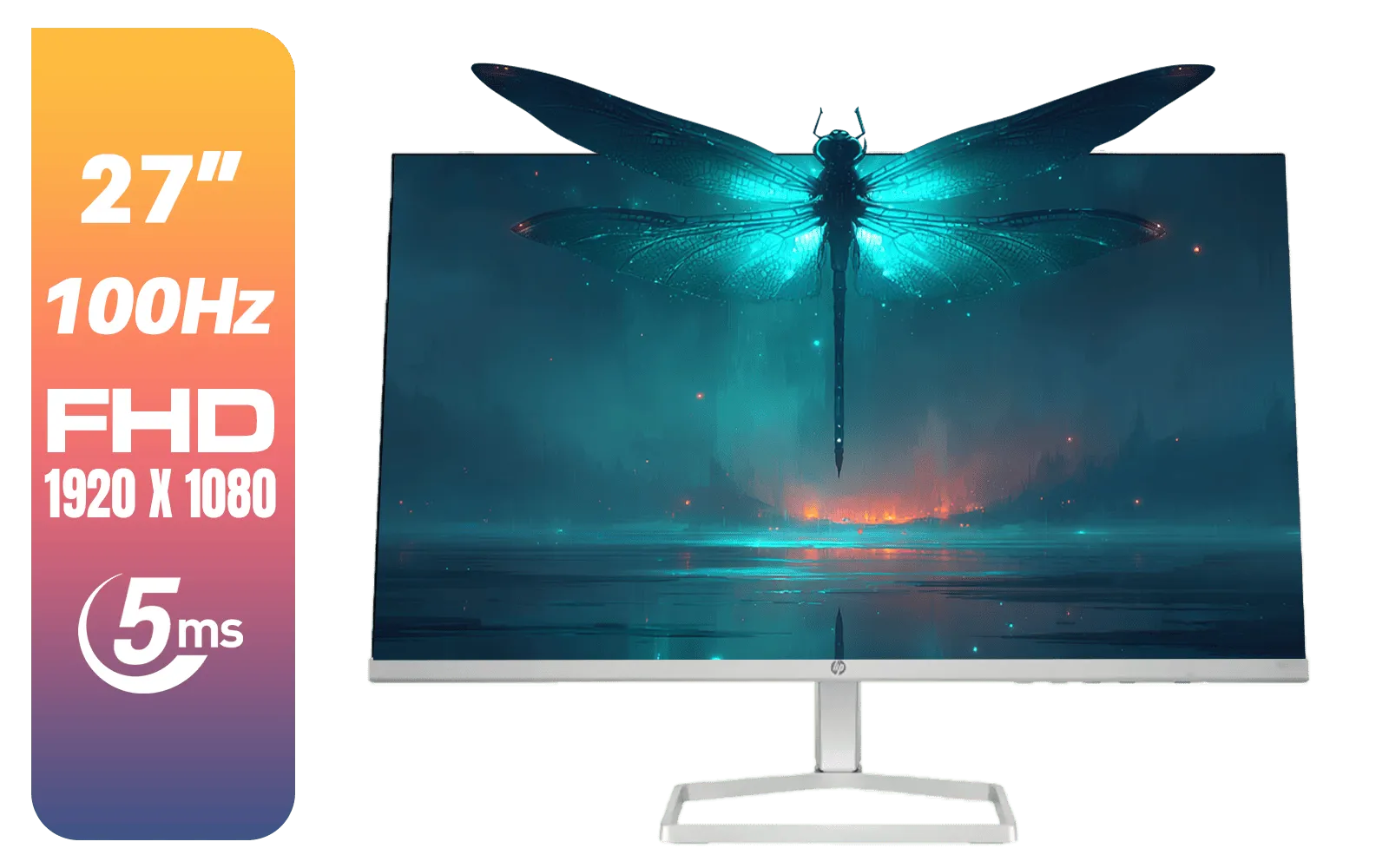
HP 527SF G5 FHD Gaming Monitor - Black/Silver / 27" FHD (1920 x 1080) / Anti-glare / 1x HDMI 1.4, 1x VGA / -5 to +25 degrees Adjustable Tilt / 94F44AS
R4499.00In Stock
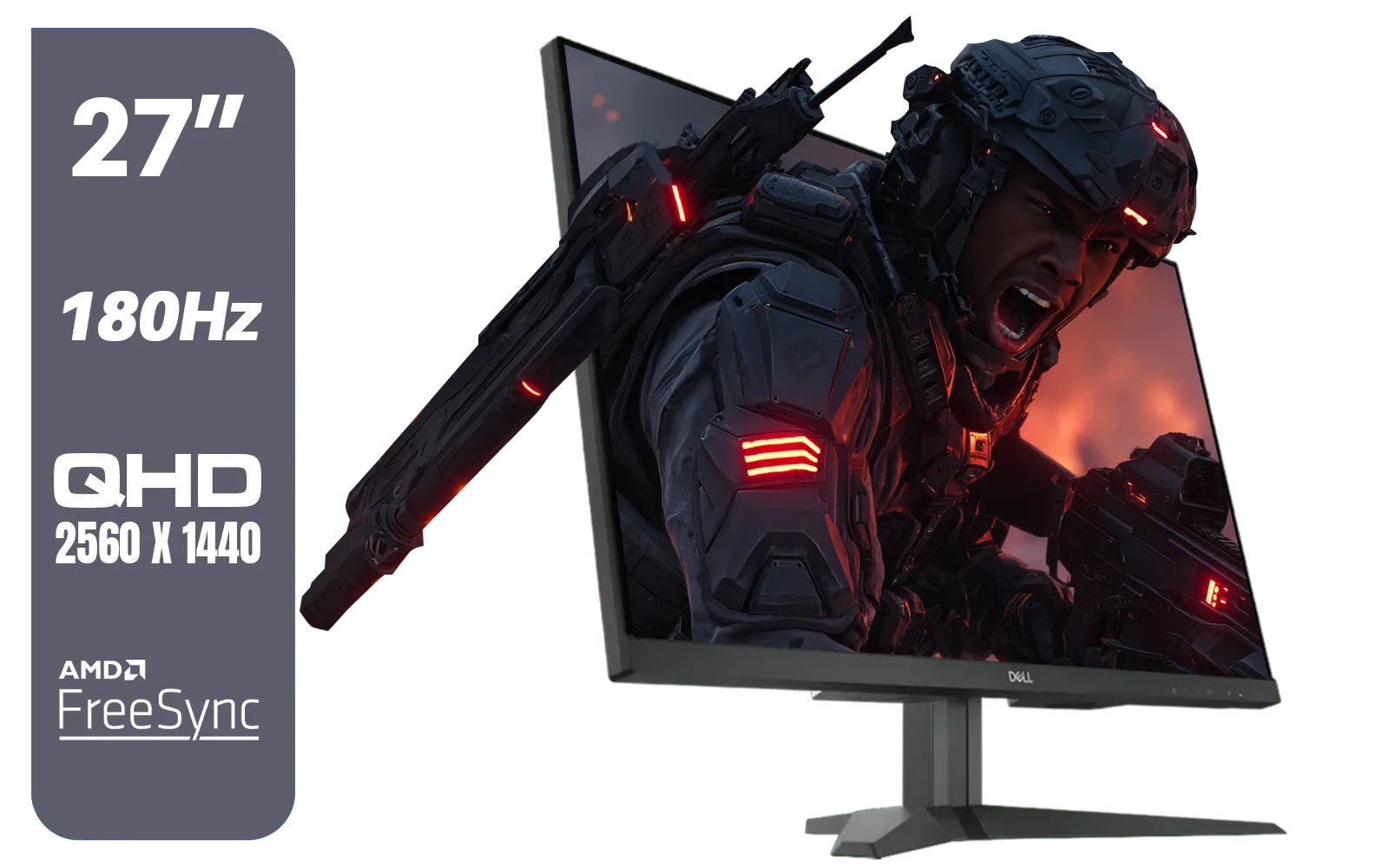
Dell G2725D 27" Gaming Monitor / QHD 2560 x 1440 / 180Hz Refresh Rate / AMD Freesync / 1ms Response Time / G2725D
R4299.00In Stock

Targus 24-inch USB-C Docking Computer Monitor w/ 100W PD, Adjustable Height Mac PC Monitor 360 Degree Rotating 24 inch Monitor Gaming Monitor w/Dock, Dual Monitor Compatible / DM4240PUSZ
R1699.00In Stock

LG UltraGear Gaming Monitor 27GS75Q, 27 inch, 1440p, 200Hz, 1ms GtG, IPS Display, HDR 10, NVIDIA G-Sync & AMD FreeSync compatible / 27GS75Q
R5999.00In Stock
What If 180Hz Still Isn't an Option?
If you've followed the steps and still can't enable your 180Hz refresh rate, don't panic. Here are a few things to check:
- Update Your GPU Drivers: Outdated drivers are a common cause of display issues. Head to the NVIDIA or AMD website and grab the latest version.
- Check Monitor On-Screen Display (OSD): Some monitors have an internal setting or an "Overclock" mode that needs to be enabled via the buttons on the monitor itself before the PC can see the highest refresh rate.
- Use the Right Port: Ensure you're plugged into the primary DisplayPort on both your monitor and your graphics card.
Even the growing market of portable monitors is seeing higher refresh rates, but they all rely on the same principles: the right software settings and the right physical connection. Having the correct monitor accessories, like a certified cable, can make all the difference. ✨
Ready for Buttery-Smooth Gameplay? A high refresh rate monitor is one of the biggest upgrades you can make to your gaming setup. From lightning-fast esports panels to immersive ultrawides, we've got the screen that will give you the edge. Explore our massive range of gaming monitors and find the perfect display to conquer your world.
Related Products
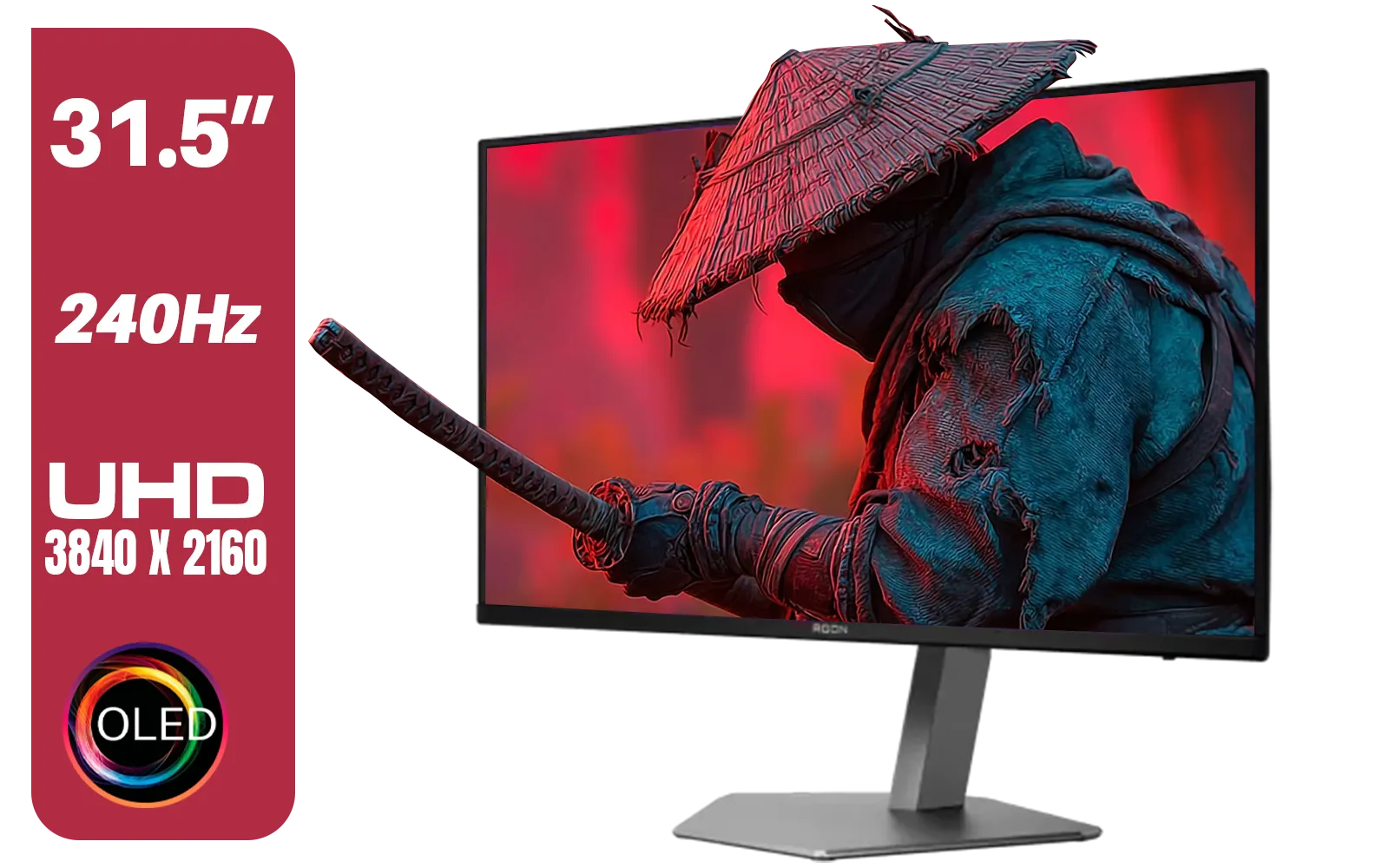
AOC Agon AG326UZD 31.5" Curved Gaming Monitor / UHD (3840x2160) OLED Display / 240Hz Refresh Rate / 0.03ms Response Time (GtG) / DisplayHDR True Black 400 / DisplayPort 2.1 / AG326UZD
R22999.00In Stock
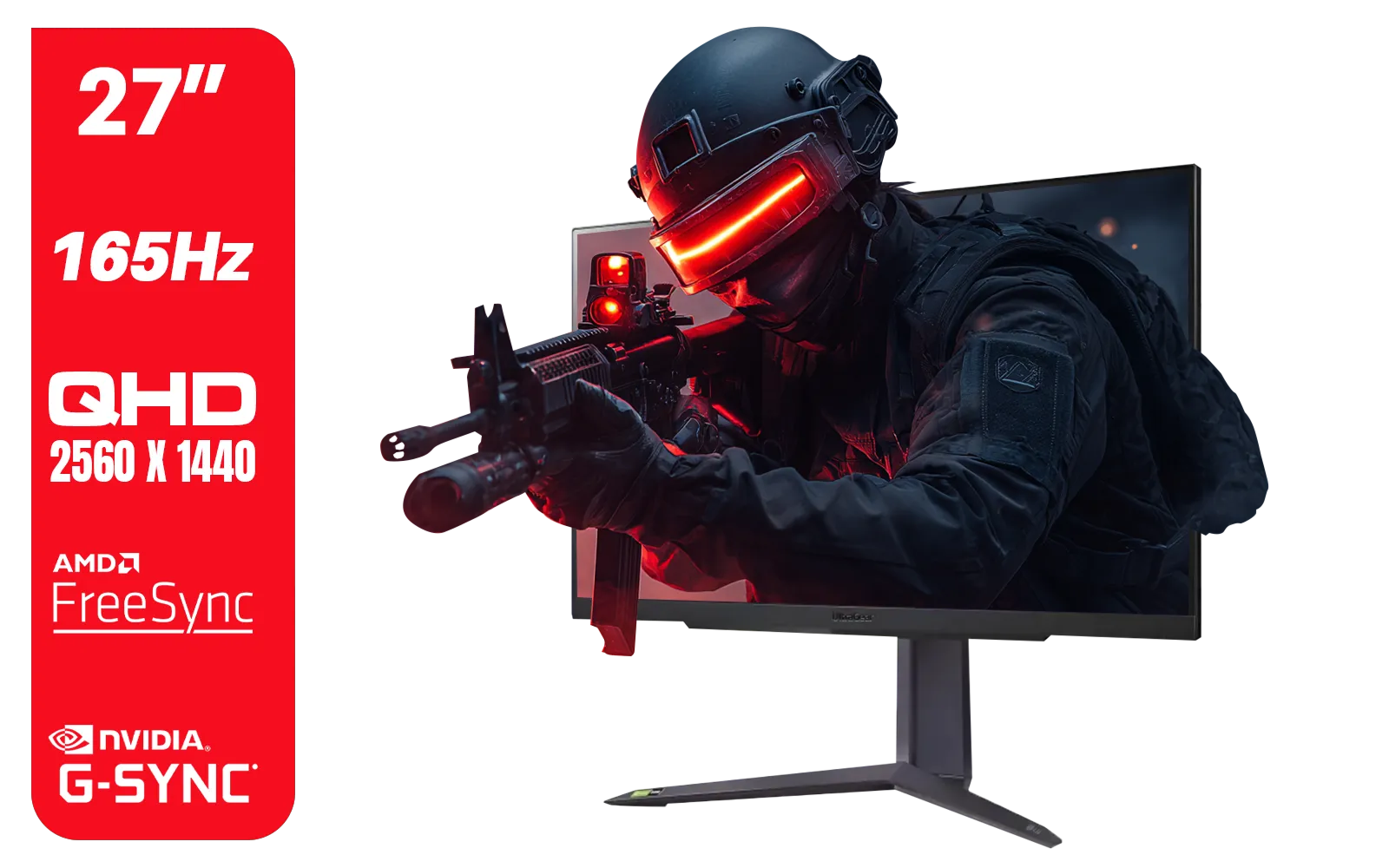
LG UltraGear Gaming Monitor 27GR75Q, 27 inch, 1440p, 165Hz, 1ms GtG, IPS Display, HDR 10, NVIDIA G-Sync & AMD FreeSync compatible, Smart Energy Saving, Displayport, HDMI / 27GR75Q
R5499.00In Stock
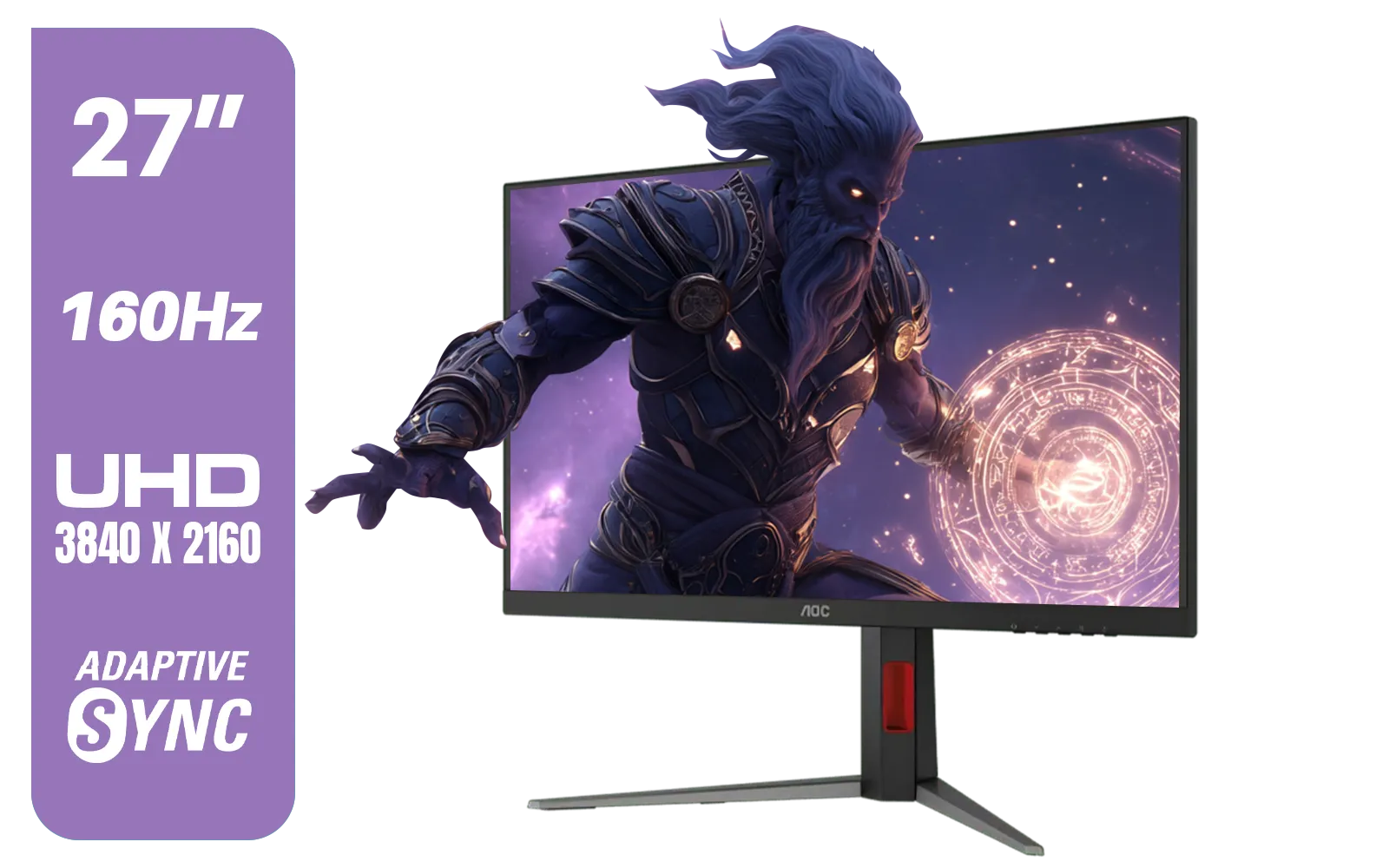
AOC U27G42 27" 160Hz Ultra-Fast Gaming Monitor, 3840 x 2160 (UHD), 0.5ms, Fast IPS, Adaptive Sync, 3-Sided Frameless Design, Black / U27G42
R9599.00In Stock
Dell G2725D 27" Gaming Monitor / QHD 2560 x 1440 / 180Hz Refresh Rate / AMD Freesync / 1ms Response Time / G2725D
R4299.00In Stock
AOC CQ27G3S 27" QHD (2560x1440) 165Hz 1ms VA Curved FreeSync HDR Gaming Monitor / Superior High Quality Viewing / Ultra-smooth Tear-free Gaming / Enjoy top-tier Gaming Performance / Instant Response Times / Illuminate Your Visuals / Reducing Shortwave Blue Light / CQ27G3S
R6399.00In Stock

AOC AGON AG275QXR 27" QHD 2K 170Hz Gaming Monitor - Pink - 2022 Edition ,IPS, Flicker-free technology, AMD FreeSync Premium, G-SYNC Compatible / AOC-AG275QXR
R6999.00In Stock
Monitors often default to 60Hz. You must manually enable 180Hz refresh rate in Windows Display Settings or your GPU control panel to unlock the intended speed.
Yes, typically. HDMI 2.0 may limit bandwidth. Use a DisplayPort 1.2 or 1.4 cable to ensure sufficient bandwidth for 180Hz at 1080p or 1440p resolutions.
Navigate to Settings > System > Display > Advanced display. Under 'Choose a refresh rate,' select 180Hz from the dropdown menu to apply the changes immediately.
It depends on the resolution and HDMI version. HDMI 2.1 handles it easily, but older HDMI ports may cap out at 120Hz or 144Hz depending on the monitor's specific specs.
Ensure GPU drivers are updated and you are using a high-bandwidth cable. Sometimes, you must enable specific overclocking modes in the monitor's physical OSD menu first.
It drastically improves motion clarity and reduces input latency, provided your GPU can output 180 FPS to match the refresh rate.











