



LG UltraGear 27GS75Q HDR10 settings: Maximize HDR performance
LG UltraGear 27GS75Q HDR10 settings guide: dial in brightness, contrast, and tone mapping to unlock true HDR color and gaming clarity on PC and consoles 🎮✨
|
Loading tags...

So, you've snagged the awesome LG UltraGear 27GS75Q—one of the top-tier LG monitors available in South Africa. Lekker! But when you fire up a game like Alan Wake 2, does the HDR look a bit… meh? Maybe washed out or too dark? You're not alone. The default LG UltraGear 27GS75Q HDR10 settings are a starting point, not the destination. This guide will show you how to unlock the incredible HDR performance your new screen is capable of.
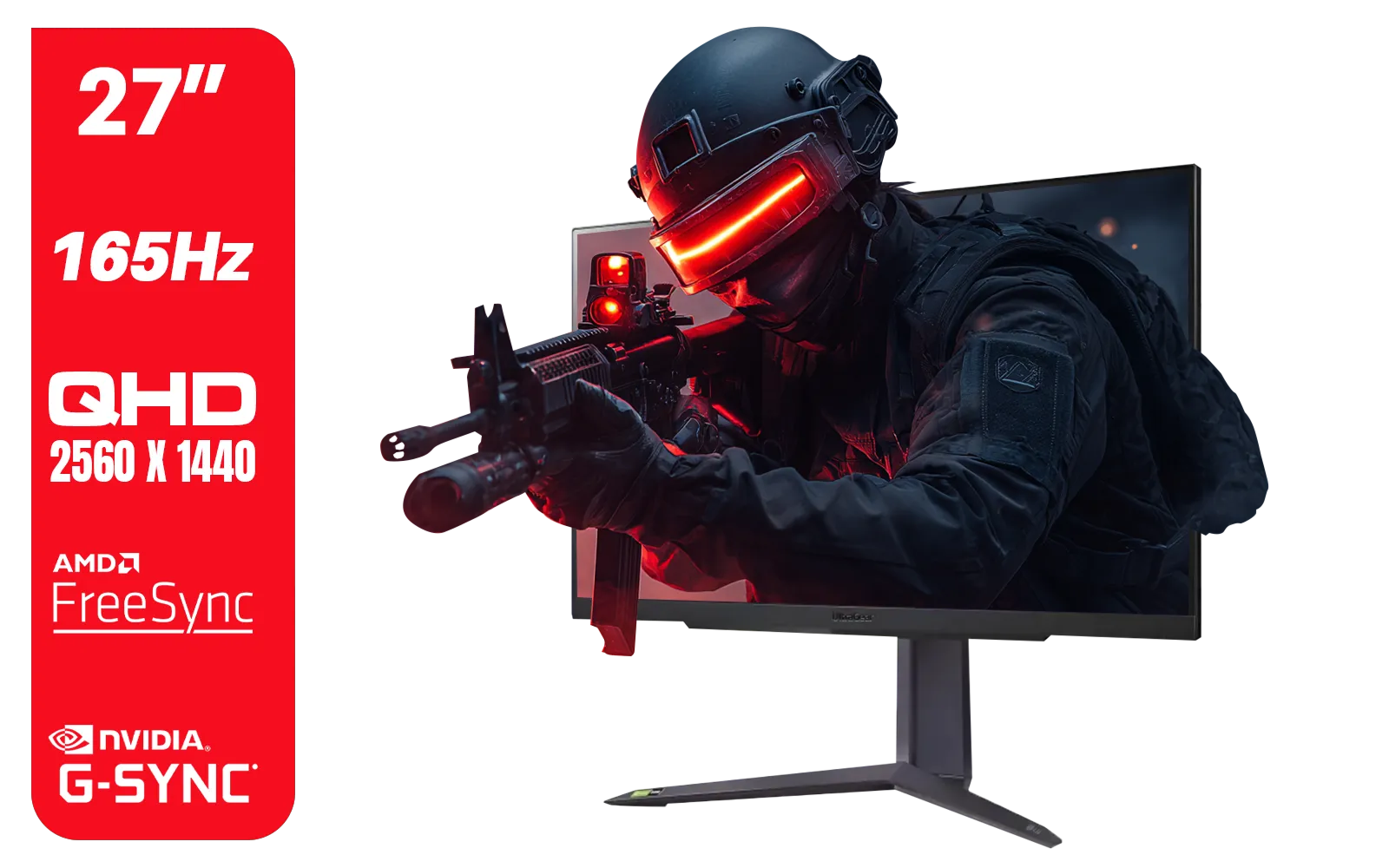
LG UltraGear Gaming Monitor 27GR75Q, 27 inch, 1440p, 165Hz, 1ms GtG, IPS Display, HDR 10, NVIDIA G-Sync & AMD FreeSync compatible, Smart Energy Saving, Displayport, HDMI / 27GR75Q
R5499.00In Stock
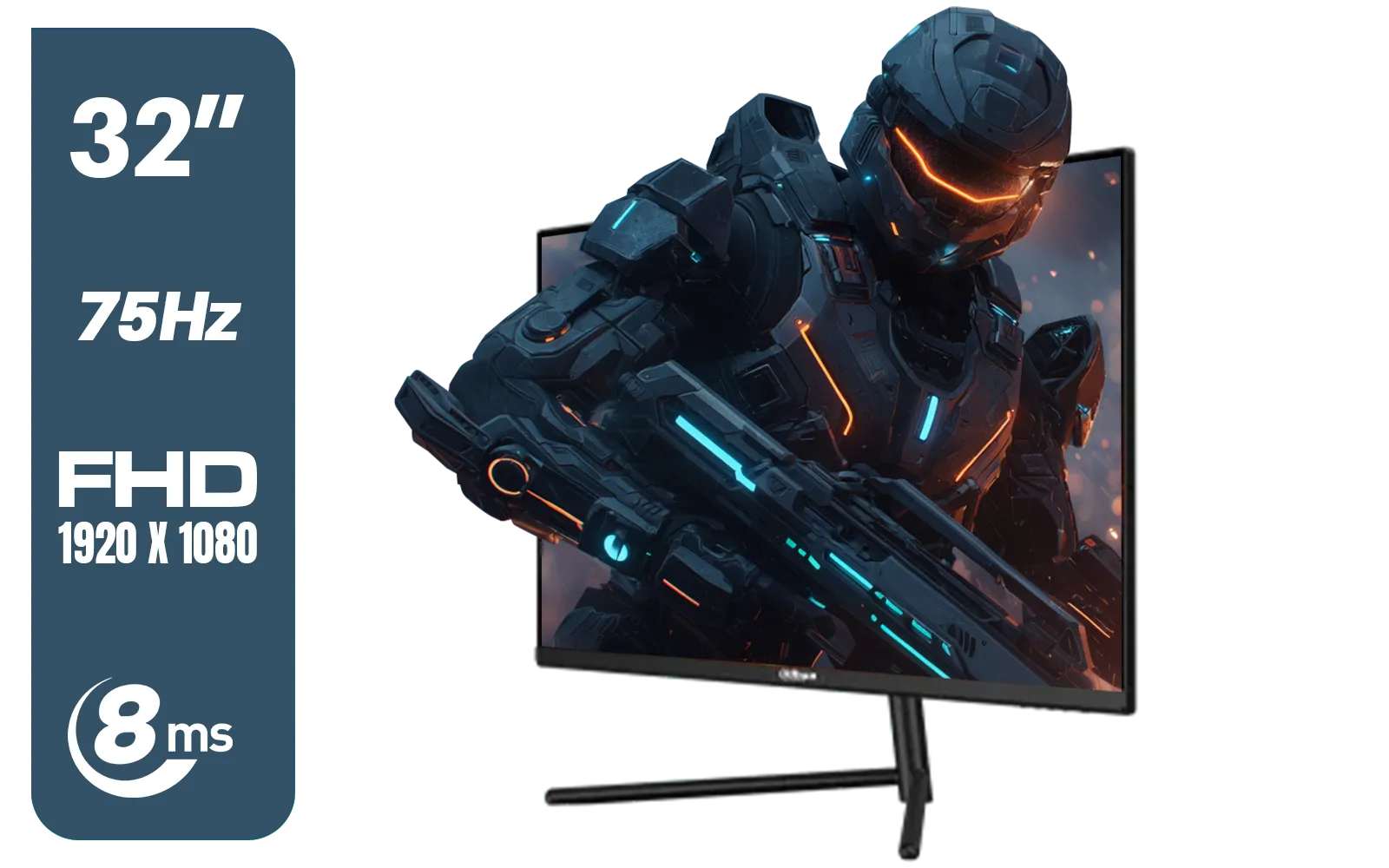
DAHUA DHI-LM32-A200X 32" LED MONITOR / Bezel-less Design / IPS Level-Display / 8ms Response Time / FHD 1920x1080 / 75Hz Refresh Rate / Low Blue Light / DHI-LM32-A200X
R3399.00In Stock
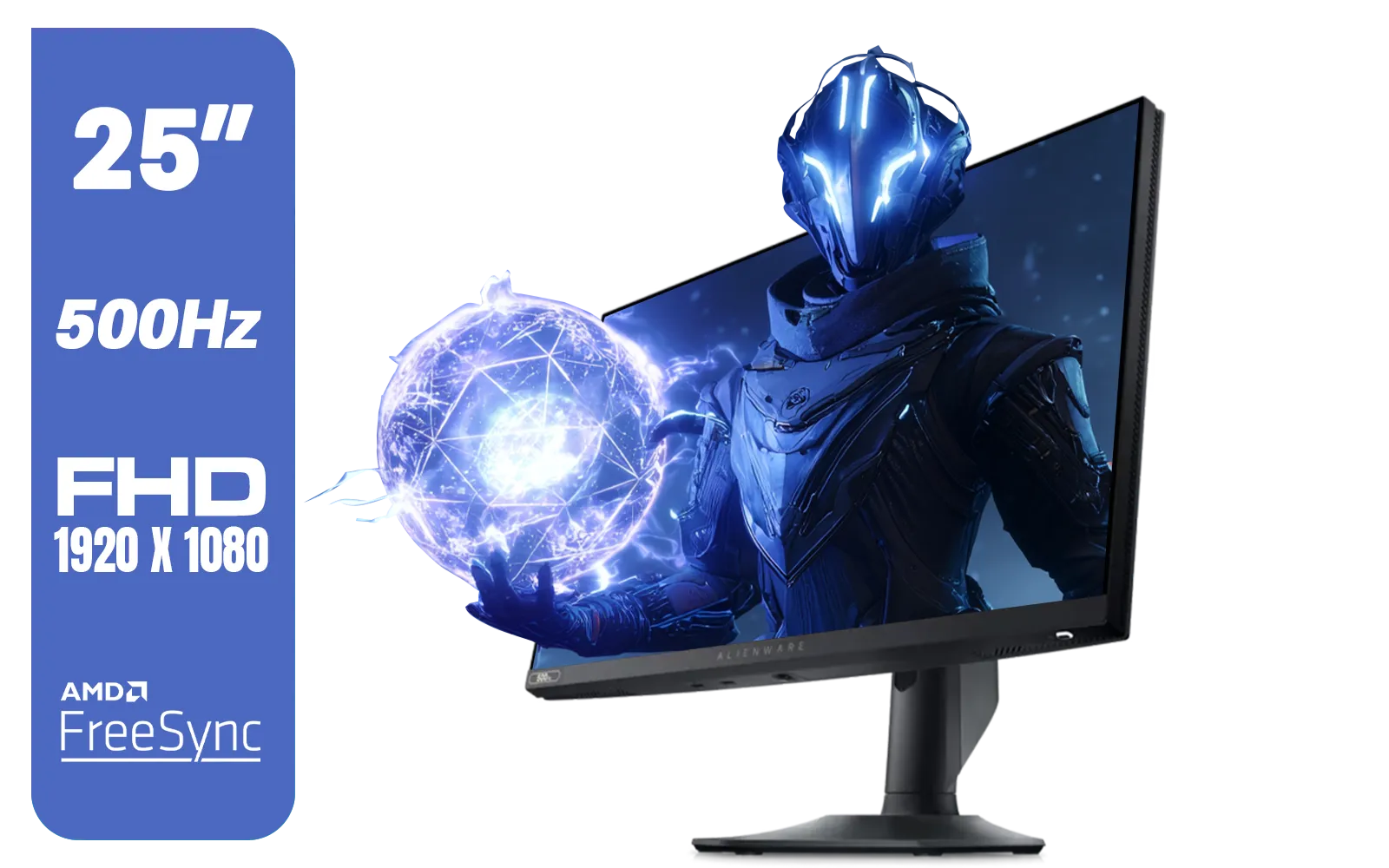
Alienware AW2524HF Gaming Monitor/ 25-inch / IPS Panel / Full HD (1920 x 1080)/ 500Hz refresh rate / 1 ms Response Time / VESA Adaptive-Sync, AMD FreeSync Premium / AW2524HF
R12999.00In Stock
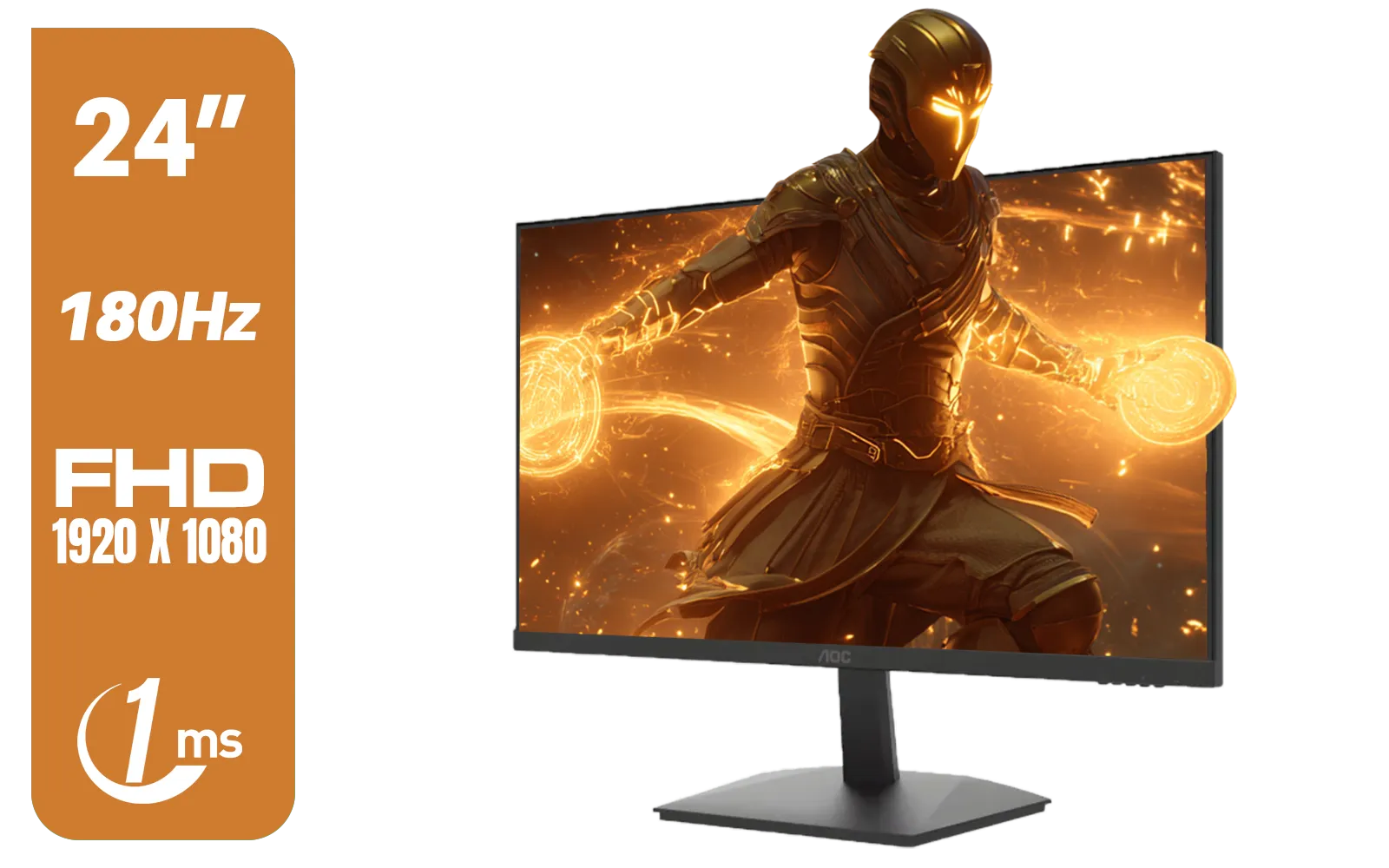
AOC 24G15N Gaming Monitor / 24" / VA FHD 1920x1080 / 180hz / 1ms / HDMI DP|VESA / Flicker Fee / Low Blue Mode / Adaptive Sync/ AOC-24G15N
R2299.00In Stock
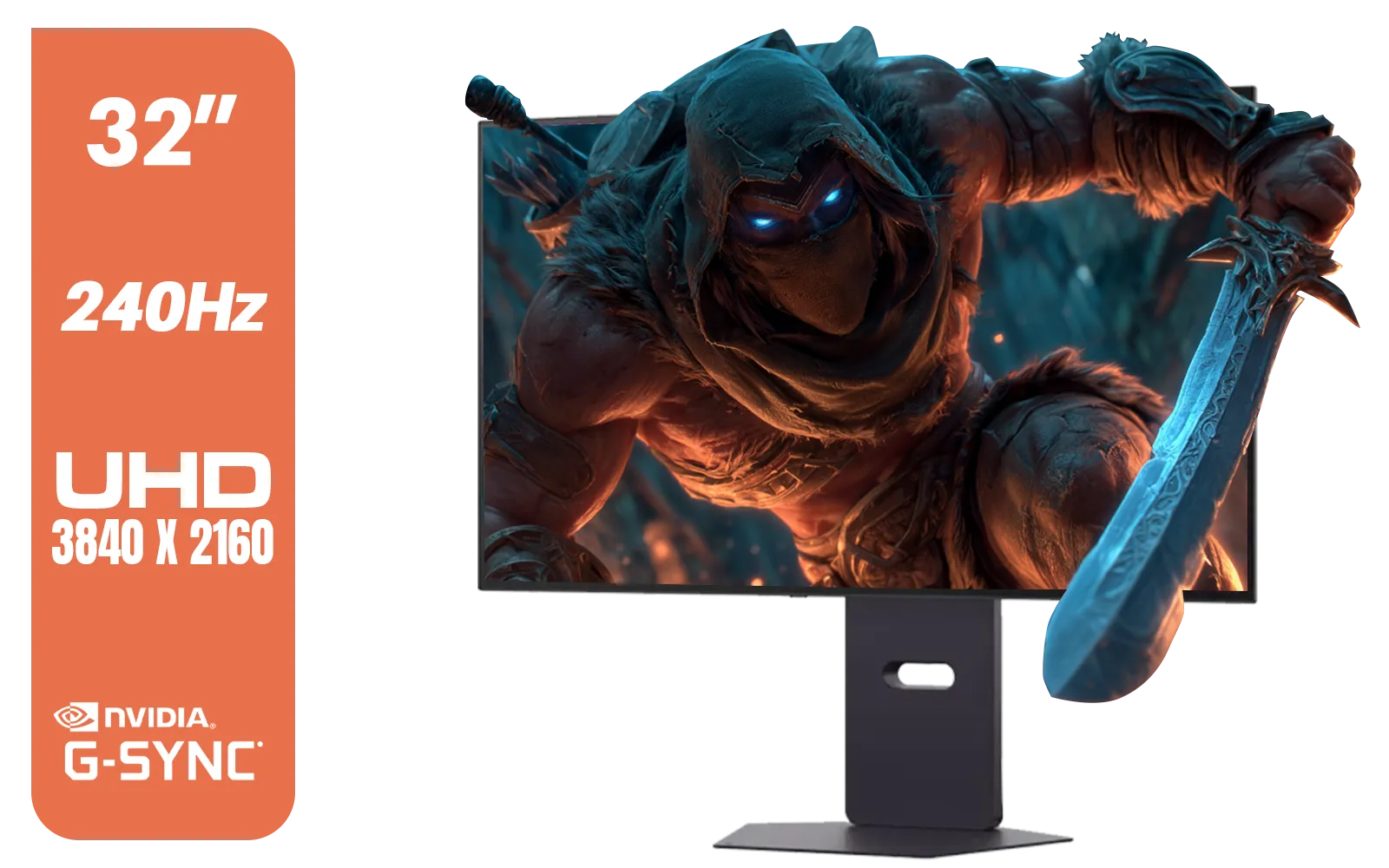
LG 32" UltraGear™ Dual-Mode OLED gaming monitor / 4K UHD / 0.03ms (GtG) / HDR Display True Black 400 / 32GS95UV-B.AFB
R27499.00In Stock

DELL 27 MONITOR SE2725HM VGA HDMI 210-BQZW / (1920 x 1080) Display resolution / IPS level Display / 5ms Response Time / 178° Verticaland Horizontal Viewing Angle / SE2725HM
R2299.00In Stock
Unlocking True HDR Performance
High Dynamic Range (HDR) is more than a buzzword. It's about creating a more realistic and immersive image by expanding the range between the darkest blacks and the brightest whites. When optimised correctly, it makes sunlit scenes pop and dark caves feel truly menacing. The problem? Default settings are often too conservative. To truly maximise your HDR performance, you need to dive into the settings yourself. It's the difference between seeing the game and feeling it. ✨
Pre-Flight Check: Windows & GPU First
Before you even touch your monitor's joystick, the first step to optimising your LG UltraGear 27GS75Q HDR10 settings happens in Windows. 🔧
- Enable HDR in Windows: Right-click your desktop, go to
Display settings, select your LG monitor, and toggle "Use HDR" to on. - Run the Calibration Tool: We highly recommend using the "Windows HDR Calibration" app from the Microsoft Store. It’s a free tool that helps you set the minimum and maximum luminance levels for your specific panel, creating a custom colour profile. This step is crucial for accurate HDR.
- Update Your Drivers: Ensure you have the latest drivers for your NVIDIA or AMD graphics card. These updates often include performance improvements and bug fixes for HDR content.
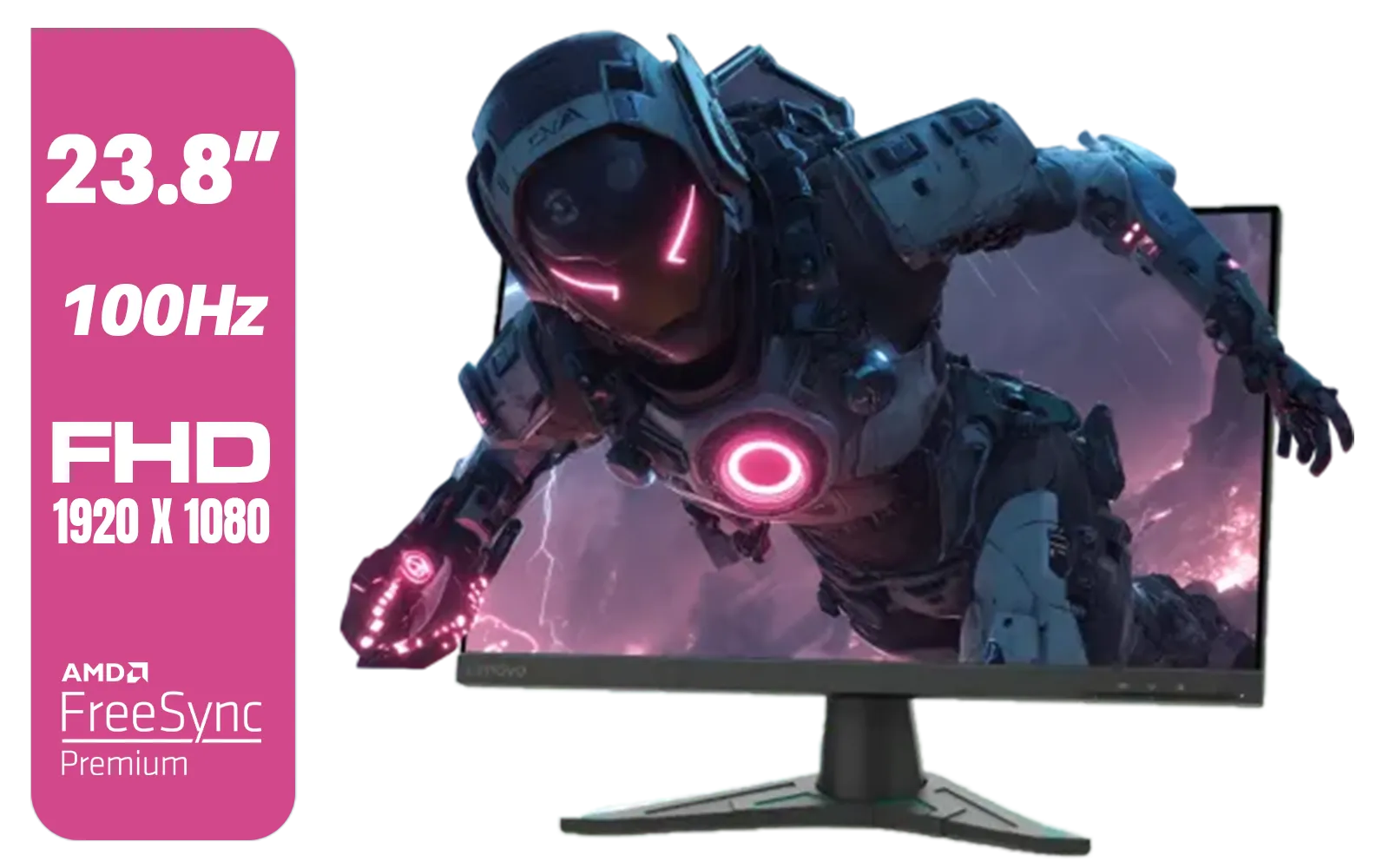
Lenovo G24e-20 23.8" 100Hz FHD WLED Gaming LCD Monitor - 16:9 - Black / 66D7GAR1SA
R1999.00In Stock

MSI PRO MP275W E2 27-inch IPS 1920 x 1080 (FHD) Gaming Office Monitor, 120Hz, Free-Synch, HDMI, DisplayPort, VGA Port, VESA Mountable, Tilt, Speaker, 4-Side Slim Bezel 1ms, White / 9S6-3PD3CM-030
R3199.00In Stock
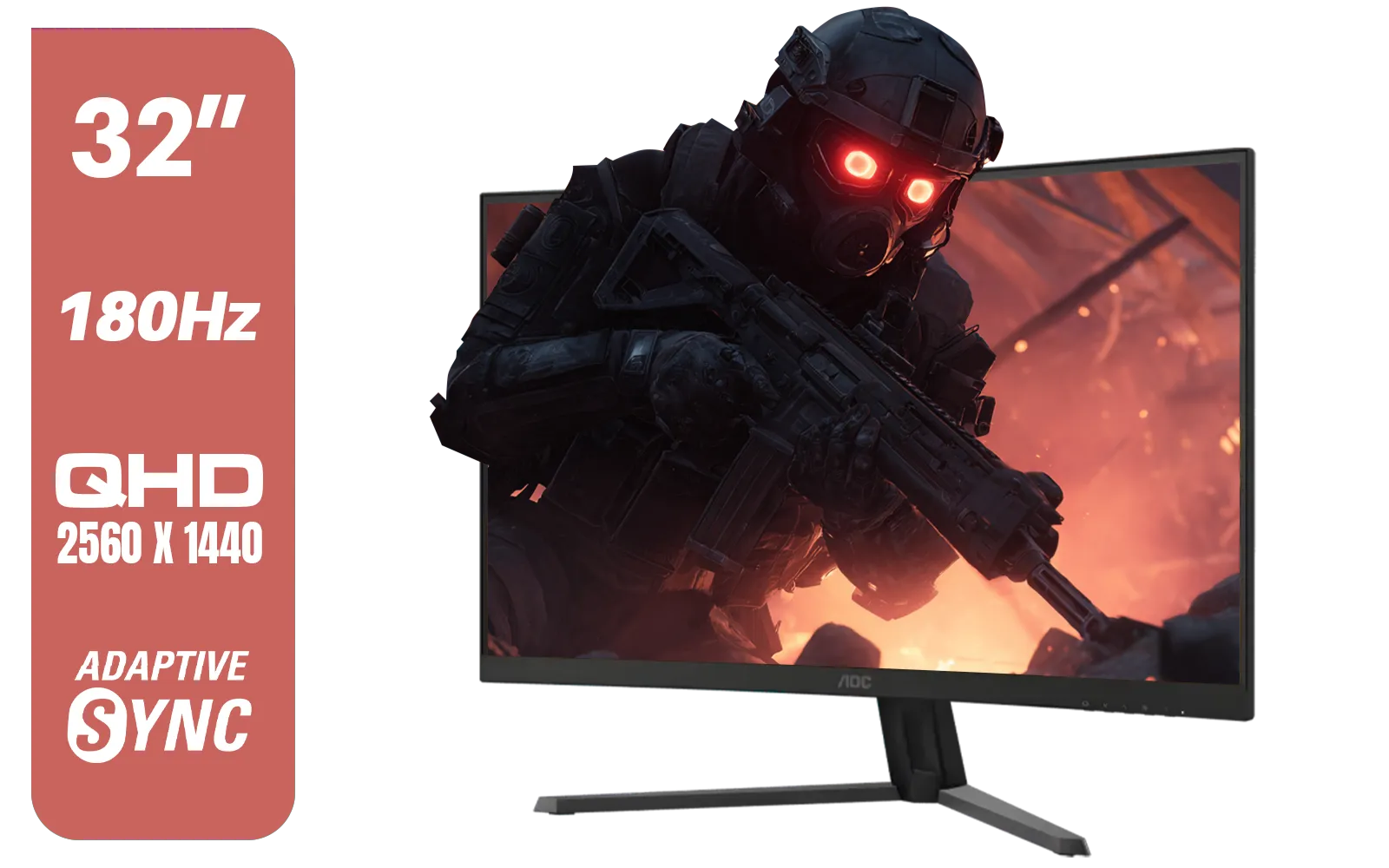
AOC CQ32G4E 32" Curved Gaming Monitor / QHD (2560x1440) / 180Hz Refresh Rate / 0.5ms Response Time (MPRT) / HDR10 / Adaptive Sync / CQ32G4E
R5999.00In Stock
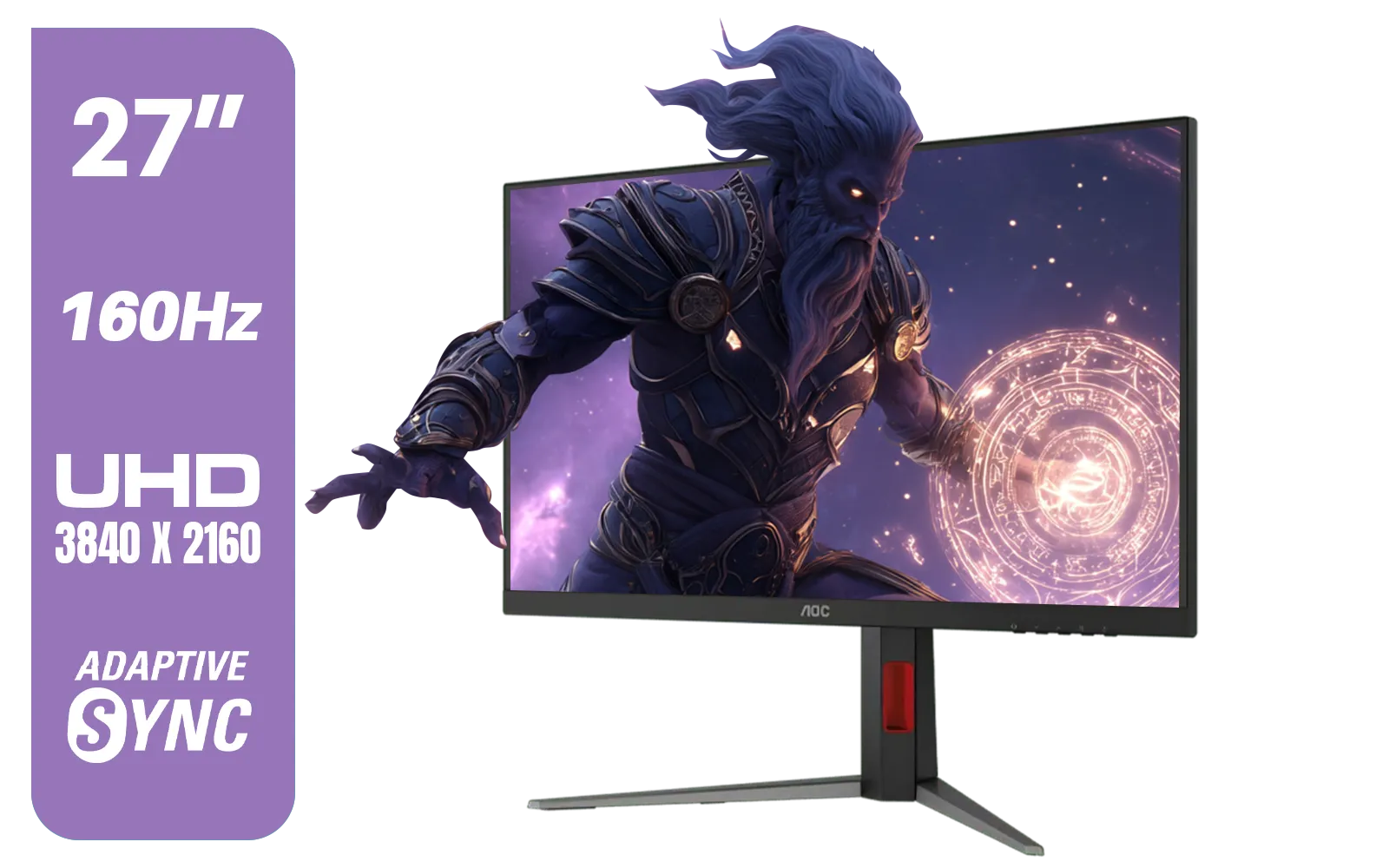
AOC U27G42 27" 160Hz Ultra-Fast Gaming Monitor, 3840 x 2160 (UHD), 0.5ms, Fast IPS, Adaptive Sync, 3-Sided Frameless Design, Black / U27G42
R9599.00In Stock
MSI MAG 273QP 27" 2560 x 1440 (WQHD) QD-OLED Monitor / 0.03ms GtG Response Time / 240Hz Refresh Rate / VESA DisplayHDR True Black 400 / 9S6-3CE69H-012
R14999.00In Stock

VIEWSONIC XG2709A 27" LCD Gaming Monitor / 240Hz Refresh Rate / SuperClear® IPS Panel / 1ms MPRT Response Time / AMD FreeSync™ & G-Sync Compatible / HDR10 Support / HDMI & DisplayPort Inputs / XG2709A
R3499.00In Stock
Dialling In Your LG 27GS75Q Monitor Settings
Now for the main event. Grab your monitor's OSD (On-Screen Display) joystick and let's fine-tune that picture. These settings, combined with your Windows calibration, will deliver stunning results.
Start with the Right Picture Mode
In the OSD menu, navigate to Game Mode. For HDR content, select Gamer 1 or Vivid. These modes are typically best calibrated for the wide colour gamut used in HDR. Avoid standard or sRGB modes, as they will clamp the colours and prevent you from seeing the full visual range.
Adjusting Key Game Settings
Under Game Adjust, you'll find the most impactful options for performance:
- Adaptive-Sync: Make sure this is turned On. The 27GS75Q boasts excellent FreeSync Premium support for AMD users and is also G-Sync Compatible for Team Green. Both are built on the core Adaptive-Sync technology that prevents screen tearing. For a smooth, competitive experience, it's a feature you can't go without, which is why we'd always recommend it over models without any sync technology.
- Black Stabilizer: In HDR, be careful with this. A setting of 50 is neutral. Pushing it higher can lift the black levels, which might help you spot enemies in shadows but can also make the image look washed out, defeating the purpose of HDR's deep blacks. We suggest leaving it at 50 or slightly lower.
- Response Time: Set this to Fast. The "Faster" setting can sometimes introduce inverse ghosting (overshoot), so "Fast" is usually the sweet spot for a clear, crisp image without artefacts.
TIP FOR YOU
In-Game HDR Settings Are Key! 💡
Once your monitor and Windows are set, don't forget to calibrate HDR within each game! Most modern titles like Baldur's Gate 3 or Starfield have their own HDR sliders for 'Peak Brightness' and 'Paper White'. Adjust these until the image looks vibrant and detailed, using the in-game examples as your guide. This final step tailors the experience perfectly to each game's engine.

MSI G321Q 31.5" WQHD IPS 2K Flat Monitor, 170Hz Refresh Rate, 1ms MPRT Response Time, 1.07B Display Colors, 16:9 Aspect Ratio, 1200:1 Contrast Ratio, G-Sync / AMD Freesync, HDR, Black / 9S6-3DB91A-041
R6999.00In Stock
Dahua LM34-E330CN 34" LED Monitor / Adaptive-Sync Technology / 1ms Response Time / WQHD 3440x1440 / 200Hz Refresh Rate / HDR400 ready / 1500R Curvature / DHI-LM34-E330CN
R4699.00In Stock
Lenovo ThinkVision Monitor S22E-20 21.5 Inch / 1920x1080 Resolution / Non Touch / 4 ms Response Time / 62C6KAT1SA
R2099.00In Stock
SAMSUNG 24" Odyssey G32A FHD 1ms 165Hz Gaming Monitor with Eye Saver Mode, Free-Sync Premium, Height Adjustable Screen for Gamer Comfort, VESA Mount Capability / LS24AG320NAXXA
R3199.00In Stock
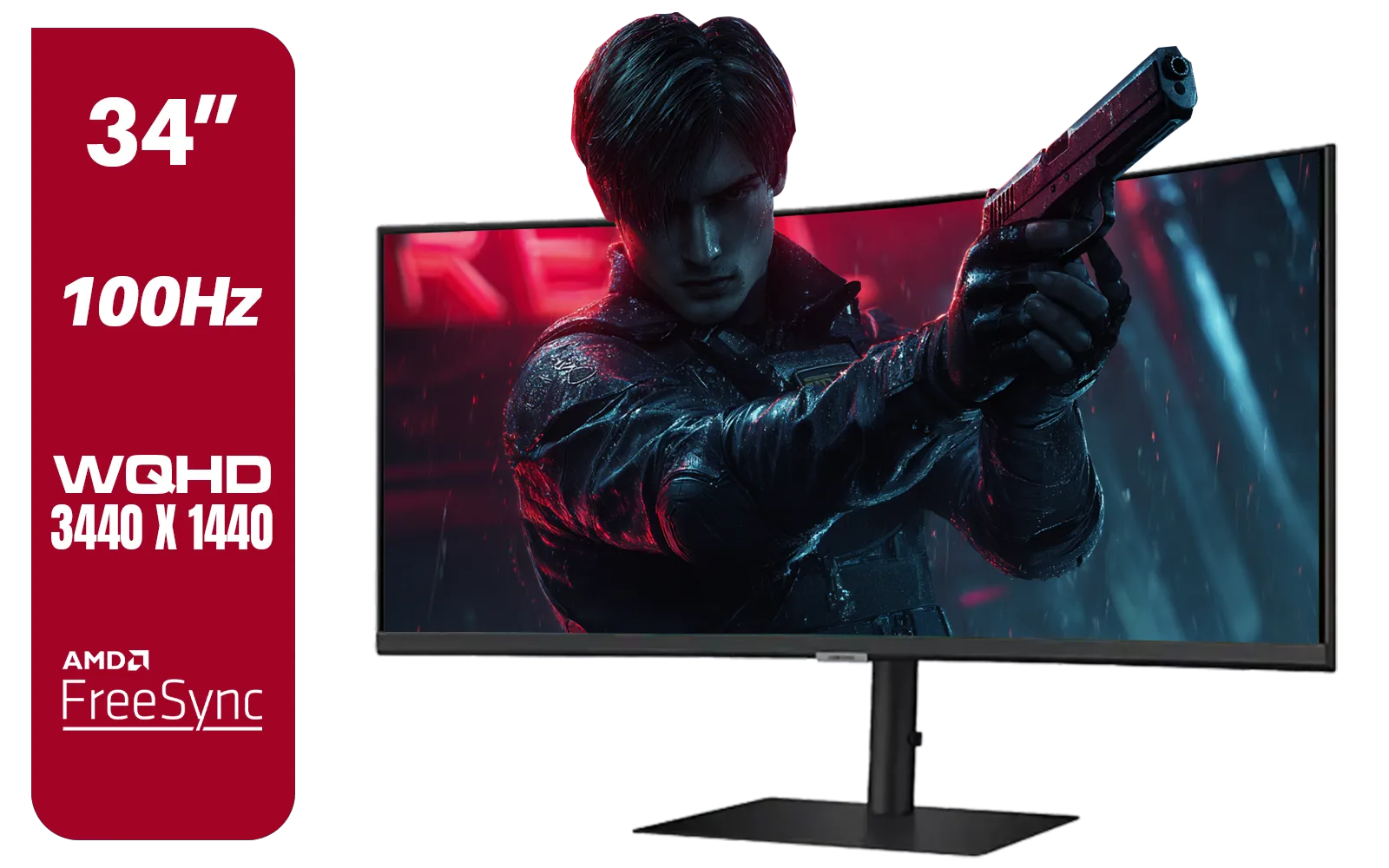
Samsung ViewFinity S6 S65UC 34″ Curved Monitor / Ultra WQHD (3440x1440) Resolution / 100Hz refresh rate / 5ms response time / AMD FreeSync™ / LS34C652UAUXEN
R11999.00In Stock

HP 524SF G5 FHD Gaming Monitor - Black/Silver / 24" FHD (1920 x 1080) / Anti-glare / 1x HDMI 1.4, 1x VGA / -5 to +25 degrees Adjustable Tilt / 94C17AS
R3699.00In Stock
Picture Adjust
In HDR mode, settings like Brightness and Contrast are often locked, as the monitor is following the signal from your PC. This is normal! The calibration you did in Windows and in-game handles this. Your primary job is done. 🚀
That’s it! With these optimised LG UltraGear 27GS75Q HDR10 settings, you're no longer just using a great monitor… you're experiencing its full potential. Those once-dull scenes will now burst with life, giving you the competitive edge and visual immersion you deserve.
Ready to Find Your Perfect View? Dialling in your settings is key, but it all starts with a great panel. From blistering refresh rates to stunning HDR, the right monitor transforms your entire PC experience. Explore our massive range of gaming monitors and find the perfect screen to conquer your world.
Related Products
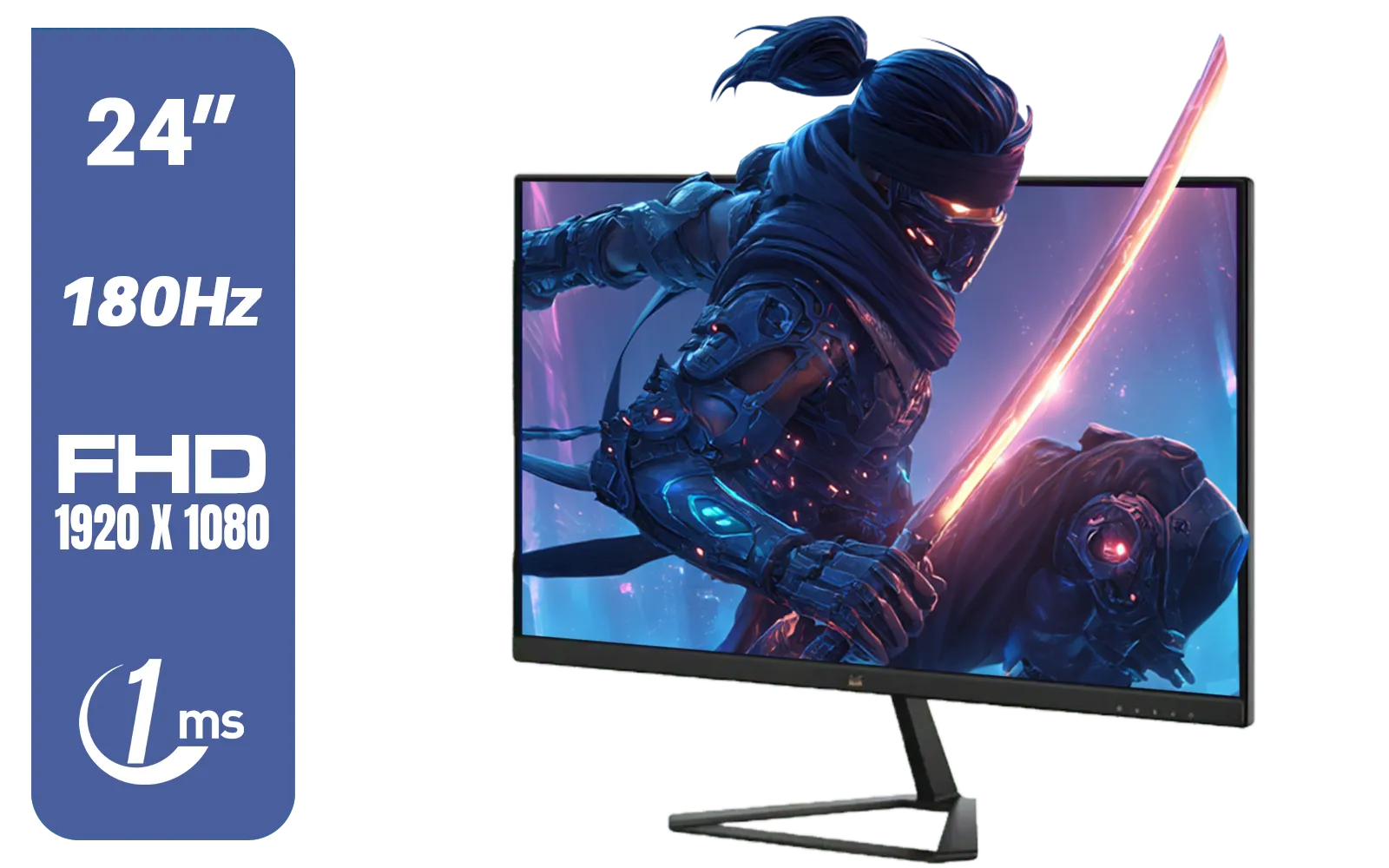
ViewSonic VX2479-HD-PRO 24" FHD IPS Frameless Gaming Flat Monitor with 1ms MPRT and 180Hz, 2 HDMI, DisplayPort, HDR10 / VX2479-HD-PRO
R2199.00In Stock

HP OMEN 27 FHD 165Hz Gaming Monitor / AMD FreeSync™ Premium / Eyesafe® certified / Height adjustable for personalized comfort / Pivot rotation for flexible viewing angles / 780F9AS
R5999.00In Stock

ViewSonic TD1655 15.6" Full HD (1920 x 1080) Portable Touchscreen Monitor / Ultra-portable Design / Advanced in-cell Capacitive Touchscreen / 2-Way Power With USB Type-C / Frameless Design / Portrait and Landscape Modes / dual integrated speakers / TD1655
R5199.00In Stock
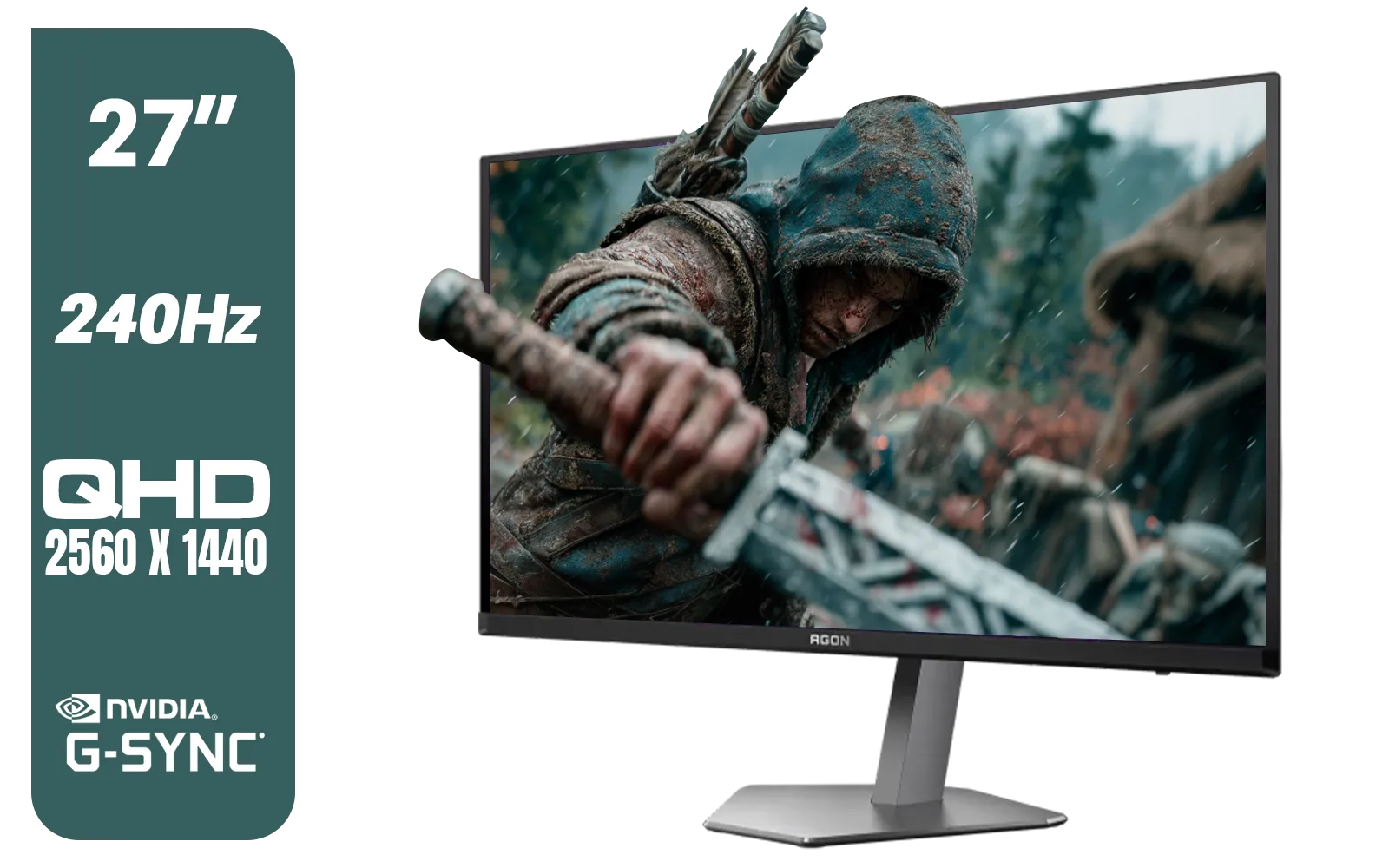
AOC Agon Pro AG276QZD2 27" 240Hz Gaming Monitor / QHD (2560x1440) OLED Display / 0.03 ms Response Time / G-SYNC Compatible / USB 3.2 Gen 1, USB Hub, USB Downstream / AG276QZD2
R15499.00In Stock

VIEWSONIC 23.6" Active Matrix Type LCD Touch Monitor / IR 10-Point Touch Monitor / Finger, Stylus & Glove Touch Compatible / Magnetic Pen Placeholder / Adjustable Back Tilt up to 40° / Scratch-Resistant 7H Hardness Screen / FHD 1920×1080 Resolution / TD2423
R5199.00In Stock

AOC 24B20JH2 IPS Panel Monitor, FHD 1920x1080, 100Hz, 106% sRGB, for Home and Office, HDMI x1, VGA ×1, Low Blue Mode, Black / AOC-24B20JH2
R2299.00In Stock
Enable HDR in your OS or console, set output to HDR10, select the LG HDR picture mode, then fine-tune brightness and contrast for best results.
Use Game HDR mode, set contrast high, brightness around 250–300 cd/m², disable dynamic contrast, and enable features like black stabilizer for clarity.
Use DisplayPort 1.4 or HDMI 2.0+ high-bandwidth cables to support HDR10, 10-bit color, and higher refresh rates on the 27GS75Q.
Use a colorimeter with an HDR workflow or follow LG presets, then tweak RGB gains, color temperature, and gamma for accurate HDR10 color.
Washed HDR usually means incorrect tone mapping, wrong brightness, or OS HDR toggles; adjust tone mapping and lower peak brightness to fix it.
Yes. Set the console to HDR10 output, use a compatible HDMI cable, and enable HDR on the monitor for console HDR10 performance.
Prefer native HDR10 content for best results. Windows Auto HDR can enhance SDR but calibrate to avoid clipping and color shifts.











