



Motherboard Support RTX 30: How to Check Compatibility
motherboard support rtx 30 — Checklist: • Check PCIe slot, lanes & physical fit; • Verify BIOS/UEFI and chipset support; • Confirm PSU wattage & power connectors 🛠️🔌 Quick, actionable checks to avoid upgrade issues.
|
Loading tags...
So, you’ve finally got your hands on a beastly NVIDIA GeForce RTX 30-series graphics card. Lekker! But before you start dreaming of high-refresh-rate glory, a crucial question pops up: will my old motherboard even work with this thing? Don’t stress. Checking your motherboard support for an RTX 30 GPU is simpler than you think. This guide will walk you through the essential checks to ensure your upgrade is smooth sailing. 🚀

MSI GeForce RTX 5070 Ti 16G Ventus 3X OC / 16GB GDDR7 / 28Gbps Memory Speed / PCI Express® Gen 5 / 912-V531-092
R19999.00In Stock

MSI GeForce RTX 5070 12GB Shadow 2X OC Graphics Card / 6144 Cuda Cores / 192-bit Memory Interface / Boost Clock : 2542 MHz / NVIDIA Blackwell & DLSS 4 / TORX Fan 5.0 / Nickel-Plated Copper Baseplate / 912-V532-011
R11999.00In Stock
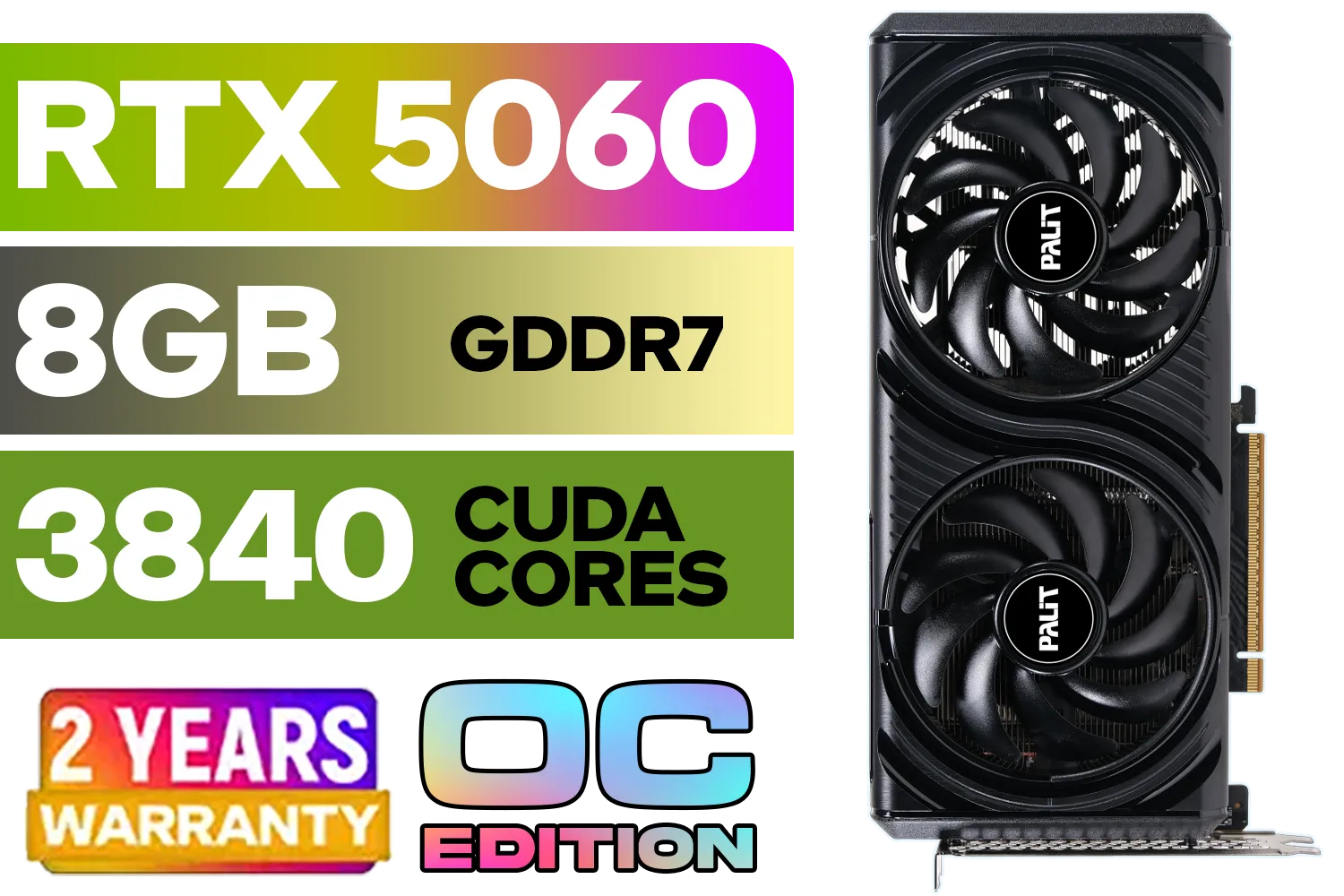
Palit GeForce RTX 5060 Infinity 2 OC 8GB GDDR7 / 28Gbps Memory Speed / PCI Express® Gen 5 / NE75060V19P1-GB2063L
R7999.00In Stock
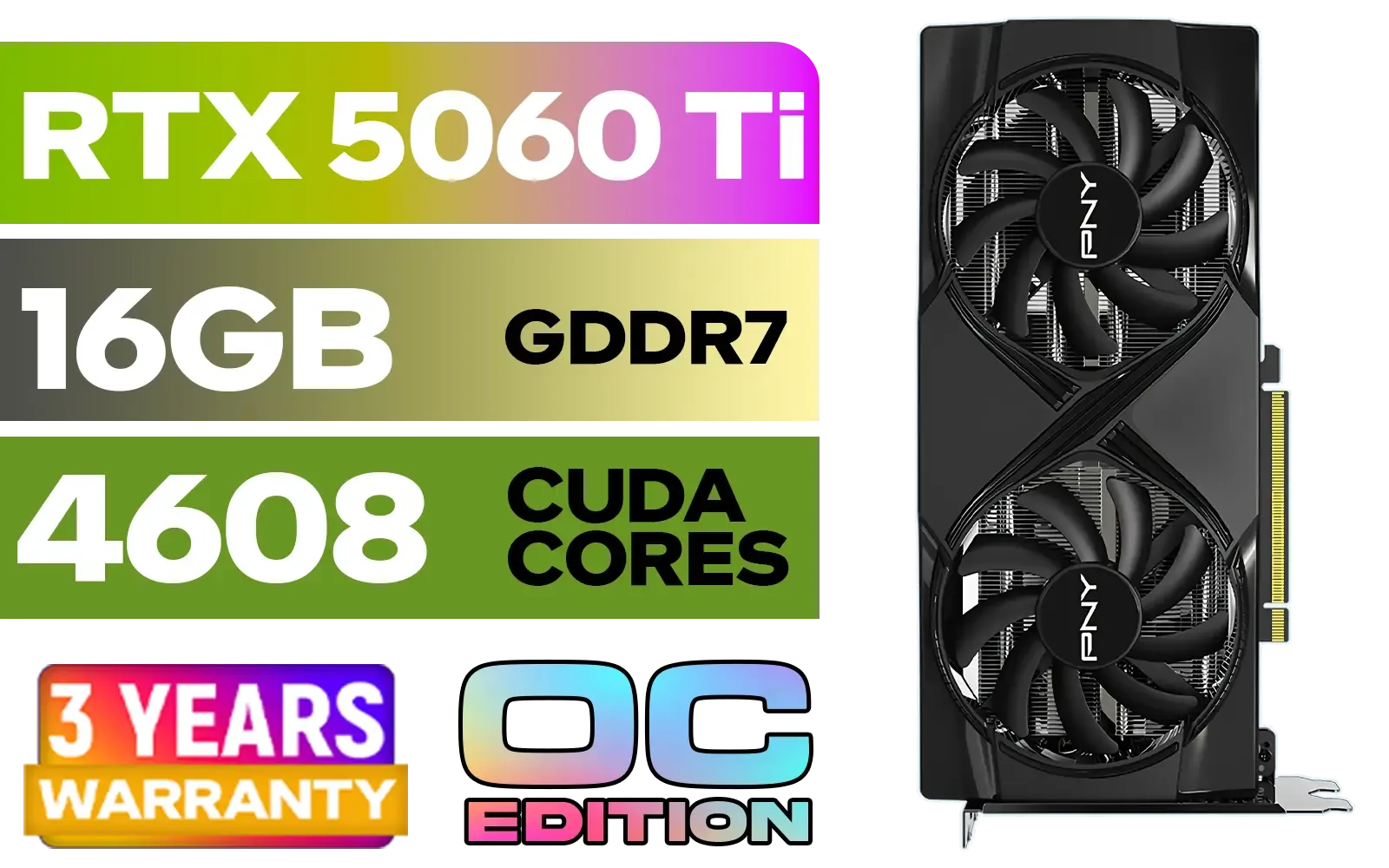
PNY GeForce RTX 5060 Ti 16GB OC Dual Fan Graphics Card / 16GB GDDR7 / 4608 CUDA Cores / 128-bit Memory Interface / Boost Clock: 2692 MHz / 28 Gbps Memory Speed / DisplayPort 2.1b (x3), HDMI® 2.1b / VCG5060T16DFXPB1-O
R10499.00In Stock

ASRock Intel ARC B580 Steel Legend OC Graphics Card / 12Gb 192-bit GDDR6 / DirectX 12 Ultimate / 2560 Cores / 2800MHz Engine Clock / 90-GA5CZZ-00UANF
R6999.00In Stock
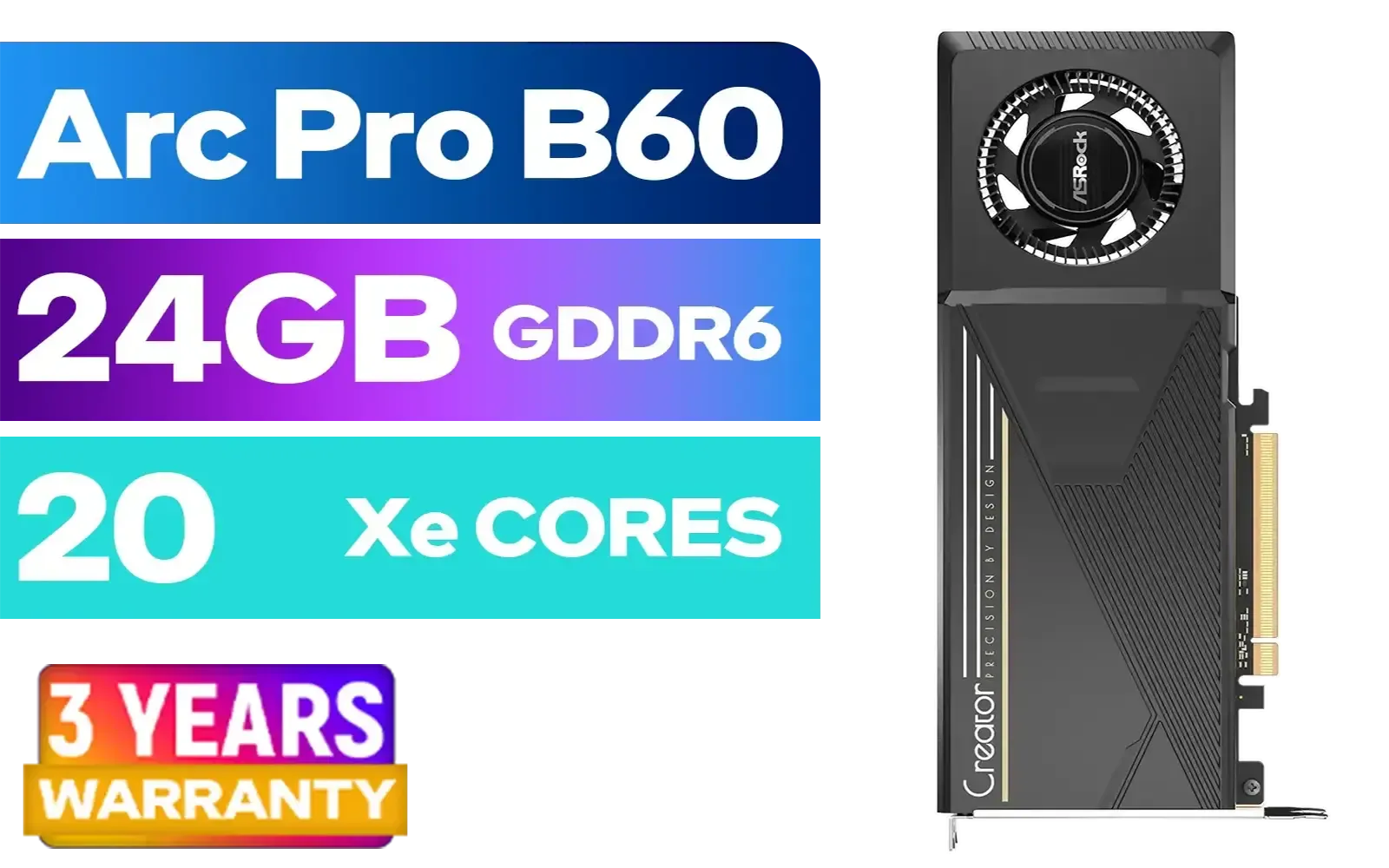
ASRock Intel Pro B60 Creator 24GB Graphics Card / 24GB 192-bit GDDR6 / GPU Clock: 2400 MHz / Microsoft® DirectX® 12 Ultimate / 160 Intel® XMX Engines / Intel® Xe2-HPG Architecture / 90-GA60ZZ-00UBNF
R12499.00In Stock
The Core Requirement: Understanding the PCIe Slot
At the heart of motherboard and RTX 30 compatibility is the PCI Express (PCIe) slot. This is the long slot on your motherboard where the graphics card plugs in. For any modern GPU, including the entire RTX 30 family (from the 3050 to the 3090 Ti), you need one specific type of slot: a PCIe x16 slot.
Luckily, virtually any motherboard made in the last decade will have one. The main difference you'll see is the PCIe generation, like PCIe 3.0, 4.0, or 5.0. While RTX 30-series cards are designed for PCIe 4.0 to hit their maximum potential speed, they are fully backward compatible with PCIe 3.0. You might lose a tiny fraction of performance in some scenarios, but for most gaming, the difference is negligible. The key takeaway? If you have a PCIe x16 slot, your motherboard has basic support for an RTX 30 GPU.
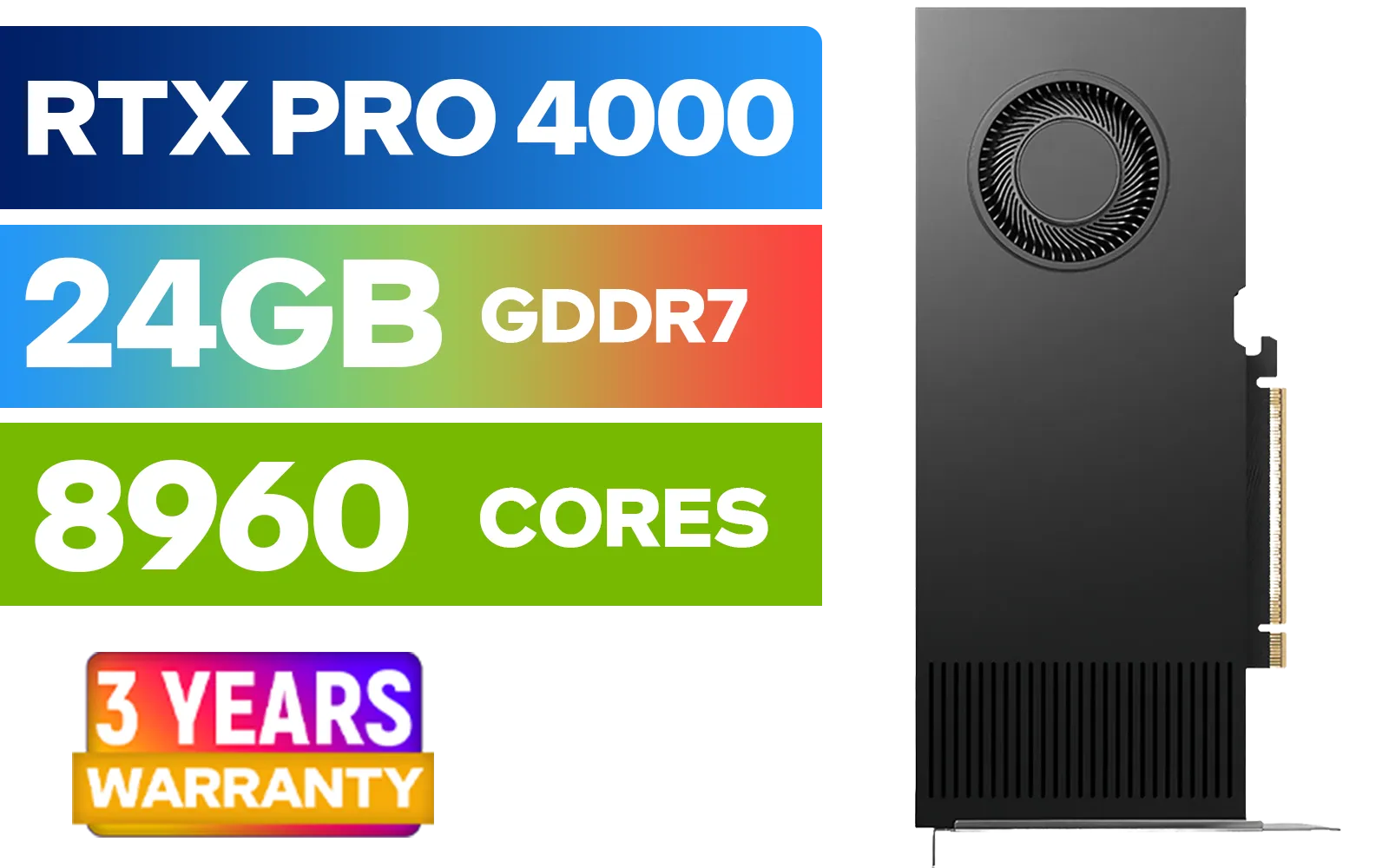
LEADTEK NVIDIA RTX PRO 4000 Blackwell 24GB GDDR7 Workstation Graphics Card / 8,960 Nvidia CUDA Cores / 672GB/s Memory Bandwidth / NVIDIA Blackwell Architecture / 126X4000100
R32999.00In Stock
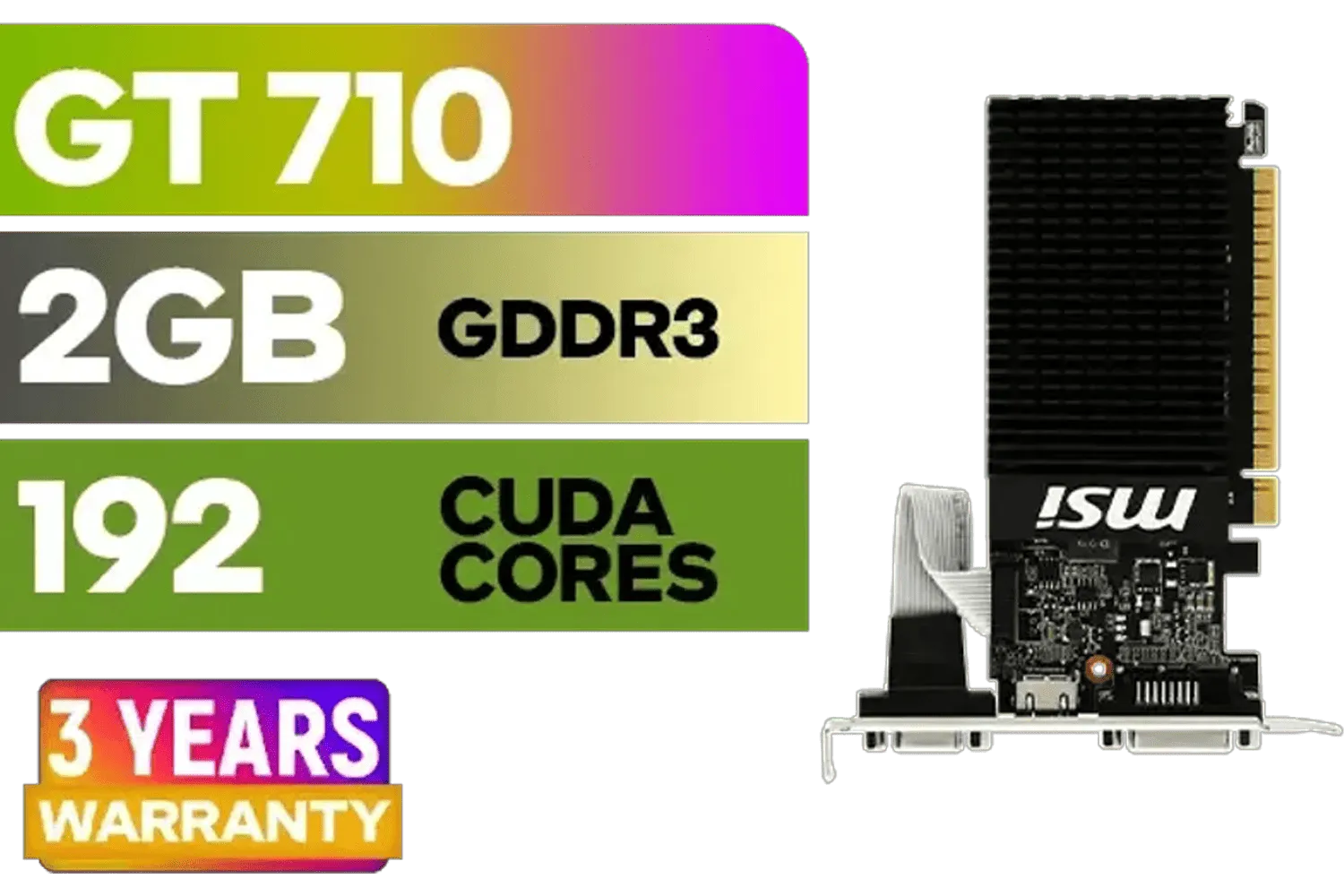
MSI GeForce GT 710 2GD3H LP 2GB DDR3 Graphics Card / 192 CUDA CORES / 64-bit Memory / 1x HDMI / 1x Dual-link DVI-D / 1x D-Sub / 912-V809-4217
R1099.00In Stock

Leadtek NVIDIA RTX A1000 8GB GDDR6 Workstation Graphics Card / 2304 Nvidia CUDA Cores / 192GB/s Memory Bandwidth / Nvidia Ampere Architecture / 126W8000100
R10999.00In Stock

MSI GeForce RTX 5080 16G VENTUS 3X OC Plus Graphics Card / PCI Express Gen 5 / 10752 Cuda Cores / 16GB GDDR7 / Nickel-plated Copper Baseplate / 912-V531-293
R27999.00In Stock

Palit GeForce RTX 5080 GamingPro 16GB GDDR7 / 30Gbps Memory Speed / PCI Express® Gen 5 / NE75080019T2-GB2031A
R24199.00In Stock
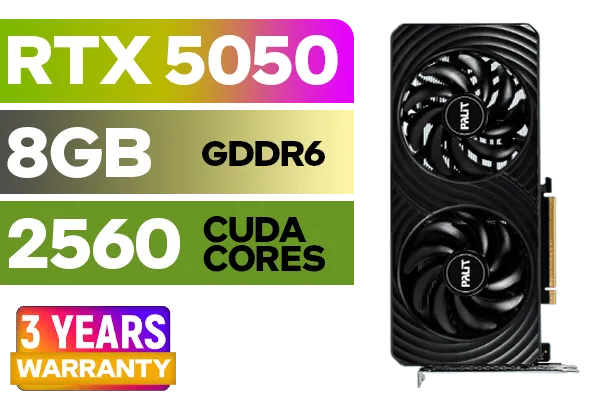
Palit GeForce RTX™ 5050 DUAL Graphics Card / 8GB GDDR6 / 2560 Cuda Cores / 128-bit Memory Interface / Boost Clock : 2572 MHz / PCI Express® Gen 5 / NE65050019P1-GB2070D
R5699.00In Stock
How to Physically Check Your Motherboard
Not sure what you're running? It's time for a quick look inside your PC case. 🔧
- Power Down: Completely shut down your PC and unplug it from the wall. Safety first!
- Open the Case: Remove the side panel of your computer case.
- Locate the Slot: Find the uppermost long slot located just below your CPU cooler. This is typically the primary PCIe x16 slot.
- Check the Label: Most motherboards have labels printed directly on the board. Look for text like
PCIEX16orPCIe 4.0 x16right next to the slot.
If you see that x16 label, you're good to go on the most fundamental check for motherboard support for an RTX 30 card. While you're in there, it's a good time to consider all your options, from the latest powerful NVIDIA RTX 30-series GPUs to competitive alternatives.
TIP FOR YOU
Check Your Power Connectors! ⚡
Before you buy, check your Power Supply Unit (PSU). Most RTX 30-series cards require one or two 8-pin (or 6+2 pin) PCIe power connectors. Look at the cables coming from your PSU. If you don't have the right connectors, you'll need a PSU upgrade along with your new GPU. This is a common oversight that can halt a build in its tracks!
Beyond the Slot: Power and Size Considerations
Getting the card to fit in the slot is only part of the puzzle. True compatibility for your RTX 30 upgrade involves two more critical factors: your Power Supply Unit (PSU) and your PC case. Many builders get this wrong and end up with a card that either won't power on or physically doesn't fit.
Power Supply Wattage
An RTX 3060 Ti or 3070 typically requires at least a 650W PSU, while a powerhouse like the RTX 3080 or 3090 needs 750W or more. Check the wattage printed on the side of your PSU. If it's too low, your system could be unstable or fail to boot. This applies to all brands, whether you're looking at popular MSI models or other manufacturers.
Physical Case Clearance
These cards are big... seriously big. Measure the internal length of your case from the back expansion slots to the front drive bays or fans. Compare this measurement to the length of the specific RTX 30 model you want to buy (specs are always listed on the product page). Don't forget to check the card's height and width, too! While gaming GPUs are the focus here, the same principles apply if you were fitting specialised workstation graphics cards.

Palit GeForce RTX 5060 Dual 8GB Graphics Card / 8GB GDDR7 / 3840 Cuda Cores / 128-bit Memory Interface / Boost Clock : 2497 MHz / PCI Express® Gen 5 / NE75060019P1-GB2063D
R8299.00In Stock

MSI GeForce RTX 5070 Ti 16G Gaming Trio OC Graphics Card / 16GB GDDR7 / 8960 Cuda Cores / 256-bit Memory Interface / Boost Clock : 2572 MHz / PCI Express® Gen 5 / 912-V531-272
R21199.00In Stock

Leadtek NVIDIA RTX 5000 ADA 32GB GDDR6 Workstation Graphics Card / 12800 Nvidia CUDA Cores / 576GB/s Memory Bandwidth / Ada Lovelace GPU architecture / 126V5000100
R96999.00In Stock
Palit GeForce RTX 5080 GamingPro 16GB GDDR7 / 30Gbps Memory Speed / PCI Express® Gen 5 / NE75080019T2-GB2031A
R24199.00In Stock

Palit GeForce RTX 5070 Ti GameRock 16G / 16GB GDDR7 / 28Gbps Memory Speed / PCI Express® Gen 5 / NE7507T019T2-GB2030G
R17999.00In Stock
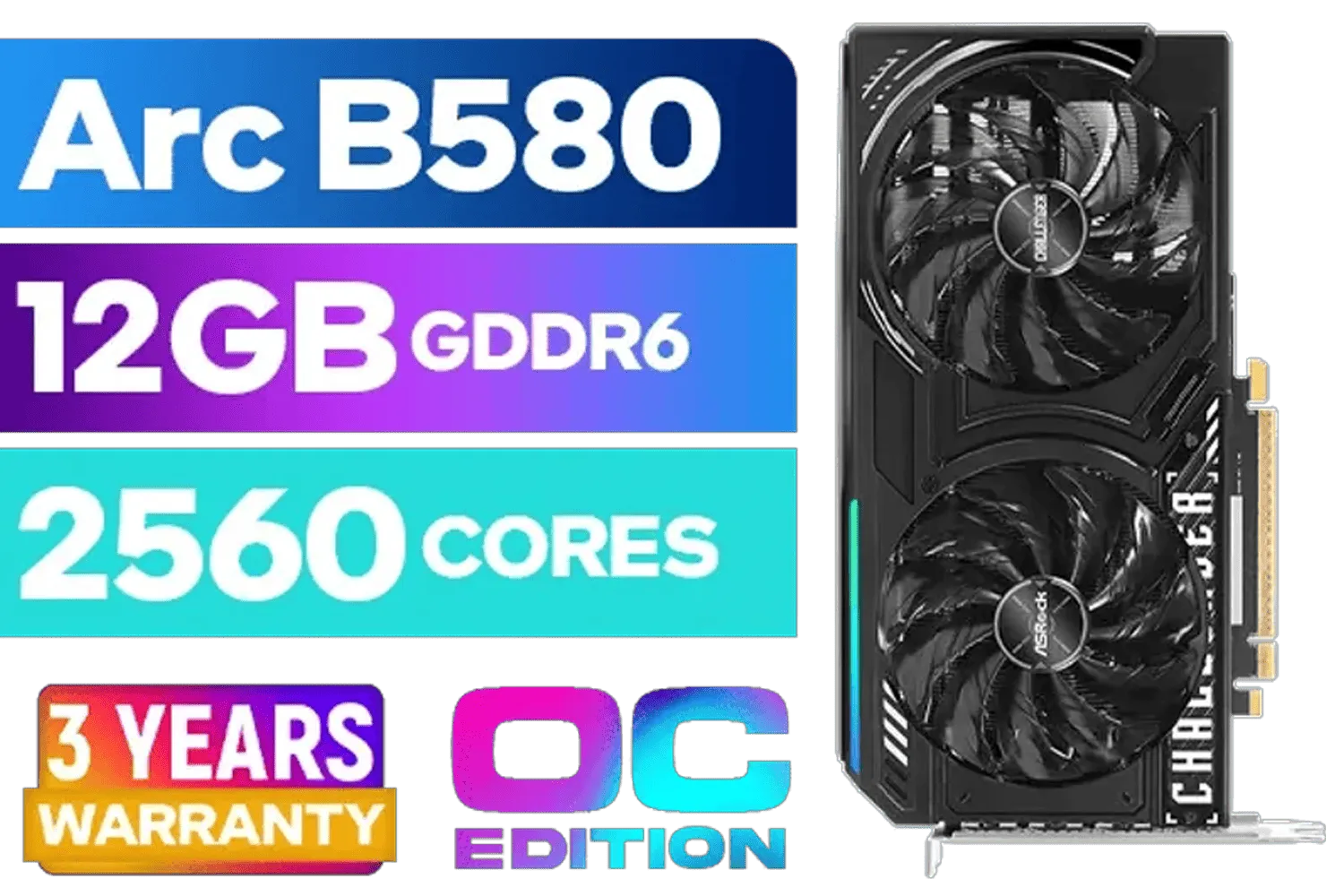
ASRock Intel ARC B580 Challenger OC Graphics Card / 12Gb 192-bit GDDR6 / DirectX 12 Ultimate / 2560 Cores / 2740MHz Engine Clock / 90-GA5LZZ-00UANF
R6499.00In Stock
Is a Broader Upgrade a Better Idea?
If your motherboard is ancient, lacks a PCIe x16 slot, or your PSU is underpowered, it might be time for a more comprehensive upgrade. While your primary focus may be NVIDIA, it's always wise to see what the competition offers. Both AMD's Radeon lineup and the newer contenders in Intel's Arc series present compelling options that might better suit your budget and performance goals when paired with a new motherboard and CPU. A full platform upgrade ensures all your components work together seamlessly, unlocking maximum performance without bottlenecks.
Ready for a Graphics Power-Up? Whether your current board is ready or you're planning a full new build, getting the right GPU is key. Explore our massive range of NVIDIA graphics cards and find the perfect RTX beast to dominate your favourite games.
Related Products

XFX SWIFT AMD Radeon RX 9060 XT OC Triple Fan 16GB GDDR6 GPU - White / AMD RDNA 4 Architecture / 3rd Gen Radeon Raytracing Accelerators/ AMD Fidelity FX Super Resolution 4.0 Upscaling Technology / RX-96TS316W7
R8499.00In Stock
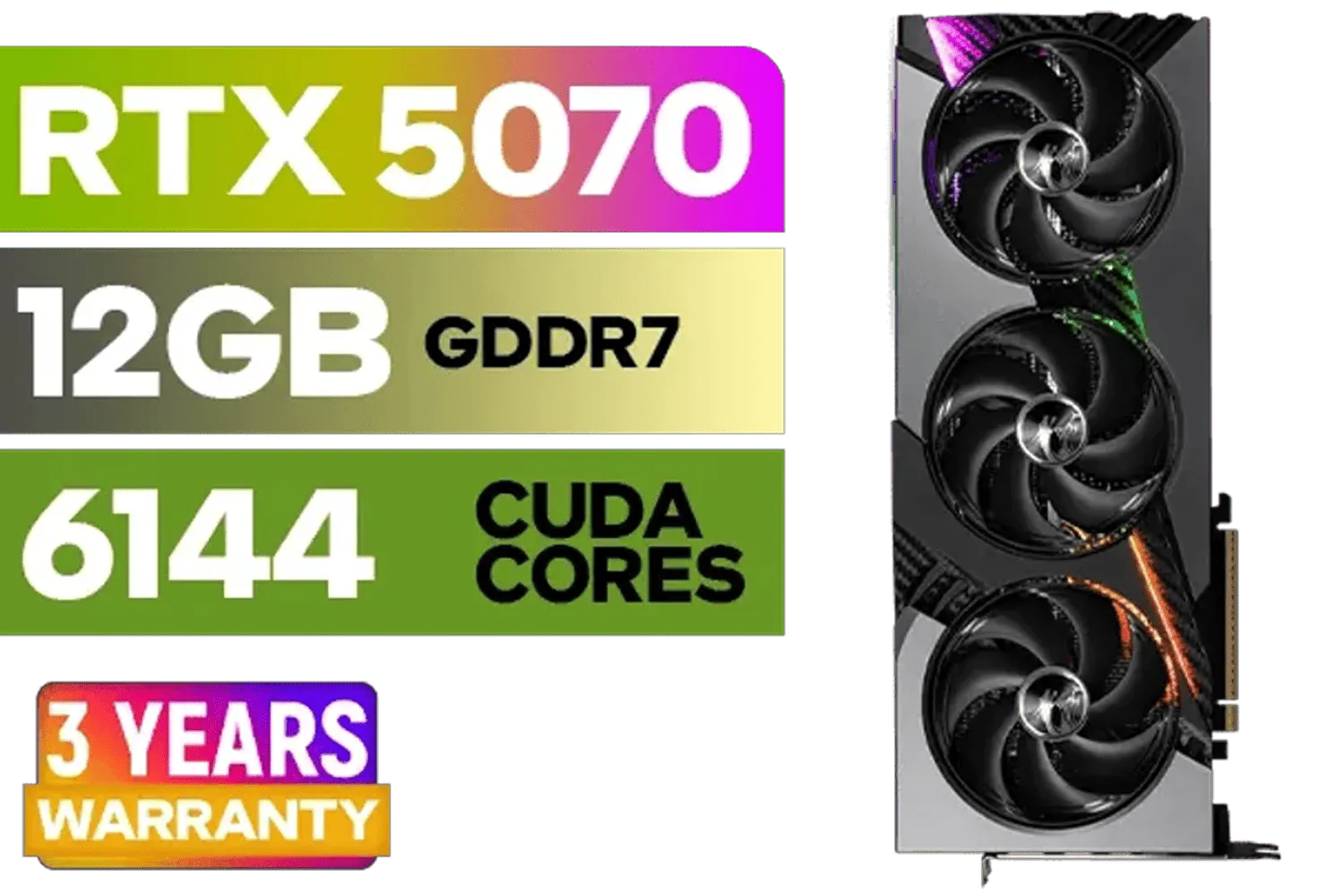
MSI GeForce RTX 5070 12GB VANGUARD SOC Launch Edition / 12GB GDDR7 / 6144 Cuda Cores / Boost: 2640 MHz / 28Gbps Memory Speed / PCI Express® Gen 5 / 912-V532-050
R15299.00In Stock

Palit GeForce RTX 5090 GameRock 32GB GDDR7 512-Bit PCIe 5.0 Desktop Graphics Card / NE75090019R5-GB2020G
R47999.00In Stock
Leadtek NVIDIA RTX 5000 ADA 32GB GDDR6 Workstation Graphics Card / 12800 Nvidia CUDA Cores / 576GB/s Memory Bandwidth / Ada Lovelace GPU architecture / 126V5000100
R96999.00In Stock

Leadtek NVIDIA RTX A400 4GB GDDR6 Workstation Graphics Card / 768 Nvidia CUDA Cores / 96GB/s Memory Bandwidth / Nvidia Ampere Architecture / 126W7000100
R3699.00In Stock
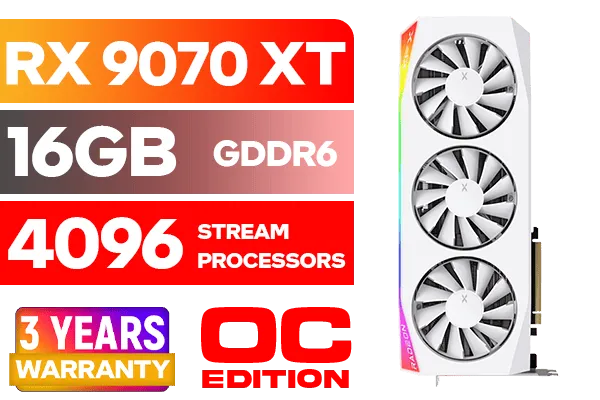
XFX Mercury AMD Radeon RX 9070 XT OC Magnetic Air Edition Graphics Card - White / 4096 Stream Processors / 256-bit Memory Interface / Boost Clock : 3100 MHz / AMD RDNA™ 4 Architecture / RX-97TMARGW9
R16299.00In Stock
Check PCIe x16 slot and lanes, confirm BIOS/UEFI and chipset compatibility, verify PSU wattage and connectors, and measure physical clearance. (check motherboard compatibility rtx 30)
Yes. PCIe 3.0 x16 works with RTX 30 cards; PCIe 4.0 yields minor gains in select cases. (pcie 4.0 vs 3.0 rtx 30)
Often yes. Older boards may require a UEFI/BIOS update to initialize Ampere GPUs properly. Check your vendor support notes. (bios update for rtx 30)
Check recommended wattage (~750W for many RTX 3080 builds), 12V rail capacity, and required 8-pin connectors before upgrading. (psu wattage for rtx 3080 on old builds)
Measure card length and height, check slot spacing, and ensure no M.2 or VRM heatsinks block the GPU. (gpu physical fit length clearance)
Many modern and midrange chipsets work, but some legacy chipsets or non-UEFI boards may lack support—confirm vendor compatibility. (ampere chipset compatibility)
Running at x8 instead of x16 typically causes minimal real-world loss, but check CPU and chipset lane allocation for best results.
Yes. Install the latest NVIDIA drivers and remove old GPU drivers for best stability and performance.











