



Optimal PC Temperature for 4K Gaming: SA Findings
Discover the optimal PC temperature for 4K gaming with our exclusive South African findings. We reveal what's hot and what's not, helping you prevent overheating and maximize performance. Keep your rig cool and your frames high! ❄️🎮
|
Loading tags...
You're deep in a boss fight, the 4K visuals are stunning... and then it happens. A stutter. A massive frame drop. Is it the boss's AOE attack? Nope. It's your PC, sweating harder than you are in a Durban summer. Achieving the optimal PC temperature for 4K gaming isn't just a tech chore; it's the key to consistent, buttery-smooth performance, especially here in South Africa. Let's dive into keeping your rig cool when the action gets hot.

MSI GeForce RTX 5070 Ti 16G Gaming Trio OC Graphics Card / 16GB GDDR7 / 8960 Cuda Cores / 256-bit Memory Interface / Boost Clock : 2572 MHz / PCI Express® Gen 5 / 912-V531-272
R21199.00In Stock

MSI GeForce RTX 5060 Ti 8G GAMING OC Graphics Card / 4608 Cuda Cores / 28Gbps Memory Speed / 8GB GDDR7 / 128-bit Memory Bus / 912-V536-026
R9499.00In Stock

AOC 24B20JH2 IPS Panel Monitor, FHD 1920x1080, 100Hz, 106% sRGB, for Home and Office, HDMI x1, VGA ×1, Low Blue Mode, Black / AOC-24B20JH2
R2299.00In Stock
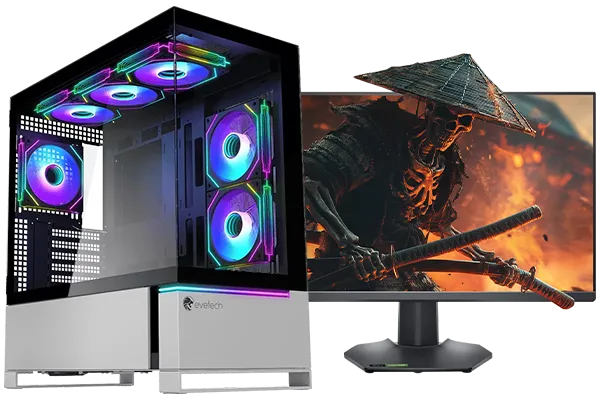
RYZEN 9 9950X 5.7GHz RTX 5090 32GB DDR5 Gaming PC
R78119.00In Stock
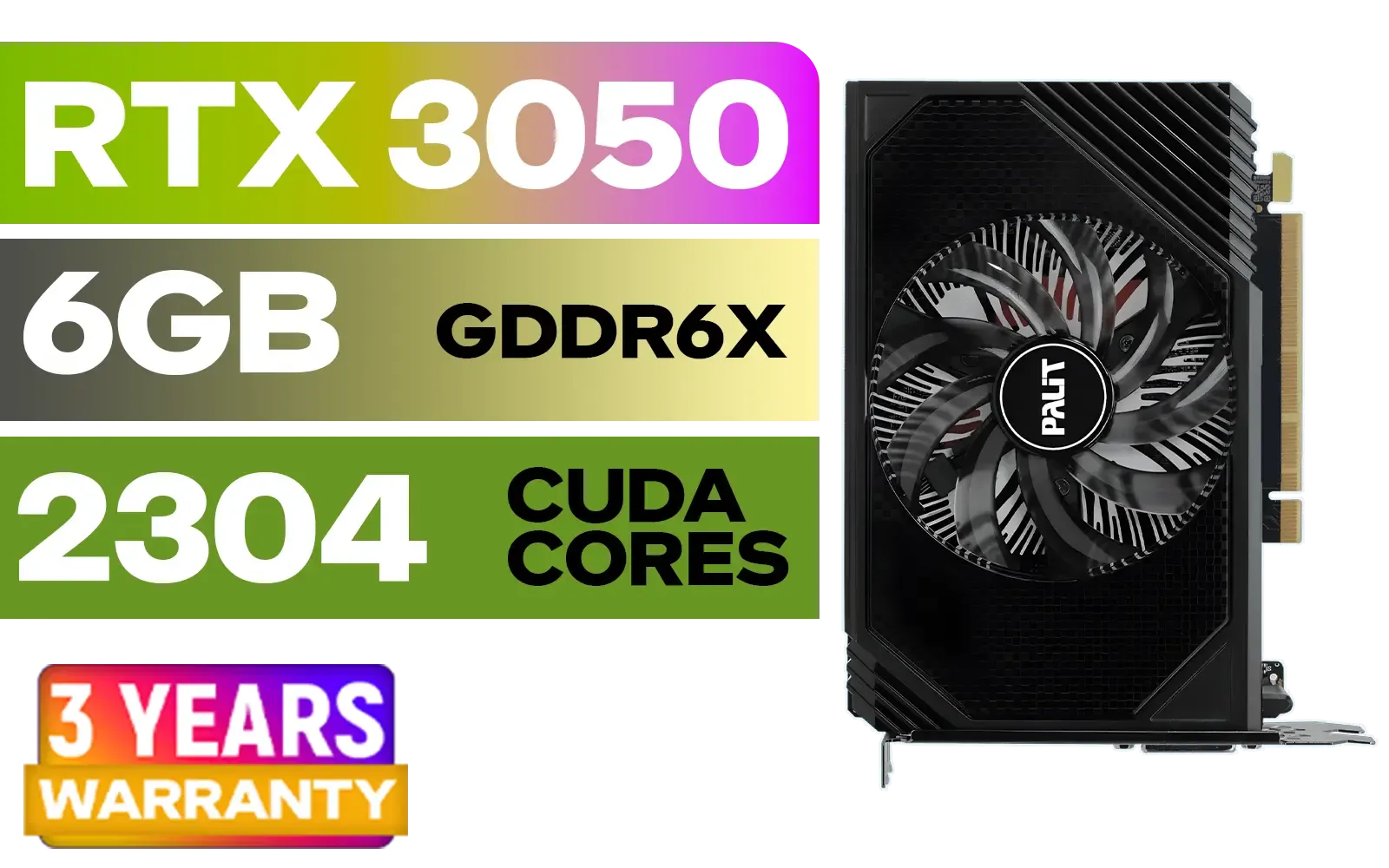
Palit GeForce RTX 3050 StormX 6GB GDDR6 Gaming Graphics Card / 2304 Cuda Core / 96-bit Memory Interface / Boost Clock : 1470MHz / Incredibly Fast Frame Rates / New Streaming Multiprocessors / NE63050018JE-1070F-SN
R3599.00In Stock
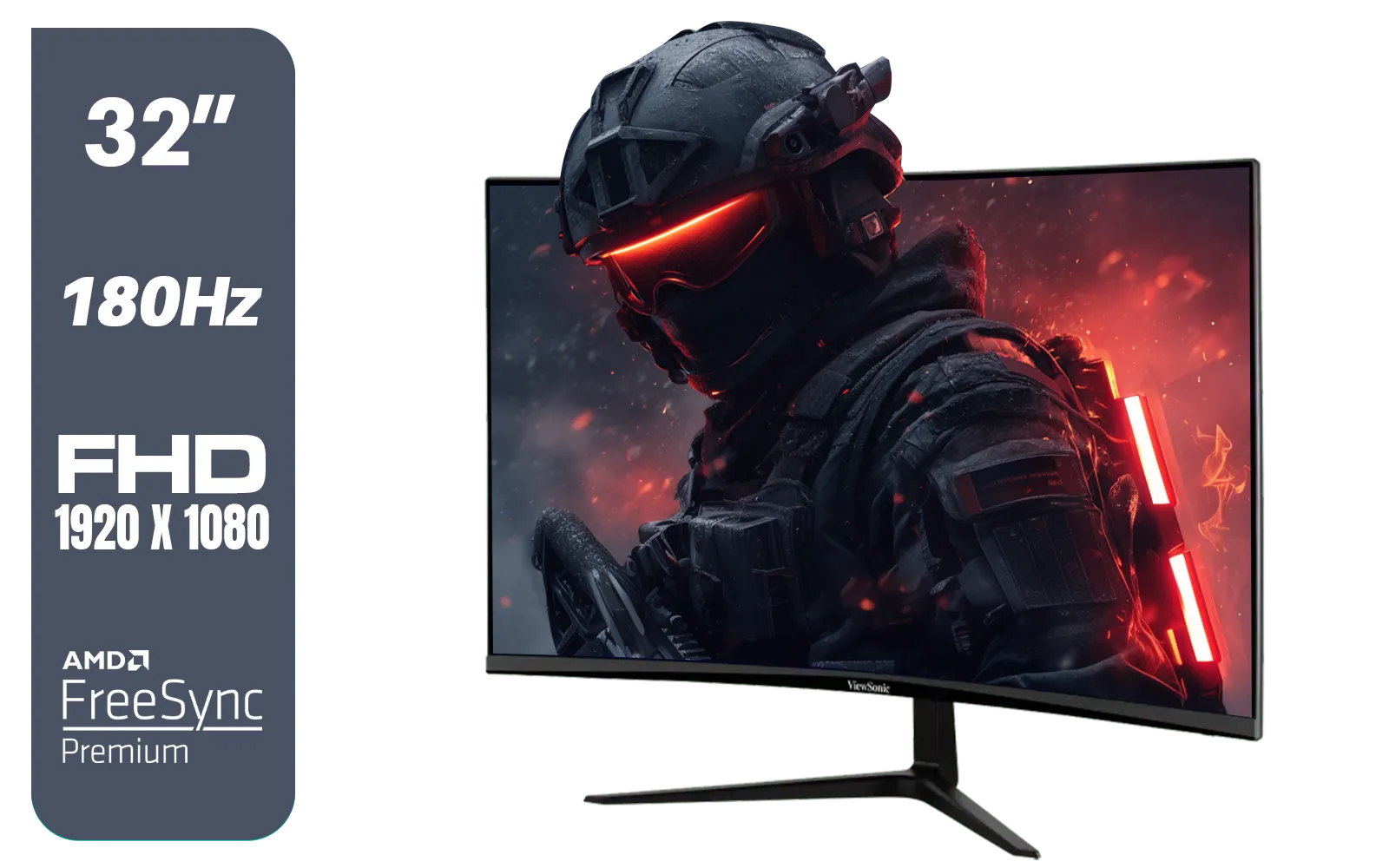
ViewSonic VX3218-PC-MHD 32" Full HD (1920 x 1080) 180Hz Curved Gaming Monitor / 180Hz Refresh Rate / 1ms MPRT Response Time / AMD Adaptive Sync Prevents Screen Tearing / 1500R Curve Ultimate Immersion / VX3218PCMHD
R3499.00In Stock
Why 4K Gaming Turns Your PC into a Braai
Pushing over eight million pixels per frame is no small task. 4K gaming demands maximum effort from your Graphics Card (GPU) and often your Central Processing Unit (CPU) too. This intense workload generates a serious amount of heat. In a warm climate like ours, ambient room temperature is already high, giving your PC's cooling system less headroom to work with.
When components get too hot, they protect themselves by "thermal throttling"—intentionally slowing down to reduce heat output. For you, the gamer, this translates directly into lag, stuttering, and a ruined experience. Pushing pixels on one of our glorious dedicated 4K displays requires immense power, and managing the heat that comes with it is crucial.
The "Safe Zone": Ideal CPU & GPU Temperatures 🌡️
So, what is the optimal PC temperature for 4K gaming? While it varies slightly between different models from Intel, AMD, and Nvidia, these are solid guidelines for most modern gaming rigs.
CPU Temperatures
- Idle (Just on the desktop): 30°C to 50°C
- 4K Gaming Load: 70°C to 85°C
- Warning Zone: Anything consistently above 90°C is too hot and will likely cause throttling or, in extreme cases, a system shutdown.
GPU Temperatures
- Idle (Not running a game): 30°C to 50°C
- 4K Gaming Load: 65°C to 85°C
- Warning Zone: Modern GPUs are designed to run warm, but sustained temperatures over 85°C-90°C will trigger performance cuts to protect the hardware.
Whether you're using a standard screen or one of the latest high-refresh rate PC monitors, these temperature targets are your goal for stable, long-term performance.
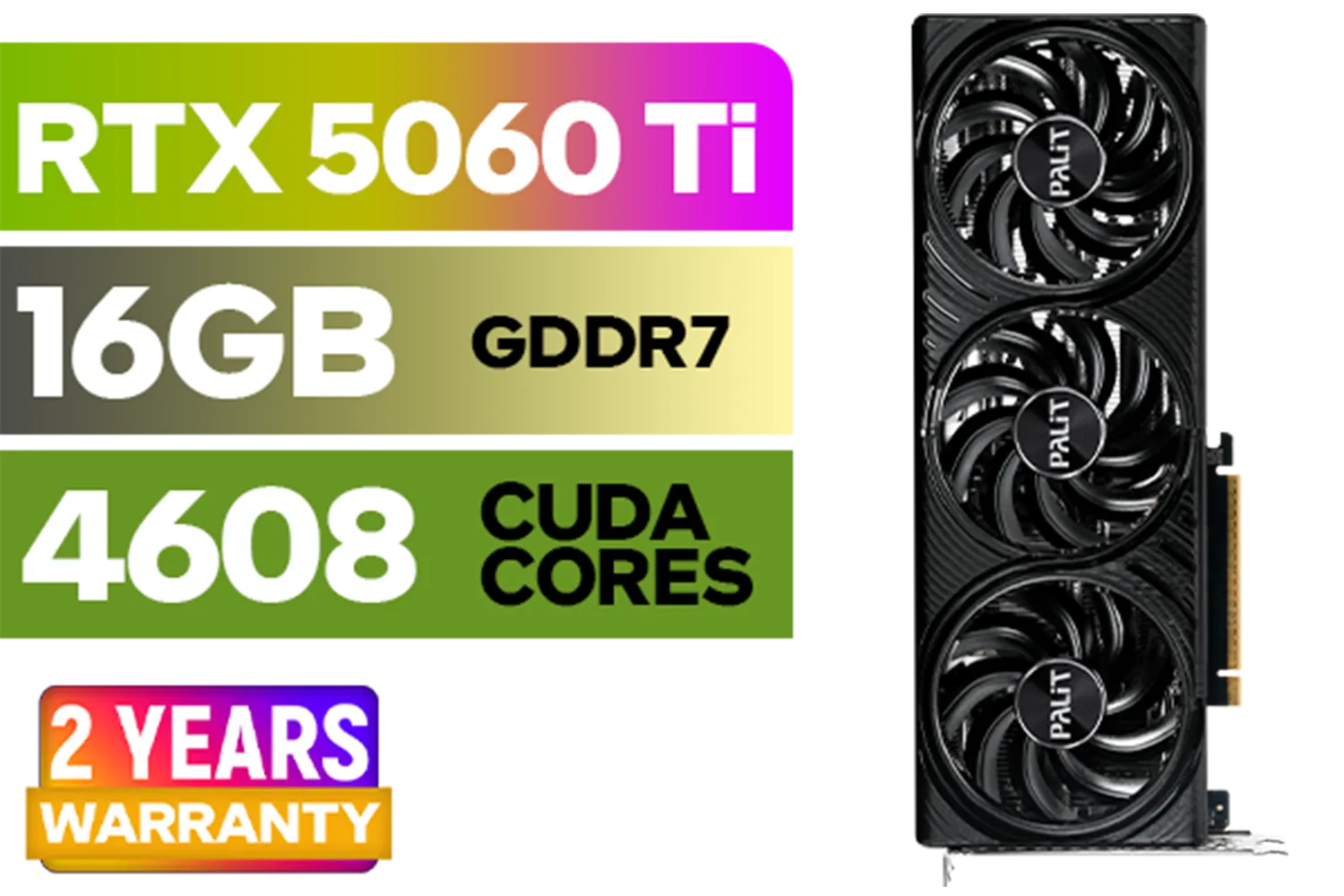
Palit GeForce RTX 5060 Ti Infinity 16GB Graphics Card / 16GB GDDR7 / 4608 Cuda Cores / 128-bit Memory Interface / Boost Clock : 2572 MHz / 28Gbps Memory Speed / PCI Express® Gen 5 / NE7506T019T1-GB2061S
R9799.00In Stock

Palit GeForce RTX 5090 GameRock 32GB GDDR7 512-Bit PCIe 5.0 Desktop Graphics Card / NE75090019R5-GB2020G
R47999.00In Stock

HP 524SW G5 FHD Gaming Monitor - White/Silver / 24" FHD (1920 x 1080) / IPS Panel / 1x HDMI 1.4, 1x VGA / Eye Ease with Eyesafe Certification / 94C21AS
R4299.00In Stock
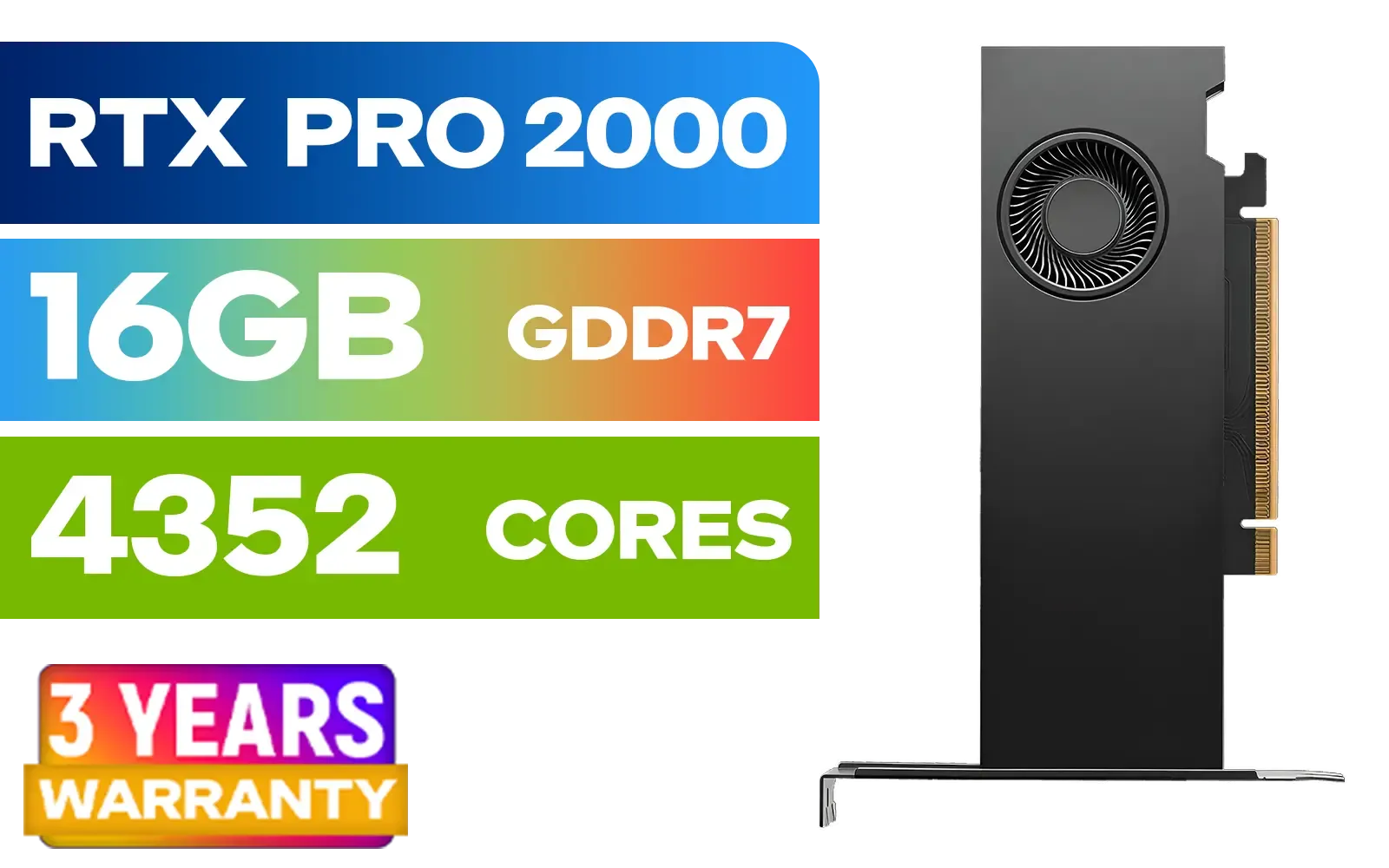
PNY RTX PRO 2000 Blackwell 16GB Graphics Card / 4352 CUDA CORES / 16GB GDDR7 with ECC / 128-bit Memory / NVIDIA Blackwell Architecture / VCNRTXPRO2000-PB
R15399.00In Stock

RYZEN 9 9900X 5.6GHz RTX 5070 Ti 16GB DDR5 Gaming PC
R41369.00In Stock

MSI GeForce RTX 5070 12G Gaming Trio OC Graphics Card / 12GB GDDR7 / 6144 Cuda Cores / 192-bit Memory Interface / Boost Clock : 2610 MHz / NVIDIA Blackwell & DLSS 4 / TRI FROZR 4 Thermal Design / Metal with Airflow Vents / 912-V532-019
R15199.00In Stock
Practical Steps to Lower Your PC Temps in SA
Before you rush out to buy new hardware, there are several effective, low-cost ways to improve your 4K gaming temperatures.
1. Master Your Airflow 💨
Your PC case is not just a box; it's a wind tunnel. Ensure you have a clear path for air to flow from front/bottom intakes to rear/top exhausts.
- Clean Your Filters: Dust is the enemy of cool. In SA, dust builds up fast. Clean the mesh filters on your case intakes every month.
- Cable Management: A "rat's nest" of cables can block airflow. Tidy them up with cable ties to clear the path.
- Fan Orientation: Double-check that your fans are creating a consistent flow, not fighting each other.
Keeping your PC cool means you can spend less on replacement parts and more on the fun stuff, like grabbing one of the best PC monitor deals available.
2. Re-think Your Thermal Paste
The paste between your CPU/GPU and its cooler is vital for heat transfer. Over time, especially in hotter environments, it can dry out and become less effective. If your PC is more than two or three years old, applying a fresh layer of quality thermal paste can drop your temperatures significantly.
TIP FOR YOU
Cooling Pro Tip ⚡
Use a free tool like MSI Afterburner to set a custom fan curve for your GPU. Instead of waiting for the card to hit 80°C before the fans spin up aggressively, you can make them ramp up sooner. A gentle curve that starts increasing fan speed around 60°C can keep temperatures much lower without sounding like a jet engine.
3. Software Tweaks & Monitoring
Knowledge is power. Use software like HWMonitor or the overlay in MSI Afterburner to watch your temps in real-time. This level of control is essential when you're powering one of the visually demanding screens from our collection of all gaming monitors. If you notice temps creeping up, you'll know it's time to investigate.
4. Ambient Temperature Matters
This one is simple but often overlooked. Your PC can only cool itself relative to the air temperature in the room.
- Avoid placing your PC tower inside a closed cabinet or tight desk nook.
- If possible, game in an air-conditioned room on scorching hot days.
- Ensure the PC's exhaust isn't blowing hot air directly against a wall, where it can be sucked back in.

Palit GeForce RTX 5080 GamingPro 16GB GDDR7 / 30Gbps Memory Speed / PCI Express® Gen 5 / NE75080019T2-GB2031A
R24199.00In Stock
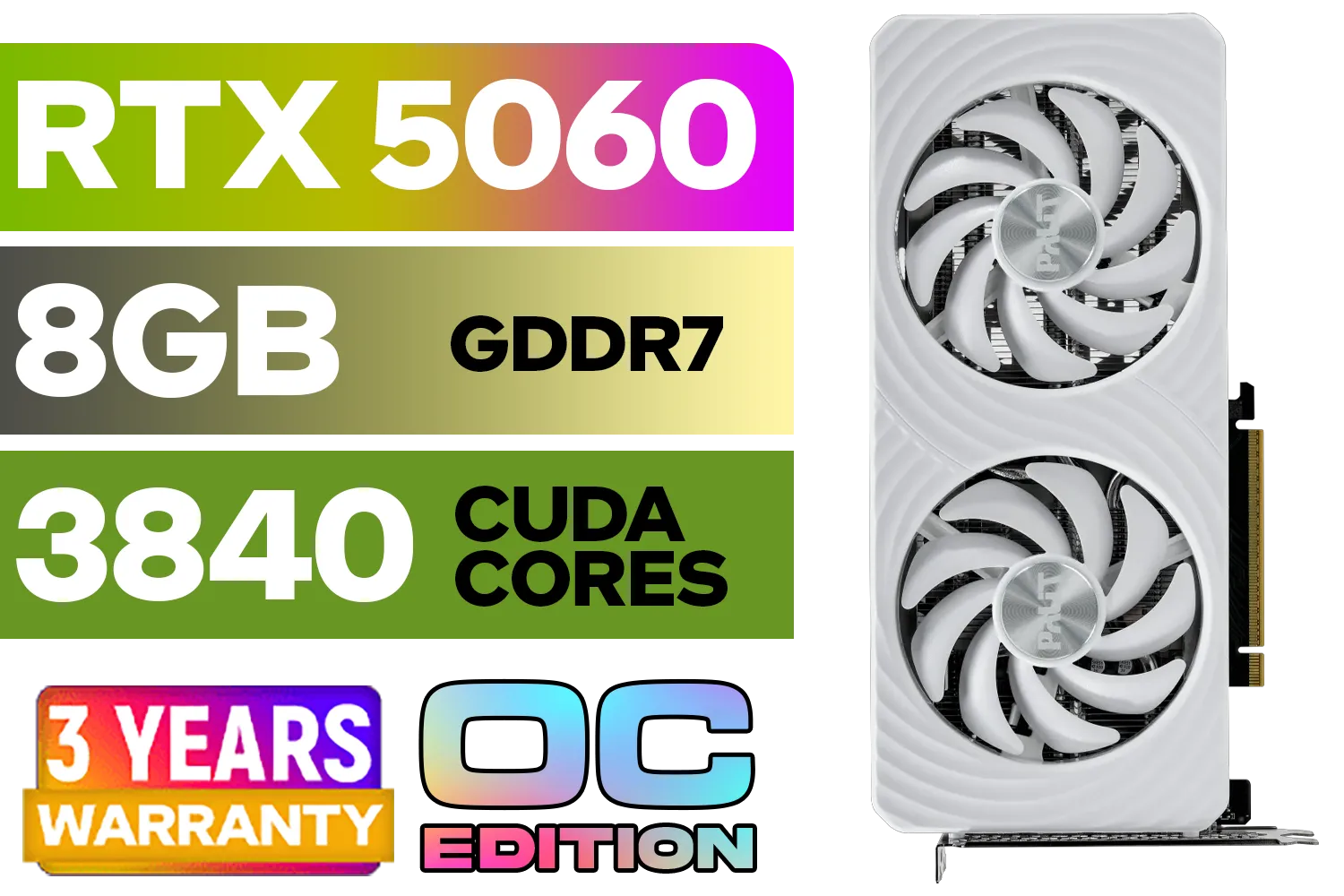
Palit GeForce RTX 5060 OC Graphics Card - White / 8GB GDDR7 / 3840 Cuda Cores / 128-bit Memory Interface / Boost Clock : 2497 MHz / PCI Express® Gen 5 / NE75060U19P1-GB2063M
R6999.00In Stock
![[Pre Built] AMD Ryzen 7 9800X3D RX 9070 XT Gaming PC](https://img.evetech.co.za/repository/ProductImages/ryzen-7-9800-x-3-d-rx-9070-xt-gaming-pc-48-gb-main-1600px-v1.webp)
[Pre Built] AMD Ryzen 7 9800X3D RX 9070 XT Gaming PC
R67199.00In Stock
RYZEN 7 9800X3D 5.2GHz RTX 5080 16GB DDR5 Gaming PC
R51869.00In Stock
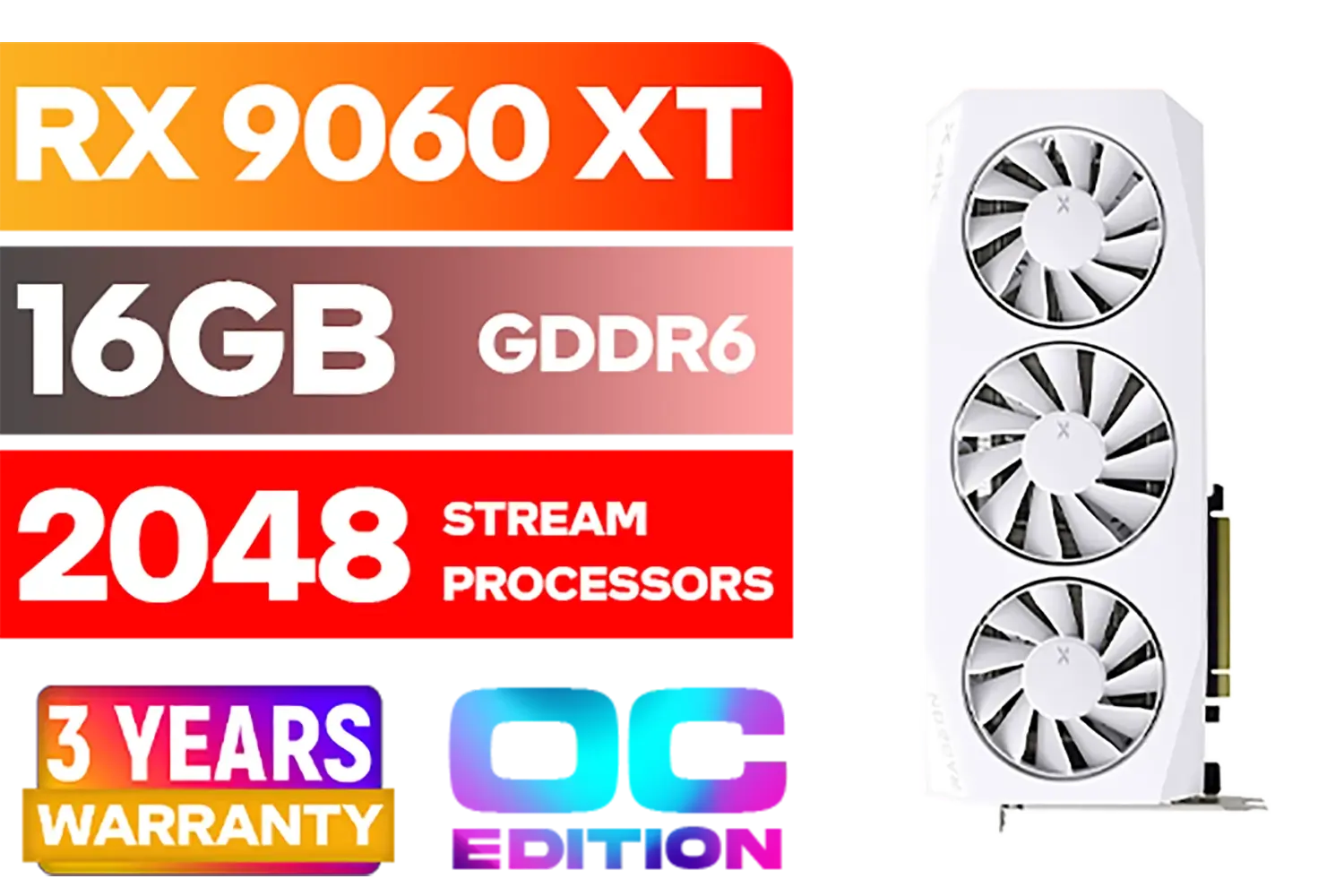
XFX Mercury AMD Radeon RX 9060XT OC White Gaming Edition with 16GB GDDR6 HDMI 2xDP, AMD RDNA 4 / RX-96TMERCW9
R9199.00In Stock
RYZEN 7 7800X3D 5.0GHz RTX 5060 Ti 16GB DDR5 Gaming PC
R26774.00In Stock
Creating an immersive gaming nook, perhaps with one of those incredible curved monitors, also means thinking about the room's ventilation.
When is it Time to Upgrade Your Cooling? ✨
If you've tried the steps above and your rig still runs too hot, it might be time for a hardware upgrade. The stock coolers that come with many CPUs are often just adequate for basic use, not for sustained 4K gaming loads.
Investing in a robust aftermarket air cooler or an All-in-One (AIO) liquid cooler can dramatically improve your CPU temperatures, allowing it to boost to its highest clocks for longer. A case with better airflow and more fan mounts can also make a world of difference. Even compact builds designed for LAN parties, sometimes paired with handy portable monitors, need clever cooling solutions to avoid throttling. Getting your cooling right is fundamental to a great gaming experience.
Ready to Build a Cooler, Faster Rig? Keeping your PC's temperature in check is the secret to unlocking flawless 4K gaming. If your current setup is struggling, it might be time for an upgrade. Explore our massive range of PC components and build a machine that stays cool under pressure.
Related Products

VIEWSONIC 23.6" Active Matrix Type LCD Touch Monitor / IR 10-Point Touch Monitor / Finger, Stylus & Glove Touch Compatible / Magnetic Pen Placeholder / Adjustable Back Tilt up to 40° / Scratch-Resistant 7H Hardness Screen / FHD 1920×1080 Resolution / TD2423
R5199.00In Stock
Palit GeForce RTX 5080 GamingPro 16GB GDDR7 / 30Gbps Memory Speed / PCI Express® Gen 5 / NE75080019T2-GB2031A
R24199.00In Stock
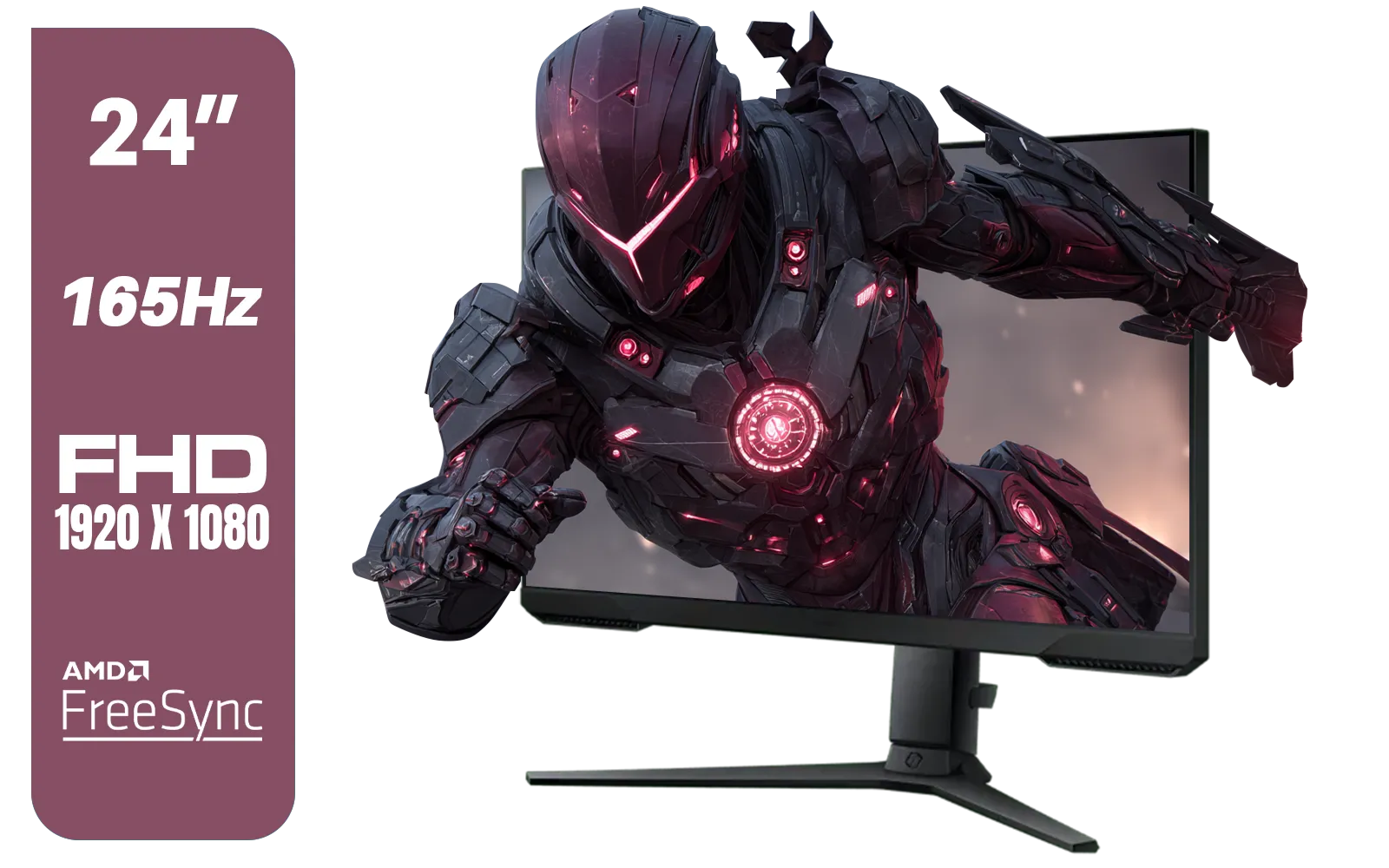
SAMSUNG 24" Odyssey G32A FHD 1ms 165Hz Gaming Monitor with Eye Saver Mode, Free-Sync Premium, Height Adjustable Screen for Gamer Comfort, VESA Mount Capability / LS24AG320NAXXA
R3199.00In Stock

ViewSonic TD1655 15.6" Full HD (1920 x 1080) Portable Touchscreen Monitor / Ultra-portable Design / Advanced in-cell Capacitive Touchscreen / 2-Way Power With USB Type-C / Frameless Design / Portrait and Landscape Modes / dual integrated speakers / TD1655
R5199.00In Stock
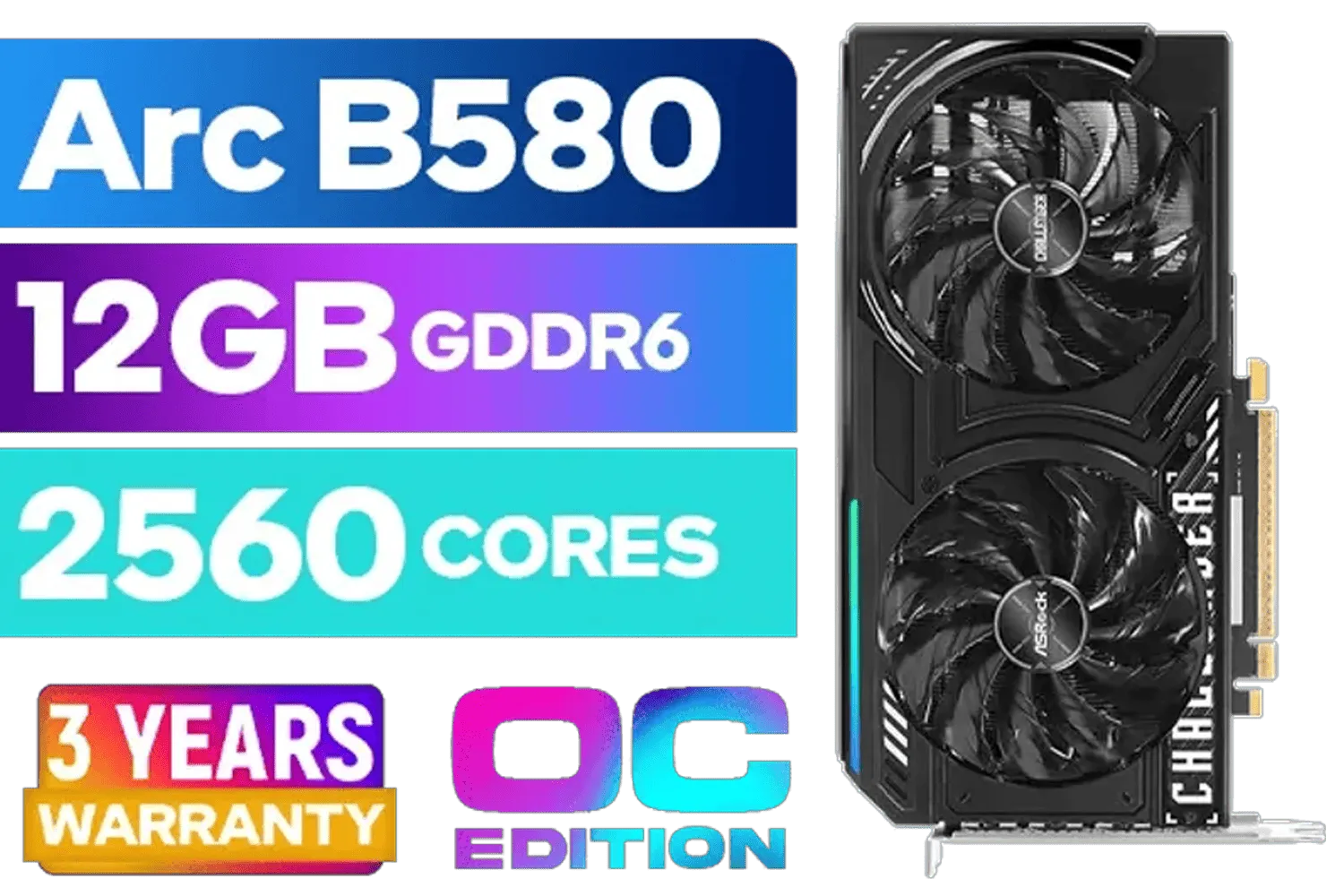
ASRock Intel ARC B580 Challenger OC Graphics Card / 12Gb 192-bit GDDR6 / DirectX 12 Ultimate / 2560 Cores / 2740MHz Engine Clock / 90-GA5LZZ-00UANF
R6499.00In Stock

Dahua LM27-A200V 27" Monitor / FHD 1920 x 1080 / 100Hz Refresh Rate / 5ms Response Time / DHI-LM27-A200V
R2499.00In Stock
For most modern GPUs, a safe temp for 4K gaming is generally below 85°C. Consistently running hotter can reduce the lifespan of your card and lead to thermal throttling.
You can use free software like MSI Afterburner, HWMonitor, or NZXT CAM. These tools provide real-time overlays to track CPU and GPU temperatures during intense gameplay.
Yes, 4K gaming significantly increases the load on your GPU, causing it to work harder and generate more heat compared to gaming at 1080p resolution.
A normal CPU temperature while gaming in 4K typically ranges from 70°C to 85°C. Temperatures consistently above 90°C may indicate insufficient cooling for your processor.
Liquid cooling often provides superior thermal performance for high-end 4K gaming PCs, allowing for lower temps and quieter operation under heavy load compared to air coolers.
Improve airflow by cleaning dust filters and adding case fans, upgrade your CPU cooler, re-apply thermal paste, and ensure your room has good ventilation to reduce PC heat.











