



Overclocking Gaming Laptops in South Africa: A Pro Guide
Thinking about overclocking gaming laptops in South Africa for an FPS advantage? 🚀 Our expert guide details how to safely boost your CPU and GPU performance, the best software to use, and how to manage the risks for tangible in-game gains. Unlock your machine's hidden power! 💻
|
Loading tags...
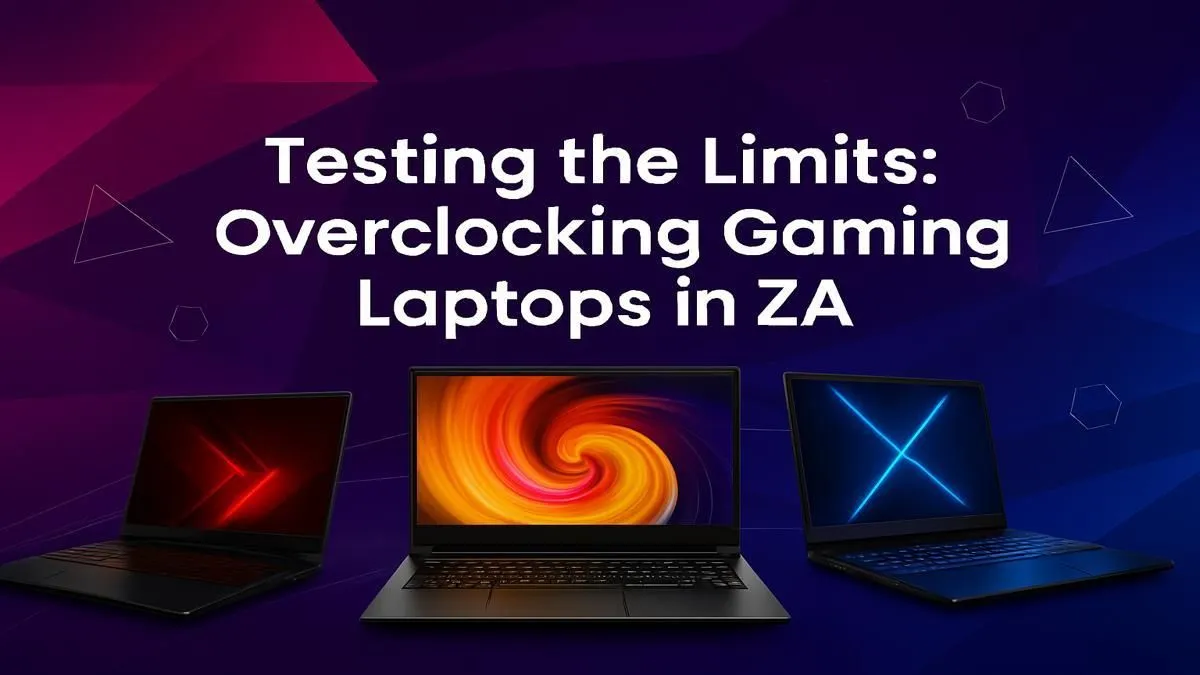
That feeling… you’re dominating a lobby, but you know your machine has more to give. You’ve heard the legends about overclocking gaming laptops in South Africa, a tempting art that promises more frames and smoother gameplay. But is it safe? Can you really squeeze desktop-level performance from your portable powerhouse without it melting on your desk? Let’s dive into the reality of pushing your hardware to its absolute limit. 🚀
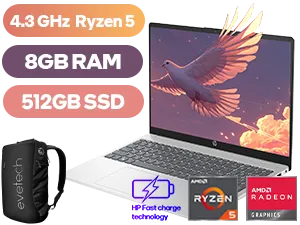
HP 15-fc0003ni 8GB/512GB Ryzen 5
R8,999In Stock
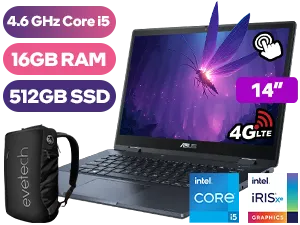
ASUS ExpertBook B3 Flip 16GB/512GB Core i5
R23,999In Stock
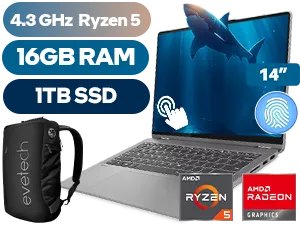
Lenovo IdeaPad Flex 5 16GB/1TB Ryzen 5
R17,999In Stock
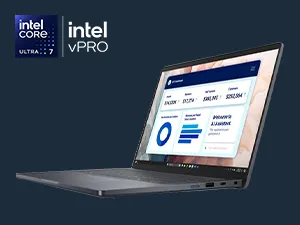
Dell Pro 14 PA14250 16GB/512GB
R39,999In Stock
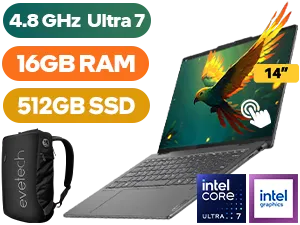
Lenovo Yoga 7 16GB/512GB Core Ultra 7
R20,999In Stock
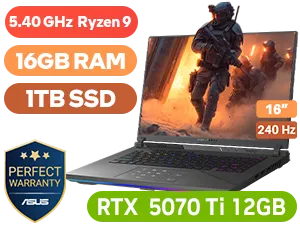
ASUS ROG Strix G16 16GB/1TB Ryzen 9
R47,999In Stock
The Allure of Overclocking Your Gaming Laptop
At its core, overclocking is about forcing your computer's components—primarily the CPU and GPU—to run faster than their official factory speed ratings. For a gamer, the benefit is direct: higher frame rates. A successful overclock could be the difference between a choppy 50 FPS and a silky-smooth 60+ FPS in demanding titles.
The appeal of overclocking gaming laptops in South Africa is particularly strong. Hardware is a significant investment, and the idea of unlocking "free" performance without spending another Rand is incredibly compelling. Why buy a new machine when a few software tweaks could revitalise your current one? It sounds perfect, but there’s a catch… and it’s a big one.
The Hard Truth: Laptops, Heat, and Risk
Unlike a desktop PC with its spacious case and multiple large fans, a laptop is a tightly packed system with very little room for heat to escape. This is the fundamental challenge of laptop overclocking.
When you push your components harder, they generate significantly more heat. In a laptop's confined space, that extra heat can quickly overwhelm the cooling system, leading to:
- Thermal Throttling: Your laptop will automatically slow itself down to prevent damage, completely negating any performance gains from the overclock.
- System Instability: Frequent crashes, blue screens, and corrupted files become a real possibility.
- Reduced Lifespan: Consistently running components at higher temperatures can permanently degrade them over time.
While modern designs have vastly improved cooling, as you can see in some of today's best gaming laptop deals, they are engineered for stock speeds, not extreme overclocking.
Smarter Ways to Boost Your Laptop's Performance 🔧
Instead of risky overclocking, there are safer, often more effective methods to get more performance from your machine. These techniques focus on efficiency rather than brute force.
Start with the Obvious
Before you dive into complex software, ensure your foundations are solid. Update your graphics drivers (NVIDIA GeForce Experience or AMD Software) and make sure Windows is running in "High Performance" mode. A simple cleanup of startup programs can also free up valuable resources. Sometimes, even the most powerful workstation laptops can feel sluggish if they're bogged down by unnecessary background software.
The Secret Weapon: Undervolting
This might sound counter-intuitive, but giving your CPU or GPU less voltage can actually improve performance. How? Factory settings often supply more voltage than necessary, creating excess heat. By carefully reducing the voltage (using tools like Intel XTU or MSI Afterburner), you lower temperatures.
A cooler component can maintain its maximum boost speed for longer without throttling. You get more consistent performance, a quieter laptop, and better battery life. It’s a win-win. ✨
TIP FOR YOU
Keep a Close Eye on Temps! 🌡️
Before you tweak any setting, install a monitoring tool like HWMonitor or MSI Afterburner's on-screen display. Keep a constant watch on your CPU and GPU temperatures. For most gaming laptops, anything consistently above 90-95°C under load is a danger zone. Knowing your baseline temps is crucial before making any changes.
The Final Verdict on Overclocking Laptops in SA
So, is overclocking a gaming laptop worth the risk? For the vast majority of South African gamers, the answer is no. The potential for instability and damage far outweighs the minor performance gains you might see before thermal throttling kicks in.
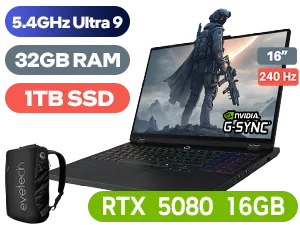
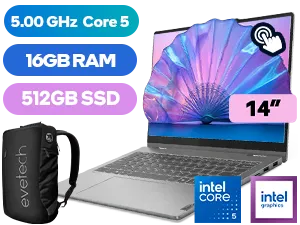
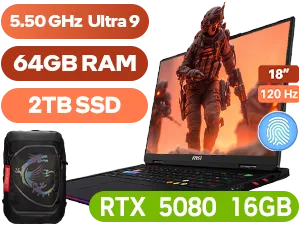
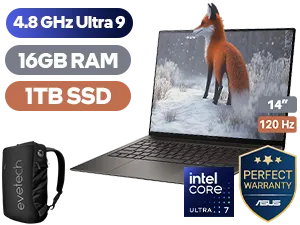
Smarter tweaks like undervolting, driver updates, and system optimisation offer a much safer and more reliable path to better performance. If you've tried everything and still need more power, it might be time to look at an upgrade. Exploring the latest laptop specials for sale in South Africa will often reveal a machine that provides the performance you crave, right out of the box and fully covered by a warranty.
Ready for Effortless Power? Overclocking is a path for experts, but getting elite performance doesn't have to be a risk. If you'd rather spend your time gaming than tweaking, we've got you covered. Explore our massive range of gaming laptop deals and find a machine that's powerful right out of the box.
Related Products
Yes, it can be safe if done cautiously. The key is to make small, incremental adjustments to clock speeds and voltage while closely monitoring temperatures to prevent overheating.
The primary risks are overheating, which can shorten component lifespan, system instability like crashes or blue screens, and potentially voiding your manufacturer's warranty.
MSI Afterburner is the industry standard for GPU overclocking. For CPUs, Intel Extreme Tuning Utility (XTU) and AMD Ryzen Master are the best platform-specific tools available.
Yes. A successful overclock of your GPU and CPU can result in a noticeable performance boost, often providing a 5-15% increase in FPS depending on the game and your hardware.
Aggressive overclocking that leads to sustained high temperatures can accelerate component wear and reduce lifespan. Moderate, well-cooled overclocks have a minimal impact.
Use software like HWiNFO64 or the built-in monitoring tools in MSI Afterburner, Intel XTU, and AMD Ryzen Master to track your CPU and GPU temperatures in real-time.











