



Razer Barracuda X Chroma Connection Issues: How to Fix
Razer Barracuda X Chroma connection issues? Learn proven fixes for drops, pairing failures, and audio cuts with step-by-step checks and quick solutions 🛠️🎮
You’ve unboxed your slick new Razer Barracuda X Chroma, ready to dive into your favourite game… but it just won’t connect. That sudden silence when you expect immersive audio is beyond frustrating. Whether it’s the 2.4GHz dongle ignoring you or Bluetooth giving you the cold shoulder, you’re not alone. Don’t stress, boet. We’ve got the simple, step-by-step guide to fix your Razer Barracuda X Chroma connection issues and get you back in the game. ⚡

Turtle Beach Stealth 500 PC Wireless Headset - Black / 2.4GHz Wireless & Bluetooth® 5.2 / 40mm Drivers / Flip-to-Mute Microphone / QuickSwitch Button / TBS-5104-05
R1899.00In Stock

SteelSeries Arctis Nova 1X Gaming Headset - Signature Arctis Sound - ClearCast Gen 2 Mic - Xbox Series X|S, PC, Playstation, Switch, and Mobile / 61616
R1499.00In Stock
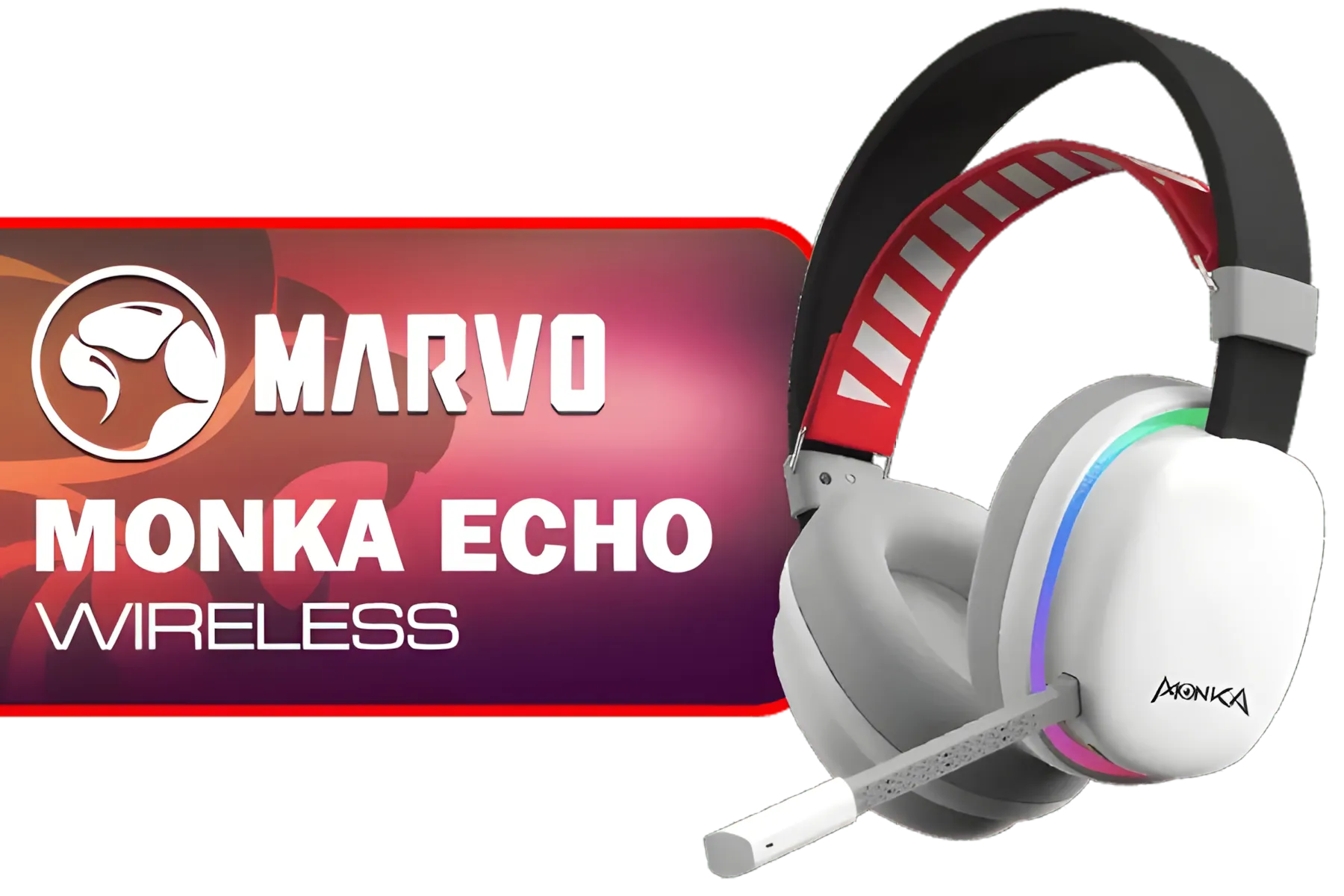
MARVO Monka Echo TRI-MODE WIRELESS GAMING HEADSET / Adjustable Headband / Ergonomical Designed Ear Cups / Switch to Wired Mode / 360° Pickup Microphone / Detachable microphone / 6hrs Music Time / 2hrs Charging Time / 10m Transmission Distance / 3.7V-800mAh Battery / 40 mm Drivers / HG9069W
R499.00In Stock

Logitech G733 Lightspeed Wireless RGB Gaming Headset - White / Lightsync RGB lighting / Fully Customizable / Blue VO!CE Technology / 40mm PRO-G Audio Drivers / DTS Headphone:X 2.0 Surround Sound / USB-C Charging Port / 20m Wireless Range / 981-000882/83
R2799.00In Stock

Razer Kraken Kitty V2 Bluetooth Gaming Headset - Black / 40mm audio drivers / Up to 40-hour battery life / USB-C fast charging support / noise-cancelling microphone / RZ04-04860500-R3M1
R2499.00In Stock

Promate Jewel HD Stereo KidSafe Wired Headset - Bubblegum / Safe Audio Levels / Adjustable Headband / 3.5mm Aux Connector / Audio Sharing / JEWEL.BUBBLEGUM
R249.00In Stock
First Steps: The Quick Connection Checklist
Before diving into complex fixes, let's cover the basics. Sometimes the simplest oversight is the cause of your Razer Barracuda X Chroma connection issues.
- Check the Juice: Is the headset fully charged? A low battery can cause unstable connections. Plug it in for at least 30 minutes and try again.
- A Simple Reboot: Have you tried turning it off and on again? This applies to both your headset and your PC or console. A quick restart can clear temporary glitches.
- Switch USB Ports: Try plugging the USB-C wireless dongle into a different port, preferably one directly on your motherboard rather than a front-panel port or USB hub, which can sometimes be underpowered.
These quick checks solve a surprising number of problems across all kinds of headphone headsets and are always the best place to start.
Fixing 2.4GHz HyperSpeed Wireless Problems 🔧
The most common culprit for the Barracuda X Chroma not connecting is an issue with its 2.4GHz HyperSpeed wireless dongle. Here’s how to get it talking to your headset again.
Logitech G733 Lightspeed Wireless RGB Gaming Headset - White / Lightsync RGB lighting / Fully Customizable / Blue VO!CE Technology / 40mm PRO-G Audio Drivers / DTS Headphone:X 2.0 Surround Sound / USB-C Charging Port / 20m Wireless Range / 981-000882/83
R2799.00In Stock

Logitech G435 Lightspeed and Bluetooth Wireless Gaming Headset - Blue / 18 Hours of Play Time / 165G Lightweight Comfort / Superior Audio Quality / 40mm Audio Drivers / 981-001062
R1599.00In Stock

Logitech G733 Lightspeed Wireless RGB Gaming Headset - Black / Lightsync RGB lighting / Fully Customizable / Blue VO!CE Technology / 40mm PRO-G Audio Drivers / DTS Headphone:X 2.0 Surround Sound / USB-C Charging Port / 20m Wireless Range / 981-000864
R1799.00In Stock
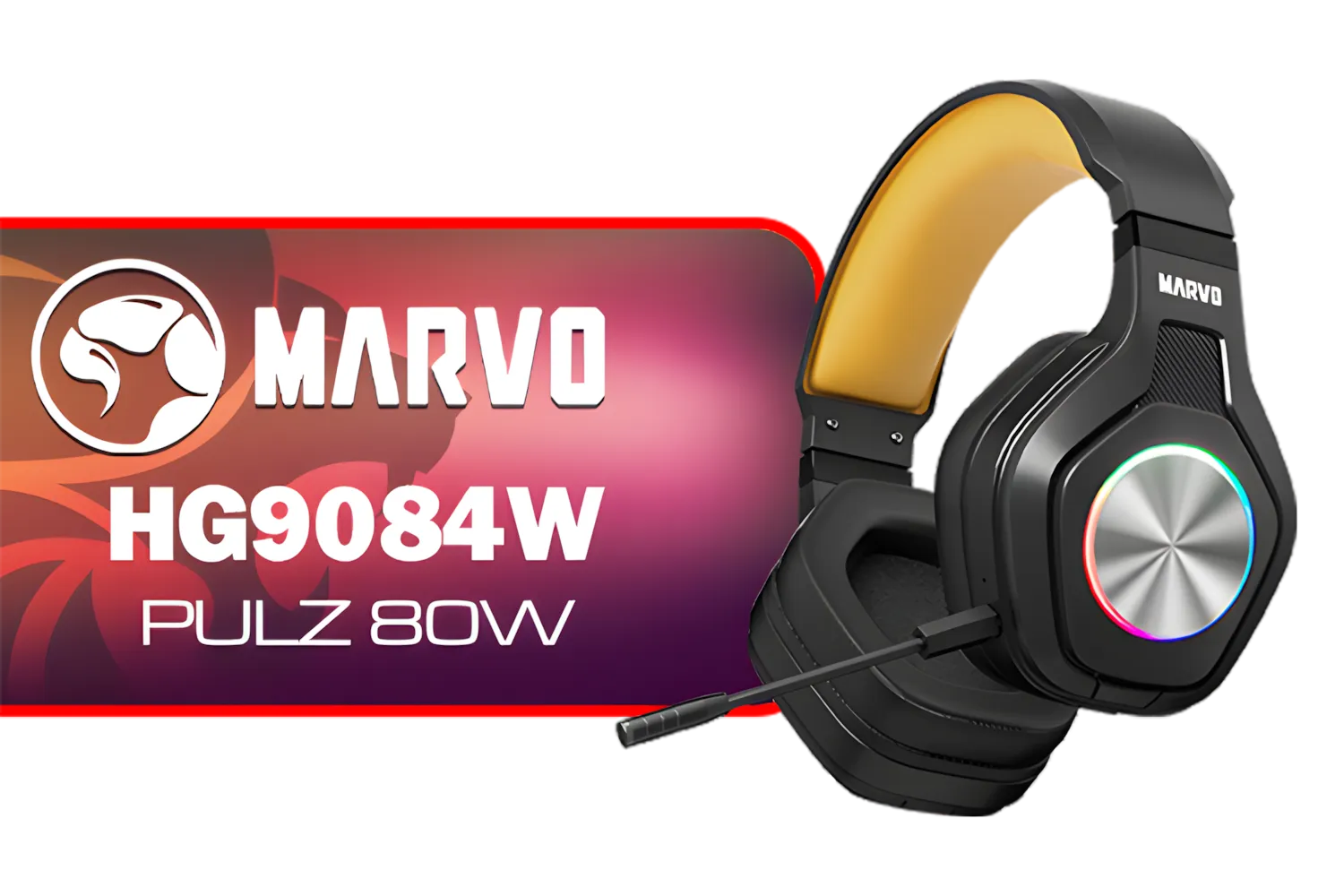
Marvo HG9084W PULZ 80W Wireless Gaming Headset / Stereo Sound / 50mm Speaker Drivers / Ergonomic Design / Static RGB Backlight / Up to 50 Hours of Playback Time / Detachable Microphone / HG9084W
R499.00In Stock
Turtle Beach Stealth 500 PC Wireless Headset - Black / 2.4GHz Wireless & Bluetooth® 5.2 / 40mm Drivers / Flip-to-Mute Microphone / QuickSwitch Button / TBS-5104-05
R1899.00In Stock
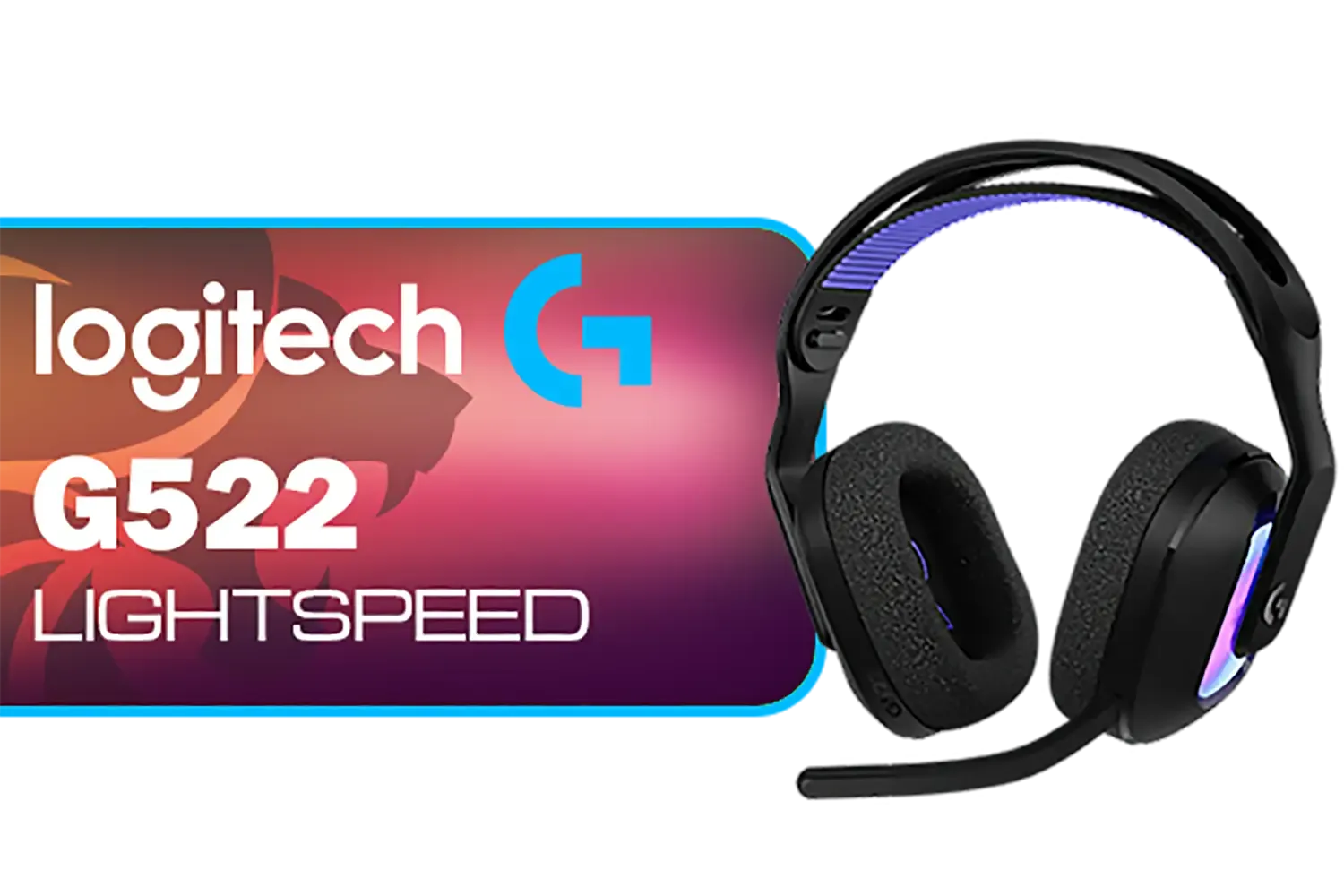
Logitech G522 Lightspeed Wireless RGB Gaming Headset - Black / RGB lighting with 16.8M colors / PRO-G drivers / Switch between wireless, Bluetooth, or wired / Up to 60-Hour Battery / Tune audio and voice with G HUB / 981-001544
R3339.00In Stock
Re-Pair Your Headset and Dongle
Sometimes the headset and dongle simply lose their digital handshake. Re-pairing them is the most effective fix.
- Ensure the headset is powered on and within a meter of the USB-C dongle.
- Press and hold the power button on the headset for exactly 5 seconds. You'll hear an audible cue, and the indicator light will start blinking to show it's in pairing mode.
- Once it's blinking, the headset should automatically connect to the dongle. The indicator light will turn solid green.
This process re-establishes the link and often resolves stubborn connection problems. The Razer Barracuda X Chroma Wireless Headset is designed for a seamless experience, and this quick reset usually restores it.
TIP FOR YOU
Pro Tip: Avoid USB 3.0 Interference ⚡
USB 3.0 ports (usually blue) can sometimes create wireless interference on the 2.4GHz band. If you're still having dropouts, plug your Barracuda X dongle into a USB 2.0 port. Even better, use a short USB-A to USB-C extension cable to move the dongle away from the PC and closer to your headset for a rock-solid signal.
Troubleshooting Bluetooth and Software
If the 2.4GHz connection is solid but Bluetooth is the problem, or if nothing seems to work, it’s time to look at drivers and software. An outdated driver or a software glitch can easily mimic a hardware fault.
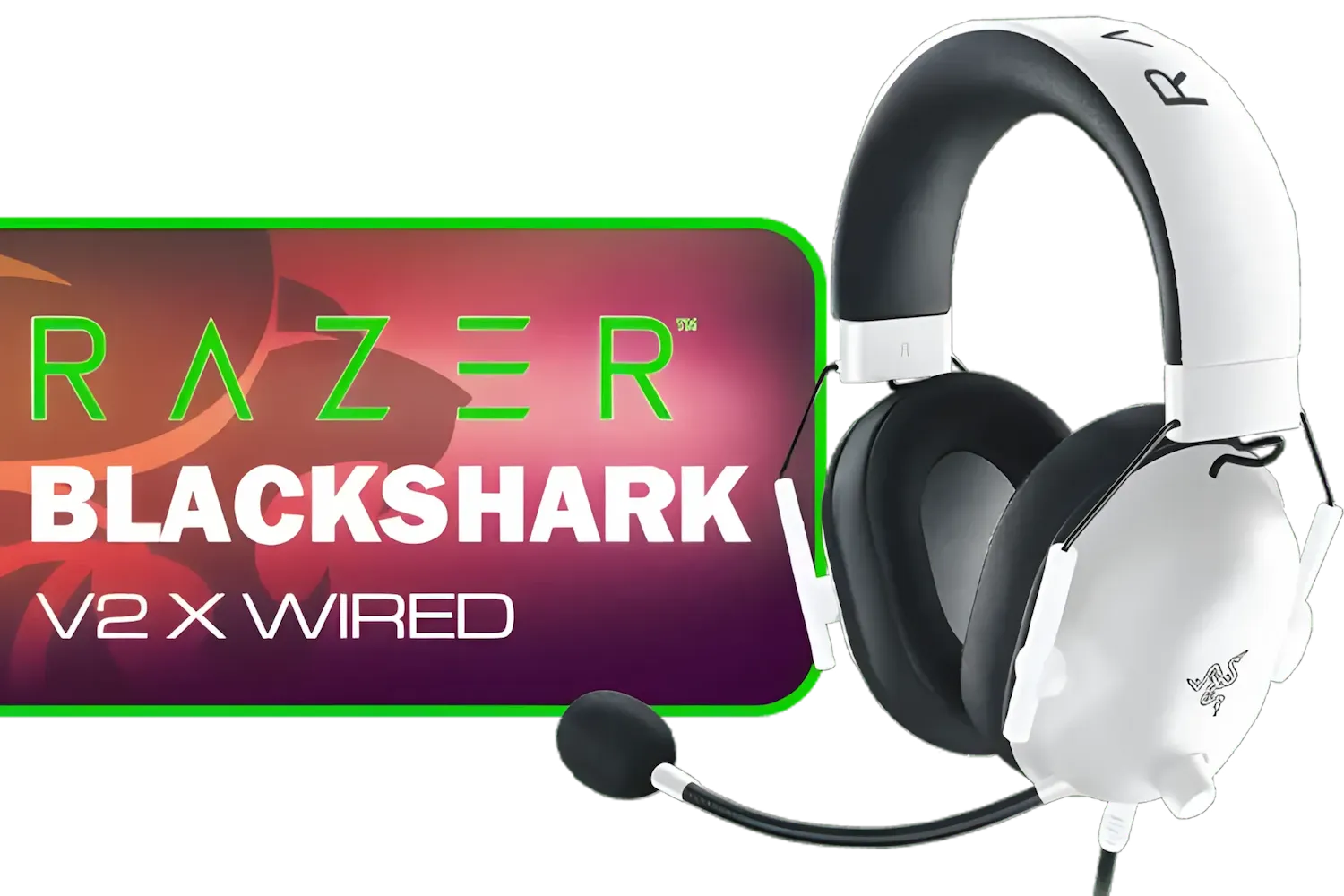
Razer BlackShark V2 X Gaming Headset: 7.1 Surround Sound - White / 50mm Drivers / Memory Foam Cushion / Compatible with PC, Mac, PS4, PS5, Switch, Xbox One, Xbox Series X|S, Mobile / 3.5mm Audio Jack / RZ04-03240700-R3M1
R999.00In Stock
Logitech G733 Lightspeed Wireless RGB Gaming Headset - White / Lightsync RGB lighting / Fully Customizable / Blue VO!CE Technology / 40mm PRO-G Audio Drivers / DTS Headphone:X 2.0 Surround Sound / USB-C Charging Port / 20m Wireless Range / 981-000882/83
R2799.00In Stock
MARVO Monka Echo TRI-MODE WIRELESS GAMING HEADSET / Adjustable Headband / Ergonomical Designed Ear Cups / Switch to Wired Mode / 360° Pickup Microphone / Detachable microphone / 6hrs Music Time / 2hrs Charging Time / 10m Transmission Distance / 3.7V-800mAh Battery / 40 mm Drivers / HG9069W
R499.00In Stock
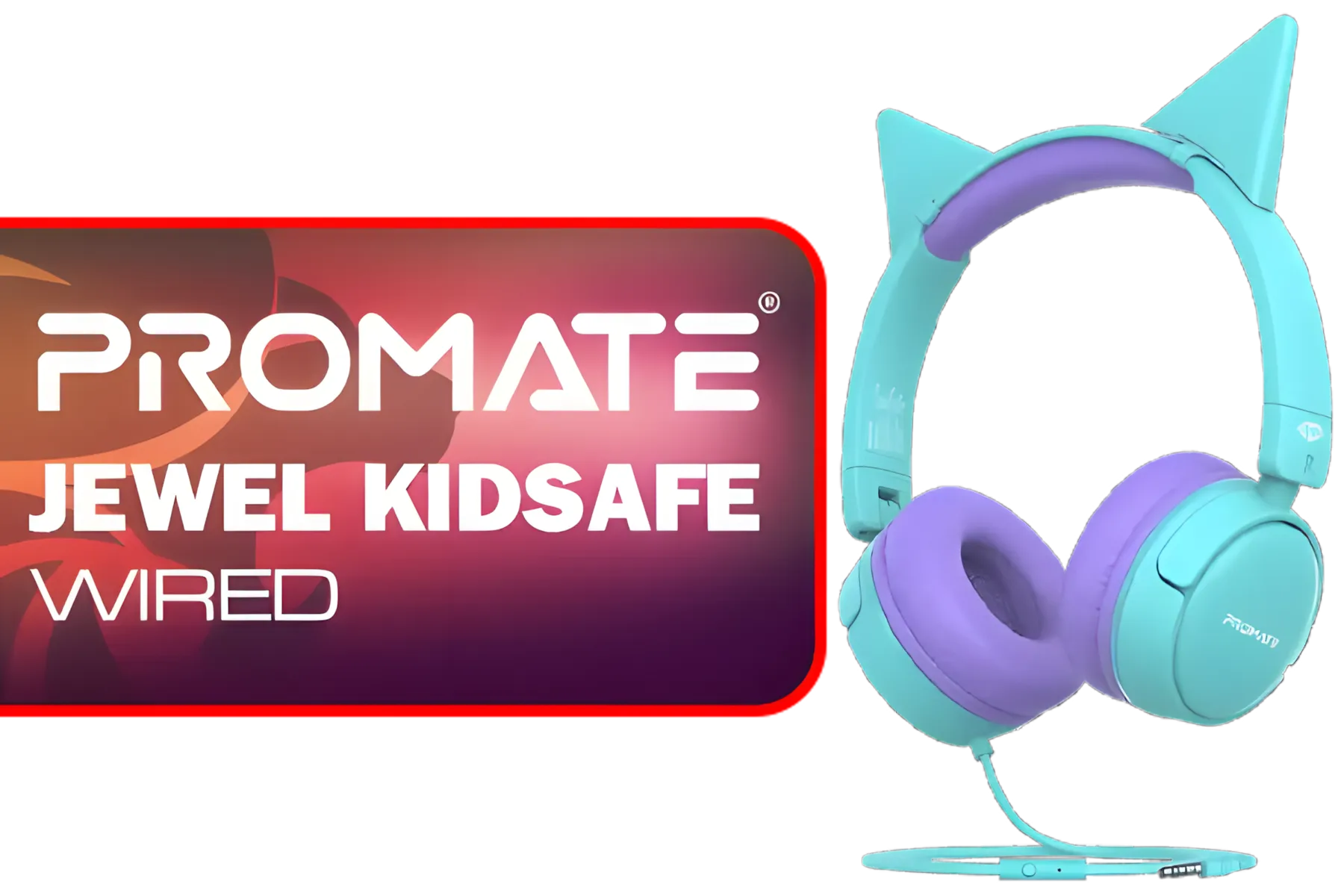
Promate Jewel HD Stereo KidSafe Wired Headset - Aqua / Safe Audio Levels / Adjustable Headband / 3.5mm Aux Connector / Audio Sharing / JEWEL.AQUA
R249.00In Stock

Turtle Beach Recon 70P Gaming Headset - Black / Compatible with PS5, PS4, Xbox Series X, Xbox Series S, Xbox One, Nintendo Switch, Mobile, & PC with 3.5mm / Flip-to-Mute Mic / 40mm Speakers / On-Ear Volume Control / TBS-3001-05
R699.00In Stock

Marvo HP1001 Office Headset / 40mm Speakers / Stereo Sound / HP1001
R299.00In Stock
Update Your Firmware and Drivers
Razer frequently releases firmware updates to improve performance and fix bugs.
- Download and install the latest version of Razer Synapse from Razer's official website.
- Connect your headset to your PC via the USB cable.
- Open Synapse and check for any prompts to update the firmware for your Barracuda X Chroma. Follow the on-screen instructions carefully.
Keeping your software in check is crucial for getting the best performance from all your gear, which is true across Razer's lineup of gaming headsets. A quick update can often be the magic bullet for persistent connection faults. ✨
Ready For Flawless Audio? We hope these fixes get your headset running perfectly. A solid audio setup is key to victory. If you're ready to complete your battle station, from mice to keyboards... we've got your back. Explore our massive range of gaming peripherals and gear up for the win.
Related Products
Logitech G733 Lightspeed Wireless RGB Gaming Headset - Black / Lightsync RGB lighting / Fully Customizable / Blue VO!CE Technology / 40mm PRO-G Audio Drivers / DTS Headphone:X 2.0 Surround Sound / USB-C Charging Port / 20m Wireless Range / 981-000864
R1799.00In Stock
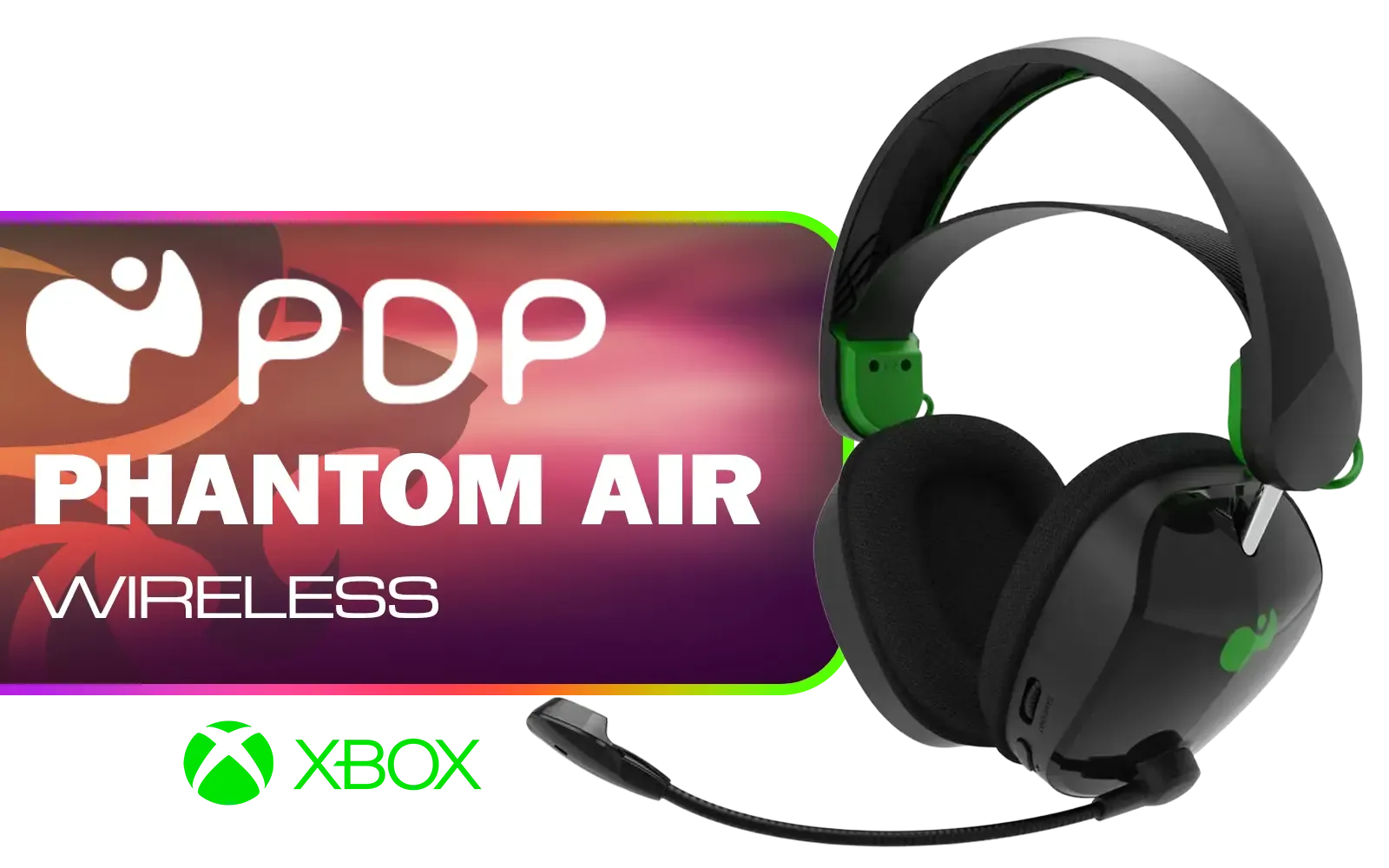
PDP Phantom Air Dual-Mode Wireless Gaming Headset (Xbox) - Black / 50mm Audio Drivers / 35-Hour Battery Life / Noise-Cancelling Microphone / Official Xbox License / PDP-049-038-BK
R999.00In Stock
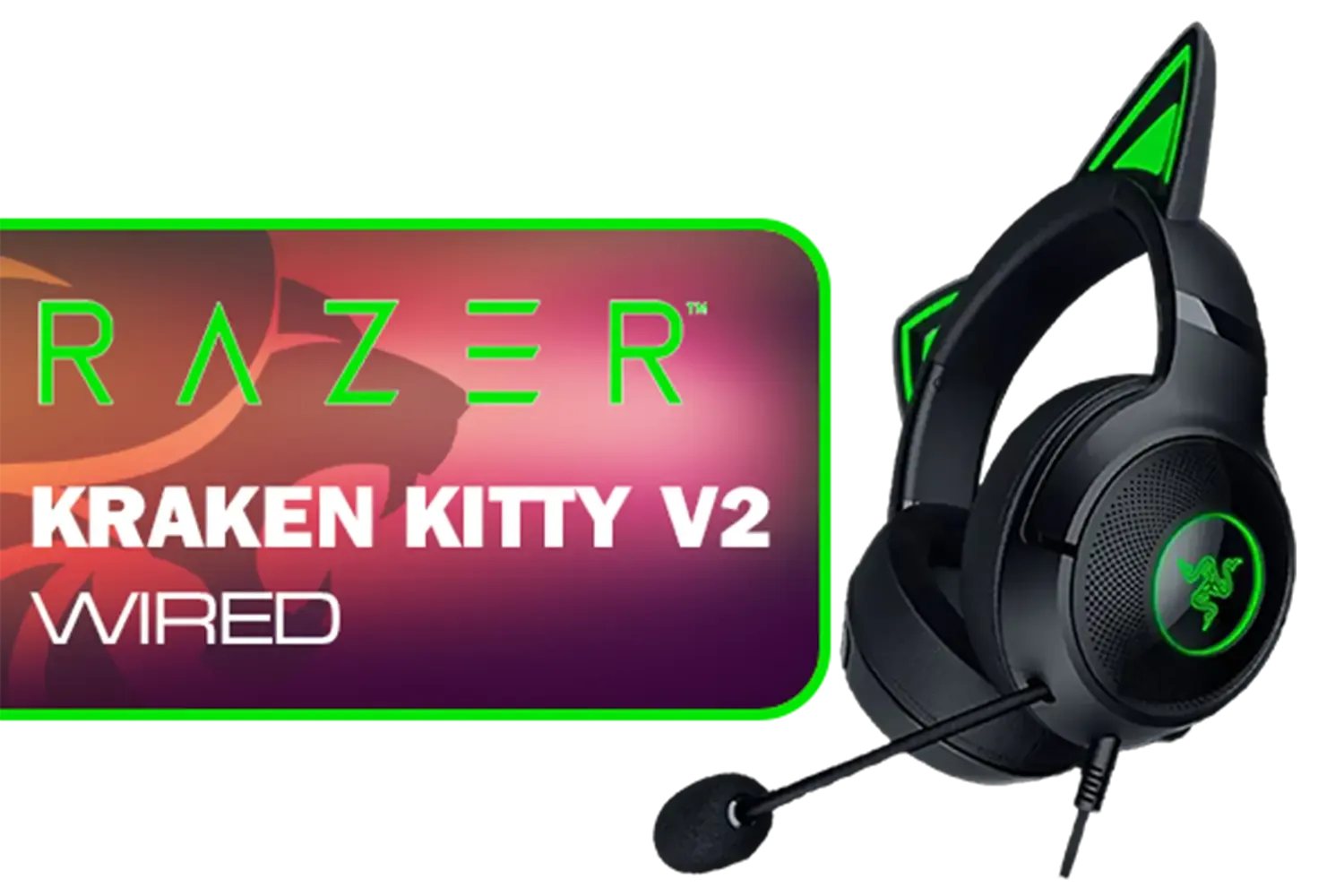
Razer Kraken Kitty V2 Wired RGB Headset with Kitty Ears - Black / Stream Reactive Lighting / HyperClear Cardioid Mic / Triforce 40mm Drivers / 7.1 Surround Sound / RZ04-04730100-R3M1
R2399.00In Stock
Turtle Beach Stealth 500 PC Wireless Headset - Black / 2.4GHz Wireless & Bluetooth® 5.2 / 40mm Drivers / Flip-to-Mute Microphone / QuickSwitch Button / TBS-5104-05
R1899.00In Stock
Marvo HP1001 Office Headset / 40mm Speakers / Stereo Sound / HP1001
R299.00In Stock

Razer BlackShark V2 X Gaming Headset: 7.1 Surround Sound - 50mm Drivers - Memory Foam Cushion - for PC, Mac, PS4, PS5, Switch, Xbox One, Xbox Series X|S, Mobile - 3.5mm Audio Jack - Green / RZ04-03240600-R3M1
R999.00In Stock
Interference, low battery, or outdated firmware often cause disconnects. Move the dongle closer and update firmware to reduce drops.
Plug the 2.4GHz dongle, power on the headset, then press the dongle or headset pairing button until LEDs flash to pair quickly.
Yes. Installing the latest Razer Chroma firmware via Synapse or the updater often resolves stability and pairing problems.
Check audio drivers, USB power settings and disable USB selective suspend to fix Windows 10 audio stuttering with Razer headsets.
Ensure mic is unmuted, set headset as default mic in Windows, and reinstall drivers to fix mic not working on Razer Barracuda.
Move the dongle to a front USB port or use an extension, avoid USB 3.0 interference, and update drivers to prevent usb dongle connection drops.
Yes. Low battery can cause audio cuts and increased latency. Charge fully before long sessions to keep the wireless link stable.











